MyAstroBoard Documentation

Documentation v1.8.3
Your sky, planned and remembered.
MyAstroBoard is a self-hosted astronomy dashboard: it tells you whether tonight is worth setting up, which targets suit your sky and your gear, and keeps a logbook of everything you image. Your data stays on your server.
I want to...
What it looks like
All pages
Note
Some parts of the documentation may be generated with AI.
Why? Documentation is one of the least exciting tasks, but one of the most important.
The pages are grouped by who reads them: using MyAstroBoard, running an instance, and contributing to the code. Not sure where a screen is documented? See Where is it? below.
Using MyAstroBoard
Getting started
- Quick Start - from a fresh install to your first night plan
- Visual Tour - every tab, with screenshots
- Beginner Experience - setup wizard, difficulty ratings, “Tonight for you”, Beginner Catalog
- Glossary - AstroScore, airmass, Bortle, seeing and the other terms on screen
- My settings - theme, startup tab, locations, notifications, password and 2FA, your data
- Phones and tablets - install the app, offline page, push notifications
Tonight
- Astrophotography tab - best imaging window, Moon, Sun, aurora, events calendar
- Weather - Open-Meteo forecast, 7Timer seeing, astro-analysis, alerts
- SkyTonight - targets, AstroScore, catalogues, visibility calendar, framing simulator
- Spaceflight - launches, astronauts, ISS and CSS passes and transits
Planning and logging
- Plan My Night - the night’s timeline, optimizer, exports
- Observation Log - one record per night, what you shot and in which conditions
- Astrodex - your collection of imaged objects, pictures, Photo Map, Catalogue Collection
- Your Sky and Wishlist - progress, sky coverage, best months, what to image next
- Share Cards - ready-to-post images of a picture, a session, tonight’s sky or an event
Equipment
- Equipment - telescopes, cameras, mounts, filters, combinations, FOV, sharing
- Exposure Calculator - sub-exposure length, sky background, integration time
Observatory and integrations
- Observatory - live AllSky image, keogram, timelapse, sensor data
- Home Assistant - sky conditions, targets, events and your activity as Home Assistant devices
- Astrodex Stream - your Astrodex as a Home Assistant camera
- MyAstroShine - send a picture out for re-processing, get the result back
Running an instance
- Installation - Docker, Home Assistant app, system requirements
- Updating - update notice, update, back up, roll back
- Reverse Proxy & HTTPS - NGINX Proxy Manager, Traefik, secure cookies
- Troubleshooting - common problems and how to report one
- Configuration - the App settings tab: constraints, application settings, backup, logs, metrics
- Locations - up to five location presets, attribution, per-user active location
- Users and authentication - roles, sessions, trusted networks, two-factor authentication
- Connectors - AllSky, MQTT, MyAstroShine and Astrodex Stream setup
- Notifications - browser and Web Push notifications (triggers N1-N9, VAPID, iOS)
- Database - SQLite storage, upgrade from 1.6, recovery command line
- Privacy & GDPR - personal data inventory, third parties, retention, user rights
- Demo Mode - a public, read-only demo instance
- Security policy - security model, reporting a vulnerability
Contributing
- Contributing guide - setup, style, tests, pull requests
- Organization - architecture, source tree, runtime data
- Extending MyAstroBoard - extension points and the no-new-dependency-cycles rule
- API Endpoints - every HTTP route
- Cache System - background cache, per-job TTLs, per-location slots, map tiles
- Translations - adding or improving a language
- Release Guide - publishing a version
- Changelog - released and unreleased changes
Where is it?
| Tab | Sub-tab | Page |
|---|---|---|
| Astrophotography | Astrophotography, Best window, Moon, Sun, Aurora Borealis, Events Calendar | ASTROPHOTOGRAPHY.md |
| Weather | Weather, Seeing Forecast, Observation Conditions | WEATHER.md |
| SkyTonight | Plot, Deep Sky Objects, Solar System Bodies, Comets, Logs, DSO not found? | SKYTONIGHT.md |
| SkyTonight | Beginner | BEGINNER_EXPERIENCE.md |
| Astrodex | Astrodex, Photo Map, Catalogue Collection | ASTRODEX.md |
| Astrodex | Plan my night | PLAN_MY_NIGHT.md |
| Astrodex | Observation Log | OBSERVATION_LOG.md |
| Astrodex | Your Sky, Wishlist | SESSION_ANALYTICS.md |
| Spaceflight | Launches, Astronauts, Space Events, Orbital Stations | SPACEFLIGHT.md |
| Observatory | (appears with a connector) | OBSERVATORY.md |
| Equipment | Combinations, FOV Calculator, Telescopes, Cameras, Mounts, Filters, Accessories | EQUIPMENT.md |
| Equipment | Exposure Calc | EXPOSURE_CALC.md |
| My settings | Customize, Location, Notifications, Security | USER_SETTINGS.md |
| App settings | Locations | LOCATIONS.md |
| App settings | Configuration, Logs, Metrics, Backup / Restore | CONFIGURATION.md |
| App settings | Connectors | CONNECTORS.md |
| App settings | Users | AUTHENTICATION.md |
| Header | Sky status widget, location switcher | LOCATIONS.md |
| Footer | Update notice, What’s new | 3.UPDATE.md |
| Several | Framing simulator | SKYTONIGHT.md |
| Several | Share cards | SHARE_CARDS.md |
Quick links
- Install:
docker compose up -d, then open http://localhost:5000 - Default credentials:
admin/admin(change them at once) - Update:
docker compose pull && docker compose up -d - Source code: https://github.com/myastroboard/myastroboard
- Report an issue: https://github.com/myastroboard/myastroboard/issues
License
MyAstroBoard is open source software licensed under the AGPL-3.0 License. Copyright (C) 2025-2026 WorldOfGZ and contributors.
In accordance with AGPL-3.0 requirements for network use, the corresponding source code for deployed versions is available in this repository: https://github.com/myastroboard/myastroboard
Quick Start
From a fresh installation to your first night plan. Each step links to the page that covers it in full.
1. Sign in and change the default password
Open http://<host>:5000 and sign in with admin / admin. A warning reminds you to change
that password at each sign-in until it is done (My settings -> Security). See AUTHENTICATION.md.
2. Follow the setup wizard
On a fresh install the admin account opens a guided wizard: location, sky quality (Bortle / SQM), equipment, notifications, then a preview of tonight’s best targets. Every step can be skipped and done later. See BEGINNER_EXPERIENCE.md.
What the wizard fills in can be changed afterwards:
| Setting | Where |
|---|---|
| Location, timezone, sky quality, horizon profile | App settings -> Locations (LOCATIONS.md) |
| SkyTonight constraints (altitude, airmass, size, Moon separation) | App settings -> Configuration (CONFIGURATION.md) |
| Telescopes, cameras, combinations | Equipment (EQUIPMENT.md) |
| Notifications | My settings -> Notifications (NOTIFICATIONS.md) |
| Theme, language, startup tab, experience level | My settings -> Customize (USER_SETTINGS.md) |
3. Wait for the first SkyTonight run
SkyTonight computes tonight’s targets in the background: once at startup, then one hour after nautical dawn and one hour before nautical dusk. The first run takes a few minutes; its progress shows in the SkyTonight tab. To rerun it after changing a setting, use Run SkyTonight Now in App settings -> Configuration. See SKYTONIGHT.md.
4. Decide whether tonight is worth it
- Astrophotography tab: the night’s score, the best imaging window, the Moon, the Sun, aurora and upcoming events (ASTROPHOTOGRAPHY.md).
- Weather tab: hourly forecast, seeing and transparency, observation conditions (WEATHER.md).
5. Pick targets and plan the night
- In SkyTonight -> Deep Sky Objects, sort by AstroScore, filter by type or constellation, and open a target for its altitude chart and details.
- Add targets to Plan My Night (Astrodex -> Plan my night), set a duration for each, and let the optimizer order them by visibility (PLAN_MY_NIGHT.md).
- Check the framing of a target with your camera in the framing simulator (SKYTONIGHT.md).
6. After the night
- Turn the plan into an Observation Log session and record what you actually shot (OBSERVATION_LOG.md).
- Add your pictures to the Astrodex, your personal collection of imaged objects (ASTRODEX.md).
- Watch your progress in Your Sky and keep a Wishlist of what is next (SESSION_ANALYTICS.md).
Next steps
- Several sites or several users: LOCATIONS.md, AUTHENTICATION.md
- Phone use and push notifications: MOBILE.md
- HTTPS and remote access: 6.REVERSE_PROXY.md
- Something does not work: TROUBLESHOOTING.md
- Updating: 3.UPDATE.md
Last updated 2026-11-13
MyAstroBoard - Visual Tour
A walkthrough of MyAstroBoard’s interface, tab by tab - from tonight’s go/no-go decision to the logbook of everything you have imaged. Each section links to the page that documents the feature in full.
Table of Contents
- Astrophotography
- Weather
- SkyTonight
- Astrodex
- Spaceflight
- Observatory
- Equipment
- My settings
- App settings
- Everywhere
Astrophotography
Everything you need to decide whether tonight is worth setting up the telescope. Details: ASTROPHOTOGRAPHY.md.
Astrophotography
The night’s conditions through an astrophotographer’s eyes - clouds, transparency, seeing, wind, humidity, dew risk - with alerts when something will spoil the session.
Best window
The best imaging window of the night, computed in three modes: Moon below the horizon, Moon below 5 degrees, or Moon less than 15% lit.
Moon
Phase, rise and set, altitude chart, dark-sky window, the next nights and a monthly phase calendar. Lunar eclipses are highlighted.
Sun
Twilight times, altitude chart and the next solar eclipse for your location.
Aurora Borealis
Kp forecast and a visibility assessment for your latitude.
Events Calendar
Upcoming sky events - conjunctions, oppositions, meteor showers, eclipses, ISS transits - with the parameters that help you prioritize them. An event can be turned into a share card.
Weather
Details: WEATHER.md.
Weather
Hourly forecast for the night from Open-Meteo: temperature, precipitation, cloud layers, wind, pressure.
Seeing Forecast
Seeing and transparency from 7Timer for your location.
Observation Conditions
Time series of the atmospheric conditions to find the sweet spot of the night.
SkyTonight
SkyTonight computes the best targets for the coming night from a dozen catalogues and ranks them with an AstroScore (visibility, sky quality, brightness, comfort). Details: SKYTONIGHT.md.
Plot
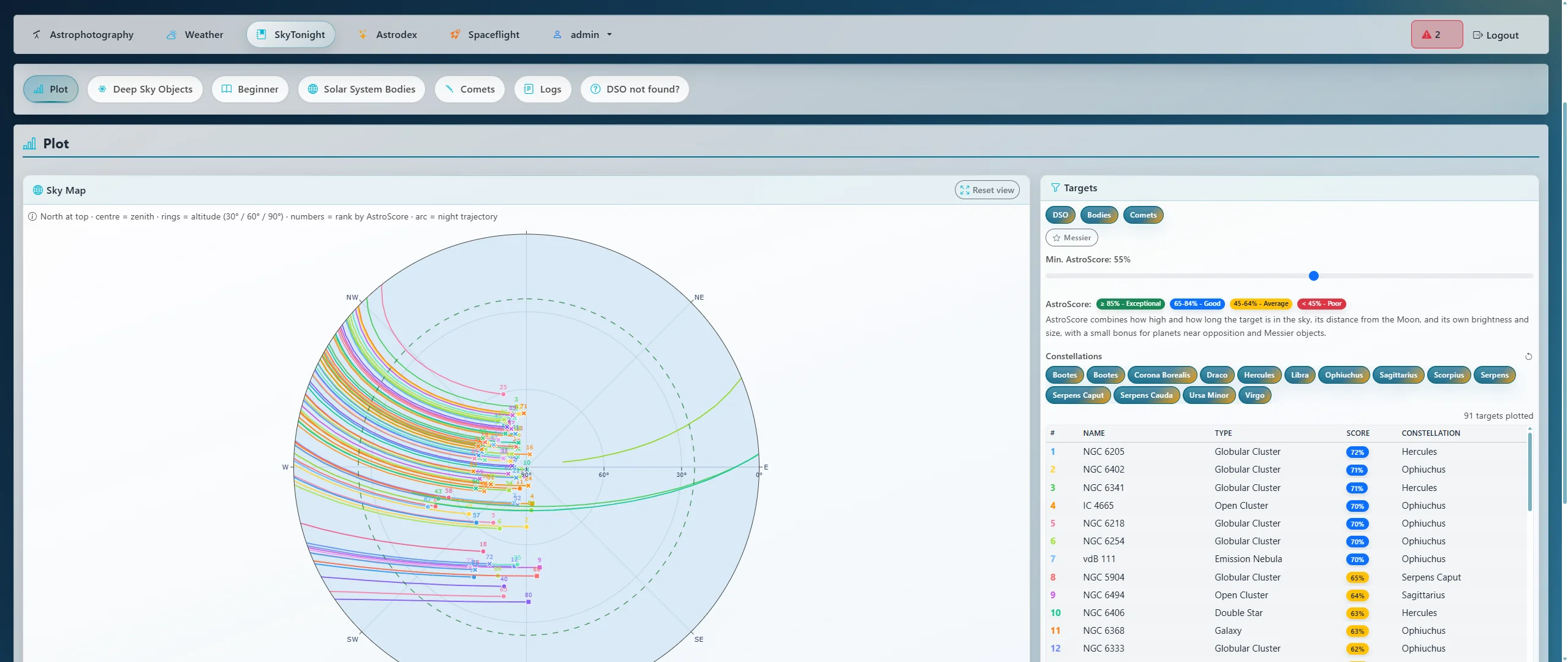
A polar map of the sky with the path of every observable target tonight; click a target to inspect it.
Deep Sky Objects
Thousands of deep-sky objects, scored and sorted. Filter by type, size, magnitude, constellation, AstroScore, or by how well a target fits your equipment. “Tonight for you” picks a few targets matched to your experience level (BEGINNER_EXPERIENCE.md).
Each target opens a details panel with catalogue names, transit time, a visibility calendar over the year, and the equipment combinations that suit it best.
The Beginner catalogue is a curated list of forgiving targets, each with an explanation.
Solar System Bodies and Comets
The Moon and planets, and the comets currently observable, from live orbital elements.
Altitude charts
An altitude-vs-time chart for every target, with the astronomical night and the observable zone, and your horizon profile.
Framing simulator
Your sensor’s field drawn over a real image of the sky around a target, with rotation and up to three equipment combinations compared side by side. Also opens from the Wishlist, Plan My Night and the Astrodex. See SKYTONIGHT.md.
Astrodex
Your logbook, from the plan to the finished picture: Plan -> Observe -> Log -> Astrodex.
Astrodex
Your collection of imaged objects, with your pictures, their acquisition details, ratings and notes. A picture can be turned into a share card, or sent to MyAstroShine for re-processing (MYASTROSHINE.md). Details: ASTRODEX.md.
Plan my night
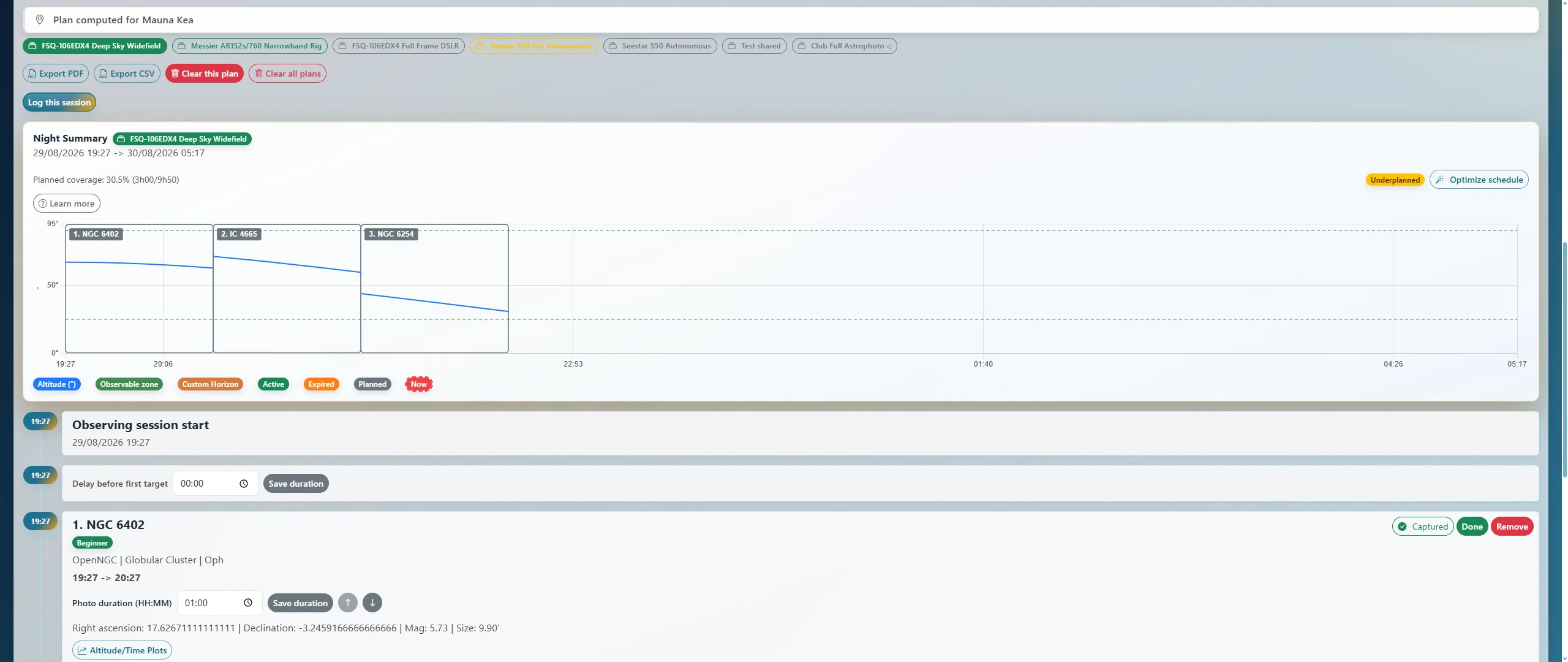
Turn your SkyTonight shortlist into a timeline for the night: durations, ordering (by hand or by the optimizer), live progress during the night, CSV and PDF export. Shared equipment combinations appear in the combination selector alongside your own. Details: PLAN_MY_NIGHT.md.
Observation Log
One record per night: conditions, equipment, and what you shot on each target. A plan becomes a session in one click, and frames logged on a target add it to the Astrodex. Details: OBSERVATION_LOG.md.
Your Sky
Everything the Observation Log knows, read back to you: total integration time, the object types and constellations you favour, which equipment did the work, and how your ratings line up with the seeing, transparency, SQM and Moon you recorded. Every comparison shows its own sample count, and a group with too few nights behind it says so. Details: SESSION_ANALYTICS.md.
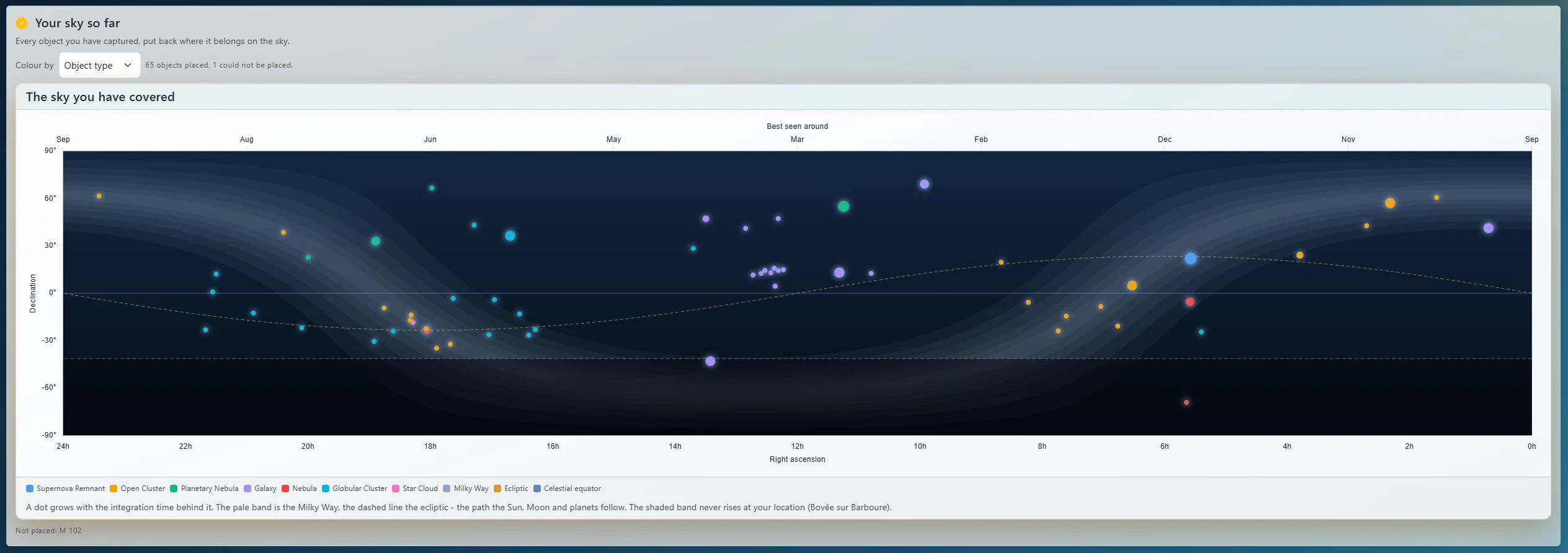
The sky coverage chart draws your captures over the Milky Way and the ecliptic, with the band of sky that never rises from your location shaded out.
Wishlist
The targets you want to image next, with a priority, when each one is next visible, and how many you have already captured.
Photo Map
Where your pictures were taken, on a map, from the locations you entered on them. Whether other users’ pictures appear is an administrator setting.
Catalogue Collection
Pick a catalogue (Messier, Caldwell, Herschel 400…) and see which of its objects you have already caught.
Spaceflight
Details: SPACEFLIGHT.md.
Launches
Upcoming and recent launches, with a detailed view and the webcast when one is available.
Astronauts
Who is in space right now, on which vehicle, and for how long.
Space Events
Mission milestones, spacewalks, dockings and other spaceflight events.
Orbital Stations
Visible passes of the ISS and the China Space Station (Tiangong) over your location, and their transits across the Sun and the Moon.
Observatory
A live panel fed by your own equipment through connectors: AllSky camera image, keogram, startrails, timelapse and sensor data. The tab appears once a connector is enabled. Details: OBSERVATORY.md, CONNECTORS.md.
Equipment
Telescopes, cameras, mounts, filters and accessories, combined into named equipment combinations. Combinations feed the target recommendations, the field-of-view filters, the framing simulator and the exposure calculator. Details: EQUIPMENT.md, EXPOSURE_CALC.md.
Sharing equipment
Every piece of equipment can be marked Share with all users. Shared items show up, read-only, for every other user: in their Equipment tab, the FOV calculator, the target recommendations, the Astrodex picture form and the Plan My Night combination selector. A combination counts as shared only when every piece it uses is shared. When a shared combination goes away, plans built on it are kept and show a warning. Useful for a family or a club that shares a mount or a filter set.
My settings
Each user’s own preferences: theme (including a red night-vision theme), startup tab, density, time format, experience level, their locations, notifications, password and two-factor authentication, and the download of their personal data. Details: USER_SETTINGS.md.
App settings
Administration of the instance (admin only). Details: CONFIGURATION.md.
- Locations: up to five location presets, attributed to users (LOCATIONS.md).
- Configuration: SkyTonight constraints, Astrodex privacy, notifications contact, reverse proxy, MQTT connections.
- Connectors: AllSky, MyAstroShine, MQTT / Home Assistant, Astrodex Stream (CONNECTORS.md, HOME_ASSISTANT.md).
- Logs: live log viewer, levels, retention, and an export to attach to a GitHub issue.
- Users: accounts and roles (admin, user, read-only), trusted networks, two-factor policy (AUTHENTICATION.md).
- Metrics: system, database, scheduler and cache job health.
- Backup / Restore: one archive with your configuration, accounts and collections.
Everywhere
- Sky status widget in the header: the current state of the night and the active location, with a switcher when you have several.
- Share cards: a picture, a session, tonight’s sky or an event as a ready-to-post image (SHARE_CARDS.md).
- Phones: installable as an app, with push notifications (MOBILE.md).
- Six languages: English, French, Spanish, German, Italian, Portuguese.
Last updated 2026-11-13
Beginner Experience
MyAstroBoard is built to stay useful as an astrophotographer’s skill grows, but the app previously assumed prior knowledge: no onboarding, no skill-aware guidance, no starter target list. The Beginner Experience (v1.1, “First Light”) closes that gap with four cooperating pieces:
| Piece | What it does |
|---|---|
| Guided Setup Wizard | Multi-step first-run modal: location, sky quality, equipment, notifications, “tonight” preview |
| Difficulty model | A static, per-target 0-100 difficulty score computed alongside AstroScore |
| “Tonight for you” recommendations | 3-5 targets matched to the user’s skill level, shown at the top of SkyTonight -> DSO |
| Beginner Catalog | A curated, hand-picked list of ~30 forgiving starter targets with explanations |
All of it is opt-out, not opt-in: existing users default to experience_level: advanced, which
behaves exactly like before (all targets shown, no filtering).
Guided Setup Wizard
Module: static/js/first_run.js (logic) + templates/index.html#wizard-modal (markup)
Replaces the old single-step “set your location” popup with a skippable multi-step wizard. The steps shown depend on the user’s context, determined once at launch:
function _getWizardFlow(config, currentUser) {
    const locationSet = config.location_configured === true;
    const isAdmin = currentUser.role === 'admin';
    if (!locationSet && isAdmin) return 'full';   // Context A
    return 'user';                                // Context B
}
| Flow | Who sees it | Steps |
|---|---|---|
full (Context A) | Admin, on a fresh install with no location configured yet | Location -> Sky quality (Bortle/SQM) -> Equipment -> Notifications -> Tonight |
user (Context B) | Any other user (location already configured by an admin) | Welcome (read-only site info) -> Equipment -> Notifications -> Tonight |
Location and Bortle steps only appear for the admin doing the initial install, since those settings are shared/global (see CONFIGURATION.md) rather than per-user.
- Equipment step: preset picker (
static/data/equipment_presets.json) or manual entry; also lists the user’s existing telescopes/cameras (including shared equipment). Saves via the existingPOST /api/equipment/telescopes/ cameras endpoints (see EQUIPMENT.md). - Notifications step: same triggers as My settings -> Notifications, toggle-only; on the fresh install it also asks for the VAPID contact email (see NOTIFICATIONS.md). Skip is always available and never pressured.
- Tonight step: renders the same “Tonight for you” panel described below, then a button to jump straight to SkyTonight.
Trigger and completion state
A new wizard preference tracks completion:
"wizard": { "completed": false, "skipped": false }
The wizard shows when both are false. Skipping (single step or “skip all”) sets skipped: true
and persists via PUT /api/auth/preferences - unlike the old popup, the skip is permanent across
sessions/devices, not a sessionStorage flag. Users can run it again anytime from
My settings -> Customize -> Redo Setup Wizard.
“Tonight for you” recommendations
Endpoint: GET /api/skytonight/recommendations (@login_required) - see
API_ENDPOINTS.md
A panel injected above the DSO table on the SkyTonight tab. It reads the user’s experience_level
preference, filters dso_results.json to matching difficulty tiers, sorts by AstroScore
descending, and returns the top N (default 5, max 10 via ?limit=):
experience_level | Difficulties shown |
|---|---|
beginner | beginner only |
intermediate | beginner + intermediate |
advanced (default) | everything |
Each card shows the target name, type badge, difficulty badge, estimated integration time, and an
“Add to Plan” button. estimated_integration_hours comes from the Beginner Catalog when the
target is one of its ~30 curated entries; otherwise it’s a rough estimate derived from the
difficulty tier (beginner -> 2h, intermediate -> 4h, advanced -> 8h) and flagged as such via
estimated_integration_hours_is_estimate.
The preference is set in My settings -> Customize alongside density/theme, and defaults to
advanced so existing users see no behavior change until they opt in.
Beginner Catalog
Module: backend/observation/beginner_catalog.py · Data: backend/catalogues/beginner_catalog.json
(34 hand-picked entries) · Endpoint: GET /api/beginner-catalog - see
API_ENDPOINTS.md
A “Beginner” sub-tab on SkyTonight showing a card grid (not a table) of curated, forgiving starter targets - bright nebulae, open clusters, and a few landmark galaxies. Each card explains why the object is beginner-friendly and suggests a framing, plus:
- Visible tonight badge, cross-referenced against the current
dso_results.json - Captured state, cross-referenced against the user’s Astrodex
- In plan state, cross-referenced against Plan My Night
- Filters: visible-tonight-only toggle, difficulty (capped at the user’s own
experience_level), object type
The catalogue JSON stores only structural data and an i18n_key per object - no English text is
hardcoded in the data file. The why_beginner and suggested_framing strings are resolved at
request time via I18nManager from beginner_catalog.objects.<i18n_key>.why / .framing in the
i18n files, so the whole catalogue is translated in all 6 supported languages.
This tab can be turned off entirely per-user via the beginner_catalog_enabled preference
(My settings -> Customize) for users who find it redundant with the DSO table.
Difficulty model
Module: backend/skytonight/skytonight_calculator.py -> compute_difficulty_score()
Every target that SkyTonight computes gets a static difficulty score alongside its AstroScore.
Unlike AstroScore, difficulty does not depend on location, date, or Bortle class - the same
object is always the same difficulty everywhere. It is computed once per calculation run and
stored in dso_results.json as difficulty_score (0-100, lower = easier) and difficulty
(beginner / intermediate / advanced).
| Factor | Weight | Easier when… |
|---|---|---|
| Surface brightness (mag/arcsec²) | 0.40 | Brighter (lower value) |
| Angular size (arcmin) | 0.30 | Larger |
| Visual magnitude | 0.20 | Brighter (lower value) |
A fourth factor (minimum integration hours, weight 0.10) is a documented simplification: no per-target minimum-integration data exists in the general catalogue, so it always contributes 0. This caps the theoretical maximum raw score around ~90 instead of 100 but does not move any target across a threshold.
When magnitude or size is missing, the surface-brightness and size components are zeroed and only
the magnitude factor is used (“magnitude-only” scoring). If magnitude is also missing, the target
gets a neutral default of (50, 'intermediate').
Thresholds: score ≤ 35 -> beginner, 35 < score ≤ 65 -> intermediate, score > 65 -> advanced.
Difficulty is surfaced as a color-coded badge (green/orange/red) wherever a target appears: the SkyTonight DSO table (with a difficulty filter dropdown), Astrodex entries, and Plan My Night entries.
Preferences reference
New keys added to preferences (see AUTHENTICATION.md):
| Preference | Allowed values | Default | Description |
|---|---|---|---|
experience_level | beginner, intermediate, advanced | advanced | Filters recommendations and the Beginner Catalog’s difficulty ceiling |
beginner_catalog_enabled | boolean | true | Shows/hides the “Beginner” SkyTonight sub-tab |
wizard.completed | boolean | false | Set once the guided wizard is finished |
wizard.skipped | boolean | false | Set if the user skips the wizard (any step, or “skip all”) |
i18n namespaces
| Namespace | Content |
|---|---|
wizard.* | Wizard step titles, navigation, skip/redo strings |
difficulty.* | Badge labels (beginner/intermediate/advanced) and the difficulty explanation tooltip |
recommender.* | “Tonight for you” panel strings |
beginner_catalog.* | Beginner Catalog tab strings, plus one objects.<i18n_key>.why / .framing pair per catalogue entry |
Files reference
| File | Role |
|---|---|
static/js/first_run.js | Wizard flow selection, step rendering, skip/completion persistence |
static/data/equipment_presets.json | Gear presets offered in the wizard’s equipment step and in the Equipment tab’s “New …” modals - see EQUIPMENT.md#presets |
backend/skytonight/skytonight_calculator.py | compute_difficulty_score() |
backend/blueprints/skytonight_api.py | GET /api/skytonight/recommendations |
backend/observation/beginner_catalog.py | Catalogue loading, i18n resolution, SkyTonight/Astrodex/Plan enrichment |
backend/catalogues/beginner_catalog.json | The 34-entry curated dataset |
backend/blueprints/astrodex.py | GET /api/beginner-catalog route |
static/js/skytonight.js | Recommendations panel, difficulty badges/filter, Beginner sub-tab |
static/js/auth.js | experience_level / beginner_catalog_enabled controls in My settings -> Customize |
Last updated 2026-11-13
Glossary
The terms MyAstroBoard shows on screen, in plain words, with the page that explains how each one is computed.
| Term | Meaning |
|---|---|
| Airmass | How much atmosphere the light crosses, relative to straight up (1 at the zenith, 2 at 30 degrees of altitude). The higher, the more blur and extinction. SkyTonight’s default limit is 2 (SKYTONIGHT.md). |
| Altitude / azimuth | Height of an object above the horizon (degrees) and its direction along the horizon, from north through east. |
| AstroScore | MyAstroBoard’s 0-to-1 rating of how good a target is tonight from your location: visibility 40%, sky quality 25%, brightness 25%, comfort 10%, plus small bonuses (SKYTONIGHT.md). |
| Astronomical night | The Sun more than 18 degrees below the horizon: the sky is fully dark. The best imaging window is searched inside it (ASTROPHOTOGRAPHY.md). |
| Bortle class | A 1 (pristine) to 9 (inner city) scale of light pollution at your site, set per location (SKYTONIGHT.md). |
| Culmination / transit | The moment an object is highest in the sky, crossing the meridian. |
| Dark window | The part of the night with no Sun and no Moon in the sky. |
| Difficulty | MyAstroBoard’s 0-to-100 estimate of how hard a target is for a beginner, used by “Tonight for you” (BEGINNER_EXPERIENCE.md). |
| DSO | Deep-sky object: galaxy, nebula, star cluster - anything beyond the solar system. |
| Equipment combination | A named set of telescope (or lens), camera, mount and filters that you image with (EQUIPMENT.md). |
| FOV (field of view) | The patch of sky your camera covers through your telescope, in arcminutes (EQUIPMENT.md). |
| Integration time | The total exposure time accumulated on a target, all sub-exposures added (EXPOSURE_CALC.md). |
| Kp index | A 0-to-9 measure of geomagnetic activity; the higher, the further from the poles aurorae can be seen (ASTROPHOTOGRAPHY.md). |
| Magnitude | Brightness on a reversed scale: the smaller the number, the brighter the object. For extended objects, the same light spread over a larger area looks fainter. |
| Meridian flip | On an equatorial mount, the turn the telescope must make when the target crosses the meridian; imaging pauses for a few minutes (PLAN_MY_NIGHT.md). |
| Nautical twilight | The Sun between 6 and 12 degrees below the horizon. SkyTonight runs one hour after nautical dawn and one hour before nautical dusk. |
| Opposition | A planet opposite the Sun in the sky: closest, brightest, visible all night. AstroScore adds a bonus. |
| Seeing | Steadiness of the air, which blurs fine detail; matters most for planets and small targets (WEATHER.md). |
| SQM | Sky Quality Meter reading, in magnitudes per square arcsecond: the darker the sky, the higher the value (about 22 at a dark site) (EXPOSURE_CALC.md). |
| Sub-exposure | One single frame of a series; many are stacked to reach the integration time. |
| Transparency | Clarity of the air (haze, humidity, dust), which dims faint objects (WEATHER.md). |
| TLE | Two-line element set: the orbit data used to predict ISS and CSS passes (SPACEFLIGHT.md). |
Last updated 2026-11-13
My settings
Every account has its own preferences, in the My settings tab. They follow the account on every device and never affect other users. Instance-wide settings are in App settings, for administrators (CONFIGURATION.md).
Customize
| Setting | Choices | What it does |
|---|---|---|
| Startup tab and sub-tab | any tab | What opens after you sign in |
| Time format | Auto, 24h, 12h | Auto follows the browser’s language |
| Density | Comfortable, Compact | Compact fits more rows, useful on a phone |
| Theme | Auto, Light, Dark, Red Light | Red Light keeps your eyes dark-adapted at the telescope; Auto follows the device |
| First day of the week | Monday, Sunday | Calendars and date pickers |
| Experience level | Beginner, Intermediate, Advanced | Filters “Tonight for you” and the Beginner Catalog by difficulty (BEGINNER_EXPERIENCE.md) |
| Beginner Catalog | on / off | Shows the Beginner sub-tab in SkyTonight |
| “Tonight for you” | on / off | Recommended targets at the top of SkyTonight -> Deep Sky Objects |
| Publish my activity to Home Assistant | on / off (off by default) | Creates a Home Assistant device with your own Astrodex counters, tonight’s plan and your log totals, when the administrator runs the MQTT connector (HOME_ASSISTANT.md) |
Reset to defaults restores every choice above. The interface language is picked in the footer and is remembered for the account too.
Location
The locations an administrator gave you access to (LOCATIONS.md):
- Default location: the one every tab uses when you sign in.
- Order: the order of the quick switcher in the sky status widget, where you change the active location for the current session.
Notifications
Which alerts you receive, how long before each event, and on which locations. Not available on a demo instance. See NOTIFICATIONS.md, and MOBILE.md for phones.
Security
- Change password.
- Two-factor authentication: turn on an authenticator app (TOTP), when the administrator allows it (AUTHENTICATION.md).
- Download my data: a ZIP with everything the instance stores about you - account, preferences, Astrodex, equipment, plans, observation log, wishlist, pictures and attachments (PRIVACY.md).
Reference
The preferences are stored on the account (users table, preferences) and saved with
PUT /api/auth/preferences; the full key list and allowed values are in
AUTHENTICATION.md.
Last updated 2026-11-13
Phones and Tablets
MyAstroBoard works in any modern mobile browser, and can be installed as an app (a Progressive Web App) for a full-screen window, an icon on the home screen, an offline page, and push notifications.
Requirements
Browsers only allow installation, offline support and notifications on a secure address:
| Address | Install, offline page, notifications |
|---|---|
| HTTPS (behind a reverse proxy, see 6.REVERSE_PROXY.md) | Yes |
http://localhost | Yes |
Plain HTTP on the network (http://192.168.1.10:5000) | No - the site works, but as a plain web page |
| Home Assistant sidebar panel | No - use the Home Assistant app on the phone, and the MQTT connector for alerts (HOME_ASSISTANT.md) |
Installing the app
Android (Chrome, Edge, Samsung Internet): an Install button appears in the footer when the browser allows it; otherwise use the browser menu -> Install app or Add to Home screen.
iPhone and iPad (Safari): tap Share -> Add to Home Screen, then open MyAstroBoard from the new icon. Push notifications on iOS need Safari 16.4 or later and only reach the installed app, never a Safari tab.
Desktop (Chrome, Edge): the install icon in the address bar, or the Install button in the footer.
Offline
The installed app keeps its shell (pages, styles, translations, icons) on the device. When the server cannot be reached, an offline page appears and retries the connection every 30 seconds. Data (forecasts, targets, your Astrodex) always comes from the server: nothing is edited offline.
Notifications
- Open My settings -> Notifications on the device that should receive them, allow notifications when the browser asks, and pick the alerts you want (plan start, ISS and CSS transits, eclipses, nightfall, aurora, meteor showers…).
- Tap Test: it sends a real push through the server. On iOS, background or lock the app right after tapping to see it.
- Each device subscribes on its own; the preferences are shared by all your devices.
The administrator must set a real contact email in App settings -> Configuration -> Notifications, or Apple drops every push. Full reference: NOTIFICATIONS.md.
At the telescope
- Red Light theme (My settings -> Customize) keeps your eyes dark-adapted.
- Compact density fits more rows on a small screen.
- Set the startup tab to the one you open first, Plan My Night for example (USER_SETTINGS.md).
Last updated 2026-11-13
Astrophotography Tab
The Astrophotography tab is the central planning dashboard. It consolidates every piece of data an astrophotographer needs to decide whether to observe tonight and what to expect.
Tab layout
| Sub-tab | Content |
|---|---|
| Astro weather | Summary conditions card + best imaging window |
| Window | Detailed best-window breakdown (3 modes) |
| Moon | Lunar phase, position, 7-night planner, monthly phase calendar |
| Sun | Solar times, twilight windows, next eclipse |
| Aurora | Kp index, geomagnetic forecast, visibility assessment |
| Calendar | Upcoming celestial events (planetary, meteor showers, phenomena) |
Best imaging window
Module: backend/astroweather/moon_astrotonight.py
Class: AstroTonightService
Cache TTL: 3 hours (CACHE_TTL_BEST_WINDOW).
The best imaging window is the longest continuous block of time where the sky is astronomically dark and moonlight is minimal, according to three selectable modes.
What “astronomical night” means
Astronomical night begins when the Sun’s altitude drops below −18° (astronomical dusk) and ends at −18° on the way back up (astronomical dawn). Only during this window can faint deep-sky objects be properly imaged.
| Twilight type | Sun altitude | Notes |
|---|---|---|
| Civil twilight | 0° to −6° | Sky still blue |
| Nautical twilight | −6° to −12° | Horizon visible at sea |
| Astronomical twilight | −12° to −18° | Sky not yet fully dark |
| True astronomical night | < −18° | Required for deep-sky imaging |
The three window modes
| Mode | Moon constraint | Use case |
|---|---|---|
strict | Moon must be below the horizon | Maximum darkness; works well near full moon |
practical | Moon altitude < 5° | 30-min margin for moonrise/moonset |
illumination | Moon illumination < 15% | New moon neighbourhood; moon may be above horizon but is dim |
All three modes use Sun < −18° as the primary constraint. The API returns all three simultaneously - the UI shows the one that gives the longest usable window.
Score
The window score (0-100) reflects how good the dark window is:
- 100: No moon interference during full astronomical night.
- 0: No dark window exists (full moon, high latitude in summer, polar day).
API endpoint
GET /api/tonight/best-window returns:
{
  "best_window": {
    "strict": { "start": "22:15", "end": "04:40", "duration_hours": 6.4, "score": 100 },
    "practical": { "start": "22:15", "end": "04:40", "duration_hours": 6.4, "score": 100 },
    "illumination": { "start": "22:15", "end": "04:40", "duration_hours": 6.4, "score": 100 }
  }
}
Moon
Modules: backend/astroweather/moon_phases.py, backend/astroweather/moon_planner.py, backend/astroweather/moon_eclipse.py
Cache TTL: 2 hours (CACHE_TTL_MOON_REPORT).
Moon report (astroweather/moon_phases.py)
MoonService computes:
| Field | Description |
|---|---|
phase_name | Named phase (New Moon, Waxing Crescent, First Quarter…) |
illumination_percent | Fraction of disk illuminated (0-100 %) |
distance_km | Geocentric distance |
altitude_deg / azimuth_deg | Current topocentric position |
next_moonrise / next_moonset | Next rise and set times |
next_full_moon / next_new_moon | Timestamps of next phase extremes |
next_dark_night_start/end | Next window where Sun < −18° AND Moon below horizon |
Libraries used: astronomy (Astronomy Engine) for rise/set and phase search; astropy for AltAz position.
Moon planner (astroweather/moon_planner.py)
7-night forecast table. For each night it computes moonrise, moonset, illumination, and whether there is a usable dark window. This lets astrophotographers pick the best night within the coming week.
API: GET /api/moon/next-7-nights
Lunar phase calendar (astroweather/moon_calendar.py)
Full calendar-month grid shown under “Moon next days”. For every day it computes the illuminated
fraction and waxing/waning state from the Moon phase angle (astronomy.MoonPhase, the same formula as
the Moon report, so the drawings match the main Moon visual), flags near-new-moon nights
(illumination < 15%) as better deep-sky windows, and locates the month’s four principal phases with
astronomy.SearchMoonQuarter / NextMoonQuarter, bucketed into local calendar days via the active
location’s timezone. Navigation is restricted to a 2-month window: the current month and the next one.
Every day is sampled at the same fixed night hour (23:00 local) - the calendar is a night-observation
planning aid, so each cell shows the Moon as it is when you would be out under it, and every cell is
computed the same way. This can differ by a few percent from the live #moon-display widget during
the day (that one is a “right now” readout); the two converge at night.
API: GET /api/moon/phase-calendar?year=<yyyy>&month=<1-12> - year / month are clamped to the
allowed window; missing or malformed values fall back to the current month. The response also carries
is_current_month, can_go_prev, can_go_next, today and principal_phases.
Lunar eclipse (astroweather/moon_eclipse.py)
LunarEclipseService finds the next lunar eclipse visible from the configured location.
| Field | Description |
|---|---|
type | Total, Partial, or Penumbral |
peak_time | Local time of maximum eclipse |
partial_begin / total_begin / total_end / partial_end | Contact times |
peak_altitude_deg | Moon altitude at peak (negative = below horizon = not visible) |
total_duration_minutes / partial_duration_minutes | Duration of each phase |
astrophotography_score | 0-10 score for imaging value |
altitude_vs_time | Array of alt/az at 5-min resolution for chart display |
Astrophotography score factors in: eclipse type (total > partial > penumbral), altitude at peak, and total duration.
API: GET /api/moon/next-eclipse
Sun
Modules: backend/astroweather/sun_phases.py, backend/astroweather/sun_eclipse.py
Cache TTL: 6 hours (CACHE_TTL_SUN_REPORT).
Sun report (astroweather/sun_phases.py)
SunService computes for the current date at the configured location:
| Field | Description |
|---|---|
sunrise / sunset | Local times |
civil_dusk / civil_dawn | Sun = −6° |
nautical_dusk / nautical_dawn | Sun = −12° |
astronomical_dusk / astronomical_dawn | Sun = −18° |
true_night_hours | Duration of full astronomical night |
Library: astropy - get_sun() + AltAz transforms over a dense time grid to find threshold crossings.
API: GET /api/sun/today
Solar eclipse (astroweather/sun_eclipse.py)
SolarEclipseService finds the next solar eclipse visible from the configured location.
| Field | Description |
|---|---|
type | Total, Annular, Partial, or Hybrid |
maximum_time | Local time of maximum coverage |
obscuration_percent | Fraction of solar disk covered at maximum |
altitude_deg | Sun altitude at maximum |
magnitude | Eclipse magnitude (fraction of solar diameter covered by Moon) |
duration_minutes | Duration of partial phase |
altitude_vs_time | Alt/az array for chart display |
API: GET /api/sun/next-eclipse
Horizon graph
Module: backend/astroweather/horizon_graph.py
Cache TTL: 6 hours (CACHE_TTL_HORIZON_GRAPH).
The horizon graph displays the altitude vs. time curves for the Sun and Moon throughout the current day. This gives a quick visual of when targets are above the horizon and allows users to identify the dark window at a glance.
HorizonGraphService samples altitude and azimuth at 1-hour resolution using astropy’s get_sun() and get_body('moon') with AltAz transforms.
API: GET /api/astro/horizon-graph
Sidereal time
Module: backend/observation/sidereal_time.py
Cache TTL: 1 hour (CACHE_TTL_SIDEREAL_TIME).
Local Apparent Sidereal Time (LAST) is displayed as a quick reference. LAST equals the Right Ascension (RA) of objects currently on the meridian - useful when manually slewing to targets.
API: GET /api/astro/sidereal-time
Aurora
Module: backend/astroweather/aurora_predictions.py
Class: AuroraService
Cache TTL: 1 hour (CACHE_TTL_AURORA).
Data source: NOAA Space Weather Prediction Center
Kp index
The Kp index (0-9) is the primary indicator of global geomagnetic activity. Higher Kp = larger aurora oval extending further toward the equator.
| Kp | Activity level | Typical aurora visibility |
|---|---|---|
| 0-1 | Quiet | Polar regions only (> ~70° lat) |
| 2-3 | Unsettled | High latitudes (~65-70°) |
| 4 | Active | Mid-high latitudes (~60-65°) |
| 5 | Minor storm (G1) | Visible ~55° |
| 6 | Moderate storm (G2) | Visible ~50° |
| 7 | Strong storm (G3) | Visible ~45°, sometimes ~40° |
| 8-9 | Severe/Extreme | Mid-latitude aurora possible |
NOAA API: https://services.swpc.noaa.gov/products/noaa-planetary-k-index.json (current), noaa-planetary-k-index-forecast.json (3-day forecast).
Aurora visibility probability
AuroraService.calculate_aurora_probability() estimates aurora probability (0-100 %) from the current Kp and observer latitude:
aurora_edge_latitude = 67° - (Kp × 3.5°)
- Observer poleward of the edge -> probability = 25% + Kp × 7 (max 88%)
- Observer near the edge -> probability = 15% + Kp × 6
- Observer 5° equatorward -> probability = 5% + Kp × 4
- Observer far equatorward -> probability = max(0, (Kp − 3) × 6)
The latitude of 67° is an approximation of the mean auroral oval edge during quiet conditions; the factor of 3.5°/Kp unit is a well-known empirical rule of thumb.
Best aurora window
Auroras are most visible between 22:00 and 02:00 local time (midnight maximum). The service reports whether the current night has a suitable window given Kp and darkness.
API: GET /api/aurora/predictions
Celestial events
Three separate services feed the Calendar sub-tab.
Planetary events
Module: backend/observation/planetary_events.py
Class: PlanetaryEventsService
Cache TTL: 24 hours (CACHE_TTL_PLANETARY_EVENTS).
Covers all seven naked-eye planets (Mercury, Venus, Mars, Jupiter, Saturn, Uranus, Neptune).
| Event type | Description | Which planets |
|---|---|---|
| Opposition | Planet is 180° from the Sun - closest approach, highest altitude at midnight | Outer planets only (Mars and beyond) |
| Conjunction | Planet appears very close to another planet or the Sun | All |
| Greatest elongation | Maximum angular distance from the Sun - best for inner planets | Mercury (18°), Venus (46°) |
| Retrograde begin/end | Apparent backward motion as Earth overtakes an outer planet | All outer planets |
Events are computed over a 365-day rolling window from today using astropy body positions.
API: GET /api/events/planetary
Special phenomena
Module: backend/observation/special_phenomena.py
Class: SpecialPhenomenaService
Cache TTL: 24 hours (CACHE_TTL_SPECIAL_PHENOMENA).
| Event | Description |
|---|---|
| Vernal equinox | Sun crosses the celestial equator northward (≈ March 20) |
| Summer solstice | Longest day in the northern hemisphere (≈ June 21) |
| Autumnal equinox | Sun crosses the celestial equator southward (≈ September 22) |
| Winter solstice | Shortest day (≈ December 21) |
| Zodiacal light window | Best period to see the faint dust band in the ecliptic (western sky after dusk in spring, eastern sky before dawn in autumn) |
| Milky Way core visibility | Period when the galactic centre (Sagittarius) rises and sets in darkness |
Library: astropy - get_sun() position for equinox/solstice crossing detection; SkyCoord for galactic-plane altitudes.
API: GET /api/events/phenomena
Solar system events (meteor showers)
Module: backend/observation/solar_system_events.py
Class: SolarSystemEventsService
Cache TTL: 24 hours (CACHE_TTL_SOLAR_SYSTEM_EVENTS).
Contains a curated database of annual meteor showers with:
| Field | Description |
|---|---|
name | Shower name |
peak_date | Date of peak activity |
zenith_hourly_rate | ZHR at peak |
parent_body | Comet or asteroid producing the shower |
radiant_ra / radiant_dec | Radiant position |
radiant_altitude | Radiant altitude at peak local midnight from configured location |
hemisphere | north, south, or both |
Major showers included: Quadrantids, Lyrids, Eta Aquariids, Delta Aquariids, Perseids, Orionids, Leonids, Geminids, Ursids.
Radiant altitude is computed using astropy AltAz transforms - a shower with a radiant below the horizon is flagged as not visible from the configured location.
API: GET /api/events/solarsystem
Upcoming events aggregator
Module: backend/utils/events_aggregator.py
GET /api/events/upcoming merges all three event sources and returns a single sorted list of events in the coming days/weeks - used for the Calendar sub-tab and for push notification triggers N4 and N5.
Push notification triggers
Two astrophotography events feed the push notification system (see NOTIFICATIONS.md):
| Trigger | Event | Default lead |
|---|---|---|
| N4 | Lunar eclipse totality begins | 30 min |
| N5 | Solar eclipse maximum | 30 min |
| N6 | Astronomical darkness begins | 20 min |
Last updated 2026-11-13
Weather & Conditions
The Weather tab provides atmospheric conditions specifically analysed for astronomical observation and astrophotography. It combines two independent data sources: Open-Meteo for standard meteorological data and 7Timer for seeing and transparency forecasts.
Tab layout
| Location | Content |
|---|---|
| Weather tab -> Weather | Hourly weather forecast cards (temperature, humidity, wind, clouds, precipitation), each with a quality label from observation_score |
| Weather tab -> Seeing | 7Timer astronomical seeing and transparency forecast |
| Weather tab -> Observation Conditions | A fast go / no-go scan of the coming night: a hero “Night score” chart (the observation_score line, colour-banded, best-window caption), then a “Sky” chart (cloud cover total + layers, fog, precipitation) and an “Atmosphere & tracking” chart (seeing, transparency, mount stability, lifted index). Window = now to ~2 h past dawn, minimum 6 h. Reads /api/weather/astro-analysis. |
| Astrophotography tab -> Astrophotography | Current conditions, the “Score de la Nuit” hourly timeline, horizon graph, best observation periods, weather alerts and the advanced hour-by-hour analysis charts |
Weather alerts
Module: backend/weather/weather_astro.py (alert generation)
Alerts are generated from the Open-Meteo data and include:
| Alert | Trigger condition |
|---|---|
| High cloud cover | Cloud cover > 50 % during the observing window |
| Dew risk | Dew point within 2 °C of ambient temperature |
| Strong wind | Wind speed > 30 km/h |
| High humidity | Relative humidity > 85 % |
| Rain risk | Precipitation probability > 30 % |
Alerts are translated using the i18n system and displayed in the Alerts sub-tab.
Open-Meteo weather forecast
Source: Open-Meteo - free, no API key required.
Cache TTL: 1 hour (WEATHER_CACHE_TTL in utils/constants.py).
Module: backend/weather/weather_openmeteo.py
Variables fetched
| Variable | Use |
|---|---|
temperature_2m | Temperature at 2 m (°C / °F) |
relative_humidity_2m | Relative humidity (%) |
dew_point_2m | Dew point - distance from ambient drives fog/dew warning |
precipitation_probability | Rain/snow probability (%) |
cloud_cover | Total cloud cover (%) |
cloud_cover_low | Low-altitude clouds (0-3 km) |
cloud_cover_mid | Mid-altitude clouds (3-8 km) |
cloud_cover_high | High-altitude clouds (cirrus, 8+ km) |
wind_speed_10m | Surface wind speed |
wind_direction_10m | Surface wind direction |
surface_pressure | Atmospheric pressure (hPa) |
visibility | Horizontal visibility (km) |
wind_speed_80m, 120m | Upper-atmosphere wind for jet-stream analysis |
Cloud layer discrimination
The three cloud-cover layers help astrophotographers distinguish:
- Low clouds (fog, stratus) - completely block imaging.
- Mid clouds (altocumulus) - usually opaque, block imaging.
- High clouds (cirrus) - thin and sometimes transparent; imaging may still be possible.
Total cloud cover is shown as the primary go/no-go indicator.
Rate-limiting behaviour
Open-Meteo free tier allows a limited number of concurrent requests. weather/weather_openmeteo.py implements two protections:
| Guard | Behaviour |
|---|---|
| Single-flight lock | Only one concurrent call is made for the hourly forecast |
| Global concurrency cooldown | If a “Too many concurrent requests” error is received, all Open-Meteo callers back off for 90 seconds (_GLOBAL_CONCURRENCY_COOLDOWN) |
When rate-limited, the API returns the last successful response (stale-while-error) to avoid empty screens.
Astro weather analysis
Module: backend/weather/weather_astro.py
Class: AstroWeatherAnalyzer
This module transforms raw Open-Meteo variables into astrophotography-specific metrics. It calculates conditions for up to 48 hours and caches results for 30 minutes (in-process), and the cache scheduler additionally keeps a 24 h analysis warm per location in the astro_weather shared cache (see docs/CACHE_SYSTEM.md).
The observation score (single source of truth)
observation_score (0-10) is the one overall astrophotography-quality number in the app:
observation_score = (seeing_pickering*10 + transparency_score + cloud_discrimination + tracking_stability_score) / 4 / 10 * precipitation_factor
seeing_pickeringis 1-10; the other three components are 0-100 (sotransparency_score,cloud_discriminationandtracking_stability_scoremust all stay on that scale - a component accidentally left on a 0-1 scale silently contributes almost nothing).precipitation_factor(0-1) is a multiplicative veto, not an averaged component.
It is shown, unchanged, by the navbar sky widget pill, the location switcher, the Weather tab’s hourly cards (served on /api/weather/forecast as condition, x10 to a 0-100 range) and the “Score de la Nuit” hourly cards. weather/weather_openmeteo.py no longer derives its own overall score.
Seeing estimate (Pickering scale)
The seeing estimate is derived from wind speed at multiple altitudes and atmospheric stability proxies available from Open-Meteo:
| Pickering | Quality | Conditions |
|---|---|---|
| 1-3 | Poor | Strong winds, turbulent atmosphere |
| 4-5 | Fair | Moderate conditions |
| 6-7 | Good | Suitable for deep-sky imaging |
| 8-9 | Very good | Suitable for planetary imaging |
| 10 | Perfect | Exceptional stability |
Note: This is a model-derived estimate. For high-resolution planetary imaging, cross-check with the 7Timer seeing forecast below.
Transparency (limiting magnitude)
transparency_score (0-100) is estimated from cloud cover, humidity, and visibility, and is then mapped linearly onto a limiting magnitude between MAGNITUDE_LIMIT_ZENITH_MIN (4.0) and MAGNITUDE_LIMIT_ZENITH_MAX (8.0):
| mag/arcsec² | Sky quality |
|---|---|
| ≥ 7.5 | Excellent dark sky |
| 6.5 - 7.4 | Good |
| 5.5 - 6.4 | Average suburban |
| ≤ 5.0 | Light-polluted / cloudy |
Dew point warning
When the difference between ambient temperature and dew point is ≤ 2 °C (DEW_POINT_WARNING_THRESHOLD), a dew alert is raised. Dew on optics ends a session; plan dew heaters accordingly.
Jet stream impact
Wind speed at 80 m and 120 m altitude is used as a proxy for jet-stream influence. High upper-atmosphere winds correlate with poor seeing even when the surface is calm.
Best astro period
AstroWeatherAnalyzer identifies the best consecutive window within the forecast where:
- Cloud cover is low
- Humidity is acceptable
- Wind is calm
- Dew margin is safe
These “best period” cards are displayed in the Astrophotography tab.
7Timer seeing forecast
Source: 7Timer ASTRO product
Cache TTL: 6 hours (CACHE_TTL_SEEING_FORECAST). On a fetch failure, the cache is left
untouched (previous good forecast keeps being served) instead of being overwritten with a
failure marker - a transient 7Timer outage no longer blanks the tab for the full TTL window,
since the next 5-minute scheduler tick retries once the existing entry’s TTL naturally elapses.
Module: backend/astroweather/seeing_forecast_7timer.py
Class: SeeingForecastService
7Timer’s ASTRO product returns eight fields per 3-hourly timepoint: seeing, transparency,
cloudcover, lifted_index, rh2m (humidity), wind10m (direction + speed class), temp2m
and prec_type. All of them are decoded and surfaced - not just seeing - and combined into a
single composite quality_score (0-10) per timeslot.
Seeing scale (7Timer)
| Value | Label | FWHM | Notes |
|---|---|---|---|
| 1 | Excellent | < 0.5 arcsec | Perfect for planetary imaging |
| 2 | Very Good | 0.5 - 0.75 arcsec | Excellent planetary detail |
| 3 | Good | 0.75 - 1 arcsec | Very good for planetary imaging |
| 4 | Moderate | 1 - 1.25 arcsec | Fair for planetary imaging |
| 5 | Fair | 1.25 - 1.5 arcsec | Usable with reduced fine detail |
| 6 | Poor | 1.5 - 2 arcsec | Poor conditions |
| 7 | Very Poor | 2 - 2.5 arcsec | Unsuitable for high-res imaging |
| 8 | Bad | > 2.5 arcsec | Unsuitable for planetary imaging |
Transparency scale (7Timer)
7Timer’s transparency field uses the same 1-8 shape as seeing (1 = worst, 8 = best), expressed as limiting magnitude per air mass:
| Value | Label | Mag per air mass |
|---|---|---|
| 1 | Very Poor | < 0.3 |
| 2 | Poor | 0.3 - 0.4 |
| 3 | Below Average | 0.4 - 0.5 |
| 4 | Average | 0.5 - 0.6 |
| 5 | Above Average | 0.6 - 0.7 |
| 6 | Good | 0.7 - 0.85 |
| 7 | Very Good | 0.85 - 1 |
| 8 | Excellent | > 1 |
Cloud cover scale (7Timer)
1-9 scale, 1 = clearest (0-6% cover), 9 = fully overcast (94-100% cover).
Wind speed scale (7Timer, 10m)
1-8 scale from calm (< 0.3 m/s) to hurricane (> 32.6 m/s), paired with a compass direction.
Composite quality score
Each forecast point’s quality_score (0-10, higher is better) combines four of the raw 7Timer
fields:
| Component | Weight | Why |
|---|---|---|
| Seeing | 35% | 7Timer’s own astronomy-specific model output (not a proxy) |
| Transparency | 30% | Same - 7Timer’s own model output |
| Cloud cover | 25% | Strongest remaining go/no-go signal |
| Wind speed | 10% | Tracking-stability proxy |
Active precipitation (prec_type != none) is a hard multiplicative veto (score × 0.1) rather
than an averaged component, the same convention used by weather_astro.py’s
precipitation_factor: rain or snow shouldn’t be masked by otherwise-clear metrics.
lifted_index is decoded and exposed but not scored, since 7Timer’s seeing value already
folds atmospheric stability into its own model.
The Seeing sub-tab renders this as an hourly timeline in the same visual style as the
Astrophotography tab’s “Score de la Nuit” (night-score-timeline): one card per timeslot with
the combined score, a quality badge, and an icon row for every underlying metric (seeing,
transparency, cloud cover, wind, humidity, precipitation).
Best windows
Two “best window” cards are computed from the forecast:
- Best Seeing Window - longest consecutive run with
seeing≤ 3 (Good or better), unchanged from the original seeing-only definition - still the relevant metric for planetary imagers. - Best Overall Window - longest consecutive run with
quality_score≥ 6 (Good or better), reflecting the full picture (seeing + transparency + clouds + wind).
Data sources
- Open-Meteo: open-meteo.com - free, open-source weather API; no account required.
- 7Timer: 7timer.info - free astronomical weather service based on GFS model data; no account required.
API endpoints
| Method | Path | Description |
|---|---|---|
GET | /api/weather/forecast | Full hourly weather forecast from Open-Meteo; each hour’s condition is the unified observation_score x10, merged from the astro_weather cache |
GET | /api/weather/astro-analysis | Astrophotography metrics (seeing, transparency, best period); the 24 h / default-language request is served from the astro_weather cache |
GET | /api/weather/astro-current | Current-hour astrophotography conditions snapshot (served from the astro_weather cache when warm) |
GET | /api/weather/alerts | Active weather alerts list |
GET | /api/seeing-forecast | 7Timer seeing and transparency time-series |
Last updated 2026-11-13
SkyTonight
SkyTonight is the built-in observability calculator. It computes, for every target in the dataset, which objects are worth imaging tonight - ranked by AstroScore - and exposes the results through a cached JSON API.
Using SkyTonight
The SkyTonight tab shows the results of the last calculation, in sub-tabs:
| Sub-tab | What you do there |
|---|---|
| Plot | A polar map of the sky with the path of every target tonight; filter by category and AstroScore, click a target to inspect it |
| Deep Sky Objects | The ranked table: sort by AstroScore, filter by type, constellation, size, magnitude or equipment fit (Advanced DSO filters); “Tonight for you” picks a few targets for your level (BEGINNER_EXPERIENCE.md) |
| Beginner | The curated starter list (can be hidden in My settings) |
| Solar System Bodies, Comets | The Moon, planets and comets observable tonight |
| Logs | The log of the last calculation |
| DSO not found? | Search any object to see whether it passes tonight’s constraints, and which one filters it out |
From a row you can open the target’s altitude chart, add it to the Astrodex or to Plan My Night, open its visibility calendar and the framing simulator from their icons, and open More: catalogue names, transit time, the best equipment combinations and the Wishlist button.
The results are recomputed twice a night (Scheduler); after changing a constraint, Run SkyTonight Now in App settings -> Configuration recomputes them at once.
Advanced DSO filters
The Deep Sky Objects tab has a collapsible Advanced filters panel above the table. Unlike the
text / constellation / type / catalogue / difficulty filters (which run client-side over the rows
already on screen), these five run server-side in _build_dso_section_payload, applied before the
max_deep_sky_rows truncation cut - so a filtered result set is a genuine catalogue-wide search,
not a filter over the top N by AstroScore. They are passed as query params on
GET /api/skytonight/data/dso and debounced (~400 ms) with a spinner.
| Param | Filter | Notes |
|---|---|---|
size_min, size_max | Angular size (arcmin) | A view filter inside the configured size_constraint_min/max band, which the panel shows as “within your configured N-M arcmin”. |
sb_max | Surface brightness threshold (mag/arcmin^2) | Keeps only targets at or brighter than the threshold (lower number = brighter). |
alt_window_min_deg + alt_window_start + alt_window_end | Best altitude window | “above X deg between HHh and HHh”. Evaluated against the row’s hourly_altitude vector; the window may wrap past midnight. |
combination_id + fov_fit | FOV fit | Needs a chosen equipment combination. Per row: fov_fit: {fits, fill_pct} with fill_pct = size_arcmin / min(fov_h_arcmin, fov_v_arcmin). The guide camera is never part of FOV math; a camera-only combination uses its lens fields. |
combination_id + max_integration_h | Estimated minimum integration time | Needs a chosen combination. See EXPOSURE_CALC.md. |
Unknown values are never silently dropped. A target with no magnitude or size (so no surface
brightness, no FOV fill, no integration estimate) stays in the result and is shown as unknown; a
size / SB / integration filter only excludes a target whose value is present and fails. The
response echoes advanced_filters.size_band and the resolved combination so the UI can label the
result set and state how many targets were considered after filtering.
Target visibility calendar
GET /api/skytonight/visibility-calendar?target=<id_or_name>&year=<yyyy> answers “when is this
object best this year?” for the user’s active location. It is computed on demand (the SkyTonight
pipeline only ever covers tonight) and cached in a small bounded in-process LRU keyed
(target, location, year) - deliberately not a scheduler cache job, because the key space (any
target x any location) is unbounded and the underlying ephemeris changes only once a year.
Deep-sky objects only. Planets and comets move measurably over a year, so a fixed-RA calendar
is meaningless for them - the response returns supported: false with reason: "moving_target".
reason: "not_found" means the identifier could not be resolved to coordinates (SkyTonight dataset
first, then a SIMBAD fallback for Astrodex items outside the dataset).
Sampling scheme
- 24 sample nights: the 1st and 15th of each month across the requested year. Two samples per month keep a single unlucky Moon phase from dominating the monthly figure.
- Per sample night, the Sun and Moon altitude grid (18:00 -> 06:00 local, 10-minute steps) is built
once via the shared
astroweather.moon_planner.night_body_altitude_gridhelper (one Astropy AltAz transform per body). - The target’s own altitude/azimuth is analytic, from the hour angle
H = LST - RA->alt = asin(sin(dec)*sin(lat) + cos(dec)*cos(lat)*cos(H)), with LST from the same time grid. Arcminute accuracy at O(1) trig per sample.
Constraint gates (kept in sync with the live calculator)
A sample step counts toward observable_hours when the Sun is below -18 deg (astronomical dark) and
the target sits between the effective altitude floor and altitude_constraint_max. The floor is the
stricter of altitude_constraint_min, the airmass-derived altitude
(asin(1 / airmass_constraint)), and the active location preset’s custom horizon_profile at the
target’s azimuth (same _horizon_floor_array helper the calculator uses).
moonless_observable_hours additionally requires the Moon below the horizon.
Response shape
{
  target:   { id, name, type },
  location: { id, name },
  year, supported, reason?,
  months:  [ { month, dark_hours, observable_hours, moonless_observable_hours,
               max_altitude, moon_illumination_pct, score, bucket } ],   // 12 aggregates
  samples: [ { date, dark_hours, observable_hours, moonless_observable_hours,
               max_altitude, transit_local_time, moon_illumination_pct } ], // 24 raw nights
  constraints: { altitude_min, altitude_max, has_horizon_profile }
}
score is moonless_observable_hours normalized against the best month of the year (falling back to
observable_hours when the target is never moonless-observable); bucket is score mapped to
0-5 for the heatmap cell colour. The 24 raw samples drive the per-month tooltip.
Equipment combination recommendations
For any target, POST /api/skytonight/combination-recommendations rates how well each of the user’s enabled and valid equipment combinations (own + shared, see EQUIPMENT.md) suits that target, on a 1-5 scale.
Unlike AstroScore (which rates the night), this rates the gear - it runs on demand per target, independent of the scheduled calculation (Scheduler).
Scoring factors
| Factor | Weight (no camera) | Weight (with camera) | Basis |
|---|---|---|---|
| Focal length vs. ideal range | 50% | 30% | Target apparent size/type -> an ideal focal-length band |
| Field-of-view match | - | 30% | Real sensor FOV (via calculate_fov) vs. target apparent size - only when the combination’s camera has sensor dimensions |
| Aperture vs. brightness | 35% | 25% | Target magnitude -> ideal aperture range |
| Optical speed (f-ratio) | 15% | 15% | Faster f-ratios favor nebulae/wide-field targets |
A combination without a telescope but with lens_focal_length_mm/lens_focal_ratio set (e.g. a DSLR + lens on a star tracker) is scored the same way, using the lens specs in place of a telescope’s optics. A combination that resolves neither a telescope nor usable lens specs is omitted from the results rather than scored arbitrarily.
Disabled or invalid combinations (see EQUIPMENT.md) never appear in recommendations.
Framing simulator
What does my sensor see on this target? The framing simulator shows a real image of the sky around a deep-sky object with the sensor rectangle of an equipment combination drawn to scale. It opens from the frame icon next to a target in the Deep Sky Objects table, from a Wishlist item, from a Plan My Night entry, and as a Framing section in an Astrodex item detail.
- Select up to three combinations to compare them on the same image. One is selected on opening: from Plan My Night, the plan’s own combination; otherwise the best fit - a good fit before a tight one, and among equals the one whose target fill is closest to 35% of the short side.
- Rotate the sensor (position angle, from north through east) and drag the frame - or use the arrow keys - to move it off the target. The coordinates of the frame centre are shown.
- A dashed circle marks the target’s apparent size, when the catalogue gives one.
- Each selected combination gets a verdict from the ratio “target size / short side of the field”: below 10% small (with the target’s width in pixels), 10-60% good fit, 60-100% tight, above larger than the field. In that last case an approximate mosaic grid is given, assuming 15% overlap; only the target’s longest dimension is known, so it is an upper bound for an elongated object and is labelled as an estimate.
- Download image saves the view as a PNG with the target name, the combinations and the image credit.
A combination appears when it is enabled and valid (own or shared), has a camera with sensor
dimensions and pixel size, and a focal length - the telescope’s effective one, or the lens of a
camera-only combination. Planets and comets are not supported: they move against the stars, so a
fixed image of the sky does not apply (supported: false, reason: "moving_target").
Sky image
The background is a 1000 px DSS2 colour cut-out from CDS hips2fits, north up and east left, in gnomonic (TAN) projection centred on the target. A camera sensor is a gnomonic projection too, so the frame is an exact rectangle on the image whatever the field of view.
The server downloads each image once and keeps it in data/cache/framing_images/ (trimmed to
200 MiB, oldest first); the browser never calls CDS. To bound that cache, the field of view of a
background is one of a fixed ladder (0.25 to 45 degrees): the page picks the smallest step that is
about 2.2 times wider than the widest selected frame. The request carries the target’s catalogue
coordinates and nothing about the user.
When CDS hips2fits cannot be reached, the server builds the same cut-out itself from the tiles of
the DSS2 colour HiPS published by mirror sites (ESA ESASky, MAST, CSIRO, China-VO - the list CDS
published during its November 2026 incident), tried in that order
(object_info.DSS2_HIPS_MIRRORS). observation/hips_cutout.py maps each output pixel to the sky,
finds its HEALPix NESTED pixel at the tile resolution hips2fits would use, and averages a 2x2
sub-pixel grid; the result matches hips2fits on the same field. The mirrors serve CDS’s own tiles,
so the credit stays “DSS2 Color / CDS HiPS”. The same fallback serves the object thumbnails
(/api/object-image/<filename>).
Each server (hips2fits and every mirror) is backed off for a few minutes after a failure, so an unreachable one costs a single timeout. When none answers, the frame is still drawn to scale on a dark background, and image cards show a neutral placeholder.
API
GET /api/skytonight/framing?target=<id_or_name>- the resolved target (coordinates, apparent size), the image key and allowed fields of view, and one frame per usable combination: field of view, image scale, half extent in tangent-plane units, verdict, fill ratio, target size in pixels and the mosaic estimate.default_combination_idnames the best fit.GET /api/skytonight/framing/image/<ra>_<dec>_<fov>.jpg- the cached background image.
Implementation: backend/observation/sky_framing.py (target resolution, image cache),
backend/equipment/framing.py (sensor geometry and verdict), static/js/framing.js.
Architecture overview
Scheduler (backend/skytonight/skytonight_scheduler.py)
  └─ run_calculations()  (backend/skytonight/skytonight_calculator.py)
       ├─ load_targets_dataset()       <- DSOs (OpenNGC / OpenIC / Caldwell / Messier / Herschel400 / Pensack500 / LBN)
       ├─ load_comets_dataset()        <- MPC / JPL comets (auto-updated)
       ├─ Solar-system bodies          <- Skyfield ephemeris (de421.bsp)
       └─ Writes shared JSON to /data/skytonight/
              calculations/dso_results.json
              calculations/bodies_results.json
              calculations/comets_results.json
              calculations/skymap_data.json
              calculations/calculation_results.json   <- metadata-only "all done" signal
              outputs/<target_id>_alttime.json        <- altitude-vs-time graph data
The API (app.py) reads these JSON files; it never re-runs the heavy calculation per request.
Scheduler
| Condition | Schedule |
|---|---|
| System clock is valid (NTP / correct date-time) | 1 hour after nautical dawn + 1 hour before nautical dusk + on first startup |
| System clock is invalid / unknown | Every 6 hours |
Multiple Gunicorn workers are protected by a file-level lock so only one worker runs the calculator at a time.
Target catalogues
| Catalogue | Source | Notes |
|---|---|---|
| OpenNGC | PyOngc | NGC objects |
| OpenIC | PyOngc | IC objects |
| Messier | subset of OpenNGC | flagged via identifiers[0] |
| Caldwell | subset of OpenNGC | extracted from PyOngc other_identifiers |
| Herschel 400 | static list in skytonight_catalogue_builder.py | Astronomical League H400 program - cross-ref tag injected on matching NGC records |
| Pensack 500 | backend/catalogues/pensack500.json | 502 NGC/IC objects - cross-ref tag injected on matching records |
| LBN | backend/catalogues/lbn.json | Lynds’ Bright Nebulae - 94 cross-refs injected on matching NGC/IC records |
| GaryImm | backend/catalogues/garyimm_crossrefs.json + garyimm_standalone.json | 206-object astrophotography list by Gary Imm - 133 cross-refs on existing records + 33 standalone objects with no NGC/IC ID (Arp groups, LBN/LDN standalone, etc.) |
| Arp | backend/catalogues/arp.json | Arp Atlas of Peculiar Galaxies - 120 NGC/IC cross-refs injected on matching records |
| Sharpless | backend/catalogues/sharpless.json | 313 HII emission nebulae (Sh2 catalogue, Sharpless 1959) - all standalone records |
| Barnard | backend/catalogues/barnard.json | 343 dark nebulae (Barnard 1927 catalogue) - all standalone records |
| vdB | backend/catalogues/vdb.json | 158 reflection nebulae (van den Bergh 1966 catalogue) - all standalone records |
| Abell PNe | backend/catalogues/abell_pne.json | 71 large planetary nebulae (Abell 1966 catalogue) - all standalone records |
| Abell Clusters | backend/catalogues/abell_clusters.json | 2,712 rich galaxy clusters (Abell, Corwin & Olowin 1989) - all standalone records, size bypassed (null) |
| Comets | Minor Planet Center / JPL SBDB | auto-refreshed |
| Planets / Moon / Sun | Skyfield de421.bsp | already computed elsewhere |
Cross-ref catalogues (Herschel400, Pensack500, LBN, GaryImm, Arp) add a catalogue_names entry and a source_catalogues tag to existing NGC/IC records; they never add new coordinates or change the preferred display name. Standalone catalogues (GaryImm, Sharpless, Barnard, vdB, AbellPNe, AbellClusters) create new records for objects with no NGC/IC identifier. Objects selected by Gary Imm in the Sharpless/Barnard/vdB catalogues receive both the catalogue tag and the GaryImm tag via extra_catalogues.
Target names are preferred in this order: CommonName -> Messier -> OpenNGC -> OpenIC -> Caldwell -> LBN -> Herschel400 -> Pensack500 -> GaryImm -> Arp -> Sharpless -> Barnard -> vdB -> AbellPNe -> AbellClusters.
Observability constraints
All constraints are always active (no on/off toggle).
| Parameter | Default | Description |
|---|---|---|
altitude_constraint_min | 30° | Minimum altitude above horizon |
altitude_constraint_max | 80° | Maximum altitude (avoids zenith blind spot) |
airmass_constraint | 2.0 | ≈ 30°+ elevation |
size_constraint_min | 0 arcmin | Minimum angular size (DSOs only); 0 = no lower limit |
size_constraint_max | 300 arcmin | Maximum angular size (DSOs only) |
moon_separation_min | 45° | Minimum angular distance from Moon |
moon_separation_use_illumination | true | When enabled, overrides moon_separation_min with Moon illumination % -> degrees (1 % = 1°) |
fraction_of_time_observable_threshold | 0.50 | DSOs must be within constraints for ≥ 50 % of the night |
north_to_east_ccw | false | Azimuth convention; false = clockwise (standard) |
Bodies (planets, Moon) use a relaxed minimum fraction of 0.05 (≈ 22 min) instead of the DSO threshold, because a planet visible for 3 h in a 7 h night is still a prime target.
AstroScore
AstroScore is a dimensionless number in [0, 1] that ranks targets by their suitability for astrophotography tonight from the configured location.
Normalisation helper
All sub-scores use a linear clamp:
1 - Visibility score (weight 0.40)
Measures how well-placed the target is in the sky:
| Input | Description |
|---|---|
alt_max | Peak altitude reached during the night (degrees) |
obs_hours | Total hours within all constraints |
alt_meridian | Altitude at meridian transit (degrees) |
2 - Sky quality score (weight 0.25)
Penalises Moon interference:
| Input | Description |
|---|---|
moon_phase | Illuminated fraction of Moon disk, 0 (new) - 1 (full) |
angular_dist_moon | Angular separation between target and Moon (degrees); defaults to 180° when unavailable |
3 - Object score (weight 0.25)
Rewards intrinsically bright, high-contrast targets using surface brightness:
Inverting the normalisation means a low SB value (brighter, easier to image) -> high score.
| Range | Meaning |
|---|---|
| SB ≤ 12 | Very bright extended object -> score = 1.0 |
| SB = 17 | Mid-range -> score ≈ 0.5 |
| SB ≥ 22 | Very faint/diffuse -> score = 0.0 |
When magnitude or size data are unavailable, a neutral value of 0.5 is used.
4 - Comfort score (weight 0.10)
Rewards targets that are observable during convenient evening hours:
obs_hours_in_window is the subset of observable hours that fall within the prime-time window, not the total observable hours.
5 - Final weighted sum
6 - Bonuses
Applied after the weighted sum, before final clamping:
| Condition | Bonus |
|---|---|
Planet at opposition (is_planet=True AND is_opposition=True) | +0.20 |
| Object in Messier catalogue | +0.05 |
The final value is clamped to [0.0, 1.0] and rounded to 4 decimal places.
Score interpretation
| AstroScore | Interpretation |
|---|---|
| 0.85 - 1.00 | Exceptional - ideal conditions |
| 0.65 - 0.84 | Good - recommended target |
| 0.45 - 0.64 | Average - worth imaging if nothing better |
| < 0.45 | Poor - significant limitation (moon, low altitude, faint object) |
Difficulty rating
Alongside AstroScore, every target also gets a static difficulty_score (0-100) and difficulty
label (beginner / intermediate / advanced), computed once per calculation run from
magnitude, angular size, and surface brightness. Unlike AstroScore, difficulty does not depend on
location, date, or Bortle class - the same object is always the same difficulty everywhere. It
powers the SkyTonight difficulty filter/badges, the “Tonight for you” recommendations panel, and
the Beginner Catalog. Full model and thresholds: BEGINNER_EXPERIENCE.md.
Light Pollution Integration
AstroScore includes an optional light pollution penalty based on your site’s Bortle class or a direct SQM (Sky Quality Meter) reading.
Configuration
Set your site’s Bortle class in App settings -> Locations -> (edit a preset) -> Sky quality:
- Bortle Class (dropdown 1-9): choose the class that matches your observing site. You can look up your location on lightpollutionmap.info using the World Atlas layer.
- SQM (optional, mag/arcsec²): enter if you have a real SQM-meter reading. This overrides the Bortle midpoint estimate and gives more precise weighting.
Leaving both fields empty disables the feature entirely - AstroScore behaves exactly as before.
How it affects AstroScore
The LP factor is applied to the sky score component (weight 0.25) of AstroScore, which already accounts for moon phase and angular distance. The combined factor degrades the sky score in proportion to your light pollution level.
Different object types respond differently to light pollution:
| Object type | LP sensitivity | Notes |
|---|---|---|
| Galaxy | 1.0 (full) | Very sensitive to sky gradient |
| Nebula | 0.85 | Broadband is affected |
| Cluster | 0.50 | Moderately affected |
| Comet | 0.70 | Moderately affected |
| Planet | 0.05 | Effectively immune |
| Moon | 0.00 | Completely immune |
At a Bortle 5 (suburban) site, a galaxy loses roughly 20-25 % of its sky score compared to a Bortle 2 site, while planets are unaffected.
API
GET /api/skyquality returns the current sky quality configuration:
{
  "bortle": 5,
  "sqm": 20.55,
  "sqm_source": "bortle_midpoint",
  "light_pollution_factor": 0.5196,
  "description": "Suburban"
}
sqm_source is one of "user_measured", "bortle_midpoint", or "not_configured".
- Barnard dark nebulae: Barnard (1927), VizieR VII/220A
- van den Bergh reflection nebulae: van den Bergh (1966), VizieR VII/21
- Abell planetary nebulae: Abell (1966), ApJS 12, 391; coordinates from SIMBAD (CDS, Strasbourg)
- Abell galaxy clusters: Abell, Corwin & Olowin (1989), ApJS 70, 1; VizieR VII/110A
- Minor Planet Center comet elements: minorplanetcenter.net
- JPL Small-Body Database: NASA JPL
- Skyfield ephemeris: DE421 / DE430 via Skyfield
- Astropy / Astroplan: coordinate transforms, moon illumination
Output files
All paths are relative to /data/skytonight/.
| File | Description |
|---|---|
calculations/dso_results.json | Deep-sky objects passing all constraints, sorted by AstroScore desc. Each entry also carries surface_brightness (mean mag/arcmin^2 from integrated magnitude + catalogue size, or null) and hourly_altitude (a compact [{h, alt}] vector, altitude linearly interpolated to the top of each local hour spanned by the night grid) - both feed the v1.4 advanced DSO filters without re-reading per-target alttime files |
calculations/bodies_results.json | Solar-system bodies (planets, Moon, etc.) |
calculations/comets_results.json | Comets from MPC |
calculations/skymap_data.json | Sky map trajectory data (az/alt arrays per visible target) |
calculations/calculation_results.json | Metadata-only file written last; signals that all calculation files are complete |
outputs/<id>_alttime.json | Altitude-vs-time series for the popup chart (15-min resolution) |
runtime/scheduler_status.json | Scheduler run state, progress, last duration |
logs/last_calculation.log | Last run log lines (JSONL format: one entry per phase) |
API endpoints
| Method | Path | Description |
|---|---|---|
GET | /api/skytonight/scheduler/status | Scheduler status, progress, last run time |
POST | /api/skytonight/scheduler/trigger | Manually trigger a recalculation (admin) |
GET | /api/skytonight/dataset/status | Dataset build status and catalogue counts |
POST | /api/skytonight/dataset/rebuild | Force a dataset rebuild |
GET | /api/skytonight/data/dso | Deep-sky results for the UI (reactive, per-section) - optional ?catalogue= filter, plus the advanced filters |
GET | /api/skytonight/data/bodies | Solar-system body results (reactive, per-section) |
GET | /api/skytonight/data/comets | Comet results (reactive, per-section) |
POST | /api/skytonight/combination-recommendations | Rate the user’s equipment combinations (1-5) for one target |
GET | /api/skytonight/visibility-calendar | 12-month visibility calendar for one fixed deep-sky target - see Target visibility calendar |
GET | /api/skytonight/framing | Framing simulator data for one fixed deep-sky target - see Framing simulator |
GET | /api/skytonight/framing/image/<filename> | Cached DSS2 background image of the framing simulator |
GET | /api/skytonight/alttime/<id> | Altitude-time data for one target |
GET | /api/skytonight/skymap | Sky map trajectory data |
GET | /api/skytonight/log | Last calculation log content (JSONL) |
Full parameter details: API_ENDPOINTS.md
Source references
- OpenNGC / OpenIC: Mattia Verga, PyOngc, CC BY-SA 4.0
- Herschel 400: Astronomical League Herschel 400 Observing Program
- Pensack 500: original list by Pensack, Cloudy Nights - 500 Best DSO List
- LBN cross-refs: Lynds’ Bright Nebulae catalogue, YAML source via uptonight
- GaryImm: astrophotography list compiled by Gary Imm, YAML source via uptonight
- Arp Atlas of Peculiar Galaxies: Halton Arp (1966); NGC/IC cross-refs from NASA/IPAC Extragalactic Database (NED)
- Sharpless catalogue: Sharpless (1959), VizieR VII/20
Last updated 2026-11-13
Spaceflight Tracker
The Spaceflight tab keeps you connected to what is happening above the atmosphere: rocket launches, current ISS crew, orbital transits, and upcoming space events.
Tab layout
| Sub-tab | Content |
|---|---|
| Launches | Upcoming and recent rocket launches with details and video links |
| Astronauts | Crew currently in orbit |
| Space Events | Spacewalks, dockings, and mission milestones |
| ISS | Real-time ISS position + pass predictions for your location |
Launches
Module: backend/space/spaceflight_tracker.py
Data source: Launch Library 2 (The Space Devs)
API base: https://ll.thespacedevs.com/2.2.0/
Cache TTL: 2 hours (CACHE_TTL_SPACEFLIGHT_LAUNCHES).
Launch Library 2 is the de-facto standard for launch data. The free tier allows ~15 requests/hour; MyAstroBoard’s cache keeps live calls minimal.
What is displayed
| Field | Description |
|---|---|
| Mission name | Launch or payload name |
| Agency/provider | Launch operator (SpaceX, ULA, Roscosmos…) |
| Vehicle | Rocket family and variant |
| Launch site | Pad location |
| NET | No Earlier Than date-time (in your local timezone) |
| Status | Go, TBD, Hold, Success, Failure, Partial Failure |
| Launch video | Embedded webcast URL (YouTube, SpaceflightNow…) |
| Mission image | Launch patch or vehicle image (cached locally) |
Image caching
Launch images from the LL2 CDN are downloaded and served locally via GET /api/spaceflight/img/<filename>. This avoids CORS issues and makes the UI work without external CDN access. A .url sidecar file is written alongside each image so it can be re-fetched if deleted.
Rate limiting
If the LL2 API returns HTTP 429 (rate limit), all further calls to the same endpoint are suppressed for 1 hour (_BACKOFF_TTL = 3600 s) to respect the free-tier quota.
Video URLs
GET /api/spaceflight/launch/<launch_id>/vidurls returns available video stream URLs for a given launch, fetched on demand (not cached) to ensure the latest live-stream link is returned.
Astronauts
Module: backend/space/spaceflight_tracker.py
Cache TTL: 6 hours (CACHE_TTL_SPACEFLIGHT_ASTRONAUTS).
Fetches from Launch Library 2 the list of all people currently in orbit:
| Field | Description |
|---|---|
| Name | Astronaut full name |
| Agency | Space agency |
| Vehicle | Spacecraft they arrived on |
| Role | Mission role (Commander, Flight Engineer…) |
| Days in space | Days since launch |
| Profile image | Locally cached from LL2 CDN |
API: GET /api/spaceflight/astronauts
Space events
Module: backend/space/spaceflight_tracker.py
Cache TTL: 2 hours (CACHE_TTL_SPACEFLIGHT_EVENTS).
Space events include EVAs (spacewalks), dockings, undockings, and other mission milestones tracked by Launch Library 2.
API: GET /api/spaceflight/events
ISS passes
Module: backend/space/iss_passes.py
Cache TTL: 6 hours (CACHE_TTL_ISS_PASSES).
TLE data
Pass prediction requires up-to-date Two-Line Element (TLE) data. The service tries three sources in priority order:
| Priority | Source | Notes |
|---|---|---|
| 1 | Celestrak GP catalog | Authoritative, NORAD #25544 |
| 2 | api.wheretheiss.at | Independent aggregator |
| 3 | tle.ivanstanojevic.me | Independent aggregator |
TLE data is cached locally in data/cache/iss_tle_cache.json for up to 6 hours. (Skyfield’s own ephemeris files are stored separately under data/cache/skyfield/.) If all sources fail, the last valid TLE is used for up to 3 hours before the prediction is considered unreliable.
After Celestrak blocked the server, an admin can clear the block with POST /api/iss/celestrak/restart
(/api/css/celestrak/restart for the CSS); the banner offers the button to admins only.
Pass prediction algorithm
Library: Skyfield with EarthSatellite propagation (SGP4 model).
The service predicts passes over a 20-day window (max 30) from the configured location.
For each pass:
| Field | Description |
|---|---|
start_time / end_time | Rise and set in local timezone |
duration_seconds | Total pass duration |
max_altitude_deg | Maximum elevation above the horizon |
start_azimuth_deg / end_azimuth_deg | Direction at rise and set |
visibility_class | visible (ISS in sunlight, ground in darkness), daylight, night_only, below_horizon |
visibility_score | 0-100 quality score |
Passes with max altitude < 10° (MIN_EVENT_ALTITUDE_DEG) are filtered out.
Visible passes require:
- ISS illuminated by the Sun
- Observer in darkness (Sun altitude < −4°,
MAX_VISIBLE_SKY_SUN_ALTITUDE_DEG)
Solar transits
A solar transit occurs when the ISS passes directly in front of the solar disk. This is a rare photographic opportunity.
The service refines transit timing to 0.1 s resolution (SOLAR_TRANSIT_REFINE_SAMPLE_SECONDS) and checks whether the ISS angular path crosses the Sun’s angular disk (radius ≈ 0.267°).
Lunar transits
Similarly, a lunar transit occurs when the ISS crosses the lunar disk. Both transit types are returned separately in the API response.
ISS real-time location
GET /api/iss/location returns the current ISS ground position (latitude, longitude, altitude, velocity). The ground track ±50 minutes is computed once per 5 minutes (server-side cache _TRACK_CACHE_TTL_SECONDS = 300) to reduce SGP4 computation.
API endpoints
| Method | Path | Description |
|---|---|---|
GET | /api/iss/passes | Upcoming passes, solar transits, and lunar transits |
GET | /api/iss/location | Real-time ISS position and ground track |
POST | /api/iss/celestrak/restart | Clear the Celestrak block flag (admin only) |
The /api/iss/passes response includes:
| Key | Content |
|---|---|
passes | List of predicted passes |
solar_transits | List of solar transit events |
lunar_transits | List of lunar transit events |
next_visible_passage | Next pass with visibility_class = visible |
next_solar_transit | Next solar transit |
next_lunar_transit | Next lunar transit |
total_passes / total_solar_transits / total_lunar_transits | Counts |
Push notification triggers
| Trigger | Event | Default lead |
|---|---|---|
| N3 | ISS solar or lunar transit | 10 min |
See NOTIFICATIONS.md for the full notification system.
Last updated 2026-11-13
Plan My Night
Plan My Night lets each admin or user build a private target timeline for a single observing night.
SkyTonight Integration
From SkyTonight report tables (deep sky, bodies, comets), a dedicated Plan My Night column is available:
- If no plan exists, first add creates the plan automatically.
- If a current-night plan exists, add appends the target.
- If only a previous-night plan exists, add is disabled until plan is cleared.
- Alias matching is powered by
catalogue_aliasesto avoid duplicates.
Editing Features
- Per-target planned duration (
HH:MM). - Reorder targets (up/down) inside night timeline.
- Mark targets done / undo.
- Remove targets.
- Add target to Astrodex directly.
- Timeline progress bar and current-target banner while within night timeframe.
Equipment Combination Selector
When a user owns or shares more than one equipment combination, adding a target from SkyTonight shows a picker to choose which combination’s plan to target (badges show each combination’s plan state: active/expired/no plan). With exactly one combination, it’s picked automatically. Only enabled and valid combinations (see EQUIPMENT.md) are offered for a new plan; an existing plan on a combination that’s since been disabled still shows correctly instead of disappearing.
A combination used by any plan can’t be deleted while that plan exists (see EQUIPMENT.md) - plans are never silently orphaned by a combination going away.
Schedule optimizer
GET /api/plan-my-night/optimize previews a target order plus a single pre-first-target delay,
derived from each target’s real altitude-based visibility window; POST /api/plan-my-night/optimize/apply applies it (rejected if the plan changed since the preview). As of
v1.4 the ordering is flip-aware: targets are clustered by observable-run start (those within
_FLIP_TIE_BREAK_WINDOW_MINUTES, ~20 min, of the earliest in the cluster), and inside each cluster
the one whose meridian flip comes sooner is scheduled first, so it can finish before flipping.
Targets with no flip or an unknown mount keep their prior order at the back of the cluster. A
flip_mid_session plan warning is raised when a target still ends up straddling its flip.
Meridian flip
Each timeline entry shows a meridian-flip indicator when the plan is pinned to a location and its
equipment combination has a mount. The flip time is derived at read time from the entry’s stored RA
plus the plan’s pinned location, offset by the mount’s meridian_flip_delay_min - old plans need no
migration. The transit is projected in O(1) from a single local-sidereal-time reading at the start
of the night (skytonight_calculator._meridian_transit_from_lst), computed once per plan rather
than per entry, since the timeline is polled every 30-60 s. Pre-v1.4 mount files with no
meridian_flip_required key are backfilled on read (equipment_profiles.normalize_mount_flip_fields),
so the indicator works for existing mounts without a re-save.
| State | Meaning | Colour |
|---|---|---|
none | Flip not required, no meridian transit tonight, or the flip falls before this slot starts | no badge |
after | Flip at or after the slot end | green |
mid | Flip strictly inside the slot | orange |
early | Flip within the first 10 minutes of the slot | red |
unknown | The plan’s combination has no resolvable mount - no flip is guessed | grey |
The tooltip carries the flip time and the mount’s meridian_flip_duration_min (minutes lost to the
flip). The indicator also appears in the schedule-optimizer preview and the PDF export.
Log this session
Once a plan has targets, a Log this session button copies them into an Observation Log session
(POST /api/observation-sessions/from-plan), then switches to the Observation Log sub-tab.
- It works on both
currentandpreviousplans. A plan flips topreviousthe momentnight_endpasses - which is exactly when a user sits down to log what they actually captured, so the button is deliberately not gated the way thecurrent-only CSV/PDF export buttons are. Importing is a read operation from the plan’s perspective; the plan itself is never modified. - Re-importing is idempotent: a plan entry already imported into the target session is skipped, so pressing the button twice never duplicates targets.
- If exactly one session created today already came from this same plan, the user is offered a merge into it instead of starting a second session for the same night.
See OBSERVATION_LOG.md for the full contract.
Exports
- CSV export:
GET /api/plan-my-night/export.csv - PDF export:
GET /api/plan-my-night/export.pdf
Plan States
none: no plan currently stored.current: plan can be edited.previous: plan is locked for edits; targets can still be added to Astrodex; plan can be cleared.
Pinned Location
A plan is pinned to the user’s active location at creation time (location_id + a frozen location_name snapshot in the plan payload). Its altitude/timeline math is never silently recomputed against different coordinates:
- The plan view shows which location the plan was computed for.
- If the viewer’s current active location differs from the plan’s pinned location, a non-blocking warning banner appears (altitudes shown may not match what you’ll actually see).
- When an admin deletes a location preset, plans pinned to it are cascade-deleted by default (
DELETE /api/locations/<id>?plans=cascade), or kept orphaned with the stale-location banner (?plans=orphan). See LOCATIONS.md.
Access Rules
adminandusercan create, edit, reorder, complete, and clear plans.read-onlyusers can view the Astrodex tab but cannot access Plan My Night actions.- Plans are stored per user, one per equipment combination (database tables
plansandplan_entries, keyed by the combination id, ordefaultfor the plan with no combination selected). A user can hold a separate plan per combination at once.
Legacy Plan Purge
Plans are daily/ephemeral, so the pre-combination (telescope-keyed) plan schema is never migrated: on every app startup, any plan file whose plan dict still contains the old telescope_id key is deleted outright rather than converted.
API Summary
See API_ENDPOINTS.md for the full list.
Last updated 2026-11-13
Observation Log
The Observation Log (v1.3) is the Log step of the Plan -> Observe -> Log -> Astrodex loop: a
private, chronological record of what actually happened on a given night, and what was actually
captured.
It lives as the 5th sub-tab of the Astrodex main tab, next to Astrodex, Plan My Night, Photo Map and Catalogue Collection - so the whole loop stays under one navigational roof.
Table of Contents
- Concept
- Import from Plan
- Multi-night sessions
- Attachments
- PDF export
- The one-directional Astrodex relationship
- Deletion and reference counting
- Data model
- Storage and write safety
- API endpoints
- Out of scope for v1.3
- Related documentation
Concept
| Question | Answered by |
|---|---|
| “What do I want to shoot tonight?” | Plan My Night (planned durations, timeline, per-combination) |
| “What did I actually do on the night of X?” | Observation Log (this feature) |
| “Everything I have ever captured, as a gallery” | Astrodex |
A session is a trip: location, equipment combination and free-text (trip-level) notes, plus one or more nights - each with its own actual start/end times and sky conditions (SQM, seeing, transparency, moon illumination) and its own notes. The common case is one night; a multi-night dark-sky trip is just a session with more than one. Within the session, an ordered list of entries (one per target) each records the real numbers - frame count, sub-exposure length, integration minutes, a 0-5 rating and per-target notes - and is attributed to whichever night it was captured on. An entry can also optionally override the session’s own equipment combination, for the common case of switching telescopes/cameras partway through a night - see Multi-night sessions.
Sessions are permanently private. There is no private_mode toggle and no cross-user merged
view: this is a personal logbook, not a second Astrodex. (The storage mechanics are copied from
astrodex.py; the sharing model deliberately is not.)
Access rules
adminandusercan create, edit and delete their own sessions and entries.read-onlyusers can view the Observation Log but cannot mutate anything (the two list/detail routes are@login_required; every mutating route is@user_required).- A session is only ever visible to its owner - there is no admin-wide view.
Import from Plan
POST /api/observation-sessions/from-plan, body {combination_id, session_id?}:
- Loads the plan via
plan_my_night.get_plan_with_timeline(). - Both
'current'and'previous'plans are importable. A plan flips to'previous'the momentnight_endpasses - which is exactly when a user sits down to log what they captured. Importing is a read operation from the plan’s perspective; only'none'(nothing to import) is refused with a 404. - No target session (
session_idomitted): creates a new session, seeding its location and combination from the plan’s frozen fields, with one night built from the plan’s date and nautical-twilight window. - Existing target session (
session_idgiven): finds-or-creates the night matching the plan’s date within that session (_find_or_create_night_for_date()) - reusing an existing night of the same date refreshes its start/end from the plan rather than creating a duplicate, so importing “day 2” of a multi-night trip’s plan just adds a second night to the ongoing session. A different date always appends a new night. - Every imported entry is attributed to that night. Re-import is idempotent at the entry level
too: any plan entry whose id already appears as a
source_plan_entry_idin the target session is skipped.
plan_my_night.py itself is unchanged - this is a new blueprint route only.
In the UI, Plan My Night gains a “Log this session” button rendered in its own row (gated only
on the plan having entries, independent of state - unlike the CSV/PDF export block, which is
'current'-only). The Observation Log list has an equivalent “Import from Plan” entry point,
shown only when at least one importable plan exists. When exactly one session created today already
came from the same plan, the user is offered a merge into it instead of a second session for the
same night.
Multi-night sessions
A session always has at least one night and can have more - a week at a dark site is one session, not one per night, so the trip stays grouped and its total integration is one number.
- Location is session-level (fixed for the whole trip), not per-night - a deliberate simplification: relocating mid-trip means starting a new session.
- Every entry records its own equipment (
entry.combination_id), frozen from the session’s own default at add time and editable afterwards - the session-levelcombination_idstays the trip’s “usual” equipment, while an individual entry’s own field is what actually gets displayed and counted for that target, whether or not it was changed from the default. - Everything that changes night to night lives on the night: date, actual start/end, SQM, seeing,
transparency, moon illumination, and a per-night notes field (weather, mishaps specific to that
night). The session’s own
notesfield stays trip-level (gear problems, overall impressions). - Every entry is attributed to a night via
night_id. The same target can appear on several different nights of the same trip as separate entries - nothing dedupes across nights, matching “log what actually happened,” not “log each object once.” - Moon illumination is computed automatically, never typed in. Unlike seeing/transparency (a
7Timer forecast, only available same-day), it is a pure ephemeris calculation
(
astroweather/moon_planner.py’smoon_illumination_percent()- the same engine behind the 7-night Moon Planner forecast, for consistency app-wide), so it works for any date including the past - recomputed server-side whenever a night’s date changes. - A night can be added, edited or deleted independently
(
POST/PUT/DELETE /api/observation-sessions/<id>/nights[/<night_id>]). Deleting a night is refused while it’s the session’s last remaining one, or while any entry still points at it - move or delete those entries first. This mirrors the app’s established delete-guard convention (blocked while referenced) rather than leaving a danglingnight_idbehind. - Existing single-night sessions upgrade transparently. A session written before this existed has
no
nightsfield;load_user_sessions()synthesizes onenights[0]from its old scalardate/start_time/end_time/sqm/seeing/transparencyfields (and stamps every entry with that night’s id) on read. This is lazy - nothing is rewritten to disk until the session is next saved for any reason - and idempotent, so there is no separate migration step to run. - Importing a Plan My Night plan reuses a night of the same date within the target session rather than duplicating it - see Import from Plan.
Attachments
A session can hold generic files - guiding graphs, subframe logs, planning notes exported from
another tool - separate from the entry -> Astrodex picture link above: an attachment never lives in
Astrodex, and the actual keeper photo attached through .../astrodex-picture never lives here. Two
independent upload paths into two different places, on purpose.
- Allowed types:
jpg,jpeg,png,webp,pdf,txt,doc,docx- extension-only validation viasecure_filename(), the same allow-list mechanism as Astrodex’s own image upload (just a different, wider set of extensions). No MIME sniffing, no size cap - matches Astrodex’s own upload route, which has neither either. Image attachments (jpg/jpeg/png/webp) are the exception: they must be real images (400otherwise) and lose their EXIF/GPS metadata on upload, like Astrodex pictures - see Privacy & GDPR. - Storage:
data/observation_sessions/attachments/(flat, mirroringdata/astrodex/images/), filenames regenerated as{user_id}_{uuid4()}.{ext}, never the original name. The directory path is computed byobservation_sessions.attachments_dir()- a function, not a module-level constant, so it re-readsOBSERVATION_SESSIONS_DIRon every call and stays correct for test fixtures (and any future runtime reconfiguration) that swap that directory out. - Upload is one combined step (
POST .../attachments, multipart), unlike Astrodex’s own upload-then-attach split - an attachment only ever belongs to the one session it’s uploaded to, so there’s no reason to separate “store the file” from “record it.” - Download is ownership-checked, not just login-checked:
GET /api/observation-sessions/ attachments/<filename>verifies the filename appears in one of the caller’s own sessions before serving it (sessions are never shared, so this is simpler than Astrodex’s own private/shared-mode check oncan_user_view_image()). An unrecognized filename and someone else’s real file both get the same 403, so the response never confirms whether a given filename exists. The response’sContent-Dispositionfilename isdisplay_name(with the real extension re-attached if the custom name omits it) or elseoriginal_name- never the on-disk{uuid}.{ext}storage name, which is what a browser would otherwise suggest since it’s the last path segment of the URL. - Renaming (
PUT /api/observation-sessions/<session_id>/attachments/<attachment_id>,{"name": "..."}) only ever writesdisplay_name. It never touchesfilenameororiginal_name, so the file on disk and its storage key are untouched - purely a cosmetic label plus the download filename above. An empty/blank name clearsdisplay_nameback tonull, reverting the UI tooriginal_name. - Deleting a session deletes its attachment files too - unlike the entry -> Astrodex link (a soft
reference into a different feature’s data, deliberately left untouched on delete), an attachment
file is owned entirely by its session, so
delete_session()removes them from disk before removing the session record. A missing file on disk (already cleaned up by other means) doesn’t block the deletion - only logged. - Covered by the admin backup ZIP:
observation_sessions/attachments/is one of the binary folders ofutils/backup_archive.py, restored with the sessions themselves.
PDF export
Two routes, both built on the same page-rendering code
(backend/observation/observation_sessions.py’s _render_session_section()), styled to match
Plan My Night’s own PDF export (same header/footer bar, palette and A4 layout):
| Method | Path | Produces |
|---|---|---|
GET | /api/observation-sessions/<session_id>/export.pdf | One session |
GET | /api/observation-sessions/export.pdf | Every own session in an optional date range |
Per-session PDF - a button on the session detail view. First page: a common-information card, then the logged targets. The card’s shape depends on the session:
- Single night (still the overwhelmingly common case): unchanged from the original layout - date, location, equipment, start/end time, SQM, seeing, transparency, trip notes, plus a one-line summary (target count, average rating). Targets follow as a flat list.
- Multiple nights: a shorter card with only location, equipment, total integration (across every
night) and night count, plus trip notes. Targets are grouped: each night that has at least one
logged target gets its own compact sub-header (date, start/end, SQM, seeing, transparency, moon
illumination, that night’s own notes) immediately before its targets; an entry whose
night_iddoesn’t resolve to any of the session’s nights falls back to a final “Other” group rather than being silently dropped. Long nights/target lists paginate onto further pages exactly like the single-night list always did, without repeating a night’s sub-header on the continuation page.
Every target row shows its attached Astrodex photo when it has one (a neutral “No photo” placeholder otherwise) alongside its identity, capture numbers (frames, sub-exposure, integration) and notes - this part is unchanged by the multi-night breakdown.
Global PDF - a button on the session list, shown only once at least one session exists (nothing
to configure otherwise). It opens a modal asking for a date range - prefilled with the earliest and
latest night dates across all of the user’s sessions, so the untouched default is “every session” -
and a sort order (asc/oldest-first is the default, desc available). The resulting PDF is: a cover
page (title, date range or “All sessions”, generation timestamp, and aggregate stats -
sessions/targets/integration/average rating), a summary table (one row per session: date range
for a multi-night session or a single date otherwise, location, equipment, target count, integration,
rating), then every session in the range rendered exactly like the per-session export, in the
requested order.
Both routes are @login_required (read action, no @user_required gate) and only ever operate on
the caller’s own sessions. from_date/to_date match a session when any of its nights falls in
range (inclusive, string comparison against YYYY-MM-DD) - a multi-night trip straddling a filter
boundary still matches, and every one of its nights still renders regardless of which of them
individually fell inside the window. An empty range means every session. lang (or
Accept-Language) selects the PDF’s own translated labels, independently of the query’s paging.
An entry’s photo is resolved by the blueprint layer (_resolve_entry_image_path()), never by the
storage module - observation/observation_sessions.py never imports astrodex (see its module
docstring), so the PDF generators receive a pre-built {entry_id: absolute_file_path} map instead of
resolving Astrodex links themselves. A picture whose file has since been deleted, or whose linked
Astrodex item/picture no longer resolves, degrades to the “No photo” placeholder rather than failing
the export.
The one-directional Astrodex relationship
This is the decision most likely to be re-litigated later, so it is stated explicitly.
A session entry is its own record. It is the source of truth for “what happened this session”, independent of whether the target was ever processed into a keeper image. It is not a view onto an Astrodex picture, and the two are never kept in sync.
Two distinct links exist, with deliberately different triggers:
1. Astrodex item registration is automatic
The moment an entry gets real capture evidence - frame_count > 0, or a picture attached - the
matching Astrodex item is found-or-created silently in the background (same dedup rules as Plan My
Night’s existing add-to-astrodex), and its id is stored on the entry as astrodex_item_id.
There is no button for this. “Catch them all” is a keypoint of the app, and a manual push button could simply be forgotten, silently defeating it. Auto-linking the item costs nothing (no picture required - it is purely a catalogue-membership fact).
It is never auto-reversed. Editing frame_count back down to 0 leaves astrodex_item_id in
place. Once catalogued, always catalogued; removing an Astrodex item stays a deliberate, guarded
user action and no automated process undoes it.
2. Attaching the actual picture stays manual
Processing and stacking genuinely happen days after the session, so the photo is attached separately
via POST /api/observation-sessions/<id>/entries/<id>/astrodex-picture. (Astrodex picture location
was made editable rather than frozen for exactly this reason.)
No picture ever lives in Observation Log storage. The only place an image file is uploaded is
the existing, unchanged POST /api/astrodex/upload route, which writes straight into Astrodex’s own
image directory; the attach route then calls add_picture_to_item() and stores the resulting
astrodex_picture_id on the entry.
Both links are one-shot, never a sync
Editing the entry afterwards does not update the linked Astrodex item/picture, and vice versa -
mirroring Plan My Night’s existing one-shot copy behavior. If the linked item or picture is later
deleted through Astrodex’s own UI, the entry’s pointer simply stops resolving; nothing is repaired
or cascaded, and no reverse delete-guard is added to astrodex.py.
The reverse link is display-only
The forward link (entry -> item/picture) is the only thing ever stored. Astrodex’s own item/picture
detail views additionally show a read-only “Logged on <date>” backlink back to the session that
produced them, computed on every GET /api/astrodex request via
observation_sessions.build_astrodex_session_backlink_index() (a one-pass reverse scan of the
caller’s own sessions, keyed by astrodex_item_id/astrodex_picture_id). This is purely a
navigation convenience - nothing is written back to either side, and it never crosses users (sessions
are private, so the scan only ever covers the requesting user’s own sessions, regardless of whether
the item view itself is a merged multi-owner one).
Consequence for v1.5 Session Analytics
Aggregation (“total integration hours”, “objects captured”) should read from Observation Log
sessions/entries as the primary source, not from Astrodex pictures. Astrodex’s
frames / exposition_time / integration_minutes (v1.3+: validated numeric fields, mirroring
this module’s own trio - see docs/ASTRODEX.md) are a per-photo record and may not cover every
entry (attaching a picture is a manual, optional step), whereas an entry’s own
frame_count / sub_exposure_seconds / integration_minutes are set for every logged target.
Pre-v1.3 pictures may also still carry a legacy free-text exposition_time value that predates the
numeric field. Cross-reference Astrodex only for gallery/photo display.
Deletion and reference counting
| Deleted object | Effect on sessions |
|---|---|
| Equipment combination | Blocked while any session (any user) references it - either as its own combination_id or as any entry’s per-target override - delete_combination() returns in_use_by_session, joining the existing in_use_by_picture / in_use_by_plan guards |
| Location preset | Never cascaded, never orphan-flagged. GET /api/locations/<id>/references reports the count under observation_sessions for information only |
| Astrodex item / picture | Nothing happens to the session. The entry’s pointer just stops resolving |
| Night | Blocked while it’s the session’s last remaining night, or while any entry still references it via night_id - move or delete those entries first (see Multi-night sessions) |
| Session | Its nights and entries go with it. Any Astrodex item or picture it linked to is left completely untouched |
The location choice is deliberate: a session, like an Astrodex picture, is a historical record -
its frozen location_name snapshot stays valid as display-only history. That is different from a
Plan My Night plan, which is an active object that needs a live location to keep computing
altitude data against, and is therefore cascade-deleted.
The reference scans (count_sessions_for_combination, count_sessions_for_location) are
fail-open: an unreadable file is skipped rather than aborting the scan, matching
count_pictures_for_combination / count_plans_for_combination.
count_sessions_for_combination counts a session once whether the match is its own session-level
combination_id, any entry’s own per-target combination_id override, or both - a single session can
reference more than one combination across its different targets. An entry’s separate
combination_used_components field is unrelated: it’s a checklist of which parts of whichever
combination is effective for that entry (its own override, or the session’s) were actually used.
Data model
Session object
| Field | Type | Notes |
|---|---|---|
id | str (uuid4) | |
location_id | str | null | Access-checked location preset id, resolved server-side |
location_name | str | null | Frozen snapshot: preset name, or a free-text “somewhere else” label |
location_latitude / location_longitude / location_elevation | float | null | Same 3-state preset/custom/none pattern as an Astrodex picture’s location |
combination_id | str | null | Owned or shared equipment combination, access-checked server-side |
combination_name | str | null | Frozen snapshot |
notes | str | Trip-level notes (gear problems, overall impressions) - distinct from each night’s own notes |
nights | list[night] | See below. Never empty - a session always has at least one. Storage order is insertion order; sort/display always go through the earliest-date-first helpers (_sorted_nights(), _primary_night(), session_date_range()) rather than assuming list order is chronological |
entries | list[entry] | See below. List order is entry order; there is no explicit position field (same convention as Plan My Night) |
imported_from_plan_combination_id | str | null | Provenance marker set by “Import from Plan” ('default' for the no-combination plan). Never re-resolved live |
created_at / updated_at | iso8601 str |
A session’s “date” for sorting, filtering and display purposes is always derived, never stored:
the earliest night’s date (session_date_range(session)[0]) for a single value, or the full
[earliest, latest] range where a range makes sense (list card, PDF summary table).
Night object
| Field | Type | Notes |
|---|---|---|
id | str (uuid4) | |
date | str YYYY-MM-DD | Usually in the past (sessions are logged the morning after). Required - a night can never be undated, mirroring the pre-v1.3.1 session-level rule this replaced |
start_time / end_time | str (iso8601) | null | Actual observing start/end - distinct from Plan My Night’s planned night_start/night_end |
sqm | float | null | Measured/estimated sky quality; pre-filled from the location preset’s own sqm when the night is created, always editable |
seeing | int 1-8 | null | Same scale as astroweather/seeing_forecast_7timer.py’s SEEING_SCALE (1 = best … 8 = worst) |
transparency | int 1-8 | null | Same scale as 7Timer’s TRANSPARENCY_SCALE (1 = worst … 8 = best - inverted vs. seeing, per 7Timer’s own convention) |
moon_illumination_percent | float 0-100 | null | Server-computed, never client-supplied - see Multi-night sessions |
notes | str | This night’s own notes (weather, mishaps specific to it) |
created_at / updated_at | iso8601 str |
Entry object (one per target)
| Field | Type | Notes |
|---|---|---|
id | str (uuid4) | |
night_id | str | null | Which of the session’s nights this entry belongs to. Defaults to the most recently added night when the client doesn’t specify one; validated server-side to resolve within the same session |
name, catalogue, type, constellation, ra, dec, mag, size | mirrors Plan My Night’s _build_target_payload() | Frozen snapshot at add time - never re-resolved live against SkyTonight |
catalogue_group_id, catalogue_aliases | str / dict | Cross-catalogue identity (dedup + alias display), same purpose as in Plan My Night entries |
alttime_file | str | null | Key (not the embedded series) for the GET /api/skytonight/alttime/<id>?location_id= popup chart, exactly like Plan My Night. The underlying JSON is recalculated for “tonight” on every SkyTonight run and old files are purged, so the frontend only shows the chart button while now is within this entry’s own night’s start_time/end_time window - past that, the file no longer represents the logged observation |
source_plan_entry_id | str | null | Set only on Import from Plan; makes re-import idempotent |
planned_minutes | float | null | Frozen snapshot of the plan target’s scheduled duration, carried straight from Plan My Night’s own planned_minutes on import; null for a manually-added entry with no plan origin. Shown next to integration_minutes so what was scheduled can be compared against what was actually captured - never recomputed or reconciled server-side |
frame_count | int | null | |
sub_exposure_seconds | float | null | Optional; when present alongside frame_count, the frontend auto-computes integration_minutes as a convenience. Never recomputed server-side |
integration_minutes | float | null | The one guaranteed-summable value for future aggregation, regardless of whether sub-exposure length was tracked |
rating | float | null | 0-5 in 0.5 steps - the same widget and validation contract as Astrodex picture ratings (a deliberate correction of the roadmap’s “1-5”, so the app has exactly one rating convention) |
notes | str | Per-target notes |
combination_id | str | null | The equipment actually used for this one target (e.g. switched telescopes mid-session). Resolved/access-checked server-side exactly like the session’s own field. The Observation Log UI pre-selects and freezes the session’s own combination as this value at add time - never a live reference - so editing the session’s default equipment afterwards never silently reshapes an already-logged target’s equipment history; null is only the fallback for entries added directly through the API without one, or logged before this field existed, and is displayed as “whatever the session’s own equipment currently is” |
combination_name | str | null | Frozen snapshot of combination_id’s name at the time it was set |
combination_used_components | dict | null | Optional checklist of which parts of the effective combination were used (the entry’s own override if it has one, else the session’s) - e.g. a filter swapped mid-session. Same shape as Astrodex’s picture field; null means “everything in the effective combination” |
astrodex_item_id | str | null | Auto-populated on first capture evidence; never auto-cleared (see above) |
astrodex_picture_id | str | null | Set only by the manual attach-picture action; null is the normal state for an entry with no keeper image yet |
created_at / updated_at | iso8601 str |
Only the “what actually happened” fields (night_id, frame_count, sub_exposure_seconds,
integration_minutes, rating, notes, combination_id, combination_name,
combination_used_components) are writable through the update route - night_id is reassignable both
when adding an entry and afterwards (unlike the frozen identity fields), so a target logged under the
wrong night can be moved. The target identity snapshot is frozen, and the two astrodex_* pointers are
set through link_entry_to_astrodex() rather than by a client payload.
Attachment object
| Field | Type | Notes |
|---|---|---|
id | str (uuid4) | |
filename | str | The regenerated on-disk name ({user_id}_{uuid4()}.{ext}) - never the original, mirroring Astrodex’s own upload convention |
original_name | str | The filename as the user’s browser sent it |
content_type | str | Best-effort MIME type from the upload, used only to pick a display icon - never trusted for validation (the extension allow-list is what’s actually enforced) |
display_name | str or null | Optional user-set custom name, shown in the UI (and used as the download filename) in place of original_name when set. null by default - upload never sets it, only the rename route does |
uploaded_at | iso8601 str |
Attachments are session-level, not per-night or per-entry - a guiding graph or a subframe log belongs to the whole night’s session, not one specific target. See Attachments.
Storage and write safety
Mechanically identical to backend/observation/astrodex.py:
- Database tables
observation_sessions,observation_nights,observation_entriesandobservation_attachments, one row per object (observation_sessions/<user_id>_sessions.jsoninside a backup ZIP). - Attachment files:
data/observation_sessions/attachments/(flat, mirroringdata/astrodex/images/)- see Attachments.
- Document shape:
{user_id, username, created_at, updated_at, sessions: [...]}. load_user_sessions()never raises to the caller: an unreadable or malformed stored value yields an empty payload (replaced on the next save).save_user_sessions()stampsupdated_at, runsvalidate_sessions_data()(root is a dict, hasusername, has a listsessions; each session hasidand a non-emptynightslist, each night hasidanddate; any entry’snight_id, if set, must resolve within that session’s own nights) and writes the user’s rows in one transaction - nothing is stored when validation fails.- The observation log and its attachments are included in the admin backup ZIP
(
GET /api/backup/download) and restored byPOST /api/backup/restore.
backend/observation/observation_sessions.py never imports astrodex or plan_my_night at module
scope - resolving an entry to an Astrodex item is the blueprint layer’s job.
API endpoints
All routes are self-scoped to the caller. Mutating routes return
{"status": "success", "data": ...} on success and {"error": "..."} with the matching HTTP status
on failure.
| Method | Path | Auth | Purpose |
|---|---|---|---|
GET | /api/observation-sessions | login | List own sessions (newest date first) + stats |
GET | /api/observation-sessions/<session_id> | login | One session with nights + entries (bare object; 404 if not owned) |
POST | /api/observation-sessions | user | Create a session manually (201). Body’s date/start_time/end_time/sqm/seeing/transparency seed its first night |
PUT | /api/observation-sessions/<session_id> | user | Update trip-level fields only (location, equipment, notes) - a night’s own fields go through the routes below |
DELETE | /api/observation-sessions/<session_id> | user | Delete session + all nights/entries (Astrodex untouched) |
POST | /api/observation-sessions/from-plan | user | Seed/merge a session from a Plan My Night plan; reuses an existing night of the same date or appends a new one |
POST | /api/observation-sessions/<session_id>/nights | user | Add another night (201). date required; moon_illumination_percent always server-computed |
PUT | /api/observation-sessions/<session_id>/nights/<night_id> | user | Update one night’s conditions/notes |
DELETE | /api/observation-sessions/<session_id>/nights/<night_id> | user | Refused (400) while it’s the session’s last remaining night, or while any entry still points at it |
POST | /api/observation-sessions/<session_id>/entries | user | Add one entry. Side effect: auto-links the Astrodex item when frame_count > 0. night_id optional - defaults to the most recently added night |
PUT | /api/observation-sessions/<session_id>/entries/<entry_id> | user | Update one entry. Side effect: same auto-link whenever frame_count newly becomes > 0 |
DELETE | /api/observation-sessions/<session_id>/entries/<entry_id> | user | Remove one entry (linked Astrodex item/picture kept) |
POST | /api/observation-sessions/<session_id>/entries/<entry_id>/astrodex-picture | user | Manual attach-picture action; body {filename} plus optional metadata overrides |
POST | /api/observation-sessions/<session_id>/attachments | user | Upload + record a session attachment in one step (201); multipart file field |
GET | /api/observation-sessions/attachments/<filename> | login | Serve an attachment file - ownership-checked, not just login-checked |
DELETE | /api/observation-sessions/<session_id>/attachments/<attachment_id> | user | Remove the attachment record and its file |
GET /api/observation-sessions also returns a deliberately minimal stats block -
{total_sessions, total_entries, total_integration_minutes, average_rating} (average_rating is
None until at least one entry has been rated). Full analytics is v1.5 Session Analytics’ job, not
this feature’s.
Out of scope for v1.3
- Per-filter sub-exposure breakdown (Ha 20×300s + OIII 15×300s within one entry). v1 keeps one
aggregate
frame_count/integration_minutesper entry. - Session sharing / multi-user visibility. Sessions are always private; there is no
private_modetoggle and no merged view. - Full analytics (integration hours over time, equipment usage breakdowns, sky-coverage maps) - shipped in v1.5 Session Analytics, built on this module; see SESSION_ANALYTICS.md.
Related documentation
- SESSION_ANALYTICS.md - the v1.5 aggregations built on this log
- PLAN_MY_NIGHT.md - the plan this log imports from
- EQUIPMENT.md - combination deletion guards
- LOCATIONS.md - preset deletion workflow
- API_ENDPOINTS.md - full endpoint inventory
Last updated 2026-11-13
Astrodex
Astrodex is your personal astrophotography logbook - a Pokédex-style catalogue of every deep-sky object you have imaged.
Where to find it
Astrodex tab -> Astrodex sub-tab
Concepts
Items and pictures
Each item represents one target object (a galaxy, nebula, cluster…). An item can have multiple pictures attached - one per session or per processing attempt.
Items are per-user: each account has its own private collection (database tables astrodex_items and astrodex_pictures, one row per item and per picture). Items from different users sharing the same target are merged into a combined view when browsing.
Catalogue integration
When you add an item by name, Astrodex looks up the name in the SkyTonight catalogue alias table (observation/catalogue_aliases.py) to find the canonical identifier. This allows adding “M31”, “Andromeda Galaxy”, “NGC 224”, or “Andromeda” - and they all resolve to the same record, preventing duplicates.
The check duplicate endpoint (GET /api/astrodex/check/<name>) lets the UI warn before adding a name that already exists.
For names the local SkyTonight dataset doesn’t know (mostly stars, e.g. “Vega”, “HIP 91262”), GET /api/astrodex/catalogue-lookup falls back to a SIMBAD TAP query (CDS first, then its CfA Harvard and IDIA mirrors - object_info.SIMBAD_TAP_ENDPOINTS - each backed off for a few minutes after a failure). The resolved name prefers SIMBAD’s NAME ... proper name when the object has one (surfaced as CommonName, e.g. “Vega” rather than the obscure Flamsteed designation “* 3 Lyr”), then a Bayer-style designation (“* alf Lyr”) over a bare Flamsteed number, then catalogue numbers (HD/HIP/SAO/TYC). The full set of resolved alternate names is captured client-side and submitted as external_aliases when the item is created, so the item detail popup’s “Catalogue names” section - otherwise sourced live from the DSO dataset via catalogue_aliases and empty for any star - has something to show (see enrich_item_with_catalogue_aliases()).
Features
Browsing
The Astrodex grid shows all your objects with cover picture thumbnails. Items without pictures use a default placeholder image. Sort by name, type, date added or photo count, ascending or descending. Name and type sorts are numeric-aware, so catalogue identifiers order the way they read (M 3 before M 31 before M 100, not as plain strings).
Constellation filter: Objects are grouped by constellation, from the IAU list of the constellation-enum package (observation/astrodex.get_constellations_list()); abbreviations are expanded to full names by utils/constellation_names.py. You can filter to show only objects in a specific constellation.
Type filter: Filter by object type (Galaxy, Nebula, Cluster…).
Adding objects
Two ways to add an object:
- From SkyTonight: Every target in the SkyTonight report tables has an “Add to Astrodex” button. The name, catalogue, and type are pre-filled.
- From Plan My Night: A “Add to Astrodex” button is available for each target in the plan.
- Manually: Use the “+” button in the Astrodex tab to add any object by name.
Editing objects
The object editor allows updating:
- Name and catalogue reference
- Object type and constellation
- Notes
Managing pictures
- Upload pictures with drag-and-drop or file picker.
- On upload, EXIF/XMP/IPTC metadata (GPS position, camera serial numbers…) is stripped without
re-encoding the pixels; the file must be a real JPEG, PNG, WebP or GIF, otherwise the upload is
rejected with
400. See Privacy & GDPR. - Reorder pictures; set one as the main (cover) picture.
- Delete individual pictures.
- Images larger than the display size are served at original resolution for download.
- Rate your own photos 0-5 stars (half-star steps) - lets you see which equipment combination produces your best results (average rating shown on the combination’s card in the Equipment tab).
- Add/edit picture modal is organized into four sections: File, Date & Location, Equipment, and Photo information.
Re-processing with MyAstroShine
When the MyAstroShine integration is configured and enabled, each of your own
photos gets a Send to MyAstroShine action. It opens MyAstroShine in
a new tab with an edit session pre-loaded from the photo and its metadata; when you send the result
back, a new picture is added to the same object (never a replacement), carrying the source
photo’s metadata snapshot plus the immutable enhanced_* provenance fields. The Edit Photo modal
of an enhanced picture shows a discreet “Re-processed with MyAstroShine” note with a view settings
disclosure.
Catalogue lookup
GET /api/astrodex/catalogue-lookup?name=<name> queries the SkyTonight target catalogue for coordinates, type, magnitude, and angular size for a given object name. This auto-fills metadata when adding a new item.
Constellation list
GET /api/astrodex/constellations returns all constellations represented in the current user’s collection, useful for building the constellation filter dropdown.
Photo Map
Astrodex tab -> Photo Map sub-tab
Shows every geotagged picture (one with latitude/longitude set via a location preset or manually-typed custom coordinates in the Add/Edit Picture modal) on a world map, with marker clustering: bubbles show a photo count and separate into individual pins as you zoom the map in, mirroring the Apple/Google Photos map view. Clicking a bubble opens the existing photo slideshow directly for every photo in that cluster; clicking a single pin opens the slideshow for that one photo.
This does not perform any EXIF GPS extraction - it only visualizes coordinates a user already entered manually. It is powered by a dedicated, lightweight endpoint:
GET /api/astrodex/map returns a flat list of geotagged pictures across all visible users, gated by its own config['astrodex']['map_private'] flag (Configuration -> Astrodex -> “Photo map private”; on by default for new installs, off for installs whose configuration predates the setting) - deliberately independent from the general config['astrodex']['private'] sharing flag used by /api/astrodex. When map_private is off, every shared user’s pictures appear on the map with their real coordinates, even though /api/astrodex itself always strips other users’ exact coordinates for privacy in its own merged view. This app targets small trusted deployments (family/astro-club), so the map keeps its own, separately-labeled switch rather than being tied to the general sharing toggle; since real-world photo locations are often the observer’s home, new installs start with it private.
Catalogue Collection
Astrodex tab -> Catalogue Collection sub-tab
The Pokédex view. Pick a catalogue and see every object in it as a small card, whether you have imaged it or not - captured objects in full colour with your own cover photo, everything else greyed out with a sky-survey preview. Cards are display-only: nothing here adds, edits or deletes anything, it only reflects state already owned by the Astrodex and the SkyTonight catalogue.
What you can browse
Every deep-sky catalogue of the SkyTonight dataset, plus a Solar System pseudo-catalogue:
| Group | Contents |
|---|---|
| Solar System | The 8 planets, the Moon and the Sun. The Sun is a synthetic entry - SkyTonight tracks it as the source of twilight, never as a target - and the whole group is unrelated to the bodies results table. |
| Human-scale catalogues | Messier, Caldwell, Famous objects (CommonName), Herschel 400, Pensack 500, Gary Imm, Arp, LBN, Sharpless, Barnard, vdB, Abell PNe |
| Reference catalogues | Abell galaxy clusters (~2 700), NGC (~13 300), IC (~5 500) |
Comets are deliberately absent: they are transient visitors, not a fixed set to complete.
The picker shows a captured count per catalogue (Messier (12/109)), and a progress bar
sits above the grid. An object present in several catalogues - M 31 is also NGC 224 - counts
as captured in each of them.
Each card shows its catalogue identifier, name, type, constellation, difficulty badge and magnitude.
Card images
| Situation | Image |
|---|---|
| Captured, has pictures | The item’s main (cover) picture, full colour |
| Captured, no pictures yet | The DSS2 preview, full colour |
| Not captured, deep-sky object | The DSS2 preview, greyscaled and dimmed |
| Not captured, solar-system body | Bundled artwork under static/img/bodies/ - planets have no fixed coordinates, so no sky survey can supply their picture |
DSS2 previews reuse the existing GET /api/object-image/<filename> proxy, which fetches
from CDS hips2fits once (or, when CDS is down, renders it from a mirror of the DSS2 HiPS - see
SKYTONIGHT.md) and caches the JPEG in data/cache/object_images/
(trimmed to 200 MiB, oldest first; a trimmed image is fetched again when next asked for). Thumbnails load through an
IntersectionObserver as their card nears the viewport, so browsing a 13 000-object
catalogue never fires more cold CDS fetches than the objects actually looked at.
Captured detection
An object counts as captured when one of its catalogue identifiers or aliases matches an
Astrodex item of the current user. Matching runs through the same
_extract_name_candidates() extractor is_item_in_astrodex() uses, so an item saved as
"M31 - Andromeda Galaxy" is recognised, and the collection always agrees with the
“in Astrodex” badges shown elsewhere in the app.
Filtering, sorting, paging
All three happen server-side (backend/observation/catalogue_collection.py) - the NGC
catalogue is far too large to hand to the browser at once. Pages hold 60 cards by default,
120 at most.
- Filters: free-text search (identifier and name), captured / not captured, difficulty, object type, constellation.
- Sorts: catalogue identifier (default, ordered naturally so
M 9precedesM 10), name, captured, difficulty, magnitude, constellation, type - each reversible. - Objects with no value for the sorted field (no published magnitude, no difficulty) stay grouped at the end in both directions, rather than jumping to the top when the order flips.
- The type and constellation dropdowns are built over the whole catalogue, not the current page, so they do not shrink as you filter or page. They are re-sorted client-side on the translated label, so the list reads alphabetically in the user’s own language.
Difficulty
Cards carry the same beginner / intermediate / advanced badge SkyTonight and the Astrodex
grid use, via the shared createDifficultyBadgeNode().
The label comes from skytonight_calculator.compute_difficulty_score(), called directly on
the catalogue record. That scorer derives the label from magnitude and apparent size alone
and is explicitly independent of location and sky quality, so it can be computed for the
whole catalogue rather than only for the targets a given night’s run happened to
evaluate - unlike GET /api/astrodex, which cross-references dso_results.json and
therefore leaves items unrated when they were not observable. Solar-system bodies have
neither magnitude nor size on record, so they get no badge instead of the scorer’s neutral
“intermediate” default, which would be a guess.
The
difficulty/difficulty_scorefields stored intargets.jsonare not used here: the offline dataset builder writes a placeholder (0/intermediate) for every object.
Naming and translation
- Constellations are stored in the dataset as IAU abbreviations (
And, plus PyOngc’sSe1/Se2for the two halves of Serpens). The endpoint expands them to full names (Andromeda,Serpens Caput) so the frontend’s existingconstellations.*keys resolve; all 91 names in the dataset have a translation. - Object types go through
skytonight.type_*, as everywhere else. - Object names are catalogue proper nouns and are shown as-is - SkyTonight does not
translate them either. The one exception is the Solar System group, whose members have
real translations and so go through the shared
planets.*dictionary (Moon->Lune).planets.sunwas added for this view; the namespace previously only covered planets, since its only other consumer is the events aggregator.
Shared items
When multiple users on the same instance image the same object, items are merged in the Astrodex view:
- Each user’s pictures are listed under their own section.
- The
owner_usernamefield shows who added which picture. - Users can only edit or delete their own items and pictures.
- The
is_owned_by_current_userflag drives UI permissions.
Item data model
Each item of a user’s Astrodex has the following fields:
| Field | Type | Description |
|---|---|---|
id | UUID string | Unique item identifier |
name | string | Display name (e.g. “M31 - Andromeda Galaxy”) |
type | string | Object type: Galaxy, Nebula, Cluster, Supernova Remnant, Unknown, … |
catalogue | string | Source catalogue: NGC, IC, Messier, Sharpless, Barnard, vdB, … |
constellation | string | Constellation abbreviation (e.g. And, Ori) |
notes | string | Free-text notes, processing ideas, next steps |
pictures | array | List of picture objects (see below) |
location_id | UUID string or null | v1.2: the location preset active when the item was created - best-effort link, only trusted while the preset still exists |
location_name | string or null | v1.2: frozen plain-text snapshot of the location name at creation. The UI always trusts this field for display; it survives preset renames and deletions (Astrodex items are never deleted with a location - see LOCATIONS.md) |
external_aliases | object or absent | {catalogue_key: name} alternate names captured at add-time for objects the local DSO dataset doesn’t cover (mainly stars resolved via the SIMBAD fallback, e.g. {"CommonName": "Vega", "HD": "HD 172167", "HIP": "HIP 91262"}). Used as a fallback source for the “Catalogue names” popup section - see Catalogue integration above |
created_at | ISO 8601 | When the item was added to the collection |
updated_at | ISO 8601 | Last modification time |
Additionally, catalogue_aliases is attached to every item at read time only (never persisted) - either from the live SkyTonight DSO catalogue lookup, or, when that finds nothing, from the item’s own external_aliases. It powers the item popup’s “Catalogue names” section and the “use this name” switch action.
Picture data model
Each picture attached to an item:
| Field | Type | Description |
|---|---|---|
id | UUID string | Unique picture identifier |
filename | string | Stored filename under data/astrodex/images/ |
is_main | boolean | Whether this is the primary/cover picture |
caption | string | Optional caption or session note |
owner_user_id | UUID | The user who uploaded this picture |
created_at | ISO 8601 | Upload timestamp |
combination_id | UUID string or null | Linked equipment combination, resolved and access-checked server-side. Mutually exclusive with the free-text device/filters fields (“Other equipment” path) - never both. |
combination_used_components | object or null | Frozen snapshot of which parts of the combination were actually used for this photo (e.g. {"telescope": true, "camera": true, "filter_ids": [...]}) - purely informational, set once at save time and never recomputed even if the combination is edited later. |
rating | number or null | User’s own 0.0-5.0 rating in 0.5 steps, or null if not yet rated. Feeds a combination’s average-rating badge in the Equipment tab (see EQUIPMENT.md). |
exposition_time | integer (seconds) or null | Sub-exposure length. v1.3+: a validated whole number of seconds, entered through a dedicated number input - a picture created before v1.3 may still carry a free-text legacy value (e.g. "1h (10sec)"), shown as-is but never reinterpreted or accepted back from the edit form. |
frames | integer or null | Number of sub-exposures. Validated server-side (v1.3+). |
integration_minutes | number or null | Total integration time in minutes (v1.3+). Any two of frames/exposition_time/integration_minutes determine the third - the Add/Edit Picture modal computes the one you leave blank, mirroring the Observation Log entry model’s own frame_count/sub_exposure_seconds/integration_minutes trio. |
enhanced_by | string or absent | "myastroshine" when this picture was produced by re-processing another one through MyAstroShine. Absent otherwise. |
enhanced_at | ISO 8601 or absent | When the MyAstroShine round-trip completed. |
enhanced_from_picture_id | UUID or absent | The source picture this one was derived from. |
enhanced_parameters | object or absent | The MyAstroShine parameter dict, verbatim. Shown (pretty-printed) behind a disclosure in the Edit Photo modal. |
enhanced_source_version | string or absent | MyAstroShine version that produced it. |
The five enhanced_* fields are immutable - set once when the duplicate is created and absent
from update_picture()’s allowed fields.
Images are stored in data/astrodex/images/ and served by GET /api/astrodex/images/<filename>.
Equipment on a picture
The Add/Edit Picture modal’s Equipment section is a single select: your enabled combinations (own + shared) plus an “Other equipment” option.
- Picking a combination saves
combination_idand reveals a checklist of that combination’s actual components (telescope / camera / guide camera / each filter) so you can mark which ones were used for this specific photo - purely optional, stored ascombination_used_components. - Picking “Other equipment” falls back to free-text
device/filtersfields (with autocomplete drawn from your equipment names and previously-typed values). - If a picture’s linked combination is later disabled, it still appears in that picture’s edit dropdown (and stays selected) - the same “stays visible if already selected” rule the Equipment tab itself uses.
- A combination can’t be deleted while any picture (yours or another user’s) still references it.
Storage and backup
- Per-user collection: database tables
astrodex_itemsandastrodex_pictures(one row per item and per picture;astrodex/<user_id>_astrodex.jsoninside a backup ZIP) - Images directory:
data/astrodex/images/ - Both are included in the Backup / Restore ZIP (see CONFIGURATION.md).
Write safety
save_user_astrodex() uses an atomic write pattern:
- Write to a temporary file (
.json.tmp) - Validate the temporary file’s JSON
os.replace()- atomic rename on POSIX filesystems- Delete the backup on success; restore it on failure
Per-user write locks (threading.Lock per user_id) prevent concurrent save race conditions across Gunicorn workers.
API endpoints
| Method | Path | Auth | Description |
|---|---|---|---|
GET | /api/astrodex | login | List all items (merged across users sharing same objects) |
GET | /api/astrodex/map | login | Flat list of geotagged pictures for the Photo Map sub-tab, gated by its own map_private flag (never strips coordinates when off) |
POST | /api/astrodex/items | login | Create a new item |
GET | /api/astrodex/items/<item_id> | login | Get a single item |
PUT | /api/astrodex/items/<item_id> | login | Update item fields |
DELETE | /api/astrodex/items/<item_id> | login | Delete item and its pictures |
POST | /api/astrodex/items/<item_id>/pictures | login | Upload a picture |
PUT | /api/astrodex/items/<item_id>/pictures/<picture_id> | login | Update picture caption |
DELETE | /api/astrodex/items/<item_id>/pictures/<picture_id> | login | Delete a picture |
POST | /api/astrodex/items/<item_id>/pictures/<picture_id>/main | login | Set picture as main |
GET | /api/astrodex/images/<filename> | login | Serve a picture file |
GET | /api/astrodex/check/<item_name> | login | Check if name already exists |
GET | /api/astrodex/collection/catalogues | login | List browsable catalogues for the Catalogue Collection sub-tab, with per-catalogue object and captured counts |
GET | /api/astrodex/collection | login | One filtered/sorted/paginated page of a catalogue’s collection cards |
GET | /api/astrodex/constellations | login | List constellations in collection |
GET | /api/astrodex/catalogue-lookup | login | Look up object in SkyTonight catalogue |
POST | /api/astrodex/items/<item_id>/catalogue-name | login | Set canonical catalogue name |
POST | /api/astrodex/upload | login | Upload image (alternative endpoint) |
Last updated 2026-11-13
Session Analytics and Wishlist
Session Analytics (v1.5) answers two questions from data MyAstroBoard already stores: “how am I progressing?” and “how am I optimizing?”. The Wishlist that ships with it answers a third: “what do I still want to capture?”
They live as two sub-tabs of the Astrodex main tab, alongside Astrodex, Plan My Night,
the Observation Log, Photo Map and Catalogue Collection - so the whole
Plan -> Observe -> Log -> Astrodex loop and everything derived from it stays under one
navigational roof.
Table of Contents
- The four analytics sections
- Wishlist
- What “best months” does and does not say
- What is computed, and from what
- Why the Observation Log is the primary source
- Resolving coordinates
- Scale directions
- Performance and caching
- API endpoints
- Out of scope
- Related documentation
The four analytics sections
1. Headline totals
Integration lifetime / this year / this month, sessions and nights, distinct objects captured, constellations, average rating, and the Astrodex collection size.
“This month” is the observer’s month: the date is resolved in the active location’s timezone, not the server’s, so a session logged at 01:30 local on the 1st lands where the user expects it.
2. Where your time goes
Integration over time (a dense monthly series - a month with no activity renders as a zero bar rather than closing up the axis), object types, constellation spread, and equipment usage.
1b. How the headline figures are rendered
Through the shared .stat-plate component (DOMUtils.buildStatPlate()), not a grid of
cards - see the Headline Figures Standard in .github/instructions/copilot.instructions.md.
The Astrodex and Observation Log tabs render theirs the same way.
A zero duration still carries its unit: at the hero’s size, a bare “0” under “Light collected” is the first thing a new user reads, and it does not say zero of what.
2b. Colours under the red night-vision theme
Both palettes go through _saPalette() / _saQualityPalette(), which return a single-hue
red ramp when html[data-theme="red"] is in force - the categories are then separated by
lightness rather than by hue. A blue or green dot is exactly the light that theme exists to
keep out of a dark-adapted eye, and this page puts a large chart in front of one.
3. Sky coverage
Every captured object placed on an RA/Dec grid: right ascension on the x axis, reversed as on any sky chart, declination on the y axis. Colour by object type or by capture year.
It is drawn as a sky chart rather than as a scatter plot, so the dots have something to sit against:
- the Milky Way is filled behind the data, from the galactic equator transformed into equatorial coordinates (J2000 pole at RA 192.85948 deg, Dec 27.12825 deg). Several faint layers at widening galactic latitudes are filled over one another, so the glow falls off instead of stepping;
- the ecliptic is drawn dashed - the path the Sun, Moon and planets follow;
- the celestial equator is marked at Dec 0;
- a dot grows with the integration time behind its object, on a square root so one very long project does not flatten everything else;
- the top axis reads the same right ascension as a month: an object culminates near local midnight when the Sun sits half a sky away from it. The reading is anchored on the equinoxes and solstices rather than on one straight line through the year, which would name the wrong month for an object near a boundary.
A shaded band marks the declinations that never rise at the active location
(dec < -(90 - lat) in the northern hemisphere, mirrored in the southern), so “where have
I been” is read against where the observer can actually go.
Objects whose coordinates cannot be resolved at all are counted and named, not silently dropped - the same honest accounting the Photo Map does with its ungeotagged pictures.
Everything painted on the canvas takes its colour from custom properties declared in
static/css/bs_session_analytics.css (--sky-chart-*), read back with getComputedStyle
at draw time: a canvas cannot carry a class, and the red night-vision theme redefines all
of them. The plot area stays dark under the light theme on purpose - a sky chart reads as a
window onto the sky, and inverting it would only make the objects harder to place.
4. Conditions and results
Every rated entry joined to its night’s seeing, transparency, SQM and Moon illumination, plotted as four scatters with bucket averages underneath.
This is descriptive, not predictive. Each bucket reports its own sample count next to its average, and a bucket with fewer than five samples is shown as “not enough data yet” rather than plotted. There is no trend line and no correlation coefficient: over a handful of nights, one would be noise dressed as insight.
Wishlist
A wishlist item records intent: an object you want to capture. It is the only new persistent state v1.5 introduces - everything else is derived.
Storage is the wishlist_items database table (one row per item),
validated before every write like the Observation Log. Wishlists are permanently private, and they are included in the admin
backup ZIP.
Two rules
- “Captured” is never stored. It is recomputed on every read from the Observation Log entries and the Astrodex items. A stored boolean would go stale the moment an entry is edited or a session deleted, and silently-wrong progress is worse than no progress bar.
- Coordinates are resolved and frozen at add time, through the resolver (see Resolving coordinates).
Behaviour
- Deduplication is cross-catalogue: adding “NGC 224” when “M 31” is already on the list is reported as a duplicate, not added twice. Aliases count too.
- Captured items stay on the list and are shown as done, so “12 of 20” keeps its
denominator.
POST /api/wishlist/archive-capturedis the explicit opt-in for removing them. - Moving targets (planets, comets) are accepted as wishes but never get a frozen position: a fixed RA/Dec would be wrong within weeks, so they simply report no window, the same distinction the v1.4 visibility calendar draws.
- Priorities are
high/normal/low; the list can also be sorted by visibility (the default) or name. - Cap:
MAX_WISHLIST_ITEMS = 500per user.
Where objects are added from
| Surface | Notes |
|---|---|
| SkyTonight result tables | Through each row’s More popup, which covers deep-sky objects, bodies and comets in one place |
| Catalogue Collection cards | Browse a whole catalogue and queue what you want |
| Beginner Catalog cards | The v1.1 tie-in the roadmap asks for |
All three payloads carry an in_wishlist flag, computed from a preloaded index so
annotating a thousand SkyTonight rows stays one file read.
The SkyTonight result tables themselves are built as HTML strings - the legacy path the project style guide says not to extend - which is why the table’s entry point is its per-row More popup rather than a new column.
Next visibility
GET /api/wishlist attaches, per item, the observable hours on the nearest sampled
night and the best of the next three sampled months. That is the cheap ranking signal the
default sort uses; the precise twelve-month answer stays one click away behind the v1.4
per-object visibility calendar, which every placed item links to.
?visibility=0 skips the ephemeris pass entirely for a fast render.
What “best months” does and does not say
The chart plots two clearly separate series:
- Available - mean dark hours and moonless dark hours per night for that calendar month at the active location, computed live from the Sun and Moon. This is the site’s own nightly budget.
- Logged - the month total the user actually recorded, across all years, plus the nights logged and mean rating.
The two are different units - a nightly average against a cumulative total - so they get separate y axes, each labelled. On one shared axis a well-used month climbs above the available darkness and reads as an impossibility.
It is not a weather statistic. MyAstroBoard stores no historical weather: every weather cache is a short-TTL forecast snapshot that is overwritten in place, and nothing accumulates a climatology. The chart therefore answers “when is it worth planning to be out here, and when have I actually been out” - never “when is it clear here”.
A weather climatology (multi-year cloud cover from an archive API, behind its own scheduler
cache job) was specified and deliberately deferred; see feature.md for the full design if
it is ever picked up.
If the ephemeris cannot be computed for a location, the personal half still renders and the chart says the sky figures are missing, rather than showing a half-empty chart that looks complete.
What is computed, and from what
| Section | Source |
|---|---|
| Totals, monthly series, object/constellation/equipment breakdowns | Observation Log sessions, nights and entries |
| Sky coverage map | Observation Log entries + Astrodex items, placed via the SkyTonight dataset |
| Conditions and results | Observation Log entries (rating) joined to their night (seeing, transparency, SQM, Moon) |
| Best months | Ephemeris at the active location + the user’s own logged months |
| Wishlist | Its own per-user store, plus derived captured state |
Everything is strictly self-scoped: a user only ever sees aggregates of their own log
and their own Astrodex. Observation Log sessions are permanently private, so the analytics
built on them are too. Read-only accounts may read every analytics route; only the
wishlist’s write routes require the user role.
All the aggregation is pure: backend/observation/session_analytics.py takes already-loaded
sessions and returns a payload. Loading files, resolving the request’s active location and
reaching across feature packages is the blueprint layer’s job
(backend/blueprints/session_analytics.py), the same split the Observation Log uses.
Why the Observation Log is the primary source
Attaching a photo to an entry is a manual, optional step, so Astrodex picture metadata
covers an unknown subset of what was actually captured. Every logged entry, by
contrast, carries its own frame_count / sub_exposure_seconds / integration_minutes.
So: every “hours” and “objects captured” figure comes from the Observation Log. The Astrodex collection size is reported as its own, separately-labelled figure - never folded into the logged totals - and Astrodex items are used on the sky coverage map only to cover objects that were added straight to the gallery without a session entry.
This was decided when v1.3 shipped; see docs/OBSERVATION_LOG.md.
Which figures come from where
integration_minutesis the one guaranteed-summable field. When it is absent but bothframe_countandsub_exposure_secondswere recorded, their product is used instead.- An entry counts as captured when it has frames or integration time - the same threshold the Observation Log itself uses to auto-register a target in Astrodex. A planned-but-clouded-out entry is logged but is not a capture.
- Entries are attributed to their night’s date, never to
created_at: a session written up three weeks later still lands in the month it happened. - Distinct objects are counted on the dataset’s cross-catalogue
catalogue_group_idwhen it resolves, so “M 31” and “NGC 224” are one object, not two. - Equipment hours follow the effective combination of each entry: its own override if it has one, else the session’s. Both are frozen snapshots on the records themselves, so renaming or deleting a combination never rewrites history. Entries with no equipment recorded get an explicit bucket rather than being dropped, so the hours always add up to the headline total.
Resolving coordinates
The sky coverage map and the wishlist both need numeric RA/Dec, and neither can take the
stored ra/dec at face value. Plan My Night and the Observation Log copy those fields
straight from whatever the client sent, and the two SkyTonight frontend paths disagree:
the target cards send coordinates.ra_hours (a decimal-hours float) while the result
tables send the formatted ra_hms string ("21h 31m 48.32s"). Astrodex items are worse -
ra/dec are stripped on every write.
backend/observation/target_coordinates.py is the single resolver, applying one order
everywhere (first hit wins):
- The SkyTonight dataset lookup, which carries canonical numeric
ra_deg/dec_degplus the object’s cross-cataloguegroup_id. Display labels such as"M31 - Andromeda Galaxy"are reduced to their identifier before the lookup. - The record’s own stored values, parsed tolerantly: a number (RA in decimal hours,
Dec in degrees) or a sexagesimal string in
h m s,d m s,deg ' "or colon form. A negative-zero degrees field (-00 30 00) keeps its sign. - Give up - and the caller counts the miss.
The wishlist stamps the resolved values onto the item at add time, so the visibility pass is a pure numeric loop that never re-learns this.
Scale directions
Three of the recorded conditions run in different directions. Every bucket the API emits is ordered best first and carries its own numeric bounds, so no consumer has to re-derive which way a scale goes:
| Field | Direction | Best band |
|---|---|---|
seeing | 1 = best .. 8 = worst (7Timer ASTRO) | 1-3 |
transparency | 1 = worst .. 8 = best (7Timer ASTRO) | 6-8 |
sqm | higher is darker, therefore better | >= 20.5 |
moon_illumination_percent | lower is better | 0-33 |
rating | 0-5 in 0.5 steps, higher is better | - |
A reversed seeing axis is a correctness bug, not a cosmetic one, and has its own test.
Performance and caching
No scheduler cache job is registered. The analytics are per-user aggregations over that user’s own JSON files - a few milliseconds of dict work even for a heavy log.
The only expensive part is the ephemeris, and it is cached the way v1.4 already caches this class of work, with bounded in-process LRUs:
| Cache | Key | Why |
|---|---|---|
| Monthly dark hours | (location_id, year) | Changes once a year |
| Night contexts | (location_id, date) | A night’s Sun/Moon grid is identical for every target, so repeated wishlist loads do no fresh ephemeris work |
That is also why the wishlist’s visibility pass scales: the grid is built once per sampled night and every target is folded through it at O(1) trig per time step, so a 500-item wishlist costs the same few grids as a single object would.
API endpoints
All routes require login and are self-scoped. Write routes additionally require the user
role.
| Method | Route | Notes |
|---|---|---|
GET | /api/session-analytics/summary | Totals, monthly series, type/constellation/equipment breakdowns, top targets. ?year= selects the “this year” bucket |
GET | /api/session-analytics/sky-coverage | Placed points, unplaced count and names, never-visible declination for the active location |
GET | /api/session-analytics/conditions | Per-entry samples plus bucketed averages with sample counts |
GET | /api/session-analytics/best-months | Astronomical availability and the user’s own logged months. ?year= |
GET | /api/wishlist | Items with derived captured state, progress counters and next visibility. ?sort=visibility|priority|name, ?visibility=0 |
POST | /api/wishlist | Body {"targets": [...]} - always a list. Returns added items plus skip counts |
PATCH | /api/wishlist/<item_id> | priority, notes |
DELETE | /api/wishlist/<item_id> | Remove one item |
POST | /api/wishlist/archive-captured | Remove every item currently derived as captured |
The four analytics routes are fetched in parallel when the sub-tab opens, so the ephemeris-backed one never holds up the three that are instant.
Out of scope
- Weather climatology - see above.
- Per-filter breakdown of integration time. The Observation Log keeps one aggregate
integration_minutesper entry (already out of scope in v1.3). - Cross-user or club leaderboards. Sessions are private; analytics stay self-scoped. Public profiles are a v2.1 concern.
- A true all-sky projection for the coverage map. v1.5 ships the rectangular RA/Dec grid with the Milky Way and the ecliptic drawn on it; the projected, imagery-backed view arrives with the v2.0 sky chart rather than being built twice.
- Named stars and constellation figures on the coverage map. The landmarks it carries are computed, not catalogued - drawing real stars means shipping a star catalogue to the browser, which belongs with the v2.0 sky chart.
- Guiding-quality trends per equipment combination - that needs the v2.2 PHD2 import.
- PDF export of the dashboard.
Related documentation
- OBSERVATION_LOG.md - the log every figure here is derived from
- ASTRODEX.md - the gallery, counted separately
- SKYTONIGHT.md - the dataset that resolves coordinates and identities
- LOCATIONS.md - the active location that drives visibility and best months
Last updated 2026-11-13
Share Cards
A share card is a ready-to-post image made from data MyAstroBoard already holds: a picture with its acquisition details, a logged session, tonight’s sky, an upcoming event. It answers the question every posted astrophoto gets - “what gear, how many subs?” - without retyping anything.
Where to find them
The share button (a share icon) opens the card:
| Card | Where | What it shows |
|---|---|---|
| Astrodex picture | Astrodex -> an object -> the share button under one of your pictures | The picture, uncropped, with the object name, type and constellation, date, equipment, exposures (frames x sub-exposure), total integration, and filters when they were entered as free text |
| Observing session | Astrodex -> Observation Log -> a session -> share button in the toolbar | Date, equipment combination, total integration, number of targets and nights, average SQM and Moon illumination, the list of targets, and the session’s first linked picture when there is one |
| My sky tonight | SkyTonight -> “Tonight for you” card header | Night score, best imaging window and its duration, Moon phase and illumination, the three recommended targets |
| Event | Calendar -> an event in the timeline | The event title, when it happens (in the location’s time zone), whether it is happening now, and its description |
The framing simulator has its own export, see SKYTONIGHT.md.
Options
-
Format: the shapes the main image networks show without cropping. 4:5 is the default.
Format Size Fits 4:5 1080 x 1350 Portrait feed post: Instagram, Facebook, Threads 1:1 1080 x 1080 Square, accepted everywhere 16:9 1920 x 1080 Landscape: X, Facebook, forums. Picture and text sit side by side 9:16 1080 x 1920 Full screen: stories and reels. Not a feed format: a feed crops it -
Theme: dark or light. The card has its own palette and looks the same whatever the application theme, the red night-vision theme included.
-
Show on the card: every fact can be unchecked before export. A fact with no value is not offered at all - a card never shows an empty or invented figure.
-
MyAstroBoard signature: a footer with the project name and address, on by default.
-
Download saves a PNG. Share appears when the browser can hand a file to the system share sheet (mostly phones) and opens it with the image.
A picture is never cropped: it is drawn whole, and the text block takes the room it needs beside or below it. Where the picture does not fill its area (a tall photo in a wide card), the bands show a blurred, darkened copy of the picture on browsers whose canvas supports filters, plain black otherwise.
Privacy
- The card is drawn on a canvas in the browser. Nothing is uploaded; it leaves the device only when the user downloads or shares it.
- A card never contains a location: no coordinates, no location name, no map. The card model has no field for them, and the Astrodex and Observation Log callers do not pass the ones they hold. Sky quality (SQM) and Moon illumination are the only conditions shown.
- Pictures were already stripped of their EXIF metadata when they were uploaded, and the exported PNG is a new image with no metadata of its own.
Implementation
static/js/share_card.js holds the engine and the four card builders:
openShareCard(model)- the modal: preview, options, download and share. A model is a plain object:kicker,heading,subheading, an optional same-originimageUrl, an optionalherofigure,facts(each with anidso it can be unchecked), an optionallistandparagraph.drawShareCard(canvas, model, options, image)- the drawing. The text block is planned first (fonts shrink to fit, long lines are clamped), then the picture gets the remaining height.shareAstrodexPicture,shareObservationSession,shareTonight,shareEvent- build a model from the data their caller already has.shareTonightfetches what the dashboard shows (/api/sky-widget,/api/moon/report,/api/tonight/best-window,/api/skytonight/recommendations); a part that is unavailable is left out.createShareButton(onClick)- the icon button used at each entry point.
There is no backend part and no new route. Adding a card is one builder function and one button.
Last updated 2026-11-10
Equipment Profiles
The Equipment tab lets you catalogue all your astronomy gear. Profiles pre-fill fields across Astrodex, the Exposure Calculator, and the SkyTonight target scorer.
Module: backend/equipment/equipment_profiles.py
Gear types
| Type | Sub-tab | What to record |
|---|---|---|
| Telescope | Telescopes | OTA specs: focal length, aperture, type, reducer/barlow |
| Camera | Cameras | Sensor specs: pixel size, resolution, QE, read noise |
| Mount | Mounts | Payload capacity, mount type |
| Filter | Filters | Type (LRGB, narrowband…), central wavelength, bandwidth |
| Accessory | Accessories | Field flattener, focuser, filter wheel, etc. |
| Combination | Combinations | Named set of telescope + camera + mount + filters + accessories |
Data is stored in the database: equipment_items (one row per telescope, camera, mount, filter or accessory), equipment_combinations and combination_equipment (the filters and accessories of each combination); equipments/<user_id>_<type>.json inside a backup ZIP.
Equipment combinations
A combination is a named configuration that groups a telescope, camera, mount, filters, and accessories. It is the unit used by:
- The FOV Calculator (computes field of view for that telescope + camera pair)
- SkyTonight (“Best Equipment For This Target” rates all your enabled and valid combinations)
- Astrodex picture metadata (which setup was used for an image session)
- Plan My Night combination selector (see PLAN_MY_NIGHT.md)
At least one of telescope or camera is required; both are single-value fields (max one telescope, max one imaging camera per combination). Two additional fields cover setups the base telescope+camera model doesn’t:
| Field | Description |
|---|---|
guide_camera_id | Optional second camera used purely for guiding (OAG or guide scope). Informational only - never factored into FOV or scoring math, since a guide camera never determines framing. |
lens_focal_length_mm / lens_focal_ratio | Optional focal length/ratio of a lens mounted directly on the camera, used only when no telescope is selected (e.g. a DSLR/mirrorless camera + lens on a star tracker for wide-field imaging). Lets a camera-only combination still be scored like a telescope+camera one. |
A combination is flagged Shared only when every component in it is individually shared. If one component is later made private, the combination shows a ⚠ warning.
Photo badges
Each combination card carries two badges sourced from Astrodex:
- Photo count - number of Astrodex pictures linking to this combination. Click it to open the same slideshow used elsewhere in Astrodex, showing every one of those pictures.
- Average rating - mean of the 0-5 star ratings across those pictures (unrated pictures don’t count toward the average, though they do count toward the photo count).
Both respect the same visibility as the rest of Astrodex: with config['astrodex']['private'] off
(default), they aggregate every visible user’s pictures for that combination; with it on, only your own.
Deletion
A combination can’t be deleted while it’s still referenced by any Astrodex picture (any user), pinned to any Plan My Night plan (any user), or referenced by any Observation Log session (any user) - the delete-guard mirrors the one on individual equipment items. This is checked in addition to the component-level guard: deleting the equipment inside a combination is blocked separately (see Disabling equipment) while deleting the combination itself is blocked by its pictures, plans or sessions (see OBSERVATION_LOG.md).
Field of View calculator
Sub-tab: Equipment -> FOV
Endpoint: POST /api/equipment/fov-calculator
Formulas
Image scale (arcsec/pixel)
The constant 206 265 arcsec ≈ 1 radian.
Field of view (degrees)
The constant 57.3° ≈ 1 radian (small-angle approximation valid for typical FOV values).
Sampling classification (Nyquist criterion)
The optimal sampling range is 2-3 pixels per FWHM of the seeing disk:
| Result | Condition |
|---|---|
| Optimal | optimal_min ≤ image_scale ≤ optimal_max |
| Undersampled | image_scale > optimal_max - fewer than 2 px per FWHM; detail is lost |
| Oversampled | image_scale < optimal_min - more than 3 px per FWHM; SNR per pixel is low |
Default seeing used for the classification: 2.0 arcsec (typical suburban sky). You can override this in the calculator UI.
Equipment sharing
Any telescope, camera, mount, filter, or accessory can be marked “Share with all users” in its edit form. Shared items are immediately visible to every user on the instance:
- Shared items appear under a “Shared by Others” section labelled with the owner’s name.
- Non-owners can read but not edit or delete.
- Your own shared items show a Shared badge.
Shared equipment flows through the whole app:
| Feature | Effect |
|---|---|
| FOV Calculator | Shared telescopes & cameras appear in dropdowns |
| SkyTonight - Combination recommendations | Recommendations include shared combinations (own listed first) |
| Astrodex - Add Picture | Shared combinations and filters available in selectors |
| Plan My Night | Shared combinations appear in the combination selector |
| Exposure Calculator | Shared cameras appear in the camera selector |
Disabling equipment
Every gear type (Telescope, Camera, Mount, Filter, Accessory) and every Combination has an is_disabled
flag, set from its own edit form.
- Deletion is blocked while an item is still referenced by a combination (your own, or another user’s if the item is shared) - the delete request returns the combination name(s) so you know what to unlink first. Disabling is the alternative when you don’t want to fully delete something that’s still tied to a combination.
- Disabled items are excluded from every combination editor’s dropdowns/checkboxes, unless they are already selected on the combination currently being edited - an existing combination never silently loses a component from the editor UI just because that component got disabled later.
- Disabled items are hidden from their list tab by default. A “Show hidden (N)” toggle at the top of each tab (Telescopes, Cameras, Mounts, Filters, Accessories, Combinations) reveals them, tagged with a “Hidden” badge.
- A combination that references a disabled (or no longer resolvable) piece of equipment is automatically
flagged invalid - a computed status, independent of the combination’s own
is_disabledtoggle - and shown with a warning badge in the Equipment tab. Invalid/disabled combinations are not hidden or blocked from further use here; other features (SkyTonight, Plan My Night, Astrodex) are expected to start filtering on this status as each becomes combination-aware.
SkyTonight integration
For each DSO, POST /api/skytonight/combination-recommendations rates every enabled and valid equipment combination (own + shared) on a 1-5 scale:
- Resolves each combination’s effective optics - a telescope’s aperture/focal length/f-ratio, or for a camera-only combination (no telescope), its
lens_focal_length_mm/lens_focal_ratio. - Scores focal length against an ideal range derived from the target’s apparent size/type, and aperture against the target’s magnitude.
- When the combination’s camera has sensor dimensions, blends in a real field-of-view match (via the FOV Calculator’s formulas) against the target’s apparent size, instead of relying on the focal-length heuristic alone.
Disabled or invalid combinations (see Disabling equipment) never appear in recommendations. See SKYTONIGHT.md for the full scoring model.
Presets
File: static/data/equipment_presets.json (static asset, no backend involvement - fetched directly by the frontend)
A curated list of real-world gear (telescopes, cameras, mounts, filters, accessories) that lets users
skip manual data entry for common models. Each entry has an id, a label, a manufacturer, a
source_url for provenance, a suggests_experience (beginner / intermediate / advanced) used to
sort the closest match to the user’s own experience level to the top, and type-specific spec fields
matching the corresponding gear type table above one-to-one (e.g. a telescope preset’s
type maps to telescope_type, a filter preset’s filter_type must be one of the enum values listed
under Filters, etc.).
Consumed in two places:
- The guided setup wizard’s equipment step (
static/js/first_run.js) - offered alongside a manual-entry option. - The Equipment tab’s “New Telescope / Camera / Mount / Filter / Accessory” modals (
static/js/equipment.js) - a “Start from a preset” dropdown prefills the form, which remains fully editable afterward. Only shown when adding a new item, not when editing an existing one.
To add a preset, append an entry to the relevant array in the JSON file - no code change or restart needed
(it’s fetched fresh by the browser). Keep enum-like fields (type, sensor_type, mount_type, filter_type)
consistent with the values each form’s <select> accepts, or the preset will silently fail to prefill that field.
Bundles (smart telescopes)
A telescope preset can declare a bundle: an array of sibling equipment items that ship built into the
same physical unit - most commonly an all-in-one “smart telescope” (Seestar, Dwarf, Vespera, …) whose fixed
built-in camera sensor has no other way to be represented, since a plain telescope preset only carries
optical specs (aperture/focal length), not sensor data.
{
  "id": "seestar_s50",
  "...": "... normal telescope fields ...",
  "auto_combination": true,
  "bundle": [
    { "kind": "camera", "label": "Seestar S50 built-in camera (Sony IMX462)", "sensor_width_mm": 5.6, "...": "..." },
    { "kind": "mount", "label": "Seestar S50 built-in AZ mount/tripod", "mount_type": "Alt-Azimuth", "...": "..." },
    { "kind": "filter", "label": "Seestar S50 Solar Filter", "filter_type": "Solar", "...": "..." }
  ]
}
kindis one ofcamera/mount/filter/accessory; the rest of each bundle entry’s fields match that kind’s normal preset shape one-to-one (same as a standalone entry in thecameras/mounts/filters/accessoriesarrays above).- Set
weight_kg: 0on every bundle entry - the parent telescope’s ownweight_kgalready represents the whole fused unit’s mass; giving bundle items their own non-zero weight would multiply-count it in a combination card’s total payload calculation. auto_combination: trueon the parent tells the guided setup wizard (static/js/first_run.js) to create every bundle item alongside the telescope and link them all into one auto-created combination - this is what makes “every time the wizard creates equipment, a combination is created” true even for a single-preset pick. When a bundling preset is selected, the wizard’s separate camera picker is hidden (a combination can only have one imaging camera, and the bundle already supplies it).- Bundle items are never independently selectable elsewhere (no separate preset dropdown entry) - they only ever get created as part of their parent telescope’s wizard flow.
Telescopes
| Field | Description |
|---|---|
name | Display name (e.g. “Celestron C8”) |
manufacturer | Brand |
telescope_type | Refractor, Apochromatic Refractor (APO), Reflector, Schmidt-Cassegrain (SCT), EdgeHD, Rowe Ackerman Schmidt Astrograph (RASA), Ritchey-Chrétien (RC), Newtonian, Maksutov-Cassegrain, Cassegrain, Dobsonian |
aperture_mm | Clear aperture in mm |
focal_length_mm | Native focal length in mm |
reducer_barlow_factor | Focal reducer (< 1) or Barlow (> 1) factor; default 1.0 |
native_focal_ratio | Auto-calculated: focal_length / aperture |
effective_focal_length | Auto-calculated: focal_length × reducer_barlow_factor |
effective_focal_ratio | Auto-calculated: effective_focal_length / aperture |
weight_kg | OTA weight for payload checks |
is_shared | Share with all users on this instance |
Cameras
| Field | Description |
|---|---|
name | Display name (e.g. “ZWO ASI294MC Pro”) |
sensor_type | CMOS Color, CMOS Mono, CCD Color, CCD Mono |
sensor_width_mm / sensor_height_mm | Physical sensor dimensions |
resolution_width_px / resolution_height_px | Full-frame pixel count |
pixel_size_um | Physical pixel pitch in micrometres |
sensor_diagonal_mm | Auto-calculated: √(width² + height²) |
read_noise_e | Read noise in electrons (used by the Exposure Calculator) |
quantum_efficiency | QE percentage (used by the Exposure Calculator) |
cooling_supported / min_temperature_c | Sensor cooling information |
is_shared | Share with all users |
Mounts
| Field | Description |
|---|---|
mount_type | Equatorial, Alt-Azimuth, Dobsonian, Fork Mount |
payload_capacity_kg | Maximum stated payload |
recommended_payload_kg | Auto-calculated: 75 % of max payload (safe imaging load) |
tracking_accuracy_arcsec | Periodic error in arcseconds |
guiding_supported | Whether the mount accepts autoguider input |
meridian_flip_required | Whether the mount flips at the meridian. Left as “Auto”, it is derived from mount_type (Equatorial -> yes; alt-az / Dobsonian / fork -> no); set it explicitly for the exceptions (a fork mount on a wedge does flip). |
meridian_flip_delay_min | Minutes the mount keeps tracking past the meridian before a flip is needed (0-120). |
meridian_flip_duration_min | Dead time for the flip plus re-centre and re-guide (0-60, default 5). |
The last three feed the Plan My Night meridian flip indicator - see
PLAN_MY_NIGHT.md. Absent on older mount files, they are backfilled
to these defaults on every read (equipment_profiles.normalize_mount_flip_fields, applied by
get_mount, the mounts list endpoint and plan_my_night._resolve_plan_mount); the stored file is
not rewritten.
Filters
| Field | Description |
|---|---|
filter_type | LRGB, Narrowband, Broadband, Luminance, H-Alpha, OIII, SII, UHC, Light Pollution Reduction, Solar, Other |
central_wavelength_nm | Centre of the passband in nm |
bandwidth_nm | Full-width at half-maximum in nm |
intended_use | e.g. “emission nebulae”, “broadband imaging” |
Accessories
Generic category for any optical or mechanical accessory not covered above: field flatteners, focusers, filter wheels, OAGs, etc.
| Field | Description |
|---|---|
accessory_type | Free text (e.g. “Field Flattener”, “Electronic Focuser”) |
weight_kg | Weight for payload computation |
API endpoints
| Method | Path | Description |
|---|---|---|
GET | /api/equipment/telescopes | List all telescopes (own + shared) |
POST | /api/equipment/telescopes | Create a telescope |
GET/PUT/DELETE | /api/equipment/telescopes/<id> | Read / update / delete |
GET | /api/equipment/cameras | List cameras |
POST | /api/equipment/cameras | Create camera |
GET/PUT/DELETE | /api/equipment/cameras/<id> | Read / update / delete |
GET | /api/equipment/mounts | List mounts |
POST | /api/equipment/mounts | Create mount |
GET/PUT/DELETE | /api/equipment/mounts/<id> | Read / update / delete |
GET | /api/equipment/filters | List filters |
POST | /api/equipment/filters | Create filter |
GET/PUT/DELETE | /api/equipment/filters/<id> | Read / update / delete |
GET | /api/equipment/accessories | List accessories |
POST | /api/equipment/accessories | Create accessory |
GET/PUT/DELETE | /api/equipment/accessories/<id> | Read / update / delete |
GET | /api/equipment/combinations | List combinations with full analysis |
POST | /api/equipment/combinations | Create combination |
GET/PUT/DELETE | /api/equipment/combinations/<id> | Read / update / delete |
POST | /api/equipment/fov-calculator | Compute FOV for given telescope + camera |
GET | /api/equipment/summary | Count of each equipment type owned and shared |
Last updated 2026-11-13
Exposure Calculator
The Exposure Calculator is a tool inside the Equipment tab that helps astrophotographers determine the optimal sub-exposure length and total number of frames for a given night.
Where to find it
Equipment -> Exposure Calc
Inputs
| Field | Description | Default |
|---|---|---|
| Telescope | Select from your saved telescopes | - |
| Camera | Select from your saved cameras | - |
| Read noise (e⁻) | Auto-filled from camera profile if available | 4 e⁻ |
| Quantum efficiency (%) | Sensor QE; 60-75% covers most modern CMOS cameras | 65% |
| Total integration (h) | Planned session length | 3 h |
| Sky quality | Bortle class 1 (pristine) to 9 (inner city) | Bortle 5 |
Outputs
| Output | Meaning |
|---|---|
| Plate scale | Angular size of one pixel on the sky (arcsec/px) |
| Sky background | Estimated sky photon rate hitting each pixel (e⁻/px/s) |
| Recommended sub-exposure | Minimum exposure for sky-limited imaging |
| Number of subs | Subs needed to fill the requested total integration time |
Limitations
- QE is assumed flat across the spectral range. In practice, QE varies with wavelength. The formula uses V-band sky flux (matching the SQM meter passband), which gives the best absolute accuracy for broadband RGB imaging.
- Narrowband filters require different treatment: the sky background is much lower (fewer e⁻/px/s) through Ha/OIII/SII filters, so sub-exposures can and should be much longer. The calculator is primarily intended for broadband (L/RGB/OSC) imaging.
- Dark current is not included. For cooled cameras (−10 °C or colder), dark current is negligible. For uncooled or mildly cooled cameras add dark current to
B_skyif known. - Atmospheric extinction, light pollution gradients, and vignetting are not modelled.
Estimated minimum integration time
The Exposure Calculator sizes subs from a total integration the user supplies. The SkyTonight
advanced DSO filter “max estimated integration time” needs the opposite: a rough estimate of the
total integration a target needs. This is implemented in backend/equipment/exposure_math.py
(estimate_min_integration_hours) and is a deliberately rough planning heuristic, not a promise.
How the estimate is computed
Working in the sky-limited regime (which the sub-exposure length from Method guarantees), the per-pixel signal-to-noise ratio after a total integration time is
where and are the per-pixel photo-electron rates (e⁻/px/s) from the target’s mean surface brightness and from the sky, both computed with the same form used for in Method. Solving for to reach a chosen per-pixel SNR target:
- (per pixel, on the target’s mean surface brightness). This is a “detectable and processable” threshold, not “publication quality” - deep, clean images of faint targets need far more.
- The target’s mean surface brightness comes from the catalogue integrated magnitude spread over the
catalogue angular size (
skytonight_calculator._surface_brightness, then converted from mag/arcmin² to mag/arcsec²). This over-estimates the required time for objects with a bright core and faint outer halo (e.g. M31, M42) - the mean over the full catalogue extent is much fainter than the part you would actually expose for. - Sky brightness comes from the active location’s measured SQM if set, otherwise the Bortle -> SQM table in Method.
- Because and share the factor, aperture largely cancels: the estimate is driven by f-ratio, pixel size, sky brightness and target surface brightness - the well-known result that per-pixel SNR on extended sources depends on f-ratio, not aperture.
Limitations
- Broadband (L / RGB / OSC) only, exactly like the sub-exposure calculator - narrowband sky rates are far lower and the estimate does not model them.
- No QE-curve, atmospheric extinction, filter transmission, gradient or vignetting modelling.
- The mean-surface-brightness input skews the estimate long for centrally-concentrated targets.
- Treat the number as an order-of-magnitude planning aid (“minutes”, “a couple of hours”, “many nights”), not a target to hit.
Method
Plate scale
Sky background rate
The sky photon rate per pixel per second is computed from the observed sky surface brightness (SQM value derived from the Bortle class), the telescope aperture, and the plate scale:
Where:
- photons/m²/s/arcsec² - Vega zero-point flux, V-band
- - aperture in metres
- - in arcsec/px (so is arcsec²/px)
Bortle -> SQM mapping
| Bortle | SQM (mag/arcsec²) |
|---|---|
| 1 | 22.0 |
| 2 | 21.5 |
| 3 | 21.2 |
| 4 | 20.8 |
| 5 | 20.3 |
| 6 | 19.5 |
| 7 | 18.8 |
| 8 | 18.3 |
| 9 | 17.5 |
Optimal sub-exposure (5× criterion)
The recommended sub-exposure is chosen so that the sky background contributes 5 times more noise variance than the read noise:
This is the standard “sky-limited” criterion used in amateur astrophotography. Exposures shorter than this threshold are read-noise dominated; longer exposures don’t improve SNR per unit time.
Number of subs
Calibration
The formula was validated against published empirical measurements:
- ASI294MC Pro, f/7, 150 mm aperture, pixel = 4.63 µm, QE ≈ 75%, Bortle 5 (SQM 20.3)
- Expected sky background from real data: ~0.83 e⁻/px/s
- Formula result: ~1.0 e⁻/px/s - within the measurement uncertainty
Last updated 2026-11-13
Observatory
The Observatory tab consolidates live data from all enabled connectors into a single dashboard. The tab is hidden in the navigation bar until at least one connector is enabled in App settings -> Connectors.
Navigation visibility
The Observatory nav item is hidden by default. It appears automatically when a connector is enabled and saved. Disabling all connectors hides it again.
Layout
The panel grid adapts to which modules are active:
| Row | Left | Right |
|---|---|---|
| 1 | Live image (full width without sensor data, 8/12 with it) | Sensor data (4/12) - if enabled |
| 2 | Startrails | Daily timelapse |
| 3 | Keogram (full width) |
Each panel only appears when its module is enabled, so a row with no enabled module is skipped entirely.
AllSky section
When the AllSky connector is enabled, the Observatory renders panels for each active module:
Live image
Auto-refreshing all-sky camera image, reloaded every 30 seconds via the MyAstroBoard proxy. If the image fails to load (AllSky offline or path misconfigured), an “unavailable” placeholder is shown and a reload is retried after 5 minutes.
When sensor data is also enabled, a day/night badge is displayed alongside the image title (sourced from AS_DAY_OR_NIGHT in the AllSky sensor data).
Sensor data
Camera and environment readings, received over MQTT from AllSky’s Publish Data to
Redis/MQTT/REST/influxDB module (allsky_publishdata) and polled by the card every 60 seconds.
Setup: CONNECTORS.md - Sensor data module.
Displayed fields (when present in the message):
| Field | AllSky variable |
|---|---|
| Dome temperature | AS_TEMP (the environment sensor, AllSky v2026), else AS_DEWCONTROLAMBIENT (Dew Heater), else the first fan’s AS_FANS_TEMPERATURE1 (v2024: OTH_TEMPERATURE) |
Camera sensor temperature (hidden when AllSky sends its 0 placeholder) | AS_TEMPERATURE_C |
| Humidity | AS_HUMIDITY, else AS_DEWCONTROLHUMIDITY |
| Dew point | AS_DEW, else AS_DEWCONTROLDEW |
| Dew heater | AS_DEWCONTROLHEATER |
| Gain | AS_GAIN |
| Exposure | AS_EXPOSURE_US, formatted as µs / ms / s |
| Brightness | AS_MEAN |
| Fan (state, PWM duty %, threshold) | AS_FANS_FAN_STATE1 / 2, AS_FANS_PWM_DUTY_PERCENT1 / 2, AS_FANS_TEMP_LIMIT1 / 2 (v2024: OTH_FANS, OTH_FANT) |
| Fan control temperature, only when it is not already the dome temperature (same variable or same reading) | AS_FANS_TEMPERATURE1 / 2 |
| AllSky version (v2024.12 only: v2026 cannot publish it) | ALLSKY_VERSION |
| Updated (when the board received the readings) | the message receive time |
AllSky v2026 declares one environment sensor (Environment group: AS_TEMP, AS_HUMIDITY,
AS_DEW, AS_TEMPSENSOR) that the Dew Heater and Fans modules reuse, so their readings repeat it:
it is read first, so each quantity shows once. v2024 has a sensor per module, read as the fallback.
Keogram
Daily keogram - a horizontal timeline strip showing sky evolution throughout the night. Generated by AllSky at end of night. Displays “not yet generated” until the file exists on the AllSky server.
Startrails
Stacked startrails image for the current night. Generated by AllSky at end of night.
Daily timelapse
Full-night timelapse video (MP4) generated by AllSky at end of night, embedded as an HTML5 <video> element.
API endpoints
See API_ENDPOINTS.md - Connectors for the full list of connector endpoints used by the Observatory.
Last updated 2026-11-13
Home Assistant integration (MQTT publisher)
MyAstroBoard can publish its state to an MQTT broker, with Home Assistant MQTT Discovery: enable the connector, point it at the broker Home Assistant already uses, and a “MyAstroBoard” device appears in Home Assistant together with one device per location - sky period, night score, sun and moon times, tonight’s best window and top target, current weather-for-astro, upcoming events - and, for users who opted in, one device per user with their Astrodex counters, tonight’s plan and its equipment, observation log totals and the latest Astrodex picture.
It is publish-only: MyAstroBoard never reads commands from the broker. The only thing it subscribes to is Home Assistant’s own birth message, so entities come back by themselves after a Home Assistant restart.
Ready-made Lovelace cards live in a separate repository: lovelace-myastroboard-card.
MyAstroBoard itself can also run inside Home Assistant OS, as an app - see
Installation, option 2. The MQTT
integration below works the same whichever way MyAstroBoard is installed (broker host
core-mosquitto when both run in Home Assistant).
Requirements
| MQTT broker | Any MQTT 3.1.1 broker: the Home Assistant Mosquitto add-on, a standalone Mosquitto, EMQX… reachable from the MyAstroBoard container |
| Home Assistant | 2024.11 or newer (device-based MQTT discovery) with the MQTT integration configured and discovery enabled (the default) |
| MyAstroBoard | 1.6.0 or newer, an admin account |
Setup
- Broker. Create a user for MyAstroBoard on the broker (Mosquitto add-on: Settings -> Add-ons -> Mosquitto -> Configuration, or a Home Assistant user - the add-on accepts those). Note the broker’s IP address and port (1883, or 8883 for TLS).
- MQTT connection. App settings -> Configuration -> MQTT connections -> Add a connection
(see MQTT connections):
- Display name: any name, shown in the connector’s picker.
- Broker URL:
mqtt://192.168.1.10:1883(ormqtts://host:8883for TLS). Use the IP address rather than a.localname - mDNS does not resolve inside the container. - Username / Password: the broker user. Leave both blank for an anonymous broker.
- Press the test button (wifi icon): it opens one real connection to the broker with the settings as typed and reports Reachable or the reason it is not (refused, timeout, not authorized, TLS…). Save.
- Connector. App settings -> Connectors -> MQTT / Home Assistant -> Configure:
- MQTT connection: pick the connection created above (the wifi button tests it).
- Tick the modules you want (see Modules), switch Enable connector on, Save.
- Home Assistant. Settings -> Devices & services -> MQTT: within a minute a MyAstroBoard
device and one MyAstroBoard -
<location>device per location preset appear. The card’s status line shows Connected, the last publish time and the number of devices and entities.
Nothing has to be added to configuration.yaml.
Per-user activity
Location and board data are install-level and published as soon as the connector is on. A user’s data (Astrodex, plan, observation log, pictures) is private, so it is published only when that user asks for it: My settings -> Customize -> Publish my activity to Home Assistant (MQTT). The switch only shows once an admin has enabled the connector, and it only ever covers the user’s own data - an admin cannot publish another user’s activity. The admin-side User activity and Latest Astrodex picture modules must be on as well.
Modules
| Module | Default | Device | What it publishes |
|---|---|---|---|
| Sky conditions | on | per location | sky period, night score, sun and moon times, dark window, best window, top target, SkyTonight night window |
| Weather now | on | per location | current weather for astrophotography: temperature, humidity, dew point, clouds by layer, wind, precipitation, pressure, visibility, plus seeing, transparency, limiting magnitude, dew risk, tracking impact, weather alert |
| Upcoming events | off | per location | next event, next ISS / CSS pass, aurora Kp and probability, next solar / lunar eclipse |
| User activity | off | per opted-in user | Astrodex counters, plan state and progress, current and next target, active equipment, observation log totals |
| Latest Astrodex picture | off | per opted-in user | the newest Astrodex picture as an image entity |
| Board diagnostics | on | board | version, update entity, cache readiness, SkyTonight scheduler state, last publish, published counts |
Every location the cache scheduler keeps warm gets a device (in practice every preset). Disable the entities you do not need from the device page in Home Assistant.
Settings
| Field | Default | Notes |
|---|---|---|
| MQTT connection | - | One of the MQTT connections: the broker URL, username, password and self-signed certificate switch belong to it |
| Home Assistant MQTT Discovery | on | Off = only the plain state topics are published (for another consumer than Home Assistant) |
| Base topic (advanced) | myastroboard | Root of every topic; two boards on one broker use two base topics |
| Discovery prefix (advanced) | homeassistant | Must match the MQTT integration’s discovery prefix |
| Publish interval (advanced) | 60 s | Minimum 15 s. States are only sent when they changed; everything is resent every 30 min and whenever Home Assistant restarts |
| Client ID (advanced) | generated | myastroboard-<8 hex>, generated once and reused across restarts. Must differ from any other connector on the same connection |
MQTT connections
A broker is declared once, in App settings -> Configuration -> MQTT connections, and each MQTT connector picks one. Several connectors can share a connection: each one opens its own client, which is why two connectors on one connection cannot be saved with the same client ID (a broker keeps one session per client ID and would disconnect them in turn).
| Field | Default | Notes |
|---|---|---|
| Display name | - | Unique; shown in the connectors’ picker |
| Broker URL | - | mqtt://host[:1883] or mqtts://host[:8883] |
| Username / Password | blank | The password is stored in the connector secrets store, outside the configuration, and is never part of a backup or config export: re-enter it after restoring a backup on another machine. Clearing the username drops the password |
| Accept self-signed certificates | off | mqtts:// only - skips certificate verification for a LAN broker with its own CA |
The list shows, for each connection, whether the broker answers (checked when the page opens and with the wifi button) and which connectors use it. A connection still picked by a connector cannot be deleted: pick another one in that connector first. Editing a connection makes every connector using it reconnect.
Upgrading from 1.7.1 or earlier: a configured connector’s broker becomes a connection named Home Assistant, already picked by the connector, with its password - nothing to re-enter.
Buttons
- Publish now - full republish of discovery and every state on the next tick (a few seconds).
- Remove from Home Assistant - switches the connector off and deletes every retained MyAstroBoard topic from the broker; Home Assistant drops the devices (their history is lost). Broker settings and modules are kept, so enabling the connector again recreates everything. Simply switching the connector off, by contrast, leaves the devices in place as unavailable. See Long-term statistics for the one thing a removal leaves behind.
Long-term statistics
Home Assistant records long-term statistics for every sensor that declares a state_class,
and keeps them after the entity disappears. Only the six counters that track your own
progress declare one (state_class: total): Astrodex objects, objects with pictures,
pictures, constellations, observation sessions and total integration - the numbers a
Statistics graph card can show growing month after month. Everything else (sky, Moon, best
window, weather, aurora, plan progress) is an ephemeris or a forecast that MyAstroBoard
recomputes at any time, so it deliberately records no long-term statistics; the recorder’s
short-term history (10 days by default) still draws them in a history graph.
After Remove from Home Assistant (or a user opting out), those six series per user stay in the recorder as orphans. Home Assistant lists them under Developer tools -> Statistics with a Fix issue action that deletes them; Spook reports the same list. Nothing else is left behind.
Automation ideas
# Red observatory light at astronomical dusk
trigger:
  - platform: state
    entity_id: sensor.myastroboard_backyard_sky_period
    to: astronomical_night
action:
  - service: light.turn_on
    target: { entity_id: light.observatory }
    data: { rgb_color: [255, 0, 0], brightness: 40 }

# Tonight looks good
trigger:
  - platform: numeric_state
    entity_id: sensor.myastroboard_backyard_observation_score
    above: 7
condition:
  - condition: state
    entity_id: binary_sensor.myastroboard_backyard_astronomical_night
    state: "on"
action:
  - service: notify.mobile_app_phone
    data:
      message: "Night score {{ states('sensor.myastroboard_backyard_observation_score') }} - top target {{ states('sensor.myastroboard_backyard_top_target_tonight') }}"
Privacy and security
- Outbound only. No command topic exists; nothing Home Assistant publishes is acted upon.
- The password lives in the connector secrets store, never in the configuration, backups, the config export or any API response (the connection list only sees a mask).
- The connection test never pairs the stored password with a URL that differs from the saved one, and the MQTT and MQTT connection routes are admin-only.
mqtts://gives TLS; Accept self-signed certificates is meant for a LAN broker with its own CA, nothing else.- A user’s data is published only while that user’s own switch is on. Location devices carry the preset name and timezone, not its coordinates; pictures are published without location data.
Troubleshooting
| Symptom | Likely cause | Fix |
|---|---|---|
| Test says connection refused | wrong IP / port, or the broker only listens on localhost | use the LAN IP, check the broker’s listener (0.0.0.0:1883) |
| Test says not authorized | wrong user / password, or the broker requires one | create a broker user, re-enter the password |
| Test says TLS handshake failed | self-signed certificate | mqtts:// + Accept self-signed certificates, or use mqtt:// on the LAN |
| Status shows Connected but no device in Home Assistant | discovery off, or the discovery prefix differs from the MQTT integration’s | tick Home Assistant MQTT Discovery, align the prefix (homeassistant by default) |
| Devices are unavailable | the connector is off or the container is down | enable the connector / check the card’s status line and data/myastroboard.log |
| No user device | the user has not opted in, or the User activity module is off | My settings -> Customize -> Publish my activity…; module on |
| No picture entity | Latest Astrodex picture module off, no picture yet, or the picture exceeds 1 MB even at 640 px | see the log line; the entity appears after the next picture is added |
| Values show unknown | the cache behind them is not warm yet (fresh install, new location) | wait for the cache scheduler’s next cycle |
| Two boards on one broker fight over devices | same base topic | give each board its own base topic |
| Stale devices after renaming the base topic | old retained topics | Remove from Home Assistant before renaming, or delete the topics with mosquitto_sub/your broker’s tools |
Log lines are prefixed MQTT publisher: in data/myastroboard.log.
Tested against Home Assistant 2024.11+ discovery format; re-check the release notes of the Home Assistant version you run if entities fail to appear.
Entities
Home Assistant builds each entity id from the device name and the entity name (never from
the JSON key): the Top target tonight sensor of the “MyAstroBoard - Backyard” device is
sensor.myastroboard_backyard_top_target_tonight, the Astronomical night binary sensor is
binary_sensor.myastroboard_backyard_astronomical_night, the picture is
image.myastroboard_alice_latest_astrodex_picture. unique_id is
<base>_loc_<location_id>_<key>, so renaming a preset later keeps the entity history. The
tables below are generated from backend/connectors/mqtt_payloads.py.
Board device (Board diagnostics)
| Key | Entity name | Kind | Notes |
|---|---|---|---|
version | Version | sensor | diagnostic |
update | Update | update | diagnostic - installed/latest version, links to the changelog; no Install button (no remote self-update) |
caches_ready | Caches ready | binary sensor | diagnostic |
skytonight_running | SkyTonight calculating | binary sensor (running) | diagnostic |
skytonight_last_run | SkyTonight last run | sensor (timestamp) | diagnostic |
skytonight_next_run | SkyTonight next run | sensor (timestamp) | diagnostic |
last_publish | Last publish | sensor (timestamp) | updated every publish cycle - a heartbeat; diagnostic |
locations_published | Locations published | sensor | diagnostic |
users_published | Users published | sensor | diagnostic |
Location device - Sky conditions
| Key | Entity name | Kind | Notes |
|---|---|---|---|
sky_period | Sky period | sensor (enum) | day, civil_twilight, nautical_twilight, astronomical_twilight, astronomical_night, unknown |
next_period | Next sky period | sensor (enum) | |
next_period_at | Next sky period at | sensor (timestamp) | |
is_astronomical_night | Astronomical night | binary sensor | |
observation_score | Observation score | sensor | the app-wide night score (same value as the sky widget) |
sunrise | Sunrise | sensor (timestamp) | |
sunset | Sunset | sensor (timestamp) | |
civil_dusk | Civil dusk | sensor (timestamp) | |
civil_dawn | Civil dawn | sensor (timestamp) | |
nautical_dusk | Nautical dusk | sensor (timestamp) | |
nautical_dawn | Nautical dawn | sensor (timestamp) | |
astronomical_dusk | Astronomical dusk | sensor (timestamp) | |
astronomical_dawn | Astronomical dawn | sensor (timestamp) | |
true_night_hours | True night duration | sensor (duration, h) | |
moon_phase | Moon phase | sensor | |
moon_illumination | Moon illumination | sensor (%) | |
moon_altitude | Moon altitude | sensor (°) | |
moon_azimuth | Moon azimuth | sensor (°) | |
moon_distance | Moon distance | sensor (distance, km) | |
next_moonrise | Next moonrise | sensor (timestamp) | |
next_moonset | Next moonset | sensor (timestamp) | |
next_full_moon | Next full moon | sensor (timestamp) | |
next_new_moon | Next new moon | sensor (timestamp) | |
dark_window_start | Dark window start | sensor (timestamp) | next moonless astronomical night |
dark_window_end | Dark window end | sensor (timestamp) | |
best_window_start | Best window start | sensor (timestamp) | the practical best window |
best_window_end | Best window end | sensor (timestamp) | |
best_window_duration | Best window duration | sensor (duration, h) | |
best_window_score | Best window score | sensor | |
best_window_moon | Best window moon condition | sensor | |
top_target | Top target tonight | sensor | attributes: type, constellation, magnitude, max altitude, observable hours, top_targets (top 5) |
top_target_score | Top target AstroScore | sensor | |
night_start | SkyTonight night start | sensor (timestamp) | |
night_end | SkyTonight night end | sensor (timestamp) | |
skytonight_calculated_at | SkyTonight calculated at | sensor (timestamp) | diagnostic |
Location device - Weather now
Nearest hourly forecast row plus the astro analysis.
| Key | Entity name | Kind | Notes |
|---|---|---|---|
temperature | Temperature | sensor (temperature, °C) | |
dew_point | Dew point | sensor (temperature, °C) | |
humidity | Humidity | sensor (humidity, %) | |
cloud_cover | Cloud cover | sensor (%) | |
cloud_cover_low | Low clouds | sensor (%) | |
cloud_cover_mid | Mid clouds | sensor (%) | |
cloud_cover_high | High clouds | sensor (%) | |
wind_speed | Wind speed | sensor (wind_speed, km/h) | |
wind_direction | Wind direction | sensor (°) | |
precipitation_probability | Precipitation probability | sensor (%) | |
precipitation | Precipitation | sensor (precipitation, mm) | |
pressure | Pressure | sensor (atmospheric_pressure, hPa) | |
visibility | Visibility | sensor (distance, m) | |
weather_code | Weather code | sensor | WMO weather code |
seeing | Seeing | sensor | Pickering scale |
transparency | Transparency | sensor | |
limiting_magnitude | Limiting magnitude | sensor | |
dew_risk | Dew risk | sensor (enum) | LOW, MODERATE, HIGH, CRITICAL, UNKNOWN |
dew_point_spread | Dew point spread | sensor (temperature, °C) | |
wind_tracking_impact | Wind tracking impact | sensor (enum) | NONE, LOW, MODERATE, HIGH, SEVERE, UNKNOWN |
tracking_stability | Tracking stability | sensor | |
weather_alert | Weather alert | sensor | first alert; attributes: all alerts |
forecast_updated_at | Forecast updated at | sensor (timestamp) | diagnostic |
Location device - Upcoming events
| Key | Entity name | Kind | Notes |
|---|---|---|---|
next_event | Next event | sensor | same “next event” as the dashboard banner; attributes: event_type, description, start / peak / end, importance, events_count, plus the event’s raw (untranslated) variable piece where applicable - eclipse_type (solar/lunar eclipses), planet/planet2 (planetary conjunction/opposition/elongation/retrograde, moon conjunction), shower_name (meteor showers), comet_name (comet appearances); state and description are English-only by design (MQTT is a background publish loop with no session language to read) - clients that want a localized display should translate client-side off event_type and these attributes, the same way top_target_attributes.object_type already needs to be |
next_event_at | Next event at | sensor (timestamp) | |
next_iss_pass_at | Next ISS pass | sensor (timestamp) | |
next_iss_pass_peak_altitude | Next ISS pass peak altitude | sensor (°) | |
next_iss_pass_duration | Next ISS pass duration | sensor (duration, min) | |
next_iss_pass_score | Next ISS pass visibility score | sensor | |
next_css_pass_at | Next CSS pass | sensor (timestamp) | |
next_css_pass_peak_altitude | Next CSS pass peak altitude | sensor (°) | |
next_css_pass_duration | Next CSS pass duration | sensor (duration, min) | |
next_css_pass_score | Next CSS pass visibility score | sensor | |
aurora_kp | Aurora Kp index | sensor | |
aurora_probability | Aurora probability | sensor (%) | |
aurora_visibility | Aurora visibility | sensor | |
next_solar_eclipse_at | Next solar eclipse | sensor (timestamp) | attributes: type, obscuration, start, end, visible |
next_lunar_eclipse_at | Next lunar eclipse | sensor (timestamp) | attributes: type, start, end, visible |
User device - User activity
| Key | Entity name | Kind | Notes |
|---|---|---|---|
astrodex_objects | Astrodex objects | sensor | |
astrodex_objects_with_pictures | Astrodex objects with pictures | sensor | |
astrodex_pictures | Astrodex pictures | sensor | |
astrodex_constellations | Astrodex constellations | sensor | |
astrodex_last_picture_at | Last Astrodex picture | sensor (timestamp) | |
astrodex_last_picture_object | Last Astrodex picture object | sensor | attributes: catalogue, type, constellation, date, equipment, rating |
plan_state | Plan state | sensor (enum) | none, current, previous |
plan_active | Plan in progress | binary sensor (running) | the plan’s night is in progress |
plan_progress | Plan progress | sensor (%) | |
plan_current_target | Plan current target | sensor | attributes: catalogue, type, planned minutes, slot start / end, visibility, meridian flip |
plan_next_target | Plan next target | sensor | |
plan_night_start | Plan night start | sensor (timestamp) | |
plan_night_end | Plan night end | sensor (timestamp) | |
plan_targets_total | Plan targets | sensor | |
plan_targets_done | Plan targets done | sensor | |
plan_location | Plan location | sensor | |
active_equipment | Active equipment | sensor | the plan’s combination; attributes: telescope, camera, guide camera, mount, filters, accessories, focal length, aperture, disabled |
sessions_total | Observation sessions | sensor | |
integration_hours_total | Total integration | sensor (duration, h) | observation log |
last_session_date | Last observation session | sensor (date) |
User device - Latest Astrodex picture
| Key | Entity name | Kind | Notes |
|---|---|---|---|
latest_picture | Latest Astrodex picture | image | raw JPEG resized to 1280 px / 1 MB max; attributes: object, catalogue, date, equipment, rating, picture id. Picture coordinates are never published |
Topics
<base> is the base topic (myastroboard by default), <prefix> the discovery prefix.
| Topic | Payload | Retained |
|---|---|---|
<base>/status | online / offline (last will) - the availability of every entity | yes |
<base>/board/state | JSON, board diagnostics | yes |
<base>/location/<location_id>/state | JSON, one object with every enabled location module’s keys | yes |
<base>/user/<user_id>/state | JSON, user activity keys | yes |
<base>/user/<user_id>/astrodex/latest_image | raw JPEG (max 1280 px, max 1 MB) | yes |
<prefix>/device/<base>_board/config | device discovery message | yes |
<prefix>/device/<base>_loc_<location_id>/config | device discovery message | yes |
<prefix>/device/<base>_user_<user_id>/config | device discovery message | yes |
Every timestamp is ISO 8601 with a UTC offset; an unknown value is JSON null (the entity
shows unknown). A location device carries location_id, location_name and timezone
next to the entity keys; a user device carries user_id and username.
The MQTT integration’s own homeassistant/status topic is the connector’s only subscription:
online triggers a full republish.
Last updated 2026-11-13
Astrodex Stream connector
A personal, auto-refreshing photo slideshow of your Astrodex pictures - cropped to the format you choose, with a discreet object-name-and-date banner - that shows up as a live camera in Home Assistant (or any still-image viewer) without exposing your photos to anyone who doesn’t have your URL.
Where to find it
- Setup: App settings -> Connectors -> Astrodex Stream card
- Your URL: Astrodex -> the small icon next to the page title, once the connector is enabled
Setup
App settings -> Connectors -> Astrodex Stream -> Configure:
| Field | Notes |
|---|---|
| Display duration per photo | Seconds each photo stays “current”. Keep it generous (tens of seconds) - see the note below about Home Assistant’s own refresh rate. |
| Format | Center-crop applied to every photo before it is served: 16:9 / 9:16 / 4:3 / 3:4 / 1:1. |
| Enable connector | Turns the feature on for every user - there is nothing else to install (no URL, no credentials). |
There is nothing to type beyond these two fields: no URL, no username, no password. The per-user signing key that protects each stream is generated automatically the first time it is needed (see Security).
Shuffling
Photos are not shown in a fixed, repeating order. Which photo is “current” in a given slot is a pseudo-random - but fully reproducible - function of the slot’s position in time: every viewer polling at the same moment sees the same photo, without the server keeping track of “where we are” for anyone. The same photo never repeats twice back-to-back. There is nothing to configure here; it is always on.
Using the URLs
Astrodex -> the icon next to the page title opens a modal with:
- Your personal stream URL - always shown once the connector is enabled. Shows only your own photos. Treat it like a password: anyone who has the URL can view your stream, so it is not shown anywhere else in the interface.
- The shared stream URL - shown only when Astrodex is not set to private (App settings -> Configuration). Shows every user’s photos merged, GPS coordinates stripped, with an owner-name in the banner so a shared viewer (e.g. an astronomy club’s screen) can tell whose photo is on display.
Both are plain JPEG URLs (.../current.jpg) - paste either into a browser tab to see it work
before wiring up Home Assistant.
Using it in Home Assistant
No custom Lovelace card is needed - Home Assistant’s built-in Generic Camera integration already does this:
- Settings -> Devices & services -> Add integration -> Generic Camera.
- Still Image URL: paste the URL from the Astrodex modal, exactly as copied. The signing token is already embedded in it - no username or password field to fill in, unlike a typical camera setup.
- Leave Stream URL empty - this connector does not serve RTSP (see Why not a real video stream).
- Add the resulting camera entity to a dashboard (picture-entity, picture-glance, glance…).
Home Assistant - not this connector - decides how often it re-fetches the still image. Set Display duration per photo generously (tens of seconds, not two or three) so a typical refresh cadence reliably lands on each photo instead of mostly skipping between them.
Troubleshooting
| Symptom | Likely cause |
|---|---|
| The icon does not appear on the Astrodex page | The connector is not enabled - App settings -> Connectors -> Astrodex Stream. |
| The modal has no shared URL | Astrodex is set to private (App settings -> Configuration) - the personal URL still works. |
| The image shows a dark placeholder instead of a photo | The user has no eligible pictures yet (own photos for the personal URL, any visible photo for the shared one). |
| Home Assistant’s camera stopped updating after a “Rotate keys” | Expected - re-add the camera in Home Assistant with the new URL from the Astrodex modal. |
| Photos change less often than expected in Home Assistant | Home Assistant polls a still image on its own schedule; it is not pushed. Increase Display duration per photo rather than expecting frame-accurate sync. |
Security
- One token per user, nothing stored per user. A stream URL embeds
HMAC-SHA256(user_id, signing_secret). The signing secret is 32 random bytes generated once on first use and kept in the connector secrets store (excluded from backups, like the MQTT password and the MyAstroShine token) - never shown to or entered by an admin. Verifying a request just recomputes the token from the user id in the URL, so nothing is stored per user and a lost/rotated token needs no cleanup. - A club’s members cannot read each other’s streams. The token is specific to one
user_id; swapping the id in a URL without the matching token is rejected (404, not403- an invalid URL must not confirm that a given user id even exists). - The shared URL respects “private” live, not at mint time. Whether
.../shared/...serves anything is re-checked against Astrodex’s private-mode setting on every request. Turning private mode on immediately 404s the shared URL for anyone who still has it - no key rotation needed for that case. - Rotating keys. If a personal URL leaks, the card’s Rotate keys action
(
POST /api/connectors/astrodex_stream/rotate) issues a new signing secret, which invalidates every stream URL at once (personal and shared) - there is no way to rotate a single user’s key without affecting everyone, since nothing per-user is stored to make that possible. Anyone with a camera already configured (Home Assistant included) needs the new URL afterwards. - The token does not expire, by design - it is meant to be pasted into Home Assistant once and keep working indefinitely, unlike MyAstroShine’s 12-hour, single-use handoff token. That makes the URL a long-lived bearer secret: treat it exactly like a password, never paste it anywhere other than the camera integration’s own field. This matters most for an install reachable from the internet (a reverse-proxied public domain, not just a LAN): the URL is not brute-forceable (128 bits of entropy in the token), but it will appear in plaintext in any access log along the request path - this app’s own log, a reverse proxy’s, or a CDN/WAF’s in front of it, exactly like a Stripe checkout link or an AWS presigned URL would. If a URL is ever visible somewhere it shouldn’t be (a shared log, a screen share, a pasted browser history), rotate keys.
- No EXIF/GPS leak in the served image. A photo’s original file may carry embedded EXIF GPS
coordinates (common for phone/camera photos) - the JSON-level
latitude/longitudefields are already stripped for the shared/merged Astrodex view, and the same applies here: the rendering pipeline re-encodes every frame through Pillow without forwarding the source file’s EXIF block, so the served JPEG carries no metadata beyond what the banner already shows on its face (object name, date, and - shared feed only - the owner’s username).
Why not a real video stream
The original idea was an RTSP stream. That does not fit this project’s zero-manual-Docker-config
promise: RTSP needs a real media server (ffmpeg + something like MediaMTX) listening on a new
port, and Docker port mappings are fixed at container creation - nothing running inside the
container can publish a new port to the host afterwards, no matter how that server is started or
stopped. The only way to reconcile RTSP with “nothing to configure” would be to reserve that port
in the official docker-compose.yml for every install, whether the feature is used or not -
rejected as a permanent cost for an optional feature.
A continuously pushed MJPEG stream avoids the new-port problem (it can ride the existing HTTP
port), but the app runs gunicorn with synchronous workers and no thread pool: a long-lived
streaming connection would pin a worker for as long as it stays open, and two simultaneous
viewers (a browser tab plus one Home Assistant card is a very ordinary case) would starve the
whole app for everyone else.
So instead the server renders whichever photo is “current” as a pure function of wall-clock
time, and a client just polls the same URL periodically, exactly like AllSky’s live_image
module already does for an external camera. No open connection, no new port, no background
thread, no ffmpeg. Home Assistant’s built-in Generic Camera integration does exactly this
kind of polling natively - see Using it in Home Assistant.
No crossfade between photos, on purpose. A blended transition was considered and dropped: a client that happens to poll mid-transition would receive one half-blended frame and then keep displaying it, unchanged, until its own next poll - which can be much later than the transition itself. The result would be a broken-looking static image sitting on the dashboard for a long stretch, not a smooth fade. Every served frame is always one full, clean photo; only which photo changes between slots (see Shuffling above).
Last updated 2026-11-13
MyAstroShine integration
Send a photo from your Astrodex to MyAstroShine for re-processing, then bring the enhanced result back as a new picture on the same object - the original is never touched.
Where to find it
- Setup: App settings -> Connectors -> MyAstroShine card
- Use: Astrodex -> open an object -> the photo action row shows a Send to MyAstroShine button next to Edit / Delete, once the integration is configured and enabled.
Setup
Minimum version: MyAstroShine v0.4.0 - older releases do not implement the pull + webhook
round-trip (see The round trip). The connector card shows this requirement as a Requires v0.4.0
line; it is informational, not enforced, since MyAstroShine only reports its own version once a
handoff completes (stored per picture as enhanced_source_version).
That version, and everything else the card shows, is declared on MyAstroShineConnector
(backend/connectors/myastroshine_connector.py) - a BaseConnector in the REGISTRY, listed by
GET /api/connectors and saved through POST /api/connectors/myastroshine/config like any other
connector. See CONNECTORS.md.
The token and signing secret are declared as SECRET_FIELDS, so the listing masks them and a
blank submission keeps the stored value: they are never sent to the browser.
1. Create a token in MyAstroShine
MyAstroShine -> Settings -> Tokens -> New. You get a token (mas_...) and a signing
secret (64 hex chars), shown once.
2. Fill in the connector card
| Field | Notes |
|---|---|
| Display label | Optional, defaults to “MyAstroShine” |
| MyAstroShine base URL | What the browser opens, e.g. http://192.168.1.42:8002. Use a static LAN IP, not a .local name. If you open the board from outside your LAN the MyAstroShine tab will not load - that is expected, MyAstroShine is LAN-only. |
| Token / Signing secret | Paste both from step 1. Stored in the connector secrets store (never in the configuration or a backup), masked in every API response, “blank = keep current” on save. |
| Callback URL override (advanced) | Only if the MyAstroShine container cannot reach this dashboard’s public URL on its own (no NAT hair-pinning). e.g. http://192.168.1.42:5000, or the board’s service name on a shared Docker network. When set, it wins over the URL derived from the reverse-proxy headers. |
| Copy the source photo’s rating | Off by default - a re-processed image is a new artifact to re-judge. |
| Enable connector | The button and endpoints activate only when enabled and URL + token + signing secret are all set. |
3. Allow the callback on the MyAstroShine side
The board builds the callback URL from X-Forwarded-Proto / X-Forwarded-Host (so
App settings -> Configuration -> Reverse proxy must be on when behind a proxy), or from the override
field. That URL - the public one and the override if you use one - must be in MyAstroShine’s
astrodex_callback_urls allowlist.
Test button
The button probes <url>/api/health from the backend, best effort.
“Unreachable” is normal when the board is not on the same network as MyAstroShine - the button is
only a convenience for the all-in-one-LAN case. Loopback / link-local / unspecified / multicast
targets are refused (SSRF hardening).
The round trip
Browser  --POST /api/astrodex/integration/handoff-->  Board        mints a signed token
Browser  --window.open(<shine>/#/?handoff=<token>)-->  MyAstroShine resumes an edit session
Shine    --GET  /source?handoff=...              -->   Board        picture metadata
Shine    --GET  /source/image?handoff=...        -->   Board        source image bytes
   ... user edits in MyAstroShine ...
Shine    --POST /enhanced  (multipart + signature)-->  Board        new duplicated picture (201)
Handoff token
base64url(payload) + "." + base64url(HMAC_SHA256(base64url(payload), signing_secret))
- base64url is unpadded; the HMAC is taken over the base64url payload string, and the signature is the raw digest base64url-encoded (not hex).
- Payload:
{ kid, callback_base, item_id, picture_id, user_id, iat, exp, jti }.kid= the first 12 chars of the token.callback_baseis set by the board only (never user input) - it is still re-checked against MyAstroShine’s allowlist before any callback. - TTL 12 h (
MyAstroShineConnector.HANDOFF_TTL_SECONDS) - long enough for a full evening editing session. Single use: thejtiis marked spent when/enhancedsucceeds, so a replay is rejected with409. The spent-jti set is a database setting, checked and updated in one transaction, so a replay is refused by every worker and across restarts.
Enhanced upload signature
multipart/form-data with handoff, payload (JSON: { parameters, myastroshine_version, note? })
and image (JPEG). Header:
X-Webhook-Signature: sha256=<hex>
signing_input = canonical_json(payload) + "\n" + sha256_hex(image_bytes)
canonical_json = json.dumps(obj, separators=(",", ":"), sort_keys=True) - identical to
MyAstroShine’s app/services/astrodex_integration.py:canonical_json. The image hash is bound into
the signature instead of the (large) blob itself.
The handoff signature is verified first, in constant time, before any disk access. The three cookieless endpoints are rate-limited per client IP.
The duplicated picture
The board copies the frozen snapshot of the source picture’s metadata (date,
exposition_time, frames, integration_minutes, iso, device, filters, notes,
location fields, combination_id, combination_used_components) onto the new picture, swaps in
the enhanced image file, and stamps immutable provenance fields:
| Field | Value |
|---|---|
enhanced_by | "myastroshine" |
enhanced_at | ISO 8601 timestamp of the round-trip |
enhanced_from_picture_id | the source picture’s id |
enhanced_parameters | the MyAstroShine parameter dict, verbatim |
enhanced_source_version | MyAstroShine version string |
These are not editable - they are absent from update_picture()’s allowed fields.
is_mainis alwaysFalse- the item already has the source picture, and promotion stays a manual choice.ratingis copied only when Copy the source photo’s rating is on.- The Edit Photo modal shows a discreet
“Re-processed with MyAstroShine on
<date>” line with a view settings disclosure that pretty-printsenhanced_parameters. - The board gets no push when the enhanced picture arrives (MyAstroShine calls back server-to-server). When the Astrodex browser tab regains focus after a send, it re-fetches and re-renders the open item, and toasts “Enhanced photo received from MyAstroShine” - no manual reload needed.
Security summary
source/source/image/enhanced: no session cookie; handoff signature checked first, in constant time; rate-limited; upload size capped atMyAstroShineConnector.MAX_IMAGE_BYTES(50 MB).callback_baseis board-set and re-verified against MyAstroShine’s allowlist.- The handoff pins
user_id+item_id+picture_id, so a return can only ever write into that user’s Astrodex, on that item. All three are re-checked to a strict uuid shape at every entry point (defence in depth on top of the signature) before the user’s Astrodex is read. - Enhanced image is confined to
data/astrodex/images/with the same realpath barrier as the normal upload path. token/signing_secretlive in the connector secrets store (outside the configuration and outside the backup ZIP - re-enter them after restoring a backup on another machine), are masked in API responses, and “blank = keep”.- No new CSP
connect-srcentry and no CORS: the browser never makes a cross-origin request.
Why “pull + webhook” and not “push”
MyAstroShine always runs on the local network. MyAstroBoard might not - it can sit on a VPS behind a reverse proxy. The only server-to-server direction that is always reachable is MyAstroShine -> MyAstroBoard (the board’s public URL, or its LAN IP). So:
| Step | Carried by | Direction |
|---|---|---|
| Open MyAstroShine with the source photo | the browser (window.open) | browser -> shine |
| Read the source image + metadata | MyAstroShine container | shine -> board |
| Send the enhanced image home | MyAstroShine container | shine -> board |
The browser makes no cross-origin XHR, so there is nothing to add to the board’s CSP and no CORS to open on MyAstroShine.
A connector, with two particularities
This is a BaseConnector like AllSky - in the REGISTRY, listed by GET /api/connectors,
stored under config.connectors.myastroshine, and rendered by the same card. Two things set it
apart, both declared rather than special-cased:
- It is bidirectional. The browser hands a photo to MyAstroShine and the MyAstroShine
container posts the enhanced result back, so it authenticates - hence
SECRET_FIELDSand the cookieless callback routes inbackend/blueprints/connectors_myastroshine.py(logic inbackend/observation/myastroshine_integration.py). - It surfaces in the Astrodex, not the Observatory -
target_modules = ["astrodex"], and it has no Observatory panel.
Last updated 2026-11-13
📖 Installation Guide
This guide covers all methods of installing and deploying MyAstroBoard.
Prerequisites
Required
- Docker
- Docker Compose
- Internet connection (for downloading images and target catalogues)
Running Home Assistant OS? You can skip Docker entirely and install MyAstroBoard as a Home Assistant app - see Option 2.
System requirements
| Resource | Minimum | Recommended |
|---|---|---|
| Memory available to the container | 1 GB | 2 GB, or more when other services share the host |
| CPU | 1 core (vCPU) | 2 cores |
| Disk | about 1 GB for the image, plus your data (pictures, attachments) | |
| Architecture | amd64 (x86-64, no x86-64-v2 needed) or arm64 |
Where the memory figure comes from: on a fresh install of the 1.8.2 image (two gunicorn workers), memory grows to about 720 MB once the first SkyTonight calculation has run, and stays there. Under a 512 MB limit without swap, a worker was killed for lack of memory during that calculation. The browser then sees failed requests: an action reports an error although it went through on the server, or the offline page appears. The 2 GB and 2-core recommendations are margins, not measurements.
The CPU mostly sets how long the calculations take. Requests stay fast on small CPUs (a quarter of a core still created an account in under half a second), but the first SkyTonight run after startup takes longer.
Keep the data directory on a local disk. SQLite cannot use its WAL mode on some network shares (NFS,
SMB), which makes writes slow; the application log says so at startup.
At startup each worker writes a Host: line to the application log with the CPUs, memory (and the
container limits, if any), swap and the file system of the data directory, and a warning when the
memory is below 1 GB. Include it when you report an issue. The same memory warning is shown to
administrators in App settings -> Metrics.
Installation
Option 1: Using Published Docker Image (Recommended for Users)
- Create and move in the directory you want install this image
# Example
mkdir /opt/myastroboard
cd /opt/myastroboard
- Download the docker-compose file:
curl -o docker-compose.yml https://raw.githubusercontent.com/myastroboard/myastroboard/main/docker-compose.yml
- Start the application:
docker compose up -d
- Access the dashboard:
Open your browser and navigate to
http://localhost:5000or IP of your machine.
The system will automatically:
- Start the web dashboard
- Initialize the scheduler
- Run SkyTonight and cache schedulers automatically
- Update to latest version - Not necessary at first install:
docker compose pull
docker compose up -d
Option 2: Home Assistant App
For Home Assistant OS or Supervised installations (not Home Assistant Container or Core), on a 64-bit system: amd64 or aarch64 (Raspberry Pi 4/5, Home Assistant Green/Yellow, any x86 PC). No Docker knowledge needed.
-
Add the repository: click the button below, or in Home Assistant go to Settings -> Apps -> App store, open the menu (top right) -> Repositories and add
https://github.com/myastroboard/home-assistant-apps. -
Install and start: pick MyAstroBoard in the store, click Install, then Start.
-
Open the dashboard: click Open web UI, or turn on Show in sidebar to get a MyAstroBoard entry in the Home Assistant sidebar. The direct address (port 5000 on your Home Assistant host) stays available for what the sidebar panel cannot do: installable app, push notifications, Astrodex stream.
Updates are offered in Home Assistant like any other app, and the app’s data is included in Home Assistant backups. See the app’s documentation for the details and current limitations. The Home Assistant MQTT integration and the Lovelace card are separate and optional - see HOME_ASSISTANT.md.
Option 3: Build from Source (For Developers)
- Clone the repository:
git clone https://github.com/myastroboard/myastroboard.git
cd myastroboard
- Edit docker-compose.yml file (if necessary):
nano docker-compose.yml
- Build the application:
docker compose build
- Start the application:
docker compose up -d
- Access the dashboard:
Open your browser and navigate to
http://localhost:5000
The system will automatically:
- Start the web dashboard
- Initialize the scheduler
- Run SkyTonight and cache schedulers automatically
- Debug & venv
# Create venv
python -m venv venv

# Activate venv
# Windows
.\venv\Scripts\activate
# Linux/Mac
source venv/bin/activate

# Install requirements
pip install -r requirements.txt

# Install dev tools
pip install -r requirements-dev.txt
# Debug Launch
docker compose -f docker-compose-dev.yml -f docker-compose.debug.yml up --build
- Tests
# Execute tests with covering
pytest --cov=backend tests/

# Execute specific test
pytest tests/skytonight/test_skytonight_targets.py -v
Advanced configuration
Security, Notifications & Reverse Proxy
These settings are configured entirely through the admin UI - no manual docker-compose editing required:
| Setting | Where to configure |
|---|---|
| Secret key (session security) | Auto-generated on first startup, stored in the database |
| VAPID contact email (push notifications) | App settings -> Configuration -> Notifications |
| Trust proxy headers (reverse proxy / HTTPS) | App settings -> Configuration -> Reverse proxy |
| HTTPS-only session cookie | App settings -> Configuration -> Reverse proxy |
All settings persist in the data/ volume and survive container rebuilds and updates.
Push Notifications - VAPID Contact Email
After first login, go to App settings -> Configuration -> Notifications and enter a real email address. This is sent to push services (Apple APNs, Google FCM) as a contact address - it is never shown to users.
Without this setting, the app falls back to admin@localhost, which Apple APNs rejects, silently dropping all iOS push notifications.
iOS - Push Notifications Requirement
Push notifications on iOS require the app to be installed as a PWA (Progressive Web App):
- Open the app in Safari on your iPhone or iPad.
- Tap the Share button (square with arrow).
- Select “Add to Home Screen”.
- Launch the app from the Home Screen icon.
Push notifications will not work when opening the app directly in a Safari browser tab - they only work from the installed Home Screen shortcut. This is an Apple platform restriction.
The Test button (My settings -> Notifications) sends a real push through the server; on iOS, background or lock the app right after tapping it to see the notification. See MOBILE.md.
Remember Me Feature
The login page includes a “Remember me” checkbox (only visible when the HTTPS-only session cookie is enabled via App settings -> Configuration -> Reverse proxy):
- When checked: Keeps users logged in for 30 days
- When unchecked: Session expires when browser closes
- Availability: Only shown when using HTTPS for security
- HTTP mode: Feature is hidden; sessions always expire when browser closes
- Logout always clears all cookies and sessions
Default Credentials
On first run, a default admin account is created:
- Username:
admin - Password:
admin
🔒 IMPORTANT: Change the default password immediately after first login! The application will display a warning banner until you do.
Environment Variables
The docker-compose file requires only these variables:
# Timezone for container logs (UTC recommended; set your observation timezone in App settings -> Configuration)
- TZ=UTC

# Flask debug mode
- FLASK_DEBUG=0

# App data directory (keep default)
- DATA_DIR=/app/data
Security, reverse proxy, and push notification settings are managed in the admin UI (App settings -> Configuration) and stored in the database.
Data Persistence
All configuration and outputs are stored in Docker volumes:
./data/- All persistent data (survives container rebuilds)./data/myastroboard.db- SQLite database: accounts, configuration, settings, Astrodex, equipment, plans, observation log, wishlist (details)./data/astrodex/images/- Astrodex pictures./data/observation_sessions/attachments/- Observation log attachments./data/backups/- Archive of the 1.6 data files, written once by the 1.7 upgrade./data/cache/- Main cache files (persisted across restarts; only transient lock files are removed)./data/skytonight/- SkyTonight main folder./data/skytonight/calculations/- SkyTonight calculation outputs./data/skytonight/catalogues/- Generated SkyTonight catalogues./data/skytonight/logs/- SkyTonight logs (persisted for diagnostics)./data/skytonight/outputs/- Graph outputs./data/skytonight/runtime/- Runtime files for scheduler (status is persisted; transient lock/trigger files are cleaned on startup)
Important: These directories persist across Docker container rebuilds, ensuring your settings and data are never lost.
Getting started
When everything is installed, you can configure the interface in the web UI - see Quick Start.
Last updated 2026-11-13
Update
How to know a new version is out, update, and go back if needed.
Knowing a new version is out
When a newer release exists, the footer shows vX.Y.Z is available. Its See what’s new link
opens a window with the changelog entries of every version since the installed one: features,
fixes, and the breaking changes gathered on top under Read before updating. Administrators also
see the update command there. The entries are read from the project’s CHANGELOG.md on GitHub;
when GitHub cannot be reached, the window links to the release page instead.
Read the breaking changes before updating: they say what to do by hand, if anything.
Update the published image (Docker)
docker compose pull
docker compose up -d
docker image prune -f
The running version is in the footer, or:
docker exec myastroboard cat /app/VERSION
Images are tagged latest, X.Y.Z, X.Y and X. To stay on a minor line and only receive its
fixes, set for example image: myastroboard/myastroboard:1.8 in docker-compose.yml.
Update the Home Assistant app
Home Assistant shows the update in Settings -> Updates once the app repository has picked up the new image. See 1.INSTALLATION.md.
Back up before updating
Data lives in data/. Either download a backup ZIP from App settings -> Backup / Restore
(CONFIGURATION.md), or copy the directory with the container stopped - a
copy of a SQLite database taken while it is being written can be unusable:
docker compose stop
cp -r data data.backup
docker compose start
Upgrading to 1.7 (database)
1.7 moves the data from JSON files to a SQLite database. The first start does the
migration on its own: it archives the 1.6 files into data/backups/pre-1.7-<date>.zip,
imports them, checks them, and only then removes them. If anything goes wrong, nothing is
removed and the instance shows a maintenance page until the cause is fixed - see
DATABASE.md.
The migration is one-way: to go back to 1.6 afterwards, unzip the pre-1.7 archive into
data/ before starting the 1.6 image (changes made since the upgrade are not in it).
Roll back to a previous version
Pin the version in docker-compose.yml, then restart:
image: myastroboard/myastroboard:1.8.2
docker compose up -d
The database schema is upgraded at startup and never downgraded. Going back to a version older
than the last schema change needs the backup taken before the update. Each schema change is one file in
backend/db/migrations/versions/.
Development build
git pull
docker compose -f docker-compose-dev.yml up -d --build
Contributors: releasing a version is described in 4.RELEASE.md, rebuilding the catalogue dataset in SKYTONIGHT.md.
Last updated 2026-11-13
🔒 Reverse Proxy & HTTPS Setup
This guide explains how to deploy MyAstroBoard behind a reverse proxy (like NGINX Proxy Manager, Traefik, or Apache) with HTTPS termination.
Overview
In a typical production deployment:
- Reverse Proxy (NGINX Proxy Manager, Traefik, etc.) handles HTTPS/SSL on port 443
- MyAstroBoard runs in Docker on HTTP (e.g., port 5000)
- The reverse proxy forwards requests to MyAstroBoard via HTTP internally
The Challenge
When the HTTPS-only session cookie setting is on, Flask sets the Secure flag on session cookies, which instructs browsers to only send the cookie over HTTPS connections. However, if Flask doesn’t know the original request was HTTPS (because it only sees HTTP from the proxy), cookies and sessions may not work correctly.
The Solution: ProxyFix Middleware
MyAstroBoard includes support for the ProxyFix middleware, which allows Flask to trust proxy headers sent by the reverse proxy. This is required for proper HTTPS operation.
Configuration
Step 1: Enable Proxy Settings in the Admin UI
After deploying, log in as admin and go to App settings -> Configuration -> Reverse proxy:
- ✅ Trust proxy headers (X-Forwarded-*) - required for Flask to see the real HTTPS scheme
- ✅ HTTPS-only session cookie (Secure flag) - prevents cookie transmission over HTTP
Click Save, then Restart container when prompted.
These settings are stored in the database (
data/myastroboard.db) and persist across container rebuilds.
Step 2: Configure Your Reverse Proxy
Your reverse proxy must send the following headers to MyAstroBoard:
Required Headers:
X-Forwarded-Proto: https(tells Flask the original request was HTTPS)X-Forwarded-For: <client-ip>(preserves client IP for logging)X-Forwarded-Host: <your-domain>(original hostname)X-Forwarded-Port: 443(original port)
Reverse Proxy Examples
NGINX Proxy Manager (NPM)
NPM Configuration
- Create Proxy Host in NGINX Proxy Manager:
- Domain Names:
myastroboard.yourdomain.com - Scheme:
http - Forward Hostname/IP: Your Docker host IP or container name
- Forward Port:
5000
- Domain Names:
- Cache Assets: ✅ Enabled (recommended)
- Block Common Exploits: ✅ Enabled
- Websockets Support: ✅ Enabled (if using any websocket features)
- SSL Tab:
- SSL Certificate: Select or create Let’s Encrypt certificate
- Force SSL: ✅ Enabled
- HTTP/2 Support: ✅ Enabled
- HSTS Enabled: ✅ Enabled (recommended)
- Advanced Tab (add this):
# Proxy headers for Flask ProxyFix
proxy_set_header X-Forwarded-Proto $scheme;
proxy_set_header X-Forwarded-For $proxy_add_x_forwarded_for;
proxy_set_header X-Forwarded-Host $host;
proxy_set_header X-Forwarded-Port $server_port;
proxy_set_header X-Forwarded-Prefix /;

# Standard proxy headers
proxy_set_header Host $host;
proxy_set_header X-Real-IP $remote_addr;

# Timeouts (adjust if needed)
proxy_connect_timeout 60s;
proxy_send_timeout 60s;
proxy_read_timeout 60s;
Docker Compose for NPM + MyAstroBoard
If running NPM and MyAstroBoard on the same Docker host:
version: '3.8'

services:
  nginx-proxy-manager:
    image: jc21/nginx-proxy-manager:latest
    container_name: nginx-proxy-manager
    ports:
      - "80:80"
      - "443:443"
      - "81:81"  # NPM Admin UI
    volumes:
      - ./npm/data:/data
      - ./npm/letsencrypt:/etc/letsencrypt
    restart: unless-stopped
    networks:
      - proxy-network

  myastroboard:
    image: myastroboard/myastroboard:latest
    container_name: myastroboard
    environment:
      - TZ=UTC
      - DATA_DIR=/app/data
    # Don't expose port 5000 externally - NPM will proxy to it
    # After first login: App settings -> Configuration -> Reverse proxy -> enable both options -> Restart
    expose:
      - "5000"
    volumes:
      - ./myastroboard/data:/app/data
    restart: unless-stopped
    networks:
      - proxy-network

networks:
  proxy-network:
    driver: bridge
In NPM, use myastroboard as the Forward Hostname (Docker service name) and 5000 as the port.
Traefik
docker-compose.yml with Traefik
version: '3.8'

services:
  myastroboard:
    image: myastroboard/myastroboard:latest
    container_name: myastroboard
    environment:
      - TZ=UTC
      - DATA_DIR=/app/data
    # After first login: App settings -> Configuration -> Reverse proxy -> enable both options -> Restart
    expose:
      - "5000"
    volumes:
      - ./data:/app/data
    restart: unless-stopped
    labels:
      - "traefik.enable=true"
      - "traefik.http.routers.myastroboard.rule=Host(`myastroboard.yourdomain.com`)"
      - "traefik.http.routers.myastroboard.entrypoints=websecure"
      - "traefik.http.routers.myastroboard.tls=true"
      - "traefik.http.routers.myastroboard.tls.certresolver=letsencrypt"
      - "traefik.http.services.myastroboard.loadbalancer.server.port=5000"
    networks:
      - traefik-network

networks:
  traefik-network:
    external: true
Traefik automatically adds the required X-Forwarded-* headers.
Standard NGINX
If using standalone NGINX (not NPM):
server {
    listen 443 ssl http2;
    server_name myastroboard.yourdomain.com;

    ssl_certificate /path/to/cert.pem;
    ssl_certificate_key /path/to/key.pem;

    location / {
        proxy_pass http://localhost:5000;

        # Required headers for ProxyFix
        proxy_set_header X-Forwarded-Proto $scheme;
        proxy_set_header X-Forwarded-For $proxy_add_x_forwarded_for;
        proxy_set_header X-Forwarded-Host $host;
        proxy_set_header X-Forwarded-Port $server_port;

        # Standard headers
        proxy_set_header Host $host;
        proxy_set_header X-Real-IP $remote_addr;

        # WebSocket support (if needed)
        proxy_http_version 1.1;
        proxy_set_header Upgrade $http_upgrade;
        proxy_set_header Connection "upgrade";
    }
}

# Redirect HTTP to HTTPS
server {
    listen 80;
    server_name myastroboard.yourdomain.com;
    return 301 https://$server_name$request_uri;
}
Apache
<VirtualHost *:443>
    ServerName myastroboard.yourdomain.com

    SSLEngine on
    SSLCertificateFile /path/to/cert.pem
    SSLCertificateKeyFile /path/to/key.pem

    ProxyPreserveHost On
    RequestHeader set X-Forwarded-Proto "https"
    RequestHeader set X-Forwarded-Port "443"

    ProxyPass / http://localhost:5000/
    ProxyPassReverse / http://localhost:5000/
</VirtualHost>

<VirtualHost *:80>
    ServerName myastroboard.yourdomain.com
    Redirect permanent / https://myastroboard.yourdomain.com/
</VirtualHost>
Serving under a sub-path
MyAstroBoard can also live under a path, e.g. https://example.org/myastroboard/. The proxy strips
the path before forwarding and sends it in X-Forwarded-Prefix; with Trust proxy headers
enabled, every page, API call and asset URL is then built under that prefix.
location /myastroboard/ {
    proxy_pass http://myastroboard:5000/;
    proxy_set_header X-Forwarded-Prefix /myastroboard;
    proxy_set_header X-Forwarded-Proto  $scheme;
    proxy_set_header X-Forwarded-Host   $host;
    proxy_set_header X-Forwarded-For    $proxy_add_x_forwarded_for;
}
Limitations under a sub-path: no installable app (PWA), no offline page and no notifications - the service worker is root-scoped (see NOTIFICATIONS.md). Serve MyAstroBoard from its own host name if you need them.
The Home Assistant app uses the same mechanism for its sidebar panel (ingress, via the
MYASTROBOARD_HA_INGRESS variable set by the app - never set it on a plain Docker install).
External base URL
Some addresses are opened by other software rather than by your browser: the Astrodex stream (Home Assistant camera, Lovelace card) and the address MyAstroShine sends photos back to. By default they are built from the address you are browsing on. Set App settings -> Configuration -> Reverse proxy -> External base URL when that address is not reachable by that software - it is required when you use MyAstroBoard from the Home Assistant sidebar.
Settings Reference
These used to be environment variables; since they moved to the admin UI, the variables
TRUST_PROXY_HEADERS, SESSION_COOKIE_SECURE and SECRET_KEY are ignored and can be removed from
docker-compose.yml.
| Setting (App settings -> Configuration -> Reverse proxy) | Default | Description |
|---|---|---|
| Trust proxy headers (X-Forwarded-*) | off | Enable the ProxyFix middleware so Flask sees the client’s address and the HTTPS scheme. Turn on only behind a trusted reverse proxy. Needs a restart |
| HTTPS-only session cookie | off | Set the Secure flag on the session cookie. Refused from a plain-HTTP page |
| External base URL | empty | Address other software reaches this instance at (see above) |
The session signing key is generated on first start and kept in the database: sessions survive
restarts and updates without any setting. The session cookie is always HttpOnly and
SameSite=Lax.
Testing Your Setup
1. Verify HTTPS is Working
curl -I https://myastroboard.yourdomain.com
Should return HTTP/2 200 or HTTP/1.1 200 OK
2. Check Secure Cookies
In browser DevTools (Network tab), inspect the response headers for /api/auth/login:
- Look for
Set-Cookieheader - Should include
Secure; HttpOnly; SameSite=Lax
3. Test Remember Me Feature
- Login with “Remember me” checked
- Close browser completely
- Reopen and navigate to your MyAstroBoard URL
- Should automatically be logged in
4. Check Logs
In MyAstroBoard logs:
docker logs myastroboard
You should see:
ProxyFix middleware enabled - trusting X-Forwarded-* headers from reverse proxy
Successful login for user admin (remember_me: True, permanent_session: True)
Session restored from cookie for user admin (permanent: True, endpoint: index)
Troubleshooting
❌ “Authentication required” after login with HTTPS
Cause: ProxyFix not enabled or proxy not sending X-Forwarded-Proto: https
Solution:
- Turn on Trust proxy headers in App settings -> Configuration -> Reverse proxy
- Verify proxy is sending
X-Forwarded-Proto: httpsheader - Restart MyAstroBoard (button in the same section, or restart the container)
❌ Cookies not persisting after browser restart
Cause: the HTTPS-only session cookie setting is on but the site is accessed via HTTP
Solution: Always access via HTTPS when that setting is on
❌ Cannot sign in, or sign out does nothing, over HTTP
Cause: the HTTPS-only session cookie setting (App settings -> Configuration -> Reverse proxy) is on,
and the page is opened over plain HTTP (for example http://192.168.1.10:5000 on the local
network). A browser neither stores nor deletes a Secure cookie on an HTTP page: a fresh sign-in
is lost at once, and a session that existed before the setting was turned on can no longer be
signed out.
Solution: turn the setting off from a page that still works: the browser that is still signed
in, the HTTPS address, or http://localhost (browsers accept Secure cookies there), for example
through an SSH tunnel: ssh -L 5000:localhost:5000 <host>. Since 1.8.2 the setting refuses to turn
on from a plain-HTTP page.
❌ Sessions invalidated after container restart
Cause: the data/ directory is not persisted (no volume mapped), so the database holding the
session key is recreated at each start.
Solution: map ./data:/app/data as in the provided docker-compose.yml.
❌ IP addresses in logs show proxy IP, not client IP
Cause: ProxyFix not enabled
Solution: Turn on Trust proxy headers (App settings -> Configuration -> Reverse proxy)
Security Best Practices
- ✅ Always use HTTPS in production with valid SSL certificates
- ✅ Enable Trust proxy headers only when behind a trusted reverse proxy
- ✅ Enable the HTTPS-only session cookie for HTTPS deployments
- ✅ Turn on two-factor authentication for accounts reachable from the internet (AUTHENTICATION.md)
- ✅ Keep Docker images updated (
docker compose pull) - ✅ Enable firewall rules to restrict direct access to port 5000
- ⚠️ Never expose port 5000 directly to the internet when using a reverse proxy
Quick Reference
| Deployment | Trust proxy headers | HTTPS-only session cookie |
|---|---|---|
| Local network, plain HTTP | off | off |
| Behind a reverse proxy with HTTPS | on | on |
Additional Resources
- NGINX Proxy Manager Documentation
- Traefik Documentation
- Werkzeug ProxyFix Documentation
- Flask Session Configuration
Last updated 2026-11-13
Troubleshooting
Common problems, what causes them, and how to fix them. Each entry links to the page that covers the subsystem in detail.
Before you report an issue
- Open App settings -> Logs, set the log file level to
DEBUG, reproduce the problem. - Use Export logs in the same sub-tab: it downloads one ZIP with the log files and a summary of the instance (CONFIGURATION.md).
- Attach it to a GitHub issue, with the version (footer) and how you run MyAstroBoard (Docker, Home Assistant app).
The first lines written at each start include a Host: line with the CPUs, memory, container
limits and file system of the data directory: it answers most resource questions.
Installation and resources
Requests fail at random, or the offline page appears, during the first SkyTonight run
Cause: not enough memory. A worker is killed during the SkyTonight calculation; the browser then sees failed requests, sometimes for actions that went through on the server.
Fix: give the container at least 1 GB, 2 GB when other services share the host. App settings -> Metrics warns below 1 GB. See system requirements.
Everything is slow to save
Cause: the data/ directory is on a network share (NFS, SMB), where SQLite cannot use its
write-ahead log. The log says so at startup.
Fix: keep data/ on a local disk (DATABASE.md).
The container does not start on an old CPU or a Proxmox VM
The image targets plain x86-64 (no x86-64-v2 needed) and arm64. Report the startup output in an issue: a dependency that needs newer CPU instructions is a bug.
Signing in
Lost admin password, or lost authenticator app
Use the recovery command line inside the container:
docker exec -u appuser myastroboard python backend/db/manage.py reset-password admin
docker exec -u appuser myastroboard python backend/db/manage.py disable-2fa admin
See DATABASE.md.
Cannot sign in, or sign out does nothing, over plain HTTP
Cause: the HTTPS-only session cookie setting is on and the page is opened over HTTP.
Fix: turn the setting off from the HTTPS address, from http://localhost (an SSH tunnel works),
or from a browser that is still signed in. See 6.REVERSE_PROXY.md.
“Too many failed sign-in attempts”
Five failed sign-ins on one account, or twenty from one address, within 15 minutes block further attempts for the rest of that window (AUTHENTICATION.md).
A local-only account cannot sign in
An account whose scope is local only signs in from a trusted network. Check the trusted networks in App settings -> Users, and Trust proxy headers when a reverse proxy sits in front (AUTHENTICATION.md).
SkyTonight
No targets, or the SkyTonight tables never appear
- The first run takes a few minutes after startup; the tab shows its progress.
- App settings -> Metrics -> SkyTonight Scheduler shows the last run and its error, if any.
- SkyTonight -> Logs shows the last run’s log.
- Constraints that are too strict hide everything: check minimum altitude, size limits and the observable fraction in App settings -> Configuration (SKYTONIGHT.md).
- Run SkyTonight Now (App settings -> Configuration) starts a run at once.
Object pictures are grey placeholders
The DSS2 sky images come from CDS hips2fits, then from mirrors of the survey. When none answers, a placeholder is shown and the image is fetched again later (SKYTONIGHT.md).
Forecasts and caches
A card says the data is not ready yet
Forecasts are computed in the background, every 25 minutes for the jobs whose time-to-live ran out. After a restart or a location change, the first values take a few minutes. App settings -> Metrics -> Cache Jobs shows each job’s state and last run (CACHE_SYSTEM.md).
ISS / CSS passes stop updating
Celestrak may block a server that asked too often. A banner explains it; an admin can clear the block from it (SPACEFLIGHT.md).
Notifications
Push notifications never arrive on iPhone or iPad
- The app must be installed on the Home Screen and opened from there (MOBILE.md).
- The contact email must be set in App settings -> Configuration -> Notifications: Apple rejects pushes without a real address (NOTIFICATIONS.md).
The Test button in My settings -> Notifications sends a real push through the server. When it reports that delivery failed, the server log says why. On iOS, background or lock the app right after tapping it to see the notification.
Connectors and Home Assistant
- AllSky: CONNECTORS.md
- MQTT / Home Assistant: HOME_ASSISTANT.md
- Astrodex Stream: ASTRODEX_STREAM.md
- MyAstroShine: MYASTROSHINE.md
From the Home Assistant sidebar, stream addresses and the MyAstroShine return address need an External base URL (App settings -> Configuration -> Reverse proxy).
Last updated 2026-11-13
Configuration
MyAstroBoard stores its runtime configuration in its database (data/myastroboard.db, see DATABASE.md); /api/config/export downloads it as config.json. All settings are managed through the App settings tab (admin only) in the UI or via the /api/config endpoint.
App settings tab layout
| Sub-tab | Content |
|---|---|
| Locations | Location presets: coordinates, timezone, sky quality, horizon profile, user attribution (see LOCATIONS.md) |
| Configuration | Astrodex privacy, SkyTonight constraints, push notification contact email, privacy & search engines, reverse proxy and external base URL, MQTT connections, Run SkyTonight now |
| Connectors | External tool connectors (AllSky, etc.) |
| Logs | Live log viewer, log levels and retention, log export |
| Users | User management, trusted networks and two-factor authentication policy (admin only) |
| Metrics | Scheduler and cache performance dashboard |
| Backup / Restore | Download and restore backup archives, 1.7 upgrade archive |
Locations (multi-location profiles)
Since v1.2, the configuration holds an admin-managed locations list (up to MAX_LOCATIONS = 5 presets) instead of a single location object. At least one preset is required before most calculations can run; editing a preset’s coordinates resets only that preset’s caches.
Full reference - data model, attribution, per-user default/active location, rate-limit analysis behind the cap: LOCATIONS.md.
Each preset carries:
| Field | Description | Default |
|---|---|---|
id | Server-generated uuid4, immutable | - |
name | Human-readable site name | "Paris" |
latitude | Decimal degrees, −90 to +90 | 48.866669 |
longitude | Decimal degrees, −180 to +180 | 2.33333 |
elevation | Altitude above sea level in metres | 35 |
timezone | IANA timezone string (e.g. Europe/Paris) | "Europe/Paris" |
bortle / sqm | Sky quality (see below) | null |
horizon_profile | Per-preset horizon mask (see below) | [] |
is_install_default | Exactly one preset carries true | first preset |
The timezone field determines how all local times (moonrise, sunset, event times…) are displayed throughout the app for users observing from that preset. GET /api/timezones returns all valid IANA timezone strings for the dropdown.
A coordinate converter is available at POST /api/convert-coordinates to translate between decimal degrees and DMS (degrees/minutes/seconds).
Legacy single-location configs are migrated automatically on first load after upgrade (the old location key and the old global horizon profile move onto the first preset - zero manual action required).
Sky quality (light pollution)
Set per location preset:
| Field | Description |
|---|---|
bortle | Bortle class 1-9 (optional). Determines the SQM midpoint estimate. |
sqm | Sky Quality Meter reading in mag/arcsec² (optional, overrides Bortle midpoint). |
See SKYTONIGHT.md - Light Pollution Integration for how these values affect AstroScore.
SkyTonight constraints
These values live under skytonight.constraints in the configuration. They define which objects are considered observable. All constraints are always active.
| Parameter | Default | Description |
|---|---|---|
altitude_constraint_min | 30° | Minimum target altitude above the horizon |
altitude_constraint_max | 80° | Maximum target altitude (avoids zenith blind spot for some mounts) |
airmass_constraint | 2.0 | Maximum airmass (≈ 30°+ elevation) |
size_constraint_min | 0 arcmin | Minimum angular size for DSOs (0 = no lower limit) |
size_constraint_max | 300 arcmin | Maximum angular size |
moon_separation_min | 45° | Minimum angular distance from the Moon |
moon_separation_use_illumination | true | When true, overrides moon_separation_min with Moon illumination % -> degrees (e.g. 60 % full Moon -> 60° separation required) |
fraction_of_time_observable_threshold | 0.50 | DSOs must be within all constraints for ≥ 50 % of the night to appear in results |
north_to_east_ccw | false | Azimuth convention: false = clockwise from North (standard); true = counter-clockwise |
Custom horizon profile
Since v1.2 the horizon profile is a per-location preset field (locations[].horizon_profile, edited in the location’s edit modal) instead of the former global skytonight.constraints.horizon_profile. It stores an array of [azimuth, altitude] pairs that describe the site’s local horizon mask - mountains, buildings, or trees that block the view at specific azimuths.
"horizon_profile": [
  [0, 5],
  [45, 15],
  [90, 8],
  [180, 2],
  [270, 6],
  [315, 10]
]
SkyTonight evaluates each target against the horizon profile: if the object’s altitude at a given azimuth is below the profile altitude for that direction, it counts as blocked. Targets are scored only during the fraction of time they clear both the global altitude_constraint_min and the horizon profile.
The profile is set in App settings -> Locations -> (edit a preset) -> Custom Horizon Profile. Enter points manually per location.
Scheduler configuration
Configuration key: skytonight.scheduler
| Field | Description |
|---|---|
mode | "astro" (runs at dawn+1h and dusk−1h) or "fallback-6h" (runs every 6 hours when clock is unreliable) |
server_time_valid | true when the system clock is considered accurate (NTP synced) |
See SKYTONIGHT.md - Scheduler for scheduling logic.
Dataset configuration
Configuration key: skytonight.datasets
| Field | Default | Description |
|---|---|---|
datasets.catalogues.deep_sky | true | Enable DSO catalogue processing |
datasets.catalogues.bodies | true | Enable solar-system body calculations |
datasets.catalogues.comets | true | Enable comet processing |
datasets.comets.source | "mpc+jpl" | Comet orbital data source: "mpc", "jpl", or "mpc+jpl" |
datasets.comets.auto_update | true | Automatically refresh comet elements before each calculation |
Application settings (admin)
Stored separately (database setting app_settings, see AUTHENTICATION.md):
| Setting | Default | Description |
|---|---|---|
vapid_contact_email | "" | Contact email for Web Push VAPID tokens (required for iOS push) |
trust_proxy_headers | false | Enable X-Forwarded-For / X-Forwarded-Proto forwarding (reverse proxy deployments) |
session_cookie_secure | false | Require HTTPS for session cookie |
external_base_url | "" | http(s):// address other software reaches this instance at: Astrodex stream URLs and the MyAstroShine return address (whose own callback_url_override still wins). Empty = the address of the current request. Required under the Home Assistant sidebar panel (ingress), whose URL needs an HA login. Set in App settings -> Configuration -> Reverse proxy |
search_engine_indexing | false | Allow search engines to crawl and index the login page. Off by default for privacy: /robots.txt returns Disallow: / and the login page is served with noindex, nofollow. When enabled, /robots.txt allows /login and the login page adds Open Graph/JSON-LD metadata pointing to myastroboard.org |
log_retention_days | 90 | Days a line stays in myastroboard.log and its rotated backups (0-3650). Log lines hold usernames and IP addresses, so older lines are removed once a day per process, and right away when the value is lowered. 0 disables it: only the size-based rotation (10 MB x 6 files) applies. Set in App settings -> Logs |
log_level | "INFO" | Level written to myastroboard.log (DEBUG, INFO, WARNING, ERROR, CRITICAL). Applies without a restart. The LOG_LEVEL environment variable, when set, overrides it. Set in App settings -> Logs |
console_log_level | "WARNING" | Level of the container output (docker logs, the Log tab of the Home Assistant app). The CONSOLE_LOG_LEVEL environment variable, when set, overrides it. Set in App settings -> Logs |
MQTT connections
Sub-tab: App settings -> Configuration
The MQTT brokers the MQTT connectors talk to, stored under mqtt_connections; each connector
picks one by id (connectors.mqtt.mqtt_connection_id). The password is kept in the connector
secrets store, never in the configuration. See
HOME_ASSISTANT.md and
CONNECTORS.md.
"mqtt_connections": [
  {
    "id": "home-assistant",
    "name": "Home Assistant",
    "url": "mqtt://192.168.1.10:1883",
    "username": "myastroboard",
    "tls_insecure": false
  }
]
Connectors
Sub-tab: App settings -> Connectors
Connector configuration is stored in the configuration under connectors.<name>. See CONNECTORS.md for the full reference.
"connectors": {
  "allsky": {
    "url": "http://allsky.local",
    "label": "My AllSky",
    "enabled": true,
    "image_path": "current",
    "image_filename": "image.jpg",
    "mqtt_connection_id": "home-assistant",
    "mqtt_topic": "allsky",
    "client_id": "",
    "modules": {
      "live_image":      { "enabled": true },
      "sensor_data":     { "enabled": false },
      "keogram":         { "enabled": true },
      "startrails":      { "enabled": false },
      "daily_timelapse": { "enabled": false }
    }
  }
}
Backup and restore
Sub-tab: App settings -> Backup / Restore
Download backup
GET /api/backup/download produces a ZIP archive, built from the database in the same JSON
layout as 1.6 backups:
| File / folder | Content |
|---|---|
config.json | All site configuration |
app_settings.json | App settings (App settings -> Configuration) |
users.json | All user accounts (with password hashes) |
astrodex/ | All Astrodex collections (one JSON per user + images/ subdirectory) |
equipments/ | All equipment profiles (one JSON per user per equipment type) |
observation_sessions/ | All observation logs (one JSON per user + attachments/ subdirectory) |
wishlist/ | All wishlists (one JSON per user) |
The archive is named myastroboard_backup_<timestamp>.zip.
Not included: the security settings (trusted networks, instance-wide 2FA switch) are
deliberately excluded from both the backup ZIP and /api/config/export, for the same reason as
trust_proxy_headers: a LAN CIDR block from one install is meaningless - or actively wrong - on a
restored host. Re-configure trusted networks by hand after a restore on a different machine. See
also docs/AUTHENTICATION.md.
Restore backup
POST /api/backup/restore (multipart form, field file) accepts a backup ZIP (from 1.7 or 1.6) and restores its contents. Every entry is validated before anything is written, then the database is updated in one transaction: each folder present in the archive replaces that kind of data, and users.json replaces the account list (accounts absent from it are deleted with their data). Documents of accounts that are not in the database are skipped.
After a restore: every gunicorn worker picks the restored data up on its next request. A page reload is required to reflect restored user accounts.
Logs
Sub-tab: App settings -> Logs
Live log viewer
GET /api/logs returns the tail of data/logs/myastroboard.log for live viewing in the browser. The active levels can be checked with GET /api/logs/level ({"level": <log file>, "console_level": <console>}).
Log levels
Set in App settings -> Logs: one level for the log file (default INFO) and one for the console output
(default WARNING) - see log_level / console_log_level in Application settings.
To troubleshoot, set the log file level to DEBUG, reproduce the issue, then export the logs. A change applies
right away, without a restart (the other gunicorn worker follows within a few seconds). The LOG_LEVEL /
CONSOLE_LOG_LEVEL environment variables still work and, when set, take precedence: the matching setting is
then shown disabled in the UI.
Log lines are JSONL-formatted (one JSON object per line): {"level": "INFO", "time": "...", "msg": "...", "module": "..."}.
Export logs
GET /api/logs/export downloads a ZIP archive containing:
myastroboard.log- main application logskytonight/logs/last_calculation.log- last SkyTonight run log
Attach this file to GitHub issues to help maintainers diagnose problems.
Clear logs
POST /api/logs/clear truncates the main log file (admin only).
Retention
Besides the size-based rotation, lines older than log_retention_days (default 90, see
Application settings) are removed from the main log and its backups. See
Privacy & GDPR.
Metrics
Sub-tab: App settings -> Metrics (admin only)
GET /api/metrics returns system metrics including:
| Section | Content |
|---|---|
| Cache jobs | Per-job TTL, last run time, duration, success/failure |
| Scheduler | SkyTonight scheduler status and last run |
| System | Uptime, Python version, worker count |
The metrics tab is the first place to check if a cache job is repeatedly failing or taking unexpectedly long.
App restart
POST /api/admin/restart (admin only) triggers a graceful application restart. This is needed after changes to the app settings that affect Flask configuration (e.g. enabling session_cookie_secure).
Configuration API
| Method | Path | Auth | Description |
|---|---|---|---|
GET | /api/config | login | Read full config; also exposes the caller’s active location under location (compat shim) |
POST | /api/config | admin | Save global config; a legacy location payload updates the install default preset (its caches only are reset) |
| - | /api/locations* | admin/login | Location preset CRUD, attribution, switcher - see LOCATIONS.md and API_ENDPOINTS.md |
GET | /api/config/export | admin | Download the configuration as config.json |
GET | /api/skyquality | login | Current sky quality parameters and computed LP factor |
GET | /api/admin/app-settings | admin | Read the app settings |
POST | /api/admin/app-settings | admin | Save the app settings |
POST | /api/admin/restart | admin | Restart the app |
GET | /api/backup/download | admin | Download backup ZIP |
POST | /api/backup/restore | admin | Restore from backup ZIP |
GET | /api/logs | admin | Tail of main log file |
GET | /api/logs/level | admin | Current log level |
POST | /api/logs/clear | admin | Truncate log file |
GET | /api/logs/export | admin | Download log ZIP |
GET | /api/metrics | admin | System and cache metrics |
GET | /api/version | login | Current app version from VERSION file |
GET | /api/version/check-updates | login | Compare against latest GitHub release |
GET | /api/timezones | login | All valid IANA timezone strings |
POST | /api/convert-coordinates | login | Convert DMS <-> decimal degrees |
GET | /api/health | Public | Health check (returns {"status": "ok"}) |
GET | /api/catalogues | login | List all loaded SkyTonight catalogue counts |
Last updated 2026-11-13
Multi-location Profiles
MyAstroBoard supports up to 5 observing location presets per install. Locations are created and managed by an administrator, attributed to users, and each user picks which attributed location is active - the active location drives every location-dependent calculation (weather, astro forecasts, aurora, ISS/CSS passes, seeing, events, sky widget).
Table of contents
- Concepts
- Deletion workflow
- SkyTonight per location
- Astrodex & Plan My Night
- Notifications
- Migration from single-location installs
- Active-location resolution
- Rate-limit analysis & the MAX_LOCATIONS cap
- Cache architecture
- Data model
- API endpoints
Concepts
| Term | Meaning |
|---|---|
| Location preset | Admin-created record: name, lat/lon, elevation, timezone, Bortle/SQM, per-location horizon profile. Stored in the configuration under locations[]. |
| Install default | Exactly one preset carries is_install_default: true at all times. It is the fallback for users with no attributed location, the cadence anchor for the nightly SkyTonight batch, and the anchor for legacy compatibility. |
| Attribution | Admin-controlled many-to-many: a preset can be attributed to several users, a user can hold several presets. Admins implicitly have access to every preset. |
| Default location (per user) | The durable preference “what should be shown when I connect” (preferences.location.default_location_id). |
| Active location (per user) | What actually drives calculations right now, this session (preferences.location.active_location_id). Changed via the sky-widget switcher; reset to the default on every fresh login. |
The sky-widget switcher panel opens on click/tap only (never hover - a hover-open panel is unreachable by pointer once the location list needs to be clicked). Each row shows the location’s current observation score (0-10, read from that location’s warm weather_forecast cache - never a live fetch). When the active location’s timezone differs from the viewer’s browser timezone, the widget shows a small offset badge and an explanatory note: every time displayed anywhere in the app (sun/moon times, forecasts, passes) is the location’s own local time, not the viewer’s.
Deletion workflow
- Deleting the preset flagged
is_install_defaultis refused until another preset is promoted (there must always be exactly one install default). - User pointers (
attributed_location_ids,default_location_id,active_location_id,order) are cleaned eagerly at delete time; default/active pointers are reset to the install default. - Astrodex is never touched - pictures referencing the deleted preset keep their
frozen
location_namesnapshot (location_idjust stops resolving live). - Plan My Night plans pinned to the preset are cascade-deleted by default
(
?plans=orphankeeps them; the UI then shows the stale-location banner). - Observation Log sessions are never touched either - like Astrodex pictures, a
session is a historical record and keeps its frozen
location_namesnapshot. The pre-delete report counts them underobservation_sessionsfor information only (see OBSERVATION_LOG.md). - The preset’s cache slots and tracked signature are dropped
(
cache_store.drop_location_caches).
SkyTonight per location
The nightly SkyTonight calculation runs once per scheduler location (install
default + attributed/active presets, bounded by MAX_LOCATIONS). Two opposite
locations therefore get genuinely different night tables, and the alt-time graph
overlays the right site’s horizon.
- Each run builds the targets dataset once (catalogue ingestion is
location-independent), then executes
run_calculations(config, location=preset)for every scheduler location sequentially. - Result files are stored per preset id:
data/skytonight/calculations/<location_id>/{calculation_results,dso_results,bodies_results,comets_results,skymap_data}.jsonanddata/skytonight/outputs/<location_id>/<target>_alttime.json. Pre-v1.2 flat files are deleted at container startup (entrypoint.sh); a location with no results yet is simply picked up by the scheduler’s next run. - Every
/api/skytonight/*endpoint resolves the requesting user’s active location (get_active_location) and serves that preset’s results - includinghorizon_profileoverlays (alt-time, skymap) andtarget-debugdiagnostics. - The scheduler’s dawn/dusk cadence anchors stay on the install default preset (one nightly batch window); the loop also fires whenever any scheduler location has no results yet (new preset, or results dropped after a coordinate change).
- Creating/attributing a preset makes it part of the next batch automatically;
updating a preset’s coordinates or deleting it drops its result files
(
skytonight_storage.drop_location_results). - The live conditions fetch (
get_skytonight_conditions) uses the requester’s active location, debounced server-side per location.
The nightly pass is a minutes-long Astropy computation, so the batch cost scales with
the number of scheduler locations - this is pure local CPU (no external API quota) and
bounded by MAX_LOCATIONS = 5.
Astrodex & Plan My Night
- Astrodex pictures (not items) carry the location -
location_id(best-effort live link, ornullfor a free-text “somewhere else” label the uploader typed instead of picking a preset) andlocation_name(frozen snapshot, resolved from the preset or typed by the uploader). Coordinates (latitude/longitude/elevation) are resolved server-side from the preset and are private to the picture’s owner - the shared/merged Astrodex view strips them from every other user’s pictures, keeping onlylocation_namevisible. An item itself has no location field: the same object is commonly re-photographed from different sites across sessions, so the UI derives an “observed at” summary from the item’s own pictures instead of storing one redundant, potentially-stale value on the item. Unlike items, a picture’s location is editable after the fact (via the same add/edit picture form) - a photo is often uploaded well after the session, and older pictures predate this field entirely. Astrodex is never cascade-deleted with a preset. - Plan My Night plans are pinned at creation to the creator’s current active
location (
plan.location_id+plan.location_name). The plan is never silently recomputed against different coordinates; the UI shows a warning banner when the viewer’s active location differs from the plan’s pinned location. Plans pinned to a deleted preset are cascade-deleted by default.
Notifications
Location-scoped triggers (N3 ISS, N4/N5 eclipses, N6 darkness, N7 aurora, N8 CSS) run once per (user, attributed location) pair, reading that location’s caches. Cooldown keys include the location id so two watched locations don’t suppress each other.
- The location name is appended to the push body only for users with more than one
attributed location (
settings.push_location_suffixi18n key) - single-location installs keep messages exactly as before. - Plan triggers (N1/N2) stay per-plan and mention the plan’s pinned location name.
- Users can mute individual locations via
preferences.notifications.disabled_location_ids(My settings -> Notifications -> Locations; the block only appears with >1 attributed location).
Migration from single-location installs
Automatic, one-time, on the first load_config() after upgrade
(repo_config._ensure_locations):
- The legacy
locationdict is wrapped intolocations: [{..., id: <uuid4>, is_install_default: true}]and the singular key removed. - A legacy global
skytonight.constraints.horizon_profileis moved onto that preset. - The migrated config is saved immediately so the preset id stays stable across workers/restarts.
- On the first scheduler cycle,
cache_updater.check_and_handle_config_changes()renames the pre-v1.2 plain cache keys ("sun_report"->"sun_report:<id>") so the warm cache survives the upgrade with no recompute/refetch storm, and transfers the legacy location-change signature onto the preset id. - Users need no migration: the resolver’s fallback chain sends users without a
preferences.locationblock to the install default, which matches pre-v1.2 behavior exactly.
Rollback note: the migration is one-way (the singular key is removed). Downgrading to a
pre-v1.2 image requires restoring config.json from a backup (and 1.6 or older, see DATABASE.md).
Active-location resolution
Every backend consumer calls repo_config.get_active_location(config, user) instead of
reading config["location"]. Fallback chain:
user's active -> user's default -> install default -> first attributed
Only ids that still exist in config["locations"] are trusted. Admins bypass
attribution entirely (every preset is implicitly theirs).
The set of locations the cache scheduler keeps warm is
repo_config.get_scheduler_locations(config): the install default + every preset
attributed to at least one user + any preset currently selected as someone’s
active/default. An unattributed, unused preset costs nothing until someone selects it.
Rate-limit analysis & the MAX_LOCATIONS cap
MAX_LOCATIONS = 5 (backend/utils/constants.py). Not admin-configurable: every
self-hosted MyAstroBoard instance shares the same free, keyless Open-Meteo/7Timer
capacity pool. This is a collective-good constraint (avoid provider-side blacklisting
for everyone), not a per-install tuning knob.
Which APIs scale with location count?
Only two external services take lat/lon as request parameters:
| API | Scales with N locations? |
|---|---|
| Open-Meteo (weather + astro analysis + live conditions) | Yes |
| 7Timer (seeing) | Yes |
| NOAA SWPC (Kp), Celestrak/TLE mirrors, Launch Library 2, IERS | No - global data fetched once |
Recompute this if a provider publishes a quota
Neither provider publishes a hard numeric quota today; the documented Open-Meteo
protection is concurrency-based (single-flight + 90 s shared cooldown in
weather/weather_utils.py / weather/weather_openmeteo.py).
calls_per_hour_per_location(job) = 3600 / TTL_seconds(job)

Open-Meteo, per location, per hour:
  scheduled hourly-forecast job     (TTL 3600s)  -> 1.0 call/h
  astro-analysis job                (TTL 1800s)  -> 2.0 call/h  [only while viewed]
  live-conditions fetch             (debounced)  -> ≤ 12 call/h worst case
      (SKYTONIGHT_LIVE_CONDITIONS_DEBOUNCE_SECONDS = 300, per-location server-side)
  ⇒ steady state ≈ 3 calls/h/location; bounded worst case ≈ 15 calls/h/location

7Timer, per location, per hour:
  seeing-forecast job               (TTL 21600s) -> 0.167 call/h (negligible)

total_calls_per_hour(N) ≈ N × 15   [Open-Meteo, pathological worst case]
                        ≈ N × 3    [Open-Meteo, realistic steady state]

If a provider publishes an explicit quota Q (calls/hour):
  N_max     = floor(Q / calls_per_hour_per_location)
  final cap = min(N_max, concurrency-safety cap)
At N=5, Open-Meteo sees ≈15-75 calls/hour - trivial volume. The real risk is N locations’ jobs firing concurrently in the same scheduler tick, which is bounded by the fixed worker pool and the global single-flight/cooldown gate (see Rate-limit analysis).
Cache architecture
See also docs/CACHE_SYSTEM.md. Caches are split into two buckets:
- Location-scoped (one slot per preset id, on-disk key
"<name>:<location_id>"inastro_cache.json):moon_report,dark_window,moon_planner,sun_report,best_window_*,solar_eclipse,lunar_eclipse,horizon_graph,aurora,iss_passes,css_passes,planetary_events,special_phenomena,solar_system_events,sidereal_time,seeing_forecast,weather_forecast. - Global (single slot, external data does not vary by observer):
spaceflight_*,iers, AllSky connector, version check. The ISS/CSS TLE fetch is also global (satellite-specific, has its own on-disk cache); only the local pass-visibility computation runs per location.
The scheduler expands every location-scoped job into one work unit per scheduler
location, each gated by its own (job, location) TTL. Job × location units feed the
same fixed-size ThreadPoolExecutor(max_workers≤6) pool, so total in-flight requests
never exceed the pre-v1.2 ceiling regardless of location count.
Editing one preset’s coordinates invalidates only that preset’s caches
(cache_store.reset_caches_for_location(id)), not the whole install. Metrics rows for
non-default locations are recorded as "<job>@<location-slug>".
The Open-Meteo single-flight lock, failure cooldown and shared concurrency gate stay global (not per-location) so multi-location installs respect the provider’s concurrency limit as one shared budget.
weather/weather_astro.py’s in-memory analysis cache is keyed by
(hours, language, location_id) - pre-v1.2 it lacked the location dimension, which
would have served one location’s analysis to another location’s tab.
Data model
Configuration - presets (admin-managed, global)
{
  "locations": [
    {
      "id": "3f1c9e2a-...-uuid4",        // server-generated, immutable, never client-supplied
      "name": "Paris",
      "latitude": 48.866669,
      "longitude": 2.33333,
      "elevation": 35,
      "timezone": "Europe/Paris",
      "bortle": null,
      "sqm": null,
      "horizon_profile": [],            // per-preset custom horizon (moved from skytonight.constraints)
      "is_install_default": true,
      "created_at": "2026-07-15T00:00:00Z",
      "updated_at": "2026-07-15T00:00:00Z"
    }
  ]
}
The legacy singular location key is migrated to locations[] on first load after
upgrade (see Migration). id is the foreign
key used by user preferences, cache slots, Astrodex items and Plan My Night plans - it
survives renames.
Account preferences - per-user selection (preferences.location)
"location": {
  "attributed_location_ids": ["<id>"],  // admin-assigned; empty = install default only
  "default_location_id": "<id>",         // shown when the user connects
  "active_location_id": "<id>",           // drives calculations right now
  "order": ["<id>"]                        // display order in the quick switcher
}
On each successful login, active_location_id is reset to default_location_id - a
mid-session switch never outlives the session.
API endpoints
| Method | Path | Auth | Purpose |
|---|---|---|---|
GET | /api/locations | admin | List all presets with attribution info + max_locations |
POST | /api/locations | admin | Create preset (enforces MAX_LOCATIONS) |
PUT | /api/locations/<id> | admin | Edit preset; coordinate/timezone change resets only that preset’s caches. is_install_default: true promotes atomically. |
GET | /api/locations/<id>/references | admin | Pre-delete check: attributed users, Astrodex item count, Plan My Night plan count, Observation Log session count (observation_sessions, informational only) |
DELETE | /api/locations/<id>?plans=cascade|orphan | admin | Delete (blocked while install default). cascade (default) deletes pinned plans; orphan keeps them with a stale-location banner. |
POST | /api/locations/<id>/attribute | admin | {user_ids: [...]} - attach to exactly these users |
GET | /api/locations/mine | any user | Caller’s attributed locations (id/name/bortle/sqm only - no live sky data), active + default ids |
POST | /api/locations/active | any user | {location_id} - set the caller’s active location |
Compatibility: GET /api/config still exposes the caller’s active location under
the legacy location key; POST /api/config with a legacy location payload updates
the install default preset (used by the setup wizard).
Last updated 2026-11-13
Authentication & User Management
MyAstroBoard uses a simple session-based multi-user system with three roles.
Module: backend/utils/auth.py
Default credentials
On first startup, a single admin account is created automatically:
| Username | Password |
|---|---|
admin | admin |
Change the default password immediately after first login via My settings -> Security -> Change Password, or via the admin user management panel.
Roles
| Role | Description | Permissions |
|---|---|---|
admin | Full administrator | All features + user management, system config, admin API endpoints |
user | Standard user | All observatory features (observe, plan, record, edit own data) |
read-only | View-only access | Browse Astrodex, SkyTonight, and weather; cannot write any data |
Role comparison
| Action | admin | user | read-only |
|---|---|---|---|
| View dashboard, weather, SkyTonight | ✅ | ✅ | ✅ |
| View Astrodex | ✅ | ✅ | ✅ |
| Add/edit Astrodex items | ✅ | ✅ | ❌ |
| Plan My Night (read) | ✅ | ✅ | ✅ |
| Plan My Night (create/edit) | ✅ | ✅ | ❌ |
| Manage own equipment | ✅ | ✅ | ❌ |
| Change own password/preferences | ✅ | ✅ | ✅ |
| Manage all users | ✅ | ❌ | ❌ |
| Change system configuration | ✅ | ❌ | ❌ |
| View metrics and logs | ✅ | ❌ | ❌ |
| Trigger SkyTonight recalculation | ✅ | ❌ | ❌ |
User management (admin)
The App settings -> Users panel (admin only) allows:
- Create user: username, password, role, and optionally the account scope (see Local vs. global accounts).
- Edit user: change username, password, role, or account scope.
- Usernames ignore case: “Emeric” and “emeric” are the same name, so the second cannot be created, and either spelling signs in.
- Delete user: removes the account and every per-user file (Astrodex and pictures, observation sessions and attachments, equipment, plans, wishlist) - see Privacy & GDPR.
- Export data: downloads the same personal-data ZIP the user gets from My settings -> Security -> Your data, to answer an access or portability request.
- Reset 2FA: shown only when the user has two-factor authentication active. Clears it unconditionally, no password check - see Lost-authenticator recovery.
API endpoints (admin only):
| Method | Path | Description |
|---|---|---|
GET | /api/users | List all users (without password hashes or TOTP secrets); each entry includes account_scope and totp_enabled |
POST | /api/users | Create a new user (account_scope optional, defaults to global) |
PUT | /api/users/<user_id> | Update username, password, role, or account_scope |
DELETE | /api/users/<user_id> | Delete a user |
DELETE | /api/users/<user_id>/2fa | Clear a user’s two-factor authentication (admin only, no password check) |
GET | /api/users/<user_id>/export | ZIP of everything stored about a user (see Privacy & GDPR) |
Two-factor authentication
Optional TOTP (Time-based One-Time Password) second factor, compatible with any standard authenticator app (Google Authenticator, Authy, 1Password, etc.). Off by default; an admin must enable it instance-wide before any individual user can turn it on for their own account.
Dependency: pyotp (pure Python, no transitive
dependencies) generates secrets, verifies codes, and builds the otpauth:// provisioning URI.
QR codes are rendered client-side from a small vendored JS library
(static/vendor/qrcode/qrcode.min.js) - the backend never renders an image, so no
qrcode/Pillow-style dependency was added for this.
Two levels of control
- Instance switch (security settings,
two_factor_enabled): an admin turns 2FA on or off for the whole install. Requires at least one trusted network (see Trusted networks). Managed in App settings -> Users. - Per-user opt-in (account,
totp_enabled): once the instance switch is on, each user individually enables 2FA for their own account in My settings -> Security. A user whose account was never opted in is never challenged at login, even with the instance switch on.
Trusted-network bypass
2FA is skipped entirely - no code is asked for - when the login request’s client IP falls inside a trusted network (including the always-trusted loopback ranges). This is deliberate: the trusted network already establishes who is signing in, so the second factor would be redundant from there.
Setup flow (My settings -> Security)
- Enable 2FA ->
POST /api/auth/2fa/setupgenerates a TOTP secret and persists it immediately withtotp_enabled: false. It is not held in server memory or the Flask session: the container runsgunicorn -w 2(two worker processes), so an in-memory pending secret would randomly fail confirmation depending on which worker handled it. - The setup modal shows:
- A QR code (rendered client-side) - scan it from a different device than the one showing it.
- The raw secret as selectable text - the reliable fallback when the authenticator app is on the same phone as the browser (QR scanning is then impossible).
- An
otpauth://link/button to open directly in an authenticator app - best effort, not every app registers the URI scheme as a system handler.
- Confirm with a 6-digit code ->
POST /api/auth/2fa/confirmverifies it against the just-generated secret (pyotp.TOTP(secret).verify(code, valid_window=1), tolerating +/-30 seconds of clock drift) and setstotp_enabled: true,totp_confirmed_atto the current timestamp. - Disable (self-service) ->
POST /api/auth/2fa/disablerequires the current password (re-authentication) and clearstotp_secret,totp_enabled,totp_confirmed_at.
Login flow
After password verification (never before - see Security notes) and after the local/global account check:
- If the instance switch is on, the user has
totp_enabled: true, and the client IP is not trusted:POST /api/auth/logindoes not set the session. It stores a pending state in the session instead (pending_2fa_user_id, a 5-minute expiry) and returns{"status": "2fa_required"},200. The session is neverpermanentin this pending state, regardless ofremember_me- the 30-day cookie only applies once fully authenticated. - The login page shows a second step (6-digit code input).
POST /api/auth/login/verify-2fare-checks the local-account/trusted-network restriction (an admin could have changed it while this login was pending), verifies the code against the pending user’s secret and, on success, finishes the login exactly as a normal password-only login would (same session keys, same response shape). - Brute-force guard: up to 5 incorrect codes per user, and the pending state expires after 5
minutes; either condition forces a fresh
/api/auth/logincall. The attempt count is tracked server-side, keyed by user ID - not in the session cookie - specifically so that starting a new login (which an attacker who already has the password can always do) does not reset it. A 6-digit TOTP code is a much smaller search space than a password, so this endpoint has a tighter limit than password sign-in (see Security notes). login_requiredneeds no special handling for the pending state: it requires'username' in session(and that account to exist), andusernamestays unset throughout - every existing authenticated route stays correctly locked out mid-2FA.
Admin: forced disable
An admin can clear any user’s 2FA from App settings -> Users (shown only when that user has it
active), via DELETE /api/users/<user_id>/2fa. No password check - admin authority is the check.
Intended for a lost or reset authenticator device.
Lost-authenticator recovery
If a user loses their authenticator device and no other admin is available to disable 2FA for them via the Users panel, anyone with shell access to the host can turn it off from the command line (DATABASE.md):
docker exec -u appuser myastroboard python backend/db/manage.py disable-2fa <username>
Every worker sees the change on its next request (no restart required) - the user can log in with
just their password on the next attempt. reset-password <username> recovers a lost password the
same way.
Trusted networks
Module: backend/utils/security_settings.py · Stored as: database setting security_settings
Trusted networks are the shared foundation for both two-factor authentication and local/global accounts below: an admin-managed list of CIDR blocks or bare IP addresses, matched against the client IP of each login attempt. Two independent features read the same list for opposite purposes - two-factor authentication trusts the network to skip a step, local/global accounts trust it to allow a step - but they are otherwise unrelated checks.
{
  "trusted_networks": ["192.168.1.0/24"],
  "two_factor_enabled": false
}
- Each entry is normalized with Python’s
ipaddress.ip_network(value, strict=False), so192.168.1.5/24and192.168.1.0/24are stored as the same, single entry. Both IPv4 and IPv6 are supported. 127.0.0.0/8and::1/128are always implicitly trusted. They are hardcoded and never written to the file, so clearing the configured list can never lock an admin out of localhost access.- The client IP is
request.remote_addr, which already resolves the real client IP behind a reverse proxy whentrust_proxy_headersis enabled (see Application settings) - no separate configuration is needed for trusted networks to work correctly behind a proxy. - Docker Desktop / plain
docker-composewithout a reverse proxy: when the browser reaches the container through Docker’s own port mapping (ports: - "5000:5000") rather than through a reverse proxy,request.remote_addris the Docker bridge gateway (typically172.17.0.1or172.18.0.1, one fixed address for every host and every LAN client alike), not the browser’s real address - Docker rewrites the packet’s source before it reaches the container, and there is noX-Forwarded-Forheader at that point fortrust_proxy_headersto read. Trusted networks, the 2FA bypass and local-scope logins will not recognize127.0.0.1or a LAN CIDR in this setup. Confirm the address your instance actually sees for a given login attempt indata/myastroboard.log("Password accepted for user ... from <ip>, awaiting 2FA code"), ordocker network inspect <compose_project>_defaultfor the bridge subnet. Adding that one address as a trusted network unblocks testing, but note it then trusts every connection reaching the mapped port, not just localhost - the real fix for a LAN or public deployment is a reverse proxy in front (nginx/Traefik) withtrust_proxy_headers = true, per 6.REVERSE_PROXY.md. - Not included in backups: the security settings are excluded from both
/api/backup/downloadand/api/config/export, for the same reason astrust_proxy_headers- see docs/CONFIGURATION.md.
Managed in App settings -> Users, in the “Trusted networks and two-factor authentication” panel
(admin only), or via GET/POST /api/auth/security-settings.
Validation rules (enforced server-side, in POST /api/auth/security-settings)
- Each entry must parse as a valid IP network. The whole save is rejected with
400anderror_key: settings.invalid_trusted_networkotherwise, naming the bad entry. two_factor_enabledcannot be set totruewhile the resultingtrusted_networkslist is empty. Rejected witherror_key: settings.2fa_requires_trusted_network.- If a save removes the last entry from
trusted_networkswhiletwo_factor_enabledwas previouslytrue, it is silently forced tofalseas part of the same save (not an error - a documented cascade) and a warning is logged. The admin UI shows a confirmation dialog before this happens when removing the last entry, and again when adding an unusually broad entry (see below). - This invariant (rule 2/3) is also enforced as a defensive backstop directly in
save_security_settings()itself, not only in the API handler above - no future caller, now or later, can persist the inconsistent pair to disk even if it skips the handler’s own checks.
A network broader than a plausible home/office LAN (an IPv4 prefix narrower than /8, or an
IPv6 prefix narrower than /32) is still accepted - an admin may have a genuine reason - but
logs a warning and prompts for confirmation in the admin UI before being added, since it is
often a typo in the prefix (/24 losing a digit to become /2, for example) rather than an
intentional choice, and a too-broad entry silently makes every login on that IP version bypass
2FA and the local-account restriction alike.
Local vs. global accounts
Each account has an account_scope of global (default - can sign in from anywhere) or local
(can only sign in from a trusted network). This reuses the same trusted-network list as
two-factor authentication above, but for the opposite purpose: trusting the network to allow
the login rather than to skip a step.
- Managed per user from App settings -> Users (“Scope” column and action button), or via
PUT /api/users/<user_id>with{"account_scope": "local"}.POST /api/usersalso acceptsaccount_scopeat creation time. - Enforced in
POST /api/auth/login, after password verification and before the 2FA check: alocalaccount signing in from outside every trusted network (including loopback) is rejected with403anderror_key: auth.local_account_network_restricted. - Fallback rule: when
trusted_networksis empty, the local/global check is not performed at all - alocalaccount can sign in from anywhere in that state. Without any configured network, “local” is undefined, and blocking every non-localhost login for everylocalaccount would be a silent full lockout. App settings -> Users shows a warning banner when this fallback is active and at least one account is scopedlocal.
Application settings (admin)
Stored in the database (setting app_settings) via backend/utils/app_settings.py:
| Setting | Default | Description |
|---|---|---|
vapid_contact_email | "" | Contact email embedded in Web Push VAPID tokens (required for iOS push; see NOTIFICATIONS.md) |
trust_proxy_headers | false | Set true when behind a reverse proxy sending X-Forwarded-For / X-Forwarded-Proto headers (see 6.REVERSE_PROXY.md) |
session_cookie_secure | false | Set true to restrict the session cookie to HTTPS connections only (recommended when using HTTPS) |
search_engine_indexing | false | Set true to let search engines crawl and index the login page. Instances are private by default (/robots.txt disallows everything, login page is noindex, nofollow) |
These are managed in App settings -> Configuration in the admin UI, or via GET/POST /api/admin/app-settings.
Security notes
- Session cookies are
HttpOnlyby default (not accessible by JavaScript). - Enable
session_cookie_secure = true+trust_proxy_headers = truewhen deploying with HTTPS behind a reverse proxy. - Password sign-in is throttled: after 5 failed attempts for the same username from the same IP
address, or 20 failed attempts from one IP address across any usernames, within 15 minutes,
POST /api/auth/loginanswers429with aRetry-Afterheader until the window has passed. A successful sign-in resets that username’s counter. Counting per IP + username means a stranger cannot lock a user out from the user’s own address. The counters live in memory per worker process (gunicorn -w Nmultiplies the ceiling by N) and reset on restart, so a reverse proxy with its own rate limit remains a good complement for public-facing deployments.POST /api/auth/login/verify-2fahas its own, tighter 5-attempt, 5-minute limit (see Two-factor authentication). - There is no email-based password reset: an admin must reset passwords via the Users panel.
- Network and 2FA checks in
POST /api/auth/loginrun strictly after password verification. Checking them first would let an unauthenticated caller probe account existence or configuration (local scope, 2FA status) without a valid credential. - Two-factor secrets live directly on the
Userrecord, the same record and precedent aspassword_hash(already a sensitive field included in backups) - not in the separate secrets store used for connector credentials, since that pattern exists specifically to keep those out of backups.
Sessions
MyAstroBoard uses Flask server-side sessions (cookie-based, signed with a persistent SECRET_KEY).
The SECRET_KEY is generated once on first startup and stored in the database. It persists across container restarts so existing sessions remain valid; deleting the database invalidates all active sessions.
The session cookie name is session. Session expiry follows Flask defaults (browser session unless SESSION_COOKIE_SECURE is enabled).
A session is only valid while its account exists. When an admin deletes an account, or a backup restore
replaces it, the next request from that browser is answered 401 and its session is cleared: the user is
back on the sign-in page and reads nothing more, install-wide data included.
User preferences
Each user has a preferences object stored on their account. These are saved via PUT /api/auth/preferences. The user-facing description of each setting is in USER_SETTINGS.md.
| Preference | Allowed values | Default | Description |
|---|---|---|---|
startup_main_tab | forecast-astro, forecast-weather, skytonight, spaceflight, astrodex, equipment, my-settings, parameters | forecast-astro | Which tab opens on login |
startup_subtab | (list of valid sub-tab IDs) | astro-weather | Which sub-tab opens on login |
time_format | auto, 12h, 24h | auto | Time display format (auto follows browser locale) |
density | comfortable, compact | comfortable | UI row density |
theme_mode | auto, light, dark, red | auto | Colour theme (auto follows OS preference) |
first_day_of_week | monday, sunday | monday | Calendar and date picker start day |
language | en, fr, plus community translations | en | Interface language |
experience_level | beginner, intermediate, advanced | advanced | Filters SkyTonight recommendations and the Beginner Catalog by difficulty (see BEGINNER_EXPERIENCE.md) |
beginner_catalog_enabled | boolean | true | Shows/hides the “Beginner” SkyTonight sub-tab |
recommendations_enabled | boolean | true | Shows the “Tonight for you” panel at the top of SkyTonight -> Deep Sky Objects |
mqtt_publish_enabled | boolean | false | The user’s consent to publish their own activity (Astrodex counters, plan, log totals) through the MQTT connector (see HOME_ASSISTANT.md) |
wizard | Object (completed, skipped booleans) | both false | Guided setup wizard completion state (see BEGINNER_EXPERIENCE.md) |
notifications | Object (see NOTIFICATIONS.md) | enabled, defaults per trigger | Push and in-browser notification settings; includes disabled_location_ids per-location mutes (v1.2) |
location | Object (see LOCATIONS.md) | empty attribution, install default | v1.2 multi-location block: attributed_location_ids (admin-set), default_location_id (user’s “what I see when I connect”), active_location_id (session-scoped, reset to default at login), order |
Users storage
All user accounts are stored in the database (data/myastroboard.db, users table - see DATABASE.md). Each account holds:
[
  {
    "user_id": "<uuid>",
    "username": "admin",
    "password_hash": "<werkzeug scrypt hash>",
    "role": "admin",
    "created_at": "2025-01-01T00:00:00+00:00",
    "last_login": "2026-06-01T20:00:00+00:00",
    "preferences": { ... },
    "push_subscriptions": [ ... ],
    "account_scope": "global",
    "totp_secret": null,
    "totp_enabled": false,
    "totp_confirmed_at": null
  }
]
Passwords are hashed using Werkzeug’s generate_password_hash (PBKDF2-SHA256 by default). Plain-text passwords are never stored.
account_scope, totp_secret, totp_enabled and totp_confirmed_at are documented in full under
Two-factor authentication and
Local vs. global accounts above. Entries written before these fields
existed load with account_scope: "global" and the three 2FA fields falsy - no migration script
is needed.
Authentication API
| Method | Path | Auth | Description |
|---|---|---|---|
POST | /api/auth/login | Public | Submit {"username": ..., "password": ...} -> sets session cookie, or returns {"status": "2fa_required"} when a second step is needed (see Two-factor authentication), 403 when a local-scoped account signs in from an untrusted network or, on a demo instance, for the demo account and any account on the default password, or 429 after too many failures (see Security notes) |
POST | /api/auth/login/verify-2fa | pending session | Second login step: submit {"code": "123456"} to complete a login that returned 2fa_required |
POST | /api/auth/logout | login | Clears session |
GET | /api/auth/status | Public | Returns {"authenticated": bool, "role": ..., "username": ..., "two_factor_available": bool, "totp_enabled": bool, "account_scope": ..., "demo_mode": bool} (demo_mode is true for a visitor of a demo instance) |
POST | /api/auth/change-password | login | Change own password |
GET | /api/users/me/export | login | ZIP of everything stored about the signed-in user (any role) |
GET | /api/auth/preferences | login | Get current user’s preferences |
PUT | /api/auth/preferences | login | Update preferences (partial update supported). On a demo instance the demo account’s changes go to the visitor’s session, not the account |
POST | /api/auth/2fa/setup | login | Generate this user’s TOTP secret, returns {"secret": ..., "otpauth_uri": ...}; 400 if 2FA is already active for this user (disable it first) |
POST | /api/auth/2fa/confirm | login | Submit {"code": "123456"} to activate 2FA after setup |
POST | /api/auth/2fa/disable | login | Submit {"password": ...} to turn 2FA off (self-service, re-authenticates) |
GET | /api/auth/security-settings | admin | Read the trusted-network list and the instance-wide 2FA switch |
POST | /api/auth/security-settings | admin | Save the trusted-network list and the instance-wide 2FA switch (validation rules under Trusted networks) |
Last updated 2026-11-13
Connectors
Connectors integrate external astronomy tools into MyAstroBoard. Once configured and enabled, a connector’s data appears in the app tabs it declares - AllSky feeds the Observatory tab, MyAstroShine feeds the Astrodex, and a connector may feed no tab at all: the MQTT / Home Assistant connector publishes MyAstroBoard’s own state outward and is standalone.
Configuration
Sub-tab: App settings -> Connectors
Each connector card shows its current status badge (Enabled / Installed / Not installed) and a Configure button to expand the settings panel.
| Field | Description |
|---|---|
| Display label | Custom name shown in the Observatory tab header |
| Base URL | Root URL of the external service (e.g. http://192.168.1.42) |
| Enable connector | Toggle to activate this connector and expose it in its target tabs |
| Modules | Per-feature toggles - each module can be independently enabled |
Under the description each card shows an Appears in row: one badge per app tab the connector feeds, or a Standalone badge when it feeds none.
Configuration is stored in the configuration under connectors.<name>, written by
POST /api/connectors/<name>/config.
Base URL - use a static IP address
Always configure the base URL with the device’s static IP address (e.g.
http://192.168.1.42), not its mDNS hostname (e.g.http://allsky.local).
mDNS (.local) hostnames are resolved by the operating system’s multicast DNS resolver. Inside a Docker container this resolver is not available, causing intermittent Network is unreachable errors as the container attempts to connect over IPv6 or fails to resolve the name at all. The URL field shows a warning when a .local address is detected.
Your router’s DHCP settings or your device’s documentation will show its current IP. Assign a static lease to that device so the IP never changes.
Health check
The test button (wifi icon, next to the URL field) immediately probes the URL you have typed - no save required - and shows Reachable / Unreachable. Use it to verify the IP address and port before saving.
The health-check button (heart icon, after saving) runs a full per-module probe and reports status badges (✓ / ✗) with a detail message (200 OK, 404 + hint, timeout, etc.) for each enabled module.
A module that needs setup on the remote side can declare moduleSetup in _CONNECTOR_UI: the card
then shows a collapsible list of steps under that module, each optionally with a value to copy.
The test button also sends the connector’s other fields as typed, so a connector that needs
credentials to answer can probe with them before anything is saved; on a connector with a
connection picker it probes the picked connection. A connector that
runs something in the background can declare a statusEndpoint and actions in
_CONNECTOR_UI (static/js/connectors/connectors.js): the card then shows a live status line
and action buttons under the save row.
AllSky connector
AllSky is an open-source all-sky camera system. Its images are files served by its web server; its sensor data is published over MQTT by its Publish Data module.
Minimum version: v2024.12 (v2026.10 supported too)
Appears in: Observatory
AllSky versions
Both versions work without reconfiguring:
| v2024.12 | v2026.10 onwards | |
|---|---|---|
| Live image URL | /current/tmp/image.jpg | /current/image.jpg (/current/ now serves tmp/current_images) |
| Publish Data module | AllSKY Redis/MQTT/REST Data Publish | Publish Data to Redis/MQTT/REST/influxDB |
| Publish Data TLS | none (mqtt:// only) | Use SSL switch, on by default |
| Environment sensor | one sensor per module (Dew Heater, Fans) | one shared sensor (AS_TEMP, AS_HUMIDITY, AS_DEW) |
- Layout detection: when
image_pathiscurrentorcurrent/tmp, the other one is tried too. The first that answers is remembered for 5 minutes (per worker), and the health check always probes again. A customimage_pathis used as-is. - Variable names: Publish Data sends the variables under their
AS_names in both versions. A prefix-less key (TEMPERATURE_C) is still also exposed under itsAS_name, andAS_DAY_OR_NIGHTasDAY_OR_NIGHT.
Modules
| Slug | Label | Default | Description |
|---|---|---|---|
live_image | Live image | Enabled | Auto-refreshing live sky image (30 s interval) |
sensor_data | Sensor data | Disabled | Temperature, humidity, gain, exposure, brightness - received over MQTT from AllSky’s Publish Data module |
keogram | Keogram | Enabled | Daily keogram timeline strip (generated end-of-night) |
startrails | Startrails | Disabled | Stacked startrails image (generated end-of-night) |
daily_timelapse | Daily timelapse | Disabled | Full-night timelapse video (generated end-of-night) |
Settings
| Field | Default | Description |
|---|---|---|
url | - | AllSky’s web interface (images) |
mqtt_connection_id | - | The shared MQTT connection the sensor data arrives on - the same broker as Home Assistant or another one |
mqtt_topic | allsky | MQTT Topic of the Publish Data module; an exact topic (no + / #) |
image_path (advanced) | current | Path to the live image directory, relative to the base URL (current/tmp before AllSky v2026.10 - both are detected automatically) |
image_filename (advanced) | image.jpg | Filename of the live image |
client_id (advanced) | generated | myastroboard-allsky-<hex> when blank; must differ from the other connectors on the same connection |
Sensor data module
The sensor_data module listens over MQTT to AllSky’s Publish Data to Redis/MQTT/REST/influxDB
module (allsky_publishdata, named AllSKY Redis/MQTT/REST Data Publish in v2024.12 - an extra
module, installed from the Module Manager). It replaces the Export Allsky Data file earlier
releases downloaded, which needed a web-served file location and broke with AllSky v2026.
The connector card shows these steps under the Sensor data module (How to set it up in AllSky), with a copy button for each value:
-
Install the module and add it to the Day and Night pipelines: it then publishes at every image, with that image’s data (exposure, gain, brightness, day / night).
- AllSky v2024.12 needs the pipelines: its Periodic jobs run only sees the environment
(
variables.sh, the Dew Heater / Fans extra files), not the image variables (DAY_OR_NIGHT,AS_GAIN…), which only exist while an image is processed. - AllSky v2026 can also run it in the Periodic jobs list (about once a minute, with the last image’s data): the choice when daytime capture is off, since no daytime image means no daytime message.
- AllSky v2024.12 needs the pipelines: its Periodic jobs run only sees the environment
(
-
MQTT tab: Publish to MQTT on; MQTT Host and its port, Username, Password: the broker of the MQTT connection chosen on the card. Enable HA Discovery is optional (it adds AllSky’s own sensors to Home Assistant).
-
AllSky v2026: turn off Use SSL (Secure Connection) for a broker on
mqtt://(port 1883). v2024.12 has no TLS: its broker must acceptmqtt://. -
MQTT Topic: the card’s
mqtt_topic(allskyby default). -
General tab, Extra data to export: the variables to send - only listed variables are published (the default list is empty and sends only a
utctimestamp). Only what the sensor card shows; a variable an install does not have is left out of the message.-
v2026: ticked in the list of the … button (nothing can be pasted there), grouped as in that list. Environment is the shared sensor, so the Dew Heater / Fan temperatures and humidity are not needed:
Group Variables Image Data AS_DAY_OR_NIGHT,AS_EXPOSURE_US,AS_GAIN,AS_MEAN,AS_TEMPERATURE_CEnvironment AS_TEMP,AS_HUMIDITY,AS_DEWDew Heater (if installed) AS_DEWCONTROLHEATERFan (if installed) AS_FANS_FAN_STATE1,AS_FANS_TEMP_LIMIT1,AS_FANS_PWM_DUTY_PERCENT1 -
v2024.12: a typed field - paste (no shared sensor; the day/night flag and the version are unprefixed, the Fans module publishes
OTH_*):DAY_OR_NIGHT,ALLSKY_VERSION,AS_TEMPERATURE_C,AS_GAIN,AS_EXPOSURE_US,AS_MEAN,AS_DEWCONTROLAMBIENT,AS_DEWCONTROLHUMIDITY,AS_DEWCONTROLDEW,AS_DEWCONTROLHEATER,OTH_FANS,OTH_TEMPERATURE,OTH_FANT
-
-
Save, then Test Module (Day or Night is only the context of the test): a first message goes out right away and the card’s health check turns green.
The message stays under 15 minutes old as long as the module runs: at every image (or every Periodic jobs run). With daytime capture off and the module in the pipelines only, the card shows no readings during the day.
How the board receives it: connectors/mqtt_subscriber.py (one background thread, one client per
connector, own client id) keeps the last message in data/cache/mqtt_last_allsky.json, which
GET /api/connectors/allsky/status reads. AllSky’s messages are not retained by the broker, so
after a board restart the card waits for the next image (or Periodic jobs run). A message older than 15 minutes
(MQTT_STALE_AFTER_SECONDS) is no longer shown. Messages larger than 64 KB, or that are not a flat
JSON object, are ignored.
When sensor data is available the Observatory tab shows:
| Field | AllSky variable |
|---|---|
| Dome temperature | AS_TEMP (the environment sensor, AllSky v2026), else AS_DEWCONTROLAMBIENT (Dew Heater), else the first fan’s AS_FANS_TEMPERATURE1 (v2024: OTH_TEMPERATURE) |
Camera sensor temperature (hidden when AllSky sends its 0 placeholder) | AS_TEMPERATURE_C |
| Humidity | AS_HUMIDITY, else AS_DEWCONTROLHUMIDITY |
| Dew point | AS_DEW, else AS_DEWCONTROLDEW |
| Dew heater | AS_DEWCONTROLHEATER |
| Gain | AS_GAIN |
| Exposure | AS_EXPOSURE_US, formatted as µs / ms / s |
| Brightness | AS_MEAN |
| Fan (state, PWM duty %, threshold) | AS_FANS_FAN_STATE1 / 2, AS_FANS_PWM_DUTY_PERCENT1 / 2, AS_FANS_TEMP_LIMIT1 / 2 (v2024: OTH_FANS, OTH_FANT) |
| Fan control temperature, only when it is not already the dome temperature (same variable or same reading) | AS_FANS_TEMPERATURE1 / 2 |
| AllSky version (v2024.12 only: v2026 cannot publish it) | ALLSKY_VERSION |
| Updated (when the board received the readings) | the message receive time |
AllSky v2026 declares one environment sensor (Environment group: AS_TEMP, AS_HUMIDITY,
AS_DEW, AS_TEMPSENSOR) that the Dew Heater and Fans modules reuse, so their readings repeat it:
it is read first, so each quantity shows once. v2024 has a sensor per module, read as the fallback.
The Day / Night badge on the live image card is populated from AS_DAY_OR_NIGHT. It is hidden
when sensor data is disabled or when the variable is not in the list.
Observatory display
When modules are enabled the Observatory tab renders the following layout:
| Row | Left | Right |
|---|---|---|
| 1 | Live image (auto-refreshes every 30 s) | Sensor data (polls every 60 s) - if enabled |
| 2 | Startrails | Daily timelapse |
| 3 | Keogram (full width) |
Rows 2 and 3 only appear for their respective enabled modules. End-of-night images (keogram, startrails, daily timelapse) show a Not yet generated placeholder until AllSky produces them at the end of the night.
Click any image to open it fullscreen in a zoom modal. The live image modal continues to auto-refresh at the same 30-second interval while open.
A last-updated timestamp is shown below the live image and updates on each refresh cycle. It requires no extra modules.
Proxy
All resource URLs are served through the MyAstroBoard backend at /api/connectors/allsky/proxy?module=<slug>. The browser never contacts the AllSky instance directly - this avoids mixed-content issues when MyAstroBoard is accessed remotely over HTTPS while AllSky runs on a local HTTP server.
Troubleshooting
| Symptom | Likely cause | Fix |
|---|---|---|
| Images never load, proxy errors in logs | .local hostname used | Replace with static IP address |
| Images load locally but not remotely | Browser trying to reach AllSky directly | Ensure proxy is not disabled; check MyAstroBoard logs |
| Day/Night badge not shown | sensor_data module disabled, or AS_DAY_OR_NIGHT not in the Publish Data list | Enable sensor_data; add AS_DAY_OR_NIGHT to Extra data to export |
| Keogram / startrails show Not yet generated | End-of-night processing not run yet | Normal during the night; images appear after AllSky finishes its end-of-night run |
| Daily timelapse shows empty video player | No timelapse generated yet | Normal; the placeholder appears automatically once AllSky produces the file |
| No reading received from AllSky yet | No message on the topic: Publish Data not in the Day / Night pipelines, Publish to MQTT off, another broker or topic, or Use SSL on against a mqtt:// broker | Follow the card’s steps, then Test Module; the health check says whether any message arrived and whether the board is connected to the broker |
| Sensor card nearly empty | Extra data to export empty or short (only utc is sent by default) | Paste the list from the card (see Sensor data module) |
| Readings stop updating after 15 min | AllSky stopped publishing (Pi off, no image - daytime capture off -, module removed from the pipelines) | The card hides readings older than 15 minutes; check AllSky, or (v2026) also add the module to the Periodic jobs |
| Live image stopped loading after upgrading AllSky | Live image moved from current/tmp/ to current/ | Detected automatically; run the health check to refresh the detection immediately |
MyAstroShine integration
MyAstroShine is a BaseConnector like AllSky - in the REGISTRY, listed by
GET /api/connectors, saved through POST /api/connectors/myastroshine/config, and rendered by
the same card. What is specific to it is declared, not special-cased:
class MyAstroShineConnector(BaseConnector):
    min_version = "v0.4.0"
    target_modules = ["astrodex"]
    MODULES = []  # the round-trip is the whole connector
    SECRET_FIELDS = ("token", "signing_secret")
    URL_FIELDS = ("callback_url_override",)
    CONFIG_FIELDS = {"token": "", "signing_secret": "", "callback_url_override": "", "copy_rating": False}
Appears in: Astrodex - not the Observatory, so it has no Observatory panel.
is_configured() requires the two credentials on top of the URL: a URL alone signs no handoff,
so the card reports Not installed until all three are set. health_check() probes
<url>/api/health; MyAstroShine is LAN-only, so an unreachable result is expected and normal
when the board runs on another network, and the card says so rather than showing a plain error.
Its own routes - the handoff and the two cookieless endpoints the MyAstroShine container calls
back on - stay in blueprints/connectors_myastroshine.py under /api/astrodex/integration/*.
Full documentation: MYASTROSHINE.md.
MQTT / Home Assistant connector
Publishes MyAstroBoard’s state to an MQTT broker with Home Assistant MQTT Discovery: one Home Assistant device for the board, one per location preset (sky conditions, weather, events) and one per opted-in user (Astrodex counters, tonight’s plan and equipment, observation log totals, latest picture). Publish-only. Full documentation, entity tables and topic reference: HOME_ASSISTANT.md.
Minimum version: Home Assistant 2024.11 (device-based discovery)
Appears in: nowhere in MyAstroBoard - Standalone (its output is Home Assistant)
class MqttConnector(BaseConnector):
    target_modules = []
    CONNECTION_FIELD = "mqtt_connection_id"
    CONFIG_FIELDS = {
        "mqtt_connection_id": "",
        "base_topic": "myastroboard",
        "discovery_enabled": True,
        "discovery_prefix": "homeassistant",
        "publish_interval_seconds": 60,
        "client_id": "",
    }
The broker (mqtt://host:1883 or mqtts://host:8883), its credentials and the self-signed
certificate switch come from the picked MQTT connection;
is_configured() only needs that connection’s URL (anonymous brokers exist). health_check() is
one real MQTT connect.
Modules
| Slug | Label | Default | Description |
|---|---|---|---|
sky_conditions | Sky conditions | Enabled | Sky period, night score, sun and moon times, dark window, best window, top target |
weather_now | Weather now | Enabled | Current weather for astrophotography: clouds, wind, dew risk, seeing, transparency |
upcoming_events | Upcoming events | Disabled | Next event, next ISS / CSS pass, aurora activity, next eclipses |
user_activity | User activity | Disabled | Astrodex counters, tonight’s plan and its equipment, observation log totals - per opted-in user |
astrodex_image | Latest Astrodex picture | Disabled | The newest Astrodex picture as an image entity - per opted-in user |
board_diagnostics | Board diagnostics | Enabled | Version, update available, cache and SkyTonight scheduler state, last publish |
Advanced settings
| Field | Default | Description |
|---|---|---|
base_topic | myastroboard | Root of every published topic |
discovery_prefix | homeassistant | Home Assistant’s discovery prefix |
publish_interval_seconds | 60 | Publish cycle (minimum 15 s); states go out only when changed |
client_id | generated | MQTT client id, generated once when blank; must differ from other connectors on the same connection |
How it runs
connectors/mqtt_publisher.py is a background thread started from app.py like the push
scheduler (lock file under data/cache/, one worker owns it). It idles until the connector is
enabled, then keeps a paho-mqtt client connected (last will = offline on <base>/status) and
runs a publish cycle every interval: connectors/mqtt_payloads.py builds the devices, discovery
and state messages are published only when they changed, and topics that are no longer wanted
(module off, user opted out, location deleted) receive an empty retained payload so Home
Assistant drops them. A trigger file carries the card’s Publish now / Remove from Home
Assistant actions to the owning worker; a status file carries the publisher’s state back to
GET /api/connectors/mqtt/status.
The three MQTT modules reach feature packages only through lazy imports: connectors/ is
imported at module level by cache/ and observation/, so a module-level import back would be
a circular import (a test guards this).
Troubleshooting
See HOME_ASSISTANT.md - Troubleshooting.
Astrodex Stream connector
A personal, auto-refreshing photo slideshow of a user’s Astrodex pictures, rendered as a single
“current frame” JPEG that any still-image camera viewer (Home Assistant’s Generic Camera
integration, a plain <img> tag, …) can poll. Deliberately not a real video stream (no
RTSP, no pushed MJPEG) - see ASTRODEX_STREAM.md
for the feasibility reasoning. The frame is a pure function of wall-clock time, so there is no
background thread and nothing to start or stop when the connector is enabled or disabled. No
crossfade between photos: a client polling mid-transition would receive - and keep statically
displaying, until its own next poll - one half-blended frame, which would look broken rather
than smooth. Which photo is “current” instead shuffles pseudo-randomly (seeded by the feed and
the time slot, so every viewer polling at the same moment agrees without any shared state) and
never repeats the same photo twice in a row.
Appears in: Astrodex - not the Observatory, so it has no Observatory panel.
class AstrodexStreamConnector(BaseConnector):
    target_modules = ["astrodex"]
    MODULES = []  # the slideshow is the whole connector
    SECRET_FIELDS = ()  # nothing admin-entered - see below
    CONFIG_FIELDS = {"display_seconds": 20, "aspect_ratio": "16:9"}
    ENUM_FIELDS = {"aspect_ratio": ("16:9", "9:16", "4:3", "3:4", "1:1")}
ENUM_FIELDS is a BaseConnector attribute (added for this connector, reusable by any future
one): the shared POST /api/connectors/<name>/config handler keeps a submitted value only when
it is one of the declared choices, falling back to the field’s CONFIG_FIELDS default otherwise;
GET /api/connectors exposes the allowed values as enum_fields so the card can build a
<select> from them instead of hardcoding the choices a second time. is_configured() always
returns True - there is no external URL or credential, nothing to “install”.
Per-user signing key: rather than storing a secret per user, a stream URL embeds an
HMAC-SHA256 token of the user id, keyed by a signing secret generated once on first use
(connector secrets store, never entered by an admin - same idea as the auto-generated VAPID
keys). Verifying a request just recomputes the token. Rotating the secret (the card’s Rotate
keys action, POST /api/connectors/astrodex_stream/rotate) invalidates every URL at once - the
only revocation mechanism.
Its own routes live in blueprints/astrodex_stream.py under /api/astrodex/stream/*. Full
documentation: ASTRODEX_STREAM.md.
Architecture
Connectors are Python classes that extend BaseConnector (backend/connectors/base_connector.py) and are registered in backend/connectors/__init__.py. Each connector exposes one or more modules - discrete features that can be independently enabled or disabled.
The registry is discovered at runtime and served via GET /api/connectors.
File layout
One module per connector on each side, named after it:
| Shared | AllSky | MyAstroShine | MQTT / Home Assistant | |
|---|---|---|---|---|
| Connector | connectors/base_connector.py | connectors/allsky_connector.py | connectors/myastroshine_connector.py | connectors/mqtt_connector.py (+ mqtt_publisher.py, mqtt_payloads.py) |
| Blueprint | blueprints/connectors.py | blueprints/connectors_allsky.py | blueprints/connectors_myastroshine.py | blueprints/connectors_mqtt.py |
| Tests | tests/blueprints/test_connectors.py | tests/blueprints/test_connectors_allsky.py | tests/blueprints/test_connectors_myastroshine.py | tests/blueprints/test_connectors_mqtt.py, tests/connectors/test_mqtt_*.py |
Credentials of every connector (SECRET_FIELDS) live in utils/connector_secrets.py’s store,
not in the configuration - see Secrets. A connector that talks MQTT does not declare a
broker of its own: it picks a shared connection - see MQTT connections.
blueprints/connectors.py serves the two routes every connector shares - the listing and the
config save; a connector’s own routes go in its own blueprint module, registered in
backend/app.py.
Declaring a connector
Beyond name / label / description / min_version / homepage, a connector says what it
needs through class attributes, so the shared listing, save route and card can handle it without
special-casing:
| Attribute | Purpose |
|---|---|
MODULES | Independently-toggleable features. Empty is valid - the card then shows no Modules section |
target_modules | App tabs the data lands in (see Target modules). Empty = standalone |
CONFIG_FIELDS | Settable config keys beyond label / url / enabled / modules, as {key: default}. POST /api/connectors/<name>/config accepts these and nothing else, coercing each value to the type of its default (str, bool or int) |
SECRET_FIELDS | Keys holding credentials. Stored in the secrets sidecar, masked by GET /api/connectors; a blank or still-masked submission means “keep the stored value” |
URL_FIELDS | Keys among CONFIG_FIELDS holding a URL, so the save strips their trailing slash |
CONNECTION_FIELD | Config key holding the id of the shared MQTT connection the connector uses ("" = none). See MQTT connections |
A connector’s own tuning knobs (cache TTLs, size caps, rate limits) are class attributes too,
not entries in utils/constants.py - adding a connector should not mean editing a shared file.
is_configured() says what “installed” means (a base URL by default; MyAstroShine also requires
its credentials). Only health_check() must be implemented - get_module_urls() and
fetch_sensor_data() default to empty, for a connector that serves no browser-fetched resource
and no live readings.
Secrets
Credentials never reach the browser. GET /api/connectors is readable by any signed-in user, so
it replaces every SECRET_FIELDS value with **** + the last 4 characters and adds a
has_<field> boolean; the card shows the masked form as an input placeholder and submits the
field blank unless the admin types a new value. The merge happens server-side in
POST /api/connectors/<name>/config (admin only), so a value the browser was never given cannot
be echoed back and overwrite the real one.
Credentials never sit in the configuration either (v1.6). They live in a separate database
setting (connectors_secrets), written by utils/connector_secrets.py in one transaction, and
deliberately absent from the backup ZIP and the config export - the same rule the session secret
key and the VAPID keys already follow. Consequences:
- a backup restored on a fresh host needs each connector’s credentials re-entered once;
- a connector is always constructed from
merge_secrets(name, config_block, cls.SECRET_FIELDS), the config block overlaid with the stored secrets (blueprints/connectors.py,observation/myastroshine_integration.get_integration_config,connectors/mqtt_publisher.py); - an install upgraded from an earlier version is migrated at startup and on the first save: values still found in the configuration move to the secrets store and are stripped from it.
MQTT connections
A broker is declared once, as a connection (utils/mqtt_connections.py, managed in
App settings -> Configuration through blueprints/mqtt_connections.py), and shared by every
connector that talks MQTT - the Home Assistant publisher and the AllSky sensor reader today, a
Home Assistant sensor reader tomorrow - on the same broker or on separate ones.
- A connection is
{id, name, url, username, tls_insecure}inconfig["mqtt_connections"]; its password is in the secrets store undermqtt_connection:<id>; API answers only carry a fixed********mask (no tail, unlikeSECRET_FIELDStokens). - A connector declares
CONNECTION_FIELD(mqtt_connection_idfor both). Callers build it ascls(block, connection=connection_for(cls, block, config)): the connection ({id, name, url, username, tls_insecure}) is kept apart from the block, so a connector keeps its ownurlnext to the broker (AllSky: its web interface). The password is fetched withconnection_password(id)and passed explicitly, never held by the connector. - A connector that reads topics lists them in
mqtt_subscriptions();connectors/mqtt_subscriber.py(one background thread, like the publisher) keeps one client per connector and stores its last message, read back withmqtt_subscriber.read_last_message(name). - The card shows a connection picker (
connectionFieldin_CONNECTOR_UI): in place of the URL field (connectionReplacesUrl, Home Assistant), or inside one module (connectionModule, AllSky’ssensor_data).GET /api/connectorslists the connections’ names asconnection_options. BaseConnector.validate_config(block)lets a connector refuse a save the typed coercion cannot catch (AllSky: a topic with a wildcard).- The shared save refuses an unknown connection id, and refuses a
client_idalready used by another connector on the same connection: each connector opens its own client, and a broker disconnects a client when another one connects with the same id. A blank client id is generated per connector, so it never conflicts. - A connection picked by a connector cannot be deleted (409 with
used_by). - Up to 1.7.1 the MQTT connector held its own
url/username/tls_insecure/ password.repo_configturns such a block into the fixed-id connectionhome-assistanton every read (old backups included), andapp.pymoves its password once at startup.
Target modules
A connector also declares target_modules - the list of app tabs where its data shows up:
class AllSkyConnector(BaseConnector):
    target_modules = ["observatory"]
Slugs match the navbar tab keys (observatory, astrodex, weather, skytonight, …) so the UI can reuse the existing translations; static/js/connectors/connectors.js maps them in _TARGET_MODULE_I18N_KEYS. The connector card renders one translated badge per slug under the description.
The list is purely declarative - nothing is routed or wired from it. An empty list is a valid, meaningful value: it means the connector is self-contained and adds nothing to an existing tab (the MQTT / Home Assistant publisher), and the card then shows a single Standalone badge.
Adding a new connector
- Create a class in
backend/connectors/<name>_connector.pythat extendsBaseConnector - Implement
health_check(); overrideget_module_urls()/fetch_sensor_data()only if the connector actually serves browser-fetched resources or live readings - Declare
target_modules, andMODULES/CONFIG_FIELDS/SECRET_FIELDS/URL_FIELDSas needed (see Declaring a connector) - Register it in
backend/connectors/__init__.py - Add its routes, if any, in
backend/blueprints/connectors_<name>.pyand register the blueprint inbackend/app.py - Add
connectors.<name>_label/connectors.<name>_descto all sixstatic/i18n/*.json, and an entry in_CONNECTOR_UI(static/js/connectors/connectors.js) for its icon and any config inputs beyond the common ones (text, password, url or number inputs, checkboxes, an optional status line and action buttons)
The connector appears automatically in the App settings -> Connectors UI.
Want to suggest a connector? Open a discussion.
Last updated 2026-11-13
MyAstroBoard - Notifications
Browser and push notification system for time-critical astrophotography events.
Using notifications
- Open My settings -> Notifications and click Enable notifications; the browser asks for permission.
- Turn on the alerts you want, with how long before the event each one fires (and the Kp threshold for aurorae). The triggers cover your Plan My Night session, ISS and CSS transits, eclipses, nightfall, aurorae and multi-day events such as meteor showers.
- With several locations, alerts can be muted per location.
- Test sends a real push through the server.
Each browser or device subscribes on its own and keeps receiving alerts when the tab is closed.
Notifications need a secure address (HTTPS or localhost) and do not work in the Home Assistant
sidebar panel; see Where notifications are available, and
MOBILE.md for phones and iOS.
Trigger IDs
| ID | Event | Default lead | Module (_check_* fn) |
|---|---|---|---|
N1 | Plan My Night session starts | 15 min | plan_my_night.js / utils/push_scheduler.py |
N2 | Plan My Night: next target | 5 min | plan_my_night.js / utils/push_scheduler.py |
N3 | ISS solar or lunar transit | 10 min | orbital_stations.js / utils/push_scheduler.py |
N4 | Lunar eclipse totality | 30 min | events_alerts.js / utils/push_scheduler.py |
N5 | Solar eclipse maximum | 30 min | events_alerts.js / utils/push_scheduler.py |
N6 | Astronomical darkness begins | 20 min | sun.js / utils/push_scheduler.py |
N7 | Aurora: Kp index ≥ threshold | immediate | aurora.js / utils/push_scheduler.py |
N8 | CSS (China Space Station) solar or lunar transit | 10 min | orbital_stations.js / utils/push_scheduler.py |
N9 | Solar-system event peak (meteor shower, comet visibility window) | 2 days | events_alerts.js / utils/push_scheduler.py |
IDs are defined as NOTIF_TRIGGERS constants in static/js/notifications.js and referenced by string in utils/push_scheduler.py. (N8 mirrors N3 for the CSS station.)
N9 is unlike every other trigger: its source events (from solar_system_events cache) carry a start_time..end_time span of several days around peak_time, rather than being a single instant. It still follows the same “notify N before peak” shape as N1-N8, just with a day-granularity lead time (stored in the same lead_minutes preference field, as day-equivalent minutes - e.g. 2 days = 2880) instead of a minutes one. Events whose window is ≤36h (eclipses, transits - already covered by their own dedicated triggers) are skipped by _N9_MIN_WINDOW_SECONDS so N9 only fires for genuinely multi-day events.
The countdown in the body is a calendar-day difference computed in the observing site’s timezone (_n9_days_until, mirroring EventsAggregator.days_until_event), not a rounded duration - a peak 11h away that lands after local midnight reads tomorrow, not in 0 days. Days 0 and 1 use their own i18n keys (push_n9_body_today / push_n9_body_tomorrow, and notifications.n9_body_today / _tomorrow client-side); push_n9_body with {days} covers 2+, which keeps the plural correct in every language.
Multi-location behavior
- Location-scoped triggers (N3-N8) are evaluated once per (user, attributed location) pair, reading each location’s own cache slots. Plan triggers (N1/N2) stay per-plan - a plan is pinned to its own location.
- When a user has more than one attributed location, the message body carries the location name (i18n key
push_location_suffix, e.g. “… at Dark Sky Site”). Single-location users see messages exactly as before. - Per-location mute:
preferences.notifications.disabled_location_ids(edited in My settings -> Notifications, only visible with >1 attributed location) removes a location from all trigger evaluation for that user. - Deduplication keys are per location (
<trigger>@<location_id>), so the same event at two sites notifies once per site.
See LOCATIONS.md for the full multi-location model.
Architecture overview
Three layers, each built on the previous one:
Phase A - Browser Notification API
notifications.js-NotificationManagersingleton +startNotificationPoller()(5 min interval)- Notifications fire when the tab is open; poller runs regardless of which tab is active
- Fallback only when push is active: if this device has a live Web Push subscription, the
server-side scheduler (Phase C) already delivers every trigger, so the in-app poller and
notificationManager.notify()both bail out (hasActivePushSubscription()). Without that gate each alert fired twice - once locally, once from the service-workerpushhandler. Phase A stays active for devices with no working push (plain browser tab, push unsupported, endpoint purged server-side).
Phase B - Settings UI
- My settings -> Notifications sub-tab (N1-N9 toggles, lead times, Kp threshold, test button)
- Preferences stored server-side on the account under
preferences.notifications
Phase C - Web Push
- Notifications fire even when the app tab is closed
- VAPID key pair persisted in the database (setting
vapid, generated once on first startup) - Push subscriptions stored per-user on the account under
push_subscriptions[] - Background scheduler (
utils/push_scheduler.py) evaluates triggers every 5 minutes
Where notifications are available
| Access | In-app (Phase A) | Web Push (Phase C) |
|---|---|---|
HTTPS (reverse proxy) or localhost | Yes | Yes |
Plain HTTP (e.g. http://192.168.1.10:5000) | No | No |
| Under a sub-path, e.g. the Home Assistant sidebar panel (ingress) | No | No |
- Plain HTTP: browsers only expose notifications and service workers in a secure context.
The settings page shows
settings.notifications_insecure_context. - Sub-path / HA ingress:
sw.jsand its cache list are root-scoped, and the ingress panel is a frame inside Home Assistant that cannot be installed.pwa.jsskips the service worker,notificationManager.isSupportedis false, and the settings page showssettings.notifications_subpath. Preferences saved there still reach the server and apply to the user’s devices subscribed from the direct address. HA users get alerts through the MQTT connector plus a Home Assistant automation (see HOME_ASSISTANT.md).
Background poller (Phase A)
startNotificationPoller() starts a setInterval every 5 minutes after app init (app.js -> initializeApp()). It fetches minimal API data for each enabled trigger and calls the same _check* functions defined in each feature module.
// Called automatically - no manual invocation needed
startNotificationPoller();  // wired in app.js initializeApp()
stopNotificationPoller();   // available but not normally called
The _check* functions are defined at the bottom of their respective feature modules and are global-scope functions callable from anywhere.
Web Push (Phase C)
iOS requirements
Web Push on iOS requires Safari 16.4+ and the app must be installed as a PWA (Add to Home Screen). Push is not delivered to a regular Safari browser tab.
The VAPID contact email must be set to a real email address. Apple APNs silently rejects pushes when the VAPID sub claim contains an invalid domain (e.g. .local). Set it in App settings -> Configuration -> Notifications in the admin UI.
The in-app Test button calls POST /api/push/test, which sends a real server-side push through the full VAPID -> push service -> service worker pipeline. On iOS, background the app immediately after tapping to see the notification appear.
VAPID keys
Generated once on first startup by push_manager.load_or_generate_vapid_keys() and saved in the database (setting vapid):
{ "private_key": "<43-char base64url raw EC scalar>", "public_key": "<87-char base64url uncompressed point>" }
The private key is stored as a raw base64url-encoded 32-byte EC scalar (the format expected by py_vapid.Vapid.from_string()). PEM format is not used - older keys containing -----BEGIN ... KEY----- are automatically migrated to the correct format on startup.
Never delete or regenerate the VAPID keys - doing so invalidates all existing push subscriptions. _subscribeToPush() detects VAPID key rotation via PushSubscription.options.applicationServerKey comparison and forces a transparent re-subscribe if the key changed.
Push subscription flow
- User clicks “Enable notifications” ->
requestPermission()granted _subscribeToPush()fetchesGET /api/push/vapid-public-key- Browser calls
pushManager.subscribe({ applicationServerKey: publicKey }) - Subscription POSTed to
POST /api/push/subscribe - Stored under the user’s
push_subscriptions[]on their account
API routes
| Method | Route | Auth | Description |
|---|---|---|---|
GET | /api/push/vapid-public-key | Public | Returns base64url public key for applicationServerKey |
GET | /api/push/vapid-config-status | Public | Returns whether the VAPID contact email (set in admin UI) is correctly configured |
POST | /api/push/subscribe | @login_required | Stores subscription (deduplicates by endpoint) |
DELETE | /api/push/unsubscribe | @login_required | Removes subscription by endpoint |
GET | /api/push/subscriptions | @login_required | Lists subscriptions for the current user. Returns {"subscriptions": [{index, provider, created_at, endpoint_tail}]}. provider is one of apple, google, mozilla, other. Full endpoints are not exposed - only the last 20 chars as endpoint_tail. |
DELETE | /api/push/subscriptions | @login_required | Removes all server-side subscriptions for the current user. The UI also calls pushManager.getSubscription().unsubscribe() to clean the browser side. Returns {"removed": N}. |
POST | /api/push/test | @login_required | Sends a generic test push to all subscriptions; removes dead endpoints. Returns {"delivered": N, "total": N, "cleaned": N} |
POST | /api/push/test/<trigger_id> | @login_required | Fires a realistic test push for a specific trigger (N1-N9) with hardcoded sample data, bypassing all condition/cooldown checks. Useful for end-to-end validation. Returns {"trigger", "delivered", "total", "title", "body"}. Fire all from console: ['N1','N2','N3','N4','N5','N6','N7','N8','N9'].forEach((n,i) => setTimeout(() => fetch('/api/push/test/'+n,{method:'POST'}).then(r=>r.json()).then(d=>console.log(n,d)), i*2000)) |
User model
push_subscriptions is a top-level field on the user object (not inside preferences):
{
  "user_id": "...",
  "preferences": { ... },
  "push_subscriptions": [
    { "endpoint": "https://fcm.googleapis.com/...", "keys": { "p256dh": "...", "auth": "..." }, "created_at": "..." }
  ]
}
Push scheduler (utils/push_scheduler.py)
Daemon thread started at app startup. Polls every 5 minutes:
- Loads cached data once per cycle (aurora, sun, ISS, CSS, solar/lunar eclipse, solar system events)
- Loads per-user plan data via
get_plan_with_timeline() - Skips users with no push subscriptions or notifications disabled
- Notification title/body are translated using the user’s
preferences.languagefield viai18n_utils.get_translated_message()(keys:settings.push_n*) - Sends push via
push_manager.send_push()(pywebpush) - Dead subscriptions (delivery failure) are automatically removed
- In-memory cooldowns reset on server restart (acceptable: worst case one duplicate per restart)
sw.js handlers
// push - fires when server sends a push
self.addEventListener('push', event => { ... showNotification() ... });

// notificationclick - focuses app window and navigates to data.url
self.addEventListener('notificationclick', event => { ... });
Push payload shape
{
  "title": "Plan My Night",
  "body": "Your session starts in 14 min",
  "icon": "/static/ico/android/launchericon-192x192.png",
  "badge": "/static/ico/android/launchericon-72x72.png",
  "tag": "N1-20260529",
  "data": { "url": "/#astrodex/plan-my-night" }
}
Settings UI elements
| ID | Type | Role |
|---|---|---|
#notif-permission-banner | div.alert | Permission state + push status (two lines when granted) |
#notif-enable-btn | button.btn-warning | Calls requestPermission() + _subscribeToPush(); hidden when granted/denied |
#notif-master-toggle | input[checkbox] | Master enable/disable |
#notif-trigger-N1 … #notif-trigger-N9 | input[checkbox] | Per-trigger toggle |
#notif-lead-N1 … #notif-lead-N6, #notif-lead-N8, #notif-lead-N9 | select | Lead time (minutes for N1-N6/N8; day-equivalent minutes for N9) |
#notif-kp-threshold | select | Kp threshold (N7 only) |
#notif-save-btn | button.btn-primary | Async save to server |
#notif-test-btn | button.btn-outline-secondary | Fires a sample notification |
#notif-save-message | div.alert | Feedback (auto-hides after 3 s) |
NotificationManager API
notificationManager is a global singleton available after notifications.js loads.
Permission
notificationManager.isSupported       // boolean
notificationManager.permission        // 'default' | 'granted' | 'denied' | 'unsupported'
notificationManager.canNotify()       // true if granted AND master toggle enabled

const granted = await notificationManager.requestPermission();
// Also calls _subscribeToPush() automatically on grant
Preferences
Stored server-side on the account under preferences.notifications. Read via window.myastroboardUserPreferences.notifications.
const prefs = notificationManager.getPrefs();
// {
//   enabled: true,
//   permission_asked: false,
//   triggers: {
//     N1: { enabled: true, lead_minutes: 15 },
//     ...
//     N7: { enabled: true, kp_threshold: 5 },
//     N9: { enabled: true, lead_minutes: 2880 } // day-equivalent minutes (2 days)
//   }
// }

await notificationManager.savePrefs(prefs); // async - POSTs to /api/auth/preferences
notificationManager.isTriggerEnabled('N7')
notificationManager.getLeadMinutes('N1')
notificationManager.getKpThreshold()
Deduplication
In-memory, resets on page reload. The background poller uses server-side cooldowns in utils/push_scheduler.py.
if (notificationManager.wasRecentlyNotified('N7', 30 * 60 * 1000)) return;
notificationManager.markNotified('N7'); // called automatically by notify()
Firing a notification (Phase A - tab open)
await notificationManager.notify(
    'N7',
    i18n.t('notifications.n7_title'),
    i18n.t('notifications.n7_body', { kp: '6.0', visibility: 'Good' }),
    { url: '#forecast-astro/aurora' }
);
notify() resolves to false without showing anything when this device has an active Web Push
subscription - the server-side scheduler owns delivery in that case (see Phase A note above).
_check* functions can still call it unconditionally; the gate lives in one place.
Files
| File | Role |
|---|---|
static/js/notifications.js | NotificationManager, settings UI, background poller, Web Push subscription |
backend/utils/push_manager.py | VAPID key generation/persistence, send_push() wrapper around pywebpush |
backend/utils/push_scheduler.py | Background thread; evaluates N1-N9 server-side every 5 min; sends push |
templates/index.html | Notifications sub-tab (My settings -> Notifications) |
static/sw.js | push + notificationclick event listeners |
static/i18n/*.json | notifications.* namespace (N1-N9 titles/bodies) + settings.notifications_* |
database setting vapid | Generated VAPID key pair - never delete or regenerate (invalidates all subscriptions) |
Adding a new trigger
- Add the ID to
NOTIF_TRIGGERSinnotifications.js - Add default prefs to
_NOTIF_DEFAULTS.triggersinnotifications.js - Add a row to
#notif-triggers-listintemplates/index.html - Add
notifications.nX_titleandnotifications.nX_bodykeys to all 6 i18n files - Add
_check_nX()function in the relevant feature module (called by the background poller) - Add the poller call in
_runNotificationChecks()innotifications.js - Add the server-side check in
utils/push_scheduler.py - Update the trigger table in this document
i18n namespaces
| Namespace | Content |
|---|---|
settings.notifications_* | UI strings: banner text, button labels, toggle labels, trigger labels |
notifications.nX_title / notifications.nX_body | Notification payload strings (title + body with {placeholder}) |
Keys in notifications namespace are ordered N1->N7 per trigger, _title before _body.
Last updated 2026-11-13
Database
Since 1.7, MyAstroBoard keeps its persistent state in one SQLite database,
data/myastroboard.db, instead of JSON files. This page is for operators (upgrade,
backup, recovery) and contributors (schema changes, tests).
What is stored where
In the database (data/myastroboard.db) | Still files under data/ |
|---|---|
| Accounts, preferences, 2FA, push subscriptions | Astrodex pictures (astrodex/images/) |
| Astrodex, observation log, wishlist, equipment, Plan My Night plans | Session attachments (observation_sessions/attachments/) |
| Configuration (locations, SkyTonight, connectors) | Caches (cache/) and SkyTonight results (skytonight/) |
| App settings, security settings, connector secrets, VAPID keys, session secret key | Logs |
Caches and SkyTonight results are recomputed by the schedulers, so they stay files.
Upgrading from 1.6
Nothing to do: on the first start of 1.7 the application
- archives every 1.6 data file into
data/backups/pre-1.7-<date>.zipand checks the archive, - imports them all into the database in a single transaction,
- reads every record back and compares it with the original file,
- only then deletes the JSON files,
- writes a report next to the archive:
data/backups/import-report-<date>.txt.
Files that cannot be imported are never lost:
- a per-user file whose account no longer exists is moved to
data/backups/orphans/, - an unreadable per-user file (1.6 already treated it as empty) is moved to
data/backups/unreadable/.
If users.json or config.json cannot be read, or anything else goes wrong, nothing is
imported, no file is deleted, and the instance starts in maintenance mode: every page
answers “503” with an explanation, /health keeps answering. Check the log and the import
report, fix the cause, restart. You can also go back to the 1.6 image: your files are untouched.
Going back to 1.6 after a successful upgrade
The migration is one-way. To return to 1.6, stop the container, unzip
data/backups/pre-1.7-<date>.zip into data/ and start the 1.6 image. Anything changed
since the upgrade is not in that archive - take an Admin backup first if you need it.
Deleting the upgrade archive
data/backups/ is never cleaned up on its own: it is the only way back to 1.6. It also holds
sensitive data (password hashes, two-factor and connector secrets, the data of accounts
deleted since), so delete it once 1.7 is validated: App settings -> Backup / Restore -> 1.7
upgrade archive shows the archive, its size and the files set aside, offers the import
report for download, and deletes it all. The section is only shown while there is something
to delete; only the files the import wrote are removed, anything else you put in
data/backups/ stays.
Backups
App settings -> Backup / Restore still produces a ZIP with the same layout as in 1.6
(config.json, users.json, astrodex/, equipments/, …), readable with any text
editor, and restores both 1.7 and 1.6 backups. As before, the security settings, connector
secrets, VAPID keys and session key are not in it.
For a file-level copy of the whole database, stop the container first, or copy
myastroboard.db together with its -wal and -shm companions.
Diagnostics
App settings -> Metrics -> Database shows the schema version (and whether it matches what the application expects), the database size and its journal mode, with a warning when the write-ahead log is unavailable (data directory on a network share). Check integrity runs SQLite’s integrity and foreign key checks and lists any problem found.
Recovery from the command line
Hand-editing users.json (lost admin password, lost authenticator) is replaced by a
small command line, run inside the container as the application user:
docker exec -u appuser myastroboard python backend/db/manage.py status
docker exec -u appuser myastroboard python backend/db/manage.py list-users
docker exec -u appuser myastroboard python backend/db/manage.py reset-password admin
docker exec -u appuser myastroboard python backend/db/manage.py disable-2fa admin
reset-password prints a generated password unless --password is given.
Network shares
SQLite uses a write-ahead log (WAL) that needs a local file system. On NFS or SMB the
database falls back to a slower journal mode and logs a warning at start; keep data/ on a
local disk (the Home Assistant app always does).
For contributors
Layout
backend/db/schema.py- table definitions (SQLAlchemy Core).backend/db/migrations/versions/- Alembic revisions, applied automatically at start (db/bootstrap.py, under a cross-process lock so only one gunicorn worker migrates).backend/db/documents.py- per-user data, as the dicts the feature modules work on (load_x(user_id) -> dict/save_x(user_id, dict)).backend/db/collections.py- splits those dicts into relational tables, one row per object (Astrodex item and picture, observation session, night, entry and attachment, wishlist item, piece of equipment, combination and its filters/accessories, plan and plan entry), with parent -> child foreign keys and indexes, and assembles them back. Each row also keeps the object as JSON (data), so a field the schema does not know yet is never lost; the other columns are copies used for searching.backend/db/queries.py- the searches across users (delete guards, shared equipment, picture visibility…) as SQL queries.backend/db/settings_store.py- install-wide settings (one JSON value per key).backend/db/users_store.py- accounts.backend/db/legacy_import.py,legacy_sources.py,json_layout.py- the 1.6 import and the JSON file layout shared with the backup and the personal data export.
Writing data
- Read-modify-write goes in one
db.engine.transaction()(BEGIN IMMEDIATE): it serializes the gunicorn workers, so no file lock is needed. Nested calls join the outer transaction.documents.modify_document()andsettings_store.modify_setting()wrap the common case. - Per-process caches compare a store revision (
get_revision()), bumped in the same transaction as every write, to see other workers’ changes - never a file mtime. - Deleting an account (
users_store.delete_user) deletes all of its rows in the same transaction; foreign keys withON DELETE CASCADEback it up. - A save rewrites the user’s rows of that kind in one transaction; a natural id that appears twice in one list is refused (unique constraint), and the whole save rolls back.
- A new search across users belongs in
db/queries.py(SQL on the indexed columns), never in a loop over every user’s data.
Changing the schema
-
Edit
backend/db/schema.py. -
Generate a revision, then read and fix it (SQLite needs batch mode for most
ALTERs, already enabled):alembic -c backend/db/alembic.ini revision --autogenerate -m "describe the change" -
Name the file
NNNN_<slug>.pywith the next number, setrevision = 'NNNN', and write a workingdowngrade(). -
pytest tests/db/checks that upgrade/downgrade work and that the migrations matchschema.py.
A data change (reshaping rows) is also a revision: use op.get_bind() to read and
rewrite rows inside upgrade().
Tests
Every test runs on its own copy of a template database (tests/conftest.py,
isolated_database), so tests never share state. Foreign keys are off by default there,
since most tests store data for made-up user ids; add the enforce_foreign_keys
fixture to a test about account deletion or cascades.
Last updated 2026-11-13
Privacy & GDPR
This page is for people who run a MyAstroBoard instance. It lists what personal data the application stores, where it goes, how long it stays, and which built-in features help you meet the EU General Data Protection Regulation (GDPR). It ends with a privacy notice template you can adapt for your users.
Important
This is a technical description, not legal advice. MyAstroBoard is self-hosted software: the project never receives any of your data. Whoever operates an instance is the data controller for it and remains responsible for its compliance.
Who is responsible?
| Situation | GDPR status |
|---|---|
| You run MyAstroBoard for yourself and your household | Usually covered by the household exemption (Art. 2(2)(c)) - the GDPR does not apply. |
| An astronomy club, association or company runs it for its members | The GDPR applies. The organisation is the controller; this page and the template below are a starting point. |
| Someone else hosts it on your behalf | They are your processor; you need a processing agreement with them (Art. 28). |
The MyAstroBoard maintainers are neither controller nor processor: the software sends no telemetry and has no analytics, tracking or advertising code.
What personal data is stored
Everything lives in the data/ directory (the Docker volume): records in the SQLite
database myastroboard.db (details), pictures and attachments as files named
<user_id>_..., where user_id is a random UUID.
| Data | Location in data/ | Notes |
|---|---|---|
| Account: username, password hash, role, creation date, last login | database, users table | Passwords are hashed (werkzeug); never stored in clear. |
| Two-factor secret (if enabled) | database, users table | TOTP seed, needed to verify codes. |
| Preferences (language, time format, default/active location…) | database, users table | |
| Web Push subscriptions | database, users table | Browser push endpoint + keys, only if the user enabled notifications. |
| Observing locations: name, latitude, longitude, timezone | database, configuration | A location is often the user’s home: treat coordinates as personal data. |
| Astrodex: observed objects, notes, optional picture coordinates | database, astrodex_items / astrodex_pictures | See Photo metadata below. |
| Astrodex pictures | astrodex/images/ | |
| Observation log: sessions, notes, conditions | database, observation_* tables | |
| Observation log attachments | observation_sessions/attachments/ | |
| Equipment profiles, Plan My Night plans, wishlist | database, equipment_*, plans/plan_entries, wishlist_items | |
| Application log | myastroboard.log* | Contains usernames and client IP addresses (sign-ins, refused access). See Retention. |
| Pre-1.7 data archive | backups/pre-1.7-*.zip | Written once by the 1.7 upgrade (every 1.6 data file, secrets included); delete it from App settings -> Backup / Restore once you no longer need to go back to 1.6. Data of accounts deleted later remains in it until then. |
The browser keeps only the session cookie and a few display settings in localStorage
(language, time format, a photo filter, the last seen app version). None of them is used for tracking.
Photo metadata
Camera and phone pictures usually embed EXIF metadata: the GPS position where the picture was taken (often the observer’s garden), camera serial numbers, sometimes the owner’s name. Because Astrodex pictures and session attachments can be seen by other users of the instance, MyAstroBoard removes this metadata when a picture is uploaded (JPEG, PNG, WebP):
- removed: EXIF (GPS, serial numbers, owner, dates), XMP, IPTC, comments, PNG text chunks, and secondary images some phones append to the file (HDR gain maps, depth maps);
- kept: the pixels, byte for byte - nothing is re-encoded, astrophotos keep their full quality -, the ICC colour profile and the orientation;
- GIF files are stored as sent (the format carries no EXIF/GPS).
Pictures uploaded before this protection existed still carry their original metadata. Non-image attachments (PDF, Word, text) are stored as sent: remove author metadata before uploading them if it matters.
The coordinates a user types manually on an Astrodex picture are different: they are deliberate data used by the photo map. On a new installation the map is private: each user only sees their own pictures. Installations created before this default keep sharing the map with every user whose Astrodex is shared, until an administrator enables Configuration -> Astrodex -> Photo map private (see Astrodex).
Cookies
MyAstroBoard sets a single cookie: the Flask session cookie, which keeps the user signed in
(HttpOnly, SameSite=Lax, Secure when enabled in App settings -> Configuration). It lasts until the
browser closes, or 30 days when Remember me is ticked. It is strictly necessary for the service,
so no consent banner is required (ePrivacy Directive, Art. 5(3)).
On a demo instance (DEMO_MODE=true), the same cookie also carries the visitor’s
UI preferences (theme, language, density), since every visitor shares one demo account. Nothing
else about the visitor is stored.
Third parties
MyAstroBoard contacts external services to compute forecasts and display maps. None of them receives account data, but some receive coordinates or the user’s IP address.
| Service | What it receives | Sent by | Why |
|---|---|---|---|
| Open-Meteo (Switzerland/EU) | Coordinates of each location | Server | Weather forecast |
| 7Timer! (China) | Coordinates of each location | Server | Seeing / transparency forecast |
| Nominatim - OpenStreetMap (EU) | Coordinates + the browser’s IP | Browser | Naming a location, only when the user clicks Use my location |
| OpenStreetMap tile and vector tile servers (United Kingdom) | The map areas viewed, from the server’s IP (never the users’ IP); downloaded tiles are cached on the server | Server | Background of the maps (locations, photo map, observation log, orbital stations) |
| Browser push services (Google FCM, Mozilla, Apple) | An opaque notification payload | Server | Web Push, only for users who enabled notifications |
| CelesTrak, The Space Devs, NOAA SWPC, JPL, Minor Planet Center, CDS Strasbourg, wheretheiss.at | Nothing personal | Server | Satellites, launches, space weather, ephemerides, object images |
| DSS2 sky survey mirrors: ESA ESASky (Spain/EU), MAST on Amazon S3 (United States), CSIRO CASDA (Australia), China-VO (China) | Sky coordinates of catalogue objects, from the server’s IP; nothing about the users | Server | Object images and framing backgrounds, only while CDS hips2fits is unreachable |
| SIMBAD mirrors: CfA Harvard (United States), IDIA (South Africa) | Names of the astronomical objects looked up, from the server’s IP; nothing about the users | Server | Object information, only while CDS SIMBAD is unreachable |
| GitHub | Nothing personal | Server | Check for new releases and download their changelog |
| MyMemory | Public spaceflight texts only | Server | On-demand translation of launch descriptions |
Optional integrations send data only when an administrator enables them:
- MQTT / Home Assistant - to your own broker; a user’s data is published only while that user’s own switch is on, location devices carry no coordinates and pictures are sent without location data (details).
- MyAstroShine - the chosen picture is sent to the MyAstroShine instance configured by the administrator (details).
- Astrodex Stream - a signed URL that exposes one user’s pictures to whoever holds it (details).
- AllSky and other connectors - the application reads from them; it does not send user data.
Transfers outside the EU: 7Timer (China) receives location coordinates, and the OpenStreetMap Foundation (United Kingdom) receives the map areas viewed, from the server’s IP. Mention them in your privacy notice.
Retention
| Data | Kept until |
|---|---|
| Account and all per-user files | The account is deleted (see below). |
| Locations | An administrator deletes them. |
| Application log | 90 days by default: older lines are removed once a day (App settings -> Logs, 0 to 3650 days; 0 keeps only the size limit of 10 MB x 6 files). |
| Backups downloaded from Configuration | Under your control, outside the application: they contain everything listed above. |
Data subject rights
| Right | How to fulfil it today |
|---|---|
| Access (Art. 15) | My settings -> Security -> Your data downloads a ZIP of everything stored about the user; an administrator can download the same archive for any user from App settings -> Users -> Export data. |
| Rectification (Art. 16) | Users edit their own data; an administrator edits accounts and locations. |
| Erasure (Art. 17) | An administrator deletes the account in Users. This removes the account and all of its data: Astrodex and pictures, observation sessions and attachments, equipment, plans and wishlist. Log lines mentioning the user remain until rotation. |
| Portability (Art. 20) | The same ZIP: account and preferences, locations, Astrodex, observation log, equipment, plans and wishlist as JSON, with pictures and attachments as the original files. Password hashes and two-factor secrets are left out. |
| Objection / restriction | Handled by the administrator (disable the account, remove a location). |
Accounts deleted before full erasure existed may have left files behind. The 1.7 upgrade moved
such leftovers (data of accounts that no longer exist) to data/backups/orphans/; delete that folder
once checked. Pictures and attachments of such accounts can be found by comparing the <user_id>
prefixes of the files in astrodex/images/ and observation_sessions/attachments/ with
python backend/db/manage.py list-users.
Security measures
- Password hashing, optional two-factor authentication (TOTP), and throttled sign-in: 5 failed passwords per username and address, or 20 per address, within 15 minutes (details).
- Session cookie
HttpOnly,SameSite=Lax, optionalSecureflag; serve the instance over HTTPS behind a reverse proxy (guide). - Role-based access (admin / user / read-only) and local-only accounts restricted to trusted networks (details).
- Private by default towards search engines:
robots.txtdisallows crawling and the login page isnoindexunless you opt in (App settings -> Configuration -> Privacy & search engines). - Connector secrets (MQTT connection passwords included) are stored apart from the configuration, with owner-only file permissions, and never appear in exports or API responses.
- All front-end libraries are served locally: no CDN, font or analytics request leaves the browser except the geocoding listed above (map tiles go through the server).
Protect the data/ volume and your backups: they hold everything on this page.
Privacy notice template
Adapt the bracketed parts and publish the notice where your users can read it (club website, sign-up email…).
Privacy notice - [Instance name]

Controller: [Club / association name], [address], contact: [email].

What we collect: your username, a hashed password, your preferences, the observing
locations you record (name and coordinates), and the content you add (Astrodex pictures
and notes, observation logs, equipment, plans, wishlist). Our server logs record your
username and IP address when you sign in, for security.

Why: to provide the MyAstroBoard service you signed up for (Art. 6(1)(b) GDPR) and to
keep it secure (legitimate interest, Art. 6(1)(f)).

Who can see it: administrators of this instance; other members only for what you share
(shared Astrodex, photo map). Pictures are stripped of their GPS metadata on upload.

Third parties: weather providers (Open-Meteo, 7Timer! - China) receive the coordinates
of the observing locations; map tiles (OpenStreetMap - United Kingdom) are loaded by our server, and
place names (OpenStreetMap) by your browser. [Add enabled integrations: MQTT, MyAstroShine...]

Retention: your data is kept while your account exists and deleted with it. Server logs
are kept for [90] days.

You can download all your data at any time from My settings -> Security -> Your data.

Your rights: access, rectification, erasure, portability, objection. Contact [email].
You may lodge a complaint with your data protection authority ([e.g. CNIL]).

Cookies: one session cookie, strictly necessary to keep you signed in.
Last updated 2026-11-13
Demo mode
Demo mode turns a MyAstroBoard instance into a public, read-only showcase. A visitor opens the address and lands straight in the application, signed in on a shared demo account. Everything is live (tonight’s sky, the weather, SkyTonight targets), but nothing a visitor does is saved.
It is meant for one public demo of the project, not for sharing your own observatory: use a separate instance with its own data, never your personal one.
What a visitor gets
- No sign-in. Opening
/(or/login) signs the visitor in on the demo account. A banner at the top of the page says it is a demo and links to the installation guide. - Read-only. Every request that would change stored data (
POST,PUT,PATCH,DELETE) is refused with a403and the codedemo_read_only; the page shows “Read-only demo: changes are not saved”. The check runs on the server, before any route, so no button can get around it. - Calculations still work. A few non-
GETendpoints store nothing and stay open: the FOV calculator, coordinate conversion and the equipment recommendations for a target (DEMO_ALLOWED_WRITE_ENDPOINTSinbackend/utils/demo_mode.py). - Own preferences. Theme, language, density and other UI preferences are kept in the visitor’s session cookie, not on the shared account, so one visitor never changes what the next one sees. Location, notification and MQTT preferences stay as you set them.
- No notifications. No visitor is ever asked for notification permission, the Notifications settings tab is hidden, and the push notification scheduler does not run.
- No setup wizard, no location switching, no on-demand translation (it would use your DeepL / LibreTranslate quota).
Only the demo account is restricted. Another account signed in on the same instance (yours, preparing the data) works normally.
Demo data that keeps living
An empty Astrodex shows nothing, so demo mode fills the demo account by itself and keeps it
moving (backend/demo/demo_life.py, a background check every 10 minutes):
- Location. A fresh install (no location set yet) gets the Observatoire de Haute-Provence (43.9308 N, 5.7133 E, 650 m): a public, well-known site. A location you set yourself is kept.
- Seed, once, when the demo account holds no equipment and no Astrodex item: two equipment combinations (a Seestar S50, and an 80 mm refractor with an ASI533MC), eight classic targets in the Astrodex with one picture each, and a wishlist.
- Every night, for each combination: the previous plan becomes an Observation Log session (frames and integration filled in), its best target joins the Astrodex with a picture, and a new Plan My Night is built from tonight’s SkyTonight results - the best-scoring targets that fit the combination’s field and are not captured yet - then ordered by the plan optimizer. The night changes when SkyTonight’s morning run computes the next night.
- Every check (every 10 minutes): an Astrodex item still without its picture, because no survey server answered when it was added, gets another try (three items per check, stopping at the first failure). Constellations stored as IAU abbreviations by older versions are expanded to the full names the UI translates.
- History window: logged nights older than 60 days are deleted, with the Astrodex items they added and their pictures (the seed stays). However long the demo runs, it holds about 120 Astrodex items and 40 MB of pictures at most.
The pictures are not amateur photos. Each is a DSS2 colour survey cut-out (CDS / STScI), framed to the combination’s field, and its notes say so. The acquisition figures (frames, integration, rating) are illustrative values derived from the plan, and each logged session says so in its notes.
A demo account you prepare by hand (its own equipment, under other names) is never touched: no seed and no nightly plans. To get the generated data back, delete the demo account with demo mode off; it is recreated, empty, at the next start in demo mode.
Settings
| Variable | Default | Meaning |
|---|---|---|
DEMO_MODE | off | true (or 1, yes, on) turns demo mode on |
DEMO_USERNAME | demo | The shared account visitors are signed in on. Created at startup or on first visit (role user, random password, wizard marked done) if it does not exist |
Both are environment variables on purpose: demo mode is a property of the deployment, and an instance in demo mode has no admin on the public side to switch it off.
On a demo instance, two kinds of password sign-in are always refused:
- the demo account itself (it is only signed in automatically);
- any account still on the default password (
admin/admin): on a public address, that would hand the instance to anyone who tries it.
The real sign-in form stays reachable at /login?signin for your own account.
Installing a demo instance
1. Run a separate container
Give the demo its own data directory and port. Do not point it at your personal data/: it holds
your home location, your pictures and your accounts.
services:
  myastroboard-demo:
    image: myastroboard/myastroboard:latest
    pull_policy: always
    container_name: myastroboard-demo
    ports:
      - "5050:5000"            # any free port; 5000 is your own instance
    volumes:
      - ./data-demo:/app/data
    environment:
      - TZ=UTC
      - DATA_DIR=/app/data
      - DEMO_MODE=false        # off for the first start only (step 2)
      # - DEMO_USERNAME=demo
    restart: unless-stopped
    privileged: false
    healthcheck:
      test: ["CMD-SHELL", "curl -f http://localhost:5000/health || exit 1"]
      interval: 30s
      timeout: 10s
      retries: 3
docker compose -f docker-compose-demo.yml up -d
2. Secure the admin account (demo mode off)
Open http://<host>:5050 from your local network and:
-
Sign in as
admin/adminand change the password. Demo mode refuses the default password, so without this step the admin account stays locked out once demo mode is on. -
Protect the admin account (App settings -> Users -> Trusted networks and two-factor authentication): add your local network as a trusted network, then set the admin account’s scope to local. It can then only sign in from your network, never through the public address.
-
Trust the proxy headers (App settings -> Configuration -> Reverse proxy) when the public address goes through a tunnel or reverse proxy. Without it every visitor shares the proxy’s IP address: one visitor’s failed sign-ins would throttle everyone, and if the proxy’s address is inside a trusted network, every visitor would count as local. The startup log warns when demo mode runs without trusted proxy headers.
Leave HTTPS-only session cookie off while you reach the instance at
http://<host>:5050: a browser drops aSecurecookie on a plain-HTTP page, so the admin, who signs in from the local network only, could no longer sign in or out. Turn it on only once every address you use is HTTPS, local one included; the setting refuses to turn on from a plain-HTTP page. -
Leave Search engine indexing (App settings -> Configuration -> Privacy & search engines) as you want the demo to be found or not.
Do not set a location or create the demo account: demo mode does both (next step).
3. Turn demo mode on
Set DEMO_MODE=true in the compose file, then:
docker compose -f docker-compose-demo.yml up -d
The log shows DEMO_MODE is on at startup. Open the address in a private window: you land in the
application with the demo banner, and any save shows the read-only notice. The demo data appears
within a few minutes (next section); tonight’s plans once SkyTonight has finished its first
calculation.
4. Expose it
Publish the container’s port (5050 above) through your tunnel or reverse proxy of choice. See
Reverse Proxy & HTTPS Setup for the general rules. What the demo needs from
it: HTTPS, the client IP forwarded in X-Forwarded-For, and nothing else (no extra
authentication in front, or visitors would hit a sign-in page again).
Updating the demo
- New version:
docker compose -f docker-compose-demo.yml pullthenup -d. Demo mode and the data carry over. - Changing the demo data by hand: the demo account cannot sign in and cannot write while demo
mode is on. Set
DEMO_MODE=false, restart, sign in as the demo account from your local network (set its password in App settings -> Users first), make the changes, then switch it back on. Renaming or removing the generated combinations stops the nightly plans for them. - Admin tasks (logs, metrics, users): sign in at
/login?signinfrom your local network while demo mode stays on.
Privacy
- Everything the demo account holds is public by design. Put nothing personal in it.
- The survey pictures come from CDS hips2fits (or its DSS2 mirrors), fetched by the server with sky coordinates only, like the object images of any install (see PRIVACY.md).
- Visitors leave their IP address in the application log (trimmed after the log retention period, App settings -> Configuration -> Privacy & search engines) and in your tunnel or proxy’s logs.
- The only cookie is the session cookie, which here also carries the visitor’s UI preferences (see PRIVACY.md).
Implementation
backend/utils/demo_mode.py- the switch, the write guard, the demo account and the session-scoped preferences.backend/app.py-block_demo_writes()(before_request), the automatic sign-in inindex(), the/loginredirect, and thedemo_modetemplate flag.backend/blueprints/auth.py- refused password sign-ins,demo_modein/api/auth/status, session-scopedGET/PUT /api/auth/preferences.backend/demo/demo_life.py- the demo location, the seed and the nightly plans and logs, started frombackend/app.pywith the other schedulers.- Frontend: the banner in
templates/index.html,DEMO_MODEinstatic/js/api_helper.js, the read-only notice instatic/js/auth.js, the wizard skip instatic/js/first_run.js.
Last updated 2026-11-13
Organization
How the repository and the runtime data are laid out, and how a request and a SkyTonight run flow through them. Read this before adding a module; the rules for where new code goes are in EXTENDING.md.
Architecture at a glance
                        Browser (static/js, one module per feature)
                                        |
                                        v
  backend/app.py  ->  backend/blueprints/*.py  (every HTTP route, one Blueprint per domain)
                                        |
             +--------------------------+---------------------------+
             v                          v                           v
   feature packages              cache/cache_store         db/ (SQLite, Alembic)
   (skytonight, observation,     per-location JSON          accounts, configuration,
    equipment, weather, ...)     slots with a TTL each      every per-user record
             ^                          ^
             |                          |
   skytonight_scheduler          cache_scheduler            push_scheduler, mqtt_publisher,
   (twice a night, writes        (every 25 min, runs only   mqtt_subscriber
    data/skytonight/)             the jobs whose TTL ran out) (background threads)
- Routes never compute anything heavy: they read what the background threads wrote, from the
cache or from
data/skytonight/. - Feature packages never import blueprints; a helper needed by two features lives in
utils/. - Per-user data lives in the database, never in a JSON file (DATABASE.md, PRIVACY.md).
Directory structure
myastroboard/
├── backend/
│   ├── app.py                       # Flask app factory: settings, extensions, blueprint registration,
│   │                                #   startup and background threads (no routes)
│   │
│   ├── blueprints/                  # HTTP routes, one Blueprint per domain
│   │   ├── admin.py                 # /api/admin/*, /api/metrics, /api/backup/*, /api/logs/*, /api/config/export
│   │   ├── astrodex.py              # /api/astrodex/*, /api/beginner-catalog
│   │   ├── astrodex_stream.py       # /api/astrodex/stream/* (signed image URLs for Home Assistant)
│   │   ├── astronomy.py             # /api/sky-widget, /api/sun/*, /api/events/*, /api/astro/*, /api/tonight/best-window
│   │   ├── auth.py                  # /api/auth/*, /api/users/*
│   │   ├── connectors.py            # /api/connectors (registry listing, shared config save)
│   │   ├── connectors_allsky.py     # /api/connectors/allsky/*
│   │   ├── connectors_mqtt.py       # /api/connectors/mqtt/*
│   │   ├── connectors_myastroshine.py # /api/connectors/myastroshine/*, /api/astrodex/integration/*
│   │   ├── equipment.py             # /api/equipment/*
│   │   ├── locations.py             # /api/config, /api/locations/*
│   │   ├── misc.py                  # /api/skyquality, /api/convert-coordinates, /api/timezones, /api/health, /api/cache, /api/version
│   │   ├── mqtt_connections.py      # /api/mqtt-connections/*
│   │   ├── observation_sessions.py  # /api/observation-sessions/*
│   │   ├── plan_my_night.py         # /api/plan-my-night/*
│   │   ├── push.py                  # /api/push/*
│   │   ├── session_analytics.py     # /api/session-analytics/*, /api/wishlist/*
│   │   ├── skytonight_api.py        # /api/skytonight/*, /api/catalogues
│   │   ├── tracking.py              # /api/object/*, /api/object-image/*, /api/iss/*, /api/css/*, /api/spaceflight/*
│   │   └── weather.py               # /api/weather/*, /api/moon/*, /api/aurora/predictions, /api/seeing-forecast
│   │
│   ├── skytonight/                  # SkyTonight calculation pipeline (docs/SKYTONIGHT.md)
│   │   ├── skytonight_bodies.py     # Moon and planets
│   │   ├── skytonight_calculator.py # Observability, AstroScore, difficulty
│   │   ├── skytonight_catalogue_builder.py # Deep-sky dataset assembly from every catalogue
│   │   ├── skytonight_comets.py     # Comets (MPC primary, JPL fallback)
│   │   ├── skytonight_models.py     # Dataset dataclasses
│   │   ├── skytonight_scheduler.py  # Run timing (nautical dawn/dusk, 6 h fallback)
│   │   ├── skytonight_scheduler_manager.py # Multi-worker scheduler coordination
│   │   ├── skytonight_storage.py    # Runtime files under data/skytonight/
│   │   └── skytonight_targets.py    # Dataset access, name resolution, lookup table
│   │
│   ├── observation/                 # Logbook, planning and events
│   │   ├── astrodex.py              # Astrodex items and pictures
│   │   ├── astrodex_stream.py       # Current frame of a user's (or the shared) slideshow
│   │   ├── beginner_catalog.py      # Curated starter list
│   │   ├── catalogue_aliases.py     # Cross-catalogue name matching
│   │   ├── catalogue_collection.py  # Catalogue Collection (caught / not caught per catalogue)
│   │   ├── hips_cutout.py           # Local sky cut-out from HiPS tiles when CDS hips2fits is down
│   │   ├── myastroshine_integration.py # Astrodex <-> MyAstroShine round-trip
│   │   ├── object_info.py           # Single-object lookup (SIMBAD, local catalogue)
│   │   ├── observation_sessions.py  # Observation Log
│   │   ├── plan_my_night.py         # Plan My Night, optimizer, CSV/PDF export
│   │   ├── planetary_events.py      # Conjunctions, oppositions, elongations
│   │   ├── session_analytics.py     # Your Sky (read-only aggregation of the Observation Log)
│   │   ├── sidereal_time.py         # Local sidereal time
│   │   ├── sky_framing.py           # Framing simulator: target resolution, sky images
│   │   ├── solar_system_events.py   # Meteor showers, comets from the live dataset
│   │   ├── special_phenomena.py     # Equinoxes, solstices, zodiacal light, Milky Way
│   │   ├── target_coordinates.py    # Frozen target record -> RA/Dec
│   │   ├── visibility_calendar.py   # Best months for a fixed target
│   │   └── wishlist.py              # Wishlist
│   │
│   ├── equipment/
│   │   ├── equipment_profiles.py    # Telescopes, cameras, mounts, filters, accessories, combinations, FOV
│   │   ├── exposure_math.py         # Sky background and integration time (docs/EXPOSURE_CALC.md)
│   │   └── framing.py               # Sensor geometry of a combination against a target
│   │
│   ├── astroweather/                # Astronomical forecasts
│   │   ├── aurora_predictions.py    # Kp forecast, aurora visibility
│   │   ├── horizon_graph.py         # Sun and Moon altitude over the day
│   │   ├── moon_astrotonight.py     # Best imaging window (3 modes, one pass)
│   │   ├── moon_calendar.py         # Monthly Moon phase calendar
│   │   ├── moon_eclipse.py          # Next lunar eclipse
│   │   ├── moon_phases.py           # Phase, rise/set, dark window
│   │   ├── moon_planner.py          # Next nights
│   │   ├── seeing_forecast_7timer.py # 7Timer seeing and transparency
│   │   ├── sun_eclipse.py           # Next solar eclipse
│   │   └── sun_phases.py            # Sunrise, sunset, twilights
│   │
│   ├── weather/                     # Weather and astrophotography conditions (docs/WEATHER.md)
│   │   ├── sky_quality.py           # Bortle / SQM
│   │   ├── weather_astro.py         # Astro-analysis metrics and alerts
│   │   ├── weather_openmeteo.py     # Open-Meteo client
│   │   └── weather_utils.py         # Cached Open-Meteo client factory
│   │
│   ├── space/                       # Spaceflight (docs/SPACEFLIGHT.md)
│   │   ├── css_passes.py            # China Space Station passes and transits (mirror of iss_passes.py)
│   │   ├── iss_passes.py            # ISS passes, solar and lunar transits
│   │   └── spaceflight_tracker.py   # Launch Library 2: launches, astronauts, events
│   │
│   ├── connectors/                  # Bridges to external tools (docs/CONNECTORS.md)
│   │   ├── base_connector.py        # Connector contract and registry
│   │   ├── allsky_connector.py      # AllSky camera
│   │   ├── astrodex_stream_connector.py # Astrodex Stream
│   │   ├── myastroshine_connector.py # MyAstroShine
│   │   ├── mqtt_connector.py        # MQTT / Home Assistant: declaration and broker probe
│   │   ├── mqtt_payloads.py         # Home Assistant discovery and state payloads
│   │   ├── mqtt_publisher.py        # Publisher thread
│   │   └── mqtt_subscriber.py       # Subscriber thread (AllSky sensor data)
│   │
│   ├── cache/                       # Background cache (docs/CACHE_SYSTEM.md)
│   │   ├── cache_scheduler.py       # Scheduler thread
│   │   ├── cache_store.py           # Per-location cache slots, TTLs, change detection
│   │   └── cache_updater.py         # One update function per job
│   │
│   ├── db/                          # SQLite storage (docs/DATABASE.md)
│   │   ├── engine.py, schema.py     # Engine, transactions, table definitions
│   │   ├── migrations/, migrate.py, alembic.ini # Alembic schema migrations
│   │   ├── bootstrap.py             # Brings the database up to date at startup
│   │   ├── users_store.py, settings_store.py # Accounts, install-wide settings
│   │   ├── documents.py, collections.py, queries.py # Per-user records
│   │   ├── legacy_import.py, legacy_sources.py, json_layout.py # 1.6 JSON import, backup layout
│   │   ├── health.py                # Diagnostics for App settings -> Metrics
│   │   └── manage.py                # Recovery command line (reset a password, disable 2FA)
│   │
│   ├── demo/
│   │   └── demo_life.py             # Demo data that keeps living (DEMO_MODE=true, docs/DEMO_MODE.md)
│   │
│   ├── utils/                       # Cross-cutting helpers
│   │   ├── __init__.py              # Generic helpers (JSON encoding, slugify_location_name)
│   │   ├── app_settings.py          # Application settings, session key, VAPID keys
│   │   ├── auth.py                  # Accounts, roles, sessions, preferences
│   │   ├── backup_archive.py        # Backup ZIP build and restore
│   │   ├── config_defaults.py       # Default configuration
│   │   ├── connector_secrets.py     # Connector credentials (kept out of the configuration)
│   │   ├── constants.py             # Paths, TTLs, URLs, limits
│   │   ├── constellation_names.py   # IAU abbreviation -> full name
│   │   ├── demo_mode.py             # Demo mode switches
│   │   ├── events_aggregator.py     # Unified upcoming events feed
│   │   ├── file_cache.py            # Size cap for on-disk image caches
│   │   ├── file_lock.py             # Cross-process lock for files shared by gunicorn workers
│   │   ├── i18n_utils.py            # Server-side translations
│   │   ├── image_privacy.py         # EXIF stripping of uploads
│   │   ├── ingress.py               # Home Assistant ingress prefix
│   │   ├── json_settings_store.py   # Small admin-managed settings dicts
│   │   ├── logging_config.py        # Centralized logger (get_logger)
│   │   ├── map_tiles.py             # OpenStreetMap resources proxy and cache
│   │   ├── metrics_collector.py     # System metrics
│   │   ├── mqtt_connections.py      # Shared MQTT broker connections
│   │   ├── on_demand_translate.py   # DeepL / LibreTranslate for third-party text
│   │   ├── push_manager.py          # VAPID keys, Web Push sending
│   │   ├── push_scheduler.py        # Push notification triggers N1-N9
│   │   ├── rate_limit.py            # Sliding-window counter (sign-in throttle)
│   │   ├── repo_config.py           # Configuration load/save, location presets
│   │   ├── route_helpers.py         # Active-location resolution for routes
│   │   ├── security_settings.py     # Trusted networks, global 2FA switch
│   │   ├── system_info.py           # Host summary logged at startup
│   │   ├── txtconf_loader.py        # Repository metadata text files
│   │   ├── user_data.py             # Per-user files: erasure and personal data export
│   │   └── version_checker.py       # GitHub release check
│   │
│   └── catalogues/                  # Static catalogue data (JSON): Pensack 500, LBN, Gary Imm, Arp,
│                                    #   Sharpless, Barnard, vdB, Abell PNe, Abell clusters, beginner list
│
├── static/
│   ├── js/                          # One module per feature (snake_case), connectors/ for connector cards
│   ├── css/                         # bs_main.css plus one bs_<feature>.css per feature
│   ├── i18n/                        # en.json (reference), fr, es, de, it, pt
│   ├── data/equipment_presets.json  # Gear presets for the wizard and the Equipment tab
│   ├── map-styles/                  # Vector basemap styles (built by scripts/build_map_styles.py)
│   ├── vendor/                      # Vendored libraries: Bootstrap, Bootstrap Icons, Chart.js, Leaflet,
│   │                                #   MapLibre GL, Plotly, qrcode (no CDN at runtime)
│   ├── img/, ico/                   # Images and app icons
│   ├── manifest*.webmanifest        # PWA manifests, one per language
│   ├── offline.html                 # Offline fallback page
│   └── sw.js                        # Service worker (app shell cache, Web Push)
│
├── templates/
│   ├── index.html                   # Main page (every tab)
│   └── login.html                   # Sign-in page
│
├── tests/                           # Mirrors backend/ (tests/skytonight/, tests/observation/...)
│   ├── conftest.py                  # Shared fixtures, temporary DATA_DIR
│   ├── e2e/                         # Browser tests (Playwright)
│   └── test_docs.py                 # Documentation checks (links, API inventory, punctuation)
│
├── scripts/
│   ├── build_map_styles.py          # Basemap styles
│   ├── build_skytonight_catalogue.py # Offline deep-sky dataset build
│   ├── check_cpu_compat.sh, cpu_compat_smoke.py # x86-64 baseline check of the image
│   ├── minify_static.py             # CSS/JS minification for the image
│   ├── translate_checker.py, validate_i18n.py # i18n parity checks
│   └── translate_i18n_values.py     # Machine translation of new keys
│
├── docs/                            # Documentation (index: docs/README.md)
├── CHANGELOG.md, ROADMAP.md, CONTRIBUTING.md, SECURITY.md, DOCKER_HUB.md
├── Dockerfile, entrypoint.sh, docker-compose.yml, docker-compose-dev.yml
├── pyproject.toml                   # ruff configuration
├── pyrightconfig.json, pytest.ini
├── requirements.txt, requirements-dev.txt
└── VERSION
Runtime data (data/)
data/
├── myastroboard.db                  # SQLite: accounts, configuration, settings, session and VAPID keys,
│                                    #   Astrodex, equipment, plans, observation log, wishlist
├── myastroboard.log (+ .1 ... .5)   # Application log, rotated at 10 MB
├── astrodex/images/                 # Astrodex pictures (<user_id>_...)
├── observation_sessions/attachments/ # Observation Log attachments (<user_id>_...)
├── backups/                         # Pre-1.7 JSON archive and import report (1.7 upgrade only)
├── cache/
│   ├── astro_cache.json             # Shared cache slots ("<job>:<location_id>")
│   ├── iers/, skyfield/             # Earth orientation data, planetary ephemeris
│   ├── map_tiles/                   # OpenStreetMap tiles, glyphs, sprites
│   ├── object_images/, framing_images/ # DSS2 sky images (capped at 200 MiB)
│   └── spaceflight_images/          # Launch and astronaut pictures
└── skytonight/
    ├── catalogues/targets.json      # Built deep-sky dataset
    ├── calculations/                # Tonight's results (dso, bodies, comets, sky map)
    ├── outputs/                     # Altitude-vs-time series per target
    ├── logs/last_calculation.log    # Last run log
    └── runtime/                     # Scheduler status, trigger file, lock
Never delete data/myastroboard.db (or its -wal / -shm companions while the app runs): it also
holds the session key and the VAPID keys, and a new VAPID key silently breaks every push
subscription.
Key data flows
Browser request
  └─ backend/blueprints/<domain>.py
       ├─ @login_required / @admin_required (utils/auth.py)
       ├─ location of the request: utils/route_helpers._resolve_active_location()
       ├─ cache hit  -> cached JSON for that location (cache/cache_store.py)
       └─ cache miss -> "pending" until the background scheduler fills the slot

cache/cache_scheduler.py (every 25 min)
  └─ cache/cache_updater.py: each job x each location whose TTL ran out
       ├─ astroweather/* (moon, sun, eclipses, aurora, horizon, seeing)
       ├─ weather/* (Open-Meteo, astro-analysis), space/* (ISS, CSS, launches)
       └─ observation/* (planetary events, phenomena, solar system events)

skytonight/skytonight_scheduler.py (startup, 1 h after nautical dawn, 1 h before nautical dusk)
  └─ skytonight_calculator.run_calculations()
       ├─ targets.json + comets + bodies
       ├─ observability, AstroScore, difficulty per target
       └─ data/skytonight/calculations/*.json, outputs/<target_id>_alttime.json
Last updated 2026-11-13
Extending MyAstroBoard
MyAstroBoard is an opinionated core, not a plugin platform (see ROADMAP.md - Architecture direction). You extend it through a small set of narrow, well-bounded extension points. Each is a self-contained unit a contributor can add, and a maintainer can review, without having to learn the whole codebase.
If what you want to add is a whole new vertical feature - its own tab, its own storage, its own i18n namespace, its own cache jobs - that is a core change, not an extension. Open a discussion first.
| Extension point | What it adds | Status | Recipe |
|---|---|---|---|
| Translation | A new UI language, or fixes to an existing one | Available | 7.TRANSLATIONS.md |
| Target catalogue | Cross-references or standalone deep-sky objects in SkyTonight | Available | below |
| Connector | A bridge to an external astronomy tool, surfaced in the app tabs it declares | Available | CONNECTORS.md - Adding a new connector |
| Export formatter | A new “export Plan My Night / SkyTonight as X” format (Stellarium, SkySafari, NINA…) | Planned for v2.1 - no stable contract yet | - |
Every extension follows the project-wide rules in CONTRIBUTING.md: English only, all 6 i18n files, centralized logging, tests that mirror the backend layout, and the validation block before you call it done.
Target catalogue
Two shapes, depending on whether your catalogue tags existing objects or adds new ones.
Cross-reference catalogue
Adds a catalogue_names entry and a source_catalogues tag to existing NGC/IC records. It
never adds coordinates and never changes the preferred display name (OpenNGC / Messier /
Caldwell always win). Examples: Herschel 400, Pensack 500, LBN, Arp.
- Add
backend/catalogues/<name>.json, in one of the two existing formats:- a map
{ "NGC 1234": "<Cat> 5", ... }(LBN, Arp style), or - a list
[ "NGC 1234", "IC 5678", ... ]when the source name is not needed (Pensack 500 style).
- a map
- Register it in
_build_cross_ref_map()inbackend/skytonight/skytonight_catalogue_builder.py- one_load_json_catalogue(...)block modelled on the existing ones, keying with_ngc_ic_match_key(). - Add the catalogue id to
SKYTONIGHT_PREFERRED_NAME_ORDERinbackend/utils/constants.py. Position matters: put it after the authoritative catalogues, near the other cross-refs. - Add a row to the catalogue table and a source note in SKYTONIGHT.md.
- Add a test in
tests/skytonight/test_skytonight_catalogue_builder.py: a known NGC record gains the tag.
Standalone catalogue
Creates new target records with their own coordinates, for objects with no NGC/IC identifier. Examples: Sharpless, Barnard, vdB, Abell PNe.
- Add
backend/catalogues/<name>.jsonas a list of objects:{ "name": "Sh2-155", "ra_hours": 22.951, "dec_degrees": 62.616, "size_arcmin": 50.0, "type": "Emission Nebula", "description": "Cave Nebula", "mag": null, "constellation": "Cepheus", "extra_catalogues": [] } - Register it with
_build_standalone_targets_from_json('<name>.json', '<Cat>')inskytonight_catalogue_builder.py(next to the existingstandalone_*calls). - Steps 3-5 are the same as for a cross-reference catalogue.
After either
python scripts/build_skytonight_catalogue.py      # or POST /api/skytonight/dataset/rebuild
pytest tests/skytonight/
Catalogue data must be verifiable against a published source - cite it in the SKYTONIGHT.md note and in the PR description.
Connector
A connector is a Python class extending BaseConnector
(backend/connectors/base_connector.py), registered in backend/connectors/__init__.py,
exposing one or more independently-toggleable modules. Its data appears in the app tabs it
names in target_modules - ["observatory"] for AllSky, and legitimately [] for a
self-contained connector that feeds no existing tab.
Full recipe: CONNECTORS.md - Adding a new connector.
A connector is the safest kind of third-party contribution because its contract is narrow: talk to an external system, return data. It does not own UI, user storage, or an i18n namespace of its own beyond its settings labels.
There is no public SDK or external plugin repository planned - that idea was dropped (see
ROADMAP.md - Architecture direction).
New connectors land directly in backend/connectors/ by PR, same as AllSky and MyAstroShine.
A connector is a connector. MyAstroShine (MYASTROSHINE.md) is bidirectional and owns UI in the Astrodex tab, but it is still an optional bridge to an external service that the user switches on or off - so it is a
BaseConnectorin theREGISTRY, listed byGET /api/connectors, and rendered by the same card as AllSky. What differs is carried declaratively:SECRET_FIELDSfor its credentials,CONFIG_FIELDSfor its extra settings,target_modules = ["astrodex"]for where its data lands, and an emptyMODULESbecause the round-trip has no independently-toggleable parts.Anything that writes back into MyAstroBoard data or owns its own screen still needs a core change alongside the connector - open a discussion first.
A connector may also push rather than be polled: the MQTT / Home Assistant connector (HOME_ASSISTANT.md) owns a background publisher thread (
connectors/mqtt_publisher.py, started fromapp.pylike the other schedulers) and reaches feature packages only through lazy imports, becausecache/andobservation/already importconnectors/at module level.
Export formatter
Planned for v2.1. Today, Plan My Night has two hard-coded export routes
(/api/plan-my-night/export.csv, /api/plan-my-night/export.pdf). v2.1 introduces a small
registry of formatters (Stellarium .stel, SkySafari .skylist, NINA target-list XML, extended
CSV) so a new format is one formatter class plus a test. This section will carry the recipe once
that contract exists.
The one hard rule: no new cross-feature dependency cycles
The backend is split into per-domain packages (skytonight/, observation/, equipment/,
weather/, astroweather/, space/, cache/, utils/). A handful of import cycles between
these already exist and are being unwound one at a time. Do not add new ones.
- A shared helper two features both need belongs in
utils/(or a new small shared module), not imported feature-to-feature. - If feature A genuinely must call into feature B at request time and B does not already depend
on A, a lazy import inside the function is acceptable as a deliberate, commented exception
(this is how
plan_my_nightreachesequipment_profilestoday). A new module-levelimportthat closes a cycle is not. - When in doubt, ask in the PR - a reviewer will tell you whether the edge is already there or you are creating one.
This keeps every feature reviewable and testable on its own, which is the whole point of the extension-point model above.
Last updated 2026-11-13
API Endpoints
This page lists the HTTP routes currently declared across backend/blueprints/*.py (registered in backend/app.py), including backend/blueprints/skytonight_api.py.
Web & PWA Routes
GET /GET /loginGET /manifest.webmanifestGET /manifest.<lang>.webmanifestGET /sw.jsGET /offline.htmlGET /robots.txt
Authentication
POST /api/auth/loginPOST /api/auth/login/verify-2faPOST /api/auth/logoutGET /api/auth/statusPOST /api/auth/change-passwordGET /api/auth/preferencesPUT /api/auth/preferencesPOST /api/auth/2fa/setupPOST /api/auth/2fa/confirmPOST /api/auth/2fa/disableGET /api/auth/security-settings(admin)POST /api/auth/security-settings(admin)
Push Notifications
GET /api/push/vapid-public-keyGET /api/push/vapid-config-statusPOST /api/push/subscribeGET /api/push/subscriptionsDELETE /api/push/subscriptionsDELETE /api/push/unsubscribePOST /api/push/testPOST /api/push/test/<trigger_id>
User Management (admin)
GET /api/usersPOST /api/usersPUT /api/users/<user_id>DELETE /api/users/<user_id>DELETE /api/users/<user_id>/2faGET /api/users/<user_id>/export(admin) - personal data ZIP of any userGET /api/users/me/export- personal data ZIP of the signed-in user
Administration (admin)
GET /api/admin/app-settingsPOST /api/admin/app-settingsPOST /api/admin/restart
Configuration
GET /api/configPOST /api/configGET /api/config/exportGET /api/skyquality
Locations (multi-location profiles, see docs/LOCATIONS.md)
GET /api/locations(admin)POST /api/locations(admin, capped at MAX_LOCATIONS)PUT /api/locations/<location_id>(admin)DELETE /api/locations/<location_id>?plans=cascade|orphan(admin)GET /api/locations/<location_id>/references(admin)POST /api/locations/<location_id>/attribute(admin)GET /api/locations/minePOST /api/locations/active
Backup & Restore
GET /api/backup/download- Download a ZIP archive (config.json, app_settings.json, users.json, astrodex/, equipments/, observation_sessions/, wishlist/), built from the databasePOST /api/backup/restore- Restore from a previously created backup ZIP (multipart/form-data, fieldfile)POST /api/admin/database/integrity-check(admin) - Run SQLite’s integrity and foreign key checks ({ok, problems})GET /api/admin/migration-backups(admin) - What the 1.7 upgrade left indata/backups/(archive, reports, files set aside, size)GET /api/admin/migration-backups/report(admin) - Download the newest import reportDELETE /api/admin/migration-backups(admin) - Delete the upgrade archive, reports and files set aside (irreversible)
Platform & Utility
GET /api/metricsGET /api/logsGET /api/logs/level- Active levels:{"level": <log file>, "console_level": <console>}. They are set throughPOST /api/admin/app-settings(log_level,console_log_level); theLOG_LEVEL/CONSOLE_LOG_LEVELenvironment variables override them when setPOST /api/logs/clearGET /api/logs/export- Download a ZIP archive of all log files (myastroboard.log + skytonight/logs/)POST /api/convert-coordinatesGET /api/timezonesPOST /api/translate/on-demandGET /api/healthGET /healthGET /api/cacheGET /api/versionGET /api/version/check-updates- latest GitHub release (cached 4 h). When an update is available,changeslists the CHANGELOG.md sections between the installed and the latest version (version,date,features,fixes,breaking; newest first), or isnullwhen the changelog could not be fetched.GET /api/cataloguesGET /api/map-tiles/vector/<z>/<x>/<y>.mvt,GET /api/map-tiles/fonts/<font>/<range>.pbf,GET /api/map-tiles/sprites/<file>,GET /api/map-tiles/raster/<z>/<x>/<y>.png- OpenStreetMap map resources served through the server’s cache, so the browser never contacts the map servers (vector tiles and glyphs are gzip-encoded;404for an invalid tile, font, glyph block or sprite file,429withRetry-Afterpast the per-user download budget,502when the resource is neither cached nor downloadable); see CACHE_SYSTEM.md
Scheduler
GET /api/scheduler/status(legacy alias mapped to SkyTonight scheduler status)POST /api/scheduler/trigger(legacy alias mapped to SkyTonight scheduler trigger)
SkyTonight
GET /api/skytonight/scheduler/statusPOST /api/skytonight/scheduler/triggerGET /api/skytonight/dataset/statusPOST /api/skytonight/dataset/rebuildGET /api/skytonight/logGET /api/skytonight/reportsGET /api/skytonight/reports/<catalogue>GET /api/skytonight/alttime/<target_id>POST /api/skytonight/combination-recommendationsGET /api/skytonight/visibility-calendar- 12-month “best months to image this target” calendar for a fixed deep-sky object at the active location. Params:target(catalogue id or name, required),year(4-digit, defaults to the current year, clamped to [current-1, current+5]). Returnssupported: falsefor solar-system bodies and comets.GET /api/skytonight/framing- Framing simulator data for a fixed deep-sky object: resolved target (coordinates, apparent size), allowed background fields of view, and one frame (field of view, image scale, fit verdict, mosaic estimate) per enabled and valid equipment combination that has a camera sensor and a focal length. Param:target(catalogue id or name, required). Returnssupported: falsefor solar-system bodies and comets. See SKYTONIGHT.md.GET /api/skytonight/framing/image/<filename>- DSS2 colour background image of the framing simulator,<ra>_<dec>_<fov>.jpgin degrees (fovmust be one of the allowed fields of view). Fetched once from CDS hips2fits by the server, then served from the on-disk cache;502when CDS is unavailable.GET /api/skytonight/skymapGET /api/skytonight/data/dso- Optionalcataloguefilter, plus the v1.4 advanced filters applied server-side before the result-set truncation:size_min,size_max,sb_max,alt_window_min_deg,alt_window_start,alt_window_end,combination_id,fov_fit,max_integration_h. Malformed values are ignored rather than rejected. See SKYTONIGHT.md.GET /api/skytonight/data/bodiesGET /api/skytonight/data/cometsGET /api/skytonight/logs/<catalogue>GET /api/skytonight/logs/<catalogue>/existsGET /api/skytonight/target-debugGET /api/skytonight/recommendations- Difficulty-aware “what to shoot tonight” recommendations, filtered by the user’sexperience_levelpreference. Params:limit(default 5, max 10),lang(mandatory for translated content).
Weather, Moon, Sun, and Astronomy
GET /api/weather/forecastGET /api/weather/astro-analysisGET /api/weather/astro-currentGET /api/weather/alertsGET /api/seeing-forecastGET /api/moon/reportGET /api/moon/dark-windowGET /api/moon/next-7-nightsGET /api/moon/phase-calendar- Full calendar month of Moon phases (illumination, waxing/waning, near-new-moon flag) plus the month’s principal phase timestamps, for the active location. Params:year,month(1-12); both are clamped to the allowed 2-month window (current month and the next one), and missing or malformed values fall back to the current month. Response includesis_current_month,can_go_prev,can_go_next,today,days,principal_phases.GET /api/aurora/predictionsGET /api/iss/passes- Returns ISS passes, solar transits, and lunar transits; all times in configured local TZ. Response includespasses,solar_transits,lunar_transits,next_visible_passage,next_solar_transit,next_lunar_transit,total_passes,total_solar_transits,total_lunar_transits.GET /api/iss/locationPOST /api/iss/celestrak/restart- Admin only. Clears the Celestrak block flag so the next crawl may query Celestrak again.GET /api/css/passes- Returns CSS (China Space Station, NORAD 48274/Tiangong) passes, solar transits, and lunar transits. Same response structure as ISS; includesstation: "CSS"field.GET /api/css/locationPOST /api/css/celestrak/restart- Admin only. Same as the ISS one, for the CSS TLE crawl.GET /api/sun/todayGET /api/sun/next-eclipseGET /api/moon/next-eclipseGET /api/events/upcomingGET /api/events/planetaryGET /api/events/phenomenaGET /api/events/solarsystemGET /api/astro/sidereal-timeGET /api/astro/horizon-graphGET /api/tonight/best-windowGET /api/sky-widget- Current sky status for the sky status widget in the header: period of the night, sky score, active location name
Spaceflight
GET /api/spaceflight/launchesGET /api/spaceflight/astronautsGET /api/spaceflight/eventsGET /api/spaceflight/img/<filename>GET /api/spaceflight/launch/<launch_id>/vidurls
Connectors
GET /api/connectors- List all registered connectors with installed/enabled state, module config,target_modules(app tabs the connector surfaces in), and a config block whoseSECRET_FIELDSare masked (****+ last 4, plus ahas_<field>boolean). A connector on a shared MQTT connection also carriesconnection_fieldandconnection_options([{id, name}])POST /api/connectors/<name>/config(admin) - Save one connector’s config; merged server-side,int/boolfields coerced to their declared type, and a blank or still-masked secret means “keep current”. Secrets are written to the connector secrets store, never to the configuration. A connector on a shared MQTT connection: 400 for an unknown connection id, or for aclient_idanother connector already uses on the same connectionGET /api/connectors/allsky/status- AllSky sensor data: the variables of the last MQTT message from AllSky’s Publish Data module, plus_received_at(when the board received it);{}while none arrived or the last one is older than 15 min. Requires thesensor_datamodule enabledGET /api/connectors/allsky/health- Run a per-module health check against the AllSky instance with the saved configuration (cached 2 minutes); accepts?fresh=1to bypass the cachePOST /api/connectors/allsky/health- Quick reachability probe of{"url": "..."}before saving (the card’s test button); http(s) onlyGET /api/connectors/allsky/urls- Return proxy URLs for all enabled AllSky modules; accepts?date=YYYYMMDDGET /api/connectors/allsky/proxy- Proxy an AllSky resource through the backend; params:module=<slug>and optionaldate=YYYYMMDDGET /api/connectors/mqtt/health(admin) - One real MQTT connect against the saved connector’s connection, with the module toggles (a connection picked on the card is tested throughPOST /api/mqtt-connections/health). A failed probe is a 200 withreachable: falseand anerrorstringGET /api/connectors/mqtt/status- What the publisher thread is doing:enabled,connected,broker,last_publish_at,last_error,devices[],messages_total(read from the status file the thread writes, so any worker can answer)POST /api/connectors/mqtt/publish(admin) - Ask the publisher for a full republish (discovery + every state) on its next tickPOST /api/connectors/mqtt/remove(admin) - Switch the connector off and purge every retained MyAstroBoard topic from the broker (Home Assistant drops the devices)
MQTT connections
Brokers shared by the MQTT connectors (App settings -> Configuration). All admin-only; the password is never returned, not even in part: a fixed ******** mask and a has_password flag.
GET /api/mqtt-connections(admin) - Every connection:id,name,url,username,tls_insecure,password(********when one is stored, nothing of it revealed),has_password,used_by(connector names)POST /api/mqtt-connections(admin) - Create from{name, url, username?, password?, tls_insecure?}; 201, or 400 with the reason (name required or taken, invalid URL…)PUT /api/mqtt-connections/<connection_id>(admin) - Edit; a blank or still-masked password keeps the stored one, a blank username drops it. 404 for an unknown idDELETE /api/mqtt-connections/<connection_id>(admin) - Delete; 409{error, used_by}while a connector uses itPOST /api/mqtt-connections/health(admin) - One real MQTT connect with{url, username?, password?, tls_insecure?, id?}as typed; a blank or masked password uses the stored one of connectionidonly whenurlis that connection’s saved URL.{id}alone probes that saved connection (the connectors’ picker). A failed probe is a 200 withreachable: falseand anerrorstring
Object Lookup
GET /api/object/<path:identifier>GET /api/object-image/<filename>- Serve a locally cached DSS2 sky image (object thumbnails, framing backgrounds), e.g.10.684000_41.269000.jpg; see SKYTONIGHT.md
Beginner Catalog
GET /api/beginner-catalog- Curated beginner-friendly DSO catalog, enriched withvisible_tonight/astro_score/in_astrodex/in_plan. Params:lang(mandatory),visible_only(default true; ignored if no SkyTonight results are cached yet).
Astrodex
GET /api/astrodexGET /api/astrodex/map- Flat list of geotagged pictures for the Photo Map sub-tab, gated by its ownmap_privateconfig flag (independent from the generalprivatesharing flag)POST /api/astrodex/itemsPOST /api/astrodex/items/<item_id>/catalogue-nameGET /api/astrodex/items/<item_id>PUT /api/astrodex/items/<item_id>DELETE /api/astrodex/items/<item_id>POST /api/astrodex/items/<item_id>/picturesPUT /api/astrodex/items/<item_id>/pictures/<picture_id>DELETE /api/astrodex/items/<item_id>/pictures/<picture_id>POST /api/astrodex/items/<item_id>/pictures/<picture_id>/mainPOST /api/astrodex/uploadGET /api/astrodex/images/<filename>GET /api/astrodex/check/<item_name>GET /api/astrodex/constellationsGET /api/astrodex/catalogue-lookupGET /api/astrodex/collection/cataloguesGET /api/astrodex/collection
Astrodex Stream (see docs/ASTRODEX_STREAM.md)
GET /api/astrodex/stream/urls- The caller’s personal stream URL and, unless the Astrodex is private, the shared one;external_base_url_required: trueunder Home Assistant ingress with no external base URL setGET /api/astrodex/stream/<user_id>/<token>/current.jpg- No session cookie. Current frame of one user’s slideshow; the signed token is the credential. 404 when the connector is off or the token is wrong, 429 when rate limitedGET /api/astrodex/stream/shared/<token>/current.jpg- No session cookie. Current frame of the slideshow of every user’s pictures; 404 while the Astrodex is privatePOST /api/connectors/astrodex_stream/rotate(admin) - Rotate the signing secret: every stream URL handed out so far stops working
MyAstroShine integration (see docs/MYASTROSHINE.md)
Astrodex <-> MyAstroShine image round-trip. Not a BaseConnector - config lives under config.connectors.myastroshine but the routes and UI are Astrodex-side.
GET /api/astrodex/integration/status-{ enabled: bool }- drives the per-photo “Send to MyAstroShine” buttonGET|POST /api/connectors/myastroshine/health- Best-effort reachability probe of<url>/api/health(loopback / link-local / unspecified / multicast refused). GET probes the saved URL, POST the one in the body. The card’s config is served by the shared connector routes abovePOST /api/astrodex/integration/handoff- Mint a signed, single-use handoff token for one of the caller’s own pictures; returns{ handoff, myastroshine_url, open_url }GET /api/astrodex/integration/source?handoff=<token>- No session cookie (MyAstroShine container calls it). Source picture metadata for a valid handoffGET /api/astrodex/integration/source/image?handoff=<token>- No session cookie. Source image bytesPOST /api/astrodex/integration/enhanced- No session cookie.multipart/form-data(handoff,payload,image) +X-Webhook-Signature: sha256=<hex>. Creates a duplicated picture on the same item;201/401bad signature or handoff /409handoff already consumed /404item or picture gone /413image too large
Plan My Night
GET /api/plan-my-night/listGET /api/plan-my-nightPATCH /api/plan-my-nightPOST /api/plan-my-night/targetsPUT /api/plan-my-night/targets/<entry_id>POST /api/plan-my-night/targets/<entry_id>/reorderDELETE /api/plan-my-night/targets/<entry_id>DELETE /api/plan-my-night/clearDELETE /api/plan-my-night/clear-allPOST /api/plan-my-night/targets/<entry_id>/add-to-astrodexGET /api/plan-my-night/export.csvGET /api/plan-my-night/export.pdfGET /api/plan-my-night/optimize- Preview a reordering and initial delay that maximize each target’s overlap with its real visibility window for the nightPOST /api/plan-my-night/optimize/apply- Apply a previewed optimized order and initial delay to the plan
Observation Log (see docs/OBSERVATION_LOG.md)
GET /api/observation-sessions- Own sessions (newest observation date first) + minimal statsPOST /api/observation-sessionsGET /api/observation-sessions/<session_id>PUT /api/observation-sessions/<session_id>DELETE /api/observation-sessions/<session_id>- Deletes the session and its entries; linked Astrodex items/pictures are never touchedPOST /api/observation-sessions/from-plan- Seed/merge a session from a Plan My Night plan (works oncurrentandpreviousplans); reuses an existing night of the same date, or appends a new onePOST /api/observation-sessions/<session_id>/nights- Add another night to a multi-night session (v1.3.1)PUT /api/observation-sessions/<session_id>/nights/<night_id>- Update one night’s conditions/notes (v1.3.1)DELETE /api/observation-sessions/<session_id>/nights/<night_id>- Refused while it’s the session’s last remaining night, or while any entry still points at it (v1.3.1)POST /api/observation-sessions/<session_id>/entries- Side effect: auto-registers the target in Astrodex whenframe_count > 0PUT /api/observation-sessions/<session_id>/entries/<entry_id>- Same auto-registration wheneverframe_countnewly becomes> 0DELETE /api/observation-sessions/<session_id>/entries/<entry_id>POST /api/observation-sessions/<session_id>/entries/<entry_id>/astrodex-picture- Manual attach of an image already uploaded throughPOST /api/astrodex/uploadPOST /api/observation-sessions/<session_id>/attachments- Upload + record a generic session attachment (image/PDF/text/Word) in one step (v1.3.1)GET /api/observation-sessions/attachments/<filename>- Serve an attachment file, ownership-checked (v1.3.1)PUT /api/observation-sessions/<session_id>/attachments/<attachment_id>- Set/clear an attachment’s custom display name (v1.3.1)DELETE /api/observation-sessions/<session_id>/attachments/<attachment_id>- Remove an attachment’s record and file (v1.3.1)GET /api/observation-sessions/<session_id>/export.pdf- One session as a PDF (common info + every logged target, with its attached photo when there is one)GET /api/observation-sessions/export.pdf- Every own session as one PDF (cover + summary + per-session pages); optionalfrom_date/to_date/order(asc/desc, defaultasc)
Session Analytics and Wishlist (see docs/SESSION_ANALYTICS.md)
All self-scoped: a user only ever sees aggregates of their own Observation Log and Astrodex.
GET /api/session-analytics/summary- Integration hours (lifetime/year/month), monthly series, distinct objects, object-type and constellation breakdowns, equipment usage, top targets, plus the separately-labelled Astrodex collection size; optionalyearGET /api/session-analytics/sky-coverage- Captured objects placed on an RA/Dec grid, the count and names of those that could not be placed, and the never-visible declination bound for the active locationGET /api/session-analytics/conditions- Rated entries joined to their night’s seeing/transparency/SQM/Moon, plus bucketed averages carrying their own sample countsGET /api/session-analytics/best-months- Dark and moonless-dark hours available per month at the active location, next to the hours the user actually logged; not a weather statistic; optionalyearGET /api/wishlist- Wishlist items with derived captured state, progress counters and next-visibility figures; optionalsort(visibility/priority/name) andvisibility=0to skip the ephemeris passPOST /api/wishlist(user) - Add targets; body is always{"targets": [...]}; returns the added items plus duplicate/invalid/full skip countsPATCH /api/wishlist/<item_id>(user) - UpdatepriorityornotesDELETE /api/wishlist/<item_id>(user) - Remove one itemPOST /api/wishlist/archive-captured(user) - Remove every item currently derived as captured
Equipment
GET /api/equipment/telescopesPOST /api/equipment/telescopesGET /api/equipment/telescopes/<telescope_id>PUT /api/equipment/telescopes/<telescope_id>DELETE /api/equipment/telescopes/<telescope_id>GET /api/equipment/camerasPOST /api/equipment/camerasGET /api/equipment/cameras/<camera_id>PUT /api/equipment/cameras/<camera_id>DELETE /api/equipment/cameras/<camera_id>GET /api/equipment/mountsPOST /api/equipment/mountsGET /api/equipment/mounts/<mount_id>PUT /api/equipment/mounts/<mount_id>DELETE /api/equipment/mounts/<mount_id>GET /api/equipment/filtersPOST /api/equipment/filtersGET /api/equipment/filters/<filter_id>PUT /api/equipment/filters/<filter_id>DELETE /api/equipment/filters/<filter_id>GET /api/equipment/accessoriesPOST /api/equipment/accessoriesGET /api/equipment/accessories/<accessory_id>PUT /api/equipment/accessories/<accessory_id>DELETE /api/equipment/accessories/<accessory_id>GET /api/equipment/combinationsPOST /api/equipment/combinationsGET /api/equipment/combinations/<combination_id>PUT /api/equipment/combinations/<combination_id>DELETE /api/equipment/combinations/<combination_id>POST /api/equipment/fov-calculatorGET /api/equipment/summary
Last updated 2026-11-13
Cache System - Server-Side Management
Overview
The cache system is managed entirely server-side with per-job TTL-based expiration and intelligent cache invalidation when location parameters change.
The key design principle is selective refresh: the background scheduler polls every 5 minutes, but each job only executes when its own TTL has expired. Heavy computations (eclipses, planetary events) run at most once a day, while time-sensitive data (aurora, sidereal) refreshes hourly. This dramatically reduces CPU and memory pressure on low-resource machines.
Multi-location model
Caches are split into two buckets (full details: docs/LOCATIONS.md):
- Location-scoped caches keep one slot per location preset, keyed by the preset’s
immutable
id. On-disk keys inastro_cache.jsonare"<name>:<location_id>". Access goes throughcache_store.get_location_cache_entry(name, location_id),load_location_cache(...)andupdate_location_cache(...)- the pre-v1.2 module-level singletons (_sun_report_cache, …) no longer exist for these. Scoped names:moon_report,dark_window,moon_planner,sun_report,best_window_strict/practical/illumination,solar_eclipse,lunar_eclipse,horizon_graph,aurora,iss_passes,css_passes,planetary_events,special_phenomena,solar_system_events,sidereal_time,seeing_forecast,weather_forecast,astro_weather(single source of truth:cache_store.LOCATION_SCOPED_CACHE_TTLS). - Global caches keep the single-slot module-level shape:
spaceflight_launches,spaceflight_astronauts,spaceflight_events,iers, the AllSky health cache (its sensor data arrives over MQTT, not through a cache job), and the version-check cache. The ISS/CSS TLE fetch is also global (its own on-disk cache insidespace/iss_passes.py/space/css_passes.py); only pass-visibility math is per location.
The scheduler runs each location-scoped job once per scheduler location (install
default + presets attributed to at least one user), gated by the (job, location)
TTL. Job × location units share the same fixed-size thread pool (≤6 workers), so total
concurrent API calls never exceed the pre-v1.2 ceiling. Metrics rows for non-default
locations use the "<job>@<location-slug>" key format.
Key Features
Server-Side Only Management
- No browser-side refresh required - F5 works normally
- All cache calculations happen on the server
- Cache is automatically refreshed on schedule (selective per-job TTL)
Per-Job TTL Configuration
Each cache job has an individual TTL defined in backend/utils/constants.py:
| Job | TTL | Rationale |
|---|---|---|
moon_report | 2 hours | Moon phase changes gradually |
dark_window | 2 hours | Derived from moon report |
moon_planner | 2 hours | 7-night forecast, daily precision is sufficient |
sun_report | 6 hours | Sunrise/sunset changes slowly |
best_window | 3 hours | “Best window for tonight” |
solar_eclipse | 24 hours | Next event is months away |
lunar_eclipse | 24 hours | Next event is months away |
horizon_graph | 6 hours | Daily arc of sun/moon |
aurora | 1 hour | Geomagnetic forecast updates hourly |
iss_passes | 6 hours | 20-day prediction window, stable |
css_passes | 6 hours | 20-day prediction window, stable (CSS NORAD 48274) |
planetary_events | 24 hours | 365-day planetary forecast |
special_phenomena | 24 hours | Annual events (equinoxes, solstices…) |
solar_system_events | 24 hours | Annual events (meteor showers, comets…) |
sidereal_time | 1 hour | Hourly precision is sufficient |
seeing_forecast | 6 hours | 7Timer API update frequency |
weather_forecast | 1 hour | Suitable for UI display |
astro_weather | 30 min | Jet-stream-aware astro analysis; source of the app-wide observation_score |
spaceflight_launches | 2 hours | Launch Library API budget and cadence |
spaceflight_astronauts | 6 hours | Crew roster changes are less frequent |
spaceflight_events | 2 hours | Event feed changes but does not require minute-level polling |
iers | 21 days | Earth-orientation data is long-lived |
Note on Weather Data:
- UI Weather Forecast: Cached for 1 hour (suitable for display)
- SkyTonight Conditions: NOT cached - always fetches fresh real-time data
- SkyTonight requires accurate current conditions (temperature, pressure, humidity)
- Each SkyTonight run bypasses cache to get live conditions from Open-Meteo API
Selective Refresh (Resource Efficiency)
fully_initialize_caches() in cache/cache_updater.py now:
- Syncs each in-memory cache entry from the shared JSON file (gets persisted timestamp)
- Checks each job’s TTL individually
- Skips jobs whose TTL has not yet expired
- Only runs stale jobs - often just 2-4 jobs per poll cycle
On a typical steady-state machine, most 5-minute poll cycles skip all jobs because TTLs are still valid. Hourly-class jobs run only when their own TTL expires; daily jobs run at most once every 24 hours.
Automatic Location Change Detection
Location change detection is per preset (v1.2). When any of these parameters change on a preset, that preset’s caches only are immediately reset (timestamps zeroed), forcing a refresh of its slots on the next scheduler cycle - other presets’ caches are untouched:
- Latitude
- Longitude
- Elevation
- Timezone
Signatures are tracked per preset id in data/cache/location_cache.json
(cache_store.has_location_changed(preset) / update_location_config(preset) /
reset_caches_for_location(id)). Deleting a preset drops its slots and signature
(drop_location_caches(id)).
Background Cache Scheduler
- Runs in a dedicated daemon thread
- Starts automatically on app/container startup
- Updates all caches immediately on first run (all timestamps = 0)
- Then polls every 300 seconds (5 minutes), running only expired jobs
- Uses file locking to ensure only one scheduler runs across multiple workers
Architecture
Components
1. cache/cache_store.py - Cache Storage & Validation
- Maintains in-memory cache entries with timestamps
- Persists cache entries to
data/cache/astro_cache.jsonfor cross-worker visibility - Tracks location configuration changes
- Provides TTL validation using per-job constants
- New:
record_cache_execution(job_name, duration_s, success)- persists per-job timing - New:
get_cache_metrics()- returns per-job execution metrics from shared cache - Key functions:
is_cache_valid(cache_entry, ttl_seconds)- check if cache is still freshis_astronomical_cache_ready()- check if all caches are valid (uses per-job TTLs); the Open-Meteo-backed slots (weather_forecast,astro_weather) are excluded - they have a live-fetch fallback and must not gate readiness (_READINESS_LOCATION_CACHES)has_location_changed(location_config)- detect location parameter changesreset_all_caches()- immediately reset all astronomical cachesget_cache_init_status()- detailed cache status includingttlsandexecution_metrics
2. cache/cache_updater.py - Cache Calculation (Selective)
- Contains all individual cache update functions
fully_initialize_caches()- selective: syncs timestamps, skips valid caches, records per-job timingcheck_and_handle_config_changes()- detects and resets caches on location change
3. cache/cache_scheduler.py - Background Task Management
CacheSchedulerclass polls at 300-second interval- Uses file locking to prevent multiple instances
- Calls
fully_initialize_caches()which handles selective execution - Sets
cache_ready_eventafter the first successful cycle
4. utils/constants.py - TTL Constants
CACHE_TTL_<JOB_NAME>constants define the TTL for each jobWEATHER_CACHE_TTL= 3600s (1 hour) for weatherCACHE_TTL= 1800s kept for backward compatibility only (not used for job scheduling)
5. weather/weather_utils.py - Dual Weather Client System
- Cached Client (
create_weather_client()): 1-hour HTTP-level cache for UI forecasts - Fresh Client (
create_fresh_weather_client()): no caching, used by SkyTonight for real-time conditions
Cache Flow
App Startup
  ↓
Cache Scheduler starts
  ↓
Initial cache population (all timestamps = 0 -> all jobs run)
  ├─ Check location config
  ├─ Run all registered jobs
  └─ Record timing per job, set timestamps
  ↓
Wait 300s (5 min)
  ↓
Periodic poll
  ├─ Sync in-memory timestamps from shared JSON file
  ├─ For each job: check if TTL elapsed
  │   ├─ TTL not elapsed -> skip job
  │   └─ TTL elapsed -> run job, record duration, update timestamp
  └─ Log: "X/N jobs ran, Y/X succeeded in Z.Zs"
  ↓
Next poll (300s later)...
Configuration Changes
When location is updated via /api/config POST endpoint:
- System detects change in latitude, longitude, elevation, or timezone
- All cache timestamps zeroed (
reset_all_caches()) - Configuration saved to file
- Next scheduler poll will run all 16 jobs (all timestamps = 0)
- Browser receives confirmation including
"cache_reset": true
API Endpoints
/api/cache - Cache Status (GET)
Purpose: Informational - allows UI to display cache status and job metrics Returns:
{
  "cache_status": true,
  "in_progress": false,
  "current_step": 0,
  "total_steps": 0,
  "step_name": "",
  "progress_percent": 0,
  "details": {
    "moon_report": true,
    "sun_report": true,
    "best_window_strict": true,
    "best_window_practical": true,
    "best_window_illumination": true,
    "moon_planner": true,
    "dark_window": true,
    "solar_eclipse": true,
    "lunar_eclipse": true,
    "horizon_graph": true,
    "aurora": true,
    "iss_passes": true,
    "css_passes": true,
    "planetary_events": true,
    "special_phenomena": true,
    "solar_system_events": true,
    "sidereal_time": true,
    "seeing_forecast": true,
    "weather_forecast": true,
    "astro_weather": true,
    "all_ready": true,
    "ttls": {
      "moon_report": 7200,
      "dark_window": 7200,
      "moon_planner": 7200,
      "sun_report": 21600,
      "best_window": 10800,
      "solar_eclipse": 86400,
      "lunar_eclipse": 86400,
      "horizon_graph": 21600,
      "aurora": 3600,
      "iss_passes": 21600,
      "css_passes": 21600,
      "planetary_events": 86400,
      "special_phenomena": 86400,
      "solar_system_events": 86400,
      "sidereal_time": 3600,
      "seeing_forecast": 21600,
      "weather_forecast": 3600,
      "astro_weather": 1800,
      "spaceflight_launches": 7200,
      "spaceflight_astronauts": 21600,
      "spaceflight_events": 7200,
      "iers": 1814400
    },
    "execution_metrics": {
      "moon_report": {
        "last_run_at": "2026-05-01T20:00:01.123",
        "last_duration_s": 0.842,
        "last_success": true
      }
    }
  }
}
/api/config - Configuration Update (POST)
- Detects if latitude, longitude, elevation, or timezone changed
- Immediately resets all caches (timestamps to 0)
- Returns
"cache_reset": truewhen location changed
Data Endpoints (Astronomical Data)
These endpoints return from cache only:
GET /api/moon/report- Moon reportGET /api/moon/dark-window- Dark windowGET /api/moon/next-7-nights- Moon plannerGET /api/sun/today- Sun reportGET /api/tonight/best-window- Best observation window
Response codes:
200: Data returned (cache is valid)202: Pending - cache being prepared (retry shortly)
Metrics Dashboard (Cache Jobs section)
The Metrics tab in the UI (admin only) includes a Cache Jobs table populated from GET /api/cache:
| Column | Description |
|---|---|
| Job | Human-readable job name |
| TTL | Configured TTL for this job |
| Status | Valid (green) / Stale (yellow) based on current TTL |
| Last run | ISO timestamp of last execution |
| Duration | Wall-clock time of last execution |
A “Failed” badge appears in the Duration column if the last execution threw an exception.
Map tile cache
The maps (locations, photo map, observation log, orbital stations) load everything they draw from
/api/map-tiles/... instead of a map server: utils/map_tiles.py downloads each resource once from the
OpenStreetMap Foundation servers and keeps it under data/cache/map_tiles/<kind>/. The browser never contacts a
third-party map server, and the map servers only see the server’s address.
| Kind | Route | Upstream | Kept | Browser cache |
|---|---|---|---|---|
| Vector tiles (Shortbread) | /api/map-tiles/vector/<z>/<x>/<y>.mvt | vector.openstreetmap.org | 7 days | 1 day |
| Glyphs (label fonts) | /api/map-tiles/fonts/<font>/<range>.pbf | vector.openstreetmap.org | 30 days | 7 days |
| Sprites (icons) | /api/map-tiles/sprites/<file> | vector.openstreetmap.org | 30 days | 7 days |
| Raster tiles (PNG) | /api/map-tiles/raster/<z>/<x>/<y>.png | tile.openstreetmap.org | 7 days | 1 day |
- Rendering: with WebGL, MapLibre GL JS draws the vector tiles inside a Leaflet layer
(
static/js/utils.js), with one style per look instatic/map-styles/: light (VersaTiles Colorful), dark (VersaTiles Eclipse) and red (Eclipse recoloured to dim reds, used by the night vision theme whatever the light/dark choice, and swapped live when the theme changes). Without WebGL the maps fall back to raster tiles, recoloured for the dark variant and the red theme by CSS classes. - Styles:
python scripts/build_map_styles.pydownloads the VersaTiles styles (CC0) and rewrites their URLs to the proxy. Run it again after a new Shortbread major version, and bump_MAP_STYLES_VERSIONinutils.js. - Outages: an expired resource is still served while the map server is unreachable.
- Size: once the folder passes 300 MiB, the oldest files are deleted down to 240 MiB (checked every 200 downloads). Deleting the folder is always safe.
- Fair use (tile and
vector usage policies): at most 2 concurrent downloads per
worker, an identifying
User-Agent, resources kept at least 7 days, and a budget of 1000 uncached resources per user per 10 minutes per worker (cache hits are free) so the proxy cannot be used for bulk downloading.
Performance Impact
Benefits
- No browser delays - F5 is instant
- Low-resource friendly - heavy jobs (eclipses, planetary events) run at most once a day instead of every scheduler poll
- Typical steady-state: most 5-min polls run 0 jobs (all TTLs intact); hourly-class jobs run only on expiry; daily jobs run ~once per day
- Automatic location handling - no stale data when location changes
- Full observability - per-job last run time and duration visible in Metrics tab
Cache Sizes (Typical)
- Moon report: ~5-10 KB
- Sun report: ~3-5 KB
- Best windows: ~5-8 KB each (×3 modes)
- Moon planner: ~20-30 KB
- Dark window: ~1-2 KB
- Total: ~50-100 KB in memory + shared JSON file on disk
Troubleshooting
Cache Always Shows “Pending”
- Check cache scheduler is running:
GET /api/skytonight/scheduler/status - Check server logs for errors in cache calculations
- Verify location configuration is complete
- Check Metrics -> Cache Jobs for failed jobs
Cache Not Updating After Location Change
- Verify location parameters actually changed
- Watch server logs for “Location configuration changed” message
- Check
/api/cacheshows caches as not ready (timestamps zeroed) - Wait for next scheduler poll (max 5 minutes)
Multiple Cache Updates Running
- Should not happen - file locking prevents it
- If it does, check
data/cache/cache_scheduler.lockfor stale lock
SkyTonight Getting Stale Weather Conditions
- This should NOT happen - SkyTonight always fetches fresh data via
create_fresh_weather_client() - Each SkyTonight run bypasses the weather cache
- If conditions seem old, check Open-Meteo API availability
Technical Implementation Details
Selective Refresh Logic (fully_initialize_caches)
for job_name, shared_key, update_fn, ttl, cache_entry in cache_jobs:
    cache_store.sync_cache_from_shared(shared_key, cache_entry)
    if cache_store.is_cache_valid(cache_entry, ttl):
        continue  # skip - still fresh
    # run the job and record timing
    t0 = time.time()
    update_fn()
    cache_store.record_cache_execution(job_name, time.time() - t0, success=True)
Execution Metrics Storage
Per-job metrics are stored under the _cache_metrics key in data/cache/astro_cache.json:
{
  "_cache_metrics": {
    "moon_report": {
      "last_run_at": "2026-05-01T20:00:01.123",
      "last_duration_s": 0.842,
      "last_success": true
    }
  }
}
Location Change Detection
# Signature-based comparison
new_signature = {"latitude": 45.5, "longitude": -73.5, "elevation": 100, "timezone": "America/Montreal"}
# If any value differs -> reset_all_caches() -> all timestamps zeroed
Adding a New Cache Job
- Add a
CACHE_TTL_<NAME>constant inutils/constants.pywith a justified value - Add a
_<name>_cacheentry incache/cache_store.py - Add
update_<name>_cache(config=None)incache/cache_updater.py- guard withif config is None: config = load_config() - Register it in the
cache_jobslist infully_initialize_caches()usingpartial(update_<name>_cache, config=config) - Add it to
is_astronomical_cache_ready()andget_cache_init_status()with its TTL constant - Add it to
reset_all_caches()and_write_all_astronomical_caches_to_shared() - Document the TTL rationale in this file and
.github/instructions/copilot.instructions.md
Computation Optimisations
To keep CPU and memory usage low on single-worker Docker deployments, the cache system applies three computation-level optimisations on each refresh cycle:
| Optimisation | Where | Saving |
|---|---|---|
| Config loaded once | fully_initialize_caches() calls load_config() once and forwards it to all update functions via functools.partial | Eliminates ~14 redundant disk reads per cycle |
| Moon caches merged | update_moon_caches() instantiates MoonService and calls get_report() once; both moon_report and dark_window caches are written from the same result | Saves one full MoonService.get_report() Astropy computation per cycle |
| Best-window single pass | AstroTonightService.best_windows_all_modes() runs one 12-hour night-scan loop; AltAz transforms are computed once per step while all three modes (strict, practical, illumination) are evaluated simultaneously | Reduces Astropy AltAz transforms by ~66% (144 instead of 432) |
These optimisations are enforced by the config=None parameter pattern and must not be removed when adding or modifying cache jobs.
Last updated 2026-11-13
MyAstroBoard - Internationalization (i18n) System
Overview
MyAstroBoard implements a structured multilingual system supporting English, French, Spanish, German, Italian, and Portuguese. The i18n system ensures user-facing content can be translated while preventing hardcoded strings.
Current Status: ✅ Active implementation for weather alerts, astro-weather dynamic content, and events API translations.
Architecture
Components
MyAstroBoard i18n System
│
├── Frontend (JavaScript)
│   ├── static/js/i18n.js               # Global i18n manager
│   ├── static/i18n/en.json             # English translations
│   ├── static/i18n/fr.json             # French translations
│   ├── static/i18n/xx.json             # Other translations
│   ├── static/manifest.webmanifest     # General webmanifest (English)
│   └── static/manifest.xx.webmanifest  # Translated webmanifest
│
└── Backend (Python)
    └── backend/utils/i18n_utils.py     # Translation utilities
Language Support
| Language | Code | Status | Translation | Type |
|---|---|---|---|---|
| English | en | ✅ Active | Human | Default |
| French | fr | ✅ Active | Human | - |
| Spanish | es | ✅ Active | Google* | - |
| German | de | ✅ Active | Google* | - |
| Italian | it | ✅ Active | Google* | - |
| Portuguese | pt | ✅ Active | Google* | - |
Note: Google is used in scripts/translate_i18n_values.py
Frontend Implementation
i18n.js - The Global Manager
The file static/js/i18n.js:
- Loads translation files from
static/i18n/[language].json - Detects browser language automatically
- Manages language switching with persistent storage (localStorage)
- Handles placeholders in translation strings
- Provides fallback to English for missing keys
- Dispatches events when language changes
Using Translations in HTML
<h2 data-i18n="astro_weather.section_title">Current Conditions</h2>
<p data-i18n="common.loading">Loading...</p>
Using Translations in JavaScript
const msg = i18n.t('common.loading');
const alert = i18n.t('weather_alerts.critical_dew_risk', { time: '14:30' });
const lang = i18n.getCurrentLanguage();
await i18n.setLanguage('fr');
Language Selector
Files involved:
templates/index.htmlstatic/js/language_selector.js
Features:
- ✅ Dropdown selector for English, French, Spanish, German, Italian, Portuguese
- ✅ Automatic current-language selection
- ✅ URL/localStorage persistence
- ✅
i18nLanguageChangedevent propagation - ✅ Responsive behavior
Backend Implementation
i18n_utils.py
The module backend/utils/i18n_utils.py provides:
- Translation loading from JSON files
- Dot-notation key lookup
- Placeholder replacement
- Language management per request
- Alert creation helpers with translated content
Example:
from i18n_utils import I18nManager, get_translated_message

msg = get_translated_message('common.loading', language='fr')
manager = I18nManager('en')
caption = manager.t('weather_alerts.critical_dew_risk', time='14:30')
API Language Contract
For endpoints returning translated user-facing content:
- Frontend sends current language via
?lang=<code> - Backend may fallback to
Accept-Language, then default toen - Backend resolves placeholders before serialization
- Responses should not return hardcoded English where i18n keys exist
Implemented examples:
/api/weather/alerts?lang=fr/api/weather/astro-analysis?hours=24&lang=fr/api/events/upcoming?lang=fr
Exception - MQTT: the MQTT connector’s background publish loop (backend/connectors/mqtt_payloads.py)
has no request or session to read a language from, so next_event’s title/description are
hardcoded to en and always render English prose, on purpose - this is not a bug. MQTT consumers
that want localized text (e.g. a Home Assistant Lovelace card) should translate client-side off
the always-English, always-untranslated structured attributes instead: event_type, and the
per-event-kind fields eclipse_type, planet/planet2, shower_name, comet_name on
next_event_attributes (see docs/HOME_ASSISTANT.md). top_target_attributes.object_type is
the same pattern, already relied on by the card today.
Translation Keys Structure
Keys use dot notation:
namespace.section.key
Example:
{
  "common": {
    "loading": "Loading...",
    "error": "Error"
  },
  "astro_weather": {
    "section_title": "Current Conditions",
    "loading_message": "Loading...",
    "alerts_title": "Weather Alerts"
  }
}
Add new translation
Translate all keys
First you need to translate all json key stored in static/i18n
You can copy en.json as reference or use Google translation script, which will automatically translate and create the json.
py scripts/translate_i18n_values.py --lang pt
By safety, the language must be manually add in this file first.
parser.add_argument("--lang", choices=["es", "de", "it", "pt"], required=True)
After a long time, you will receive a feedback. Please be carefull with it!
stats: translated=1223 kept=186 failed=2
You can also make a quick check to see if there is no missing translation.
py scripts/translate_checker.py
Of course, Google Translation must be manually checked, specially if this is your native language
Declare new translation
This is a multi-step checklist. Every item must be updated or the new language will be partially broken.
1. backend/utils/i18n_utils.py - translation file registry
# Supported languages
DEFAULT_LANGUAGE = 'en'
_TRANSLATION_FILENAMES = {
    'en': 'en.json',
    'fr': 'fr.json',
    'es': 'es.json',
    'de': 'de.json',
    'it': 'it.json',
    'pt': 'pt.json',
}
2. backend/app.py - manifest route allowlist
The web_manifest_localized() route has an explicit allowlist. Adding the language here is mandatory - missing it returns 404 and breaks the PWA service worker install.
@app.route('/manifest.<lang>.webmanifest')
def web_manifest_localized(lang):
    allowed = {'fr', 'es', 'de', 'it', 'pt'}  # <- add new language code here
    if lang not in allowed:
        return '', 404
    ...
3. static/sw.js - service worker shell cache
Add both the manifest and the i18n JSON file to APP_SHELL_URLS so they are pre-cached on PWA install:
const APP_SHELL_URLS = [
    ...
    '/manifest.xx.webmanifest',   // <- add localized manifest
    ...
    '/static/i18n/xx.json',       // <- add i18n dictionary
    ...
];
4. templates/index.html - language selector and manifest switcher
Add the language option to the footer selector:
<select id="language-select-footer" class="form-select form-select-sm language-select" aria-label="Language">
    <option value="en">English</option>
    <option value="fr">Français</option>
    <option value="es">Español</option>
    <option value="de">Deutsch</option>
    <option value="it">Italiano</option>
    <option value="pt">Português</option>
    <!-- add new language here -->
</select>
Also add the language code to the supported array in the inline <script> block that switches the PWA manifest URL:
var supported = ['fr', 'es', 'de', 'it', 'pt']; // <- add new language code
5. scripts/translate_i18n_values.py - translation script
Add the language code to the choices list before running the script:
parser.add_argument("--lang", choices=["es", "de", "it", "pt", "xx"], required=True)
Translate webmanifest
Webmanifest is used in the PWA app - translating it gives native-language shortcut labels and app description on the home screen.
Webmanifest files are located in static/manifest.xx.webmanifest, where xx is the language code.
Be carefull, only some keys must be translated:
"description"
"lang"
"screenshots"->"label" (all)
"shortcuts"->"name" (all)
"shortcuts"->"short_name" (all)
"shortcuts"->"description" (all)
Then, translated webmanifest have to be declared on index.html
<script>
  localStorage.setItem('myastroboard_app_version', '{{ version }}');

  (function() {
    var lang = localStorage.getItem('myastroboard_language') || '';
    var supported = ['fr', 'es', 'de', 'it', 'pt'];
    if (supported.indexOf(lang) !== -1) {
      document.getElementById('pwa-manifest').href = '/manifest.' + lang + '.webmanifest?v={{ version }}';
    }
  })();
</script>
Last updated 2026-11-13
🚀 Release Process
This guide explains how to publish a new version of MyAstroBoard, including creating releases and publishing Docker images.
📋 Prerequisites
- Write access to the repository
- Git installed locally
- Understanding of Semantic Versioning
🏷️ Versioning Strategy
MyAstroBoard follows Semantic Versioning:
- MAJOR version (x.0.0): Incompatible API changes, breaking changes
- MINOR version (0.x.0): New features, backwards-compatible
- PATCH version (0.0.x): Bug fixes, backwards-compatible
📦 Release Process
Step 1: Prepare the Release
-
Ensure all changes are merged to the main branch:
git checkout main git pull origin main -
Check
CHANGELOG.md: the## [Unreleased]section at the top of CHANGELOG.md is what becomes the GitHub release notes - it should already be up to date, since everyfeature//fix/PR is required to add its own entry there (see CONTRIBUTING.md#changelog). Fix anything that reads like a novel before tagging - it goes into the release notes as-is. -
Update the VERSION file:
# Edit the VERSION file with the new version number echo "0.2.0" > VERSION -
Review and test changes:
- Run all tests:
pytest --cov=backend tests/ - Build locally:
docker compose build - Test the application thoroughly
- Run all tests:
-
Commit the version change:
git add VERSION
git commit -m "chore: bump version to 0.2.0"
git push origin main
Step 2: Create a Git Tag
Create and push a version tag. The tag must follow the format v*.*.* (e.g., v0.2.0):
# Create an annotated tag
git tag -a v0.2.0 -m "Release v0.2.0"

# Push the tag to GitHub
git push origin v0.2.0
Step 3: Automated Build and Release
Once you push the tag, the GitHub Actions workflow will automatically:
- ✅ Trigger the
docker-publish.ymlworkflow - ✅ Build the Docker image for
linux/amd64andlinux/arm64 - ✅ Publish the image to Docker Hub (
myastroboard/myastroboard) and to the GitHub Container Registry (ghcr.io/myastroboard/myastroboard), with four tags each:0.2.0(specific version)0.2(minor version)0(major version)latest
- ✅ Create a GitHub Release, with release notes built from
CHANGELOG.md’s## [Unreleased]section (plus the commit list and Docker pull commands) - ✅ Archive the changelog: the
post-release-cleanup.ymlworkflow then opens a PR that moves## [Unreleased]’s content into a new dated## X.Y.Z (YYYY-MM-DD)section and resets## [Unreleased]back to the empty template - review and merge that PR to close out the release
Step 4: Verify the Release
-
Check the GitHub Actions workflow:
- Go to:
https://github.com/myastroboard/myastroboard/actions - Verify the “Build and Publish Docker Image” workflow completed successfully
- Go to:
-
Verify the Docker image:
docker pull myastroboard/myastroboard:0.2.0 docker images | grep myastroboard -
Check the GitHub Release:
- Go to:
https://github.com/myastroboard/myastroboard/releases - Verify the new release appears with auto-generated notes
- Go to:
-
Test the published image:
# Pull and run the new version
docker run --rm myastroboard/myastroboard:0.2.0 cat /app/VERSION
🔄 Rebuilding without a new version
The publish workflow only runs on a v*.*.* tag push; it has no manual trigger. To republish, push
a new patch tag (see Hotfix Releases).
📝 Release Notes Best Practices
Release notes are generated automatically from CHANGELOG.md’s ## [Unreleased] section (see
Step 1 above) plus the commit list and Docker pull commands - there’s normally nothing to write
by hand at release time. The real editing happens before tagging, in the PRs that add their
CHANGELOG.md entry: keep each bullet to one or two lines (see
CONTRIBUTING.md#changelog), and use the right subsection
(### Features, ### Fixes, ### Breaking changes) so it lands in the right place both in
CHANGELOG.md and in the generated release notes.
If a release still needs manual editing after creation (a migration note, a known issue found after tagging, contributor shout-outs):
- Go to the release page
- Click “Edit release”
- Add the extra section below what was generated - don’t rewrite the generated Changelog/Commits
sections by hand, fix the source in
CHANGELOG.mdinstead (via a follow-up PR) so the archived entry stays correct too
Example addition:
## 📖 Migration Guide
If upgrading from v0.1.x, you need to:
1. Update your docker-compose.yml
2. Run migration script

## 🙏 Contributors
Thanks to @username for their contribution!
🐛 Hotfix Releases
For critical bug fixes that need immediate release:
-
Create a hotfix branch:
git checkout -b fix/hotfix-0.2.1 v0.2.0 -
Apply the fix:
# Make your changes git add . git commit -m "fix: critical bug in X" -
Update VERSION:
echo "0.2.1" > VERSION git add VERSION git commit -m "chore: bump version to 0.2.1" -
Merge to main:
git checkout main git merge fix/hotfix-0.2.1 git push origin main -
Tag and release:
git tag -a v0.2.1 -m "Hotfix v0.2.1"
git push origin v0.2.1
🔙 Rolling Back a Release
If a release has issues:
Option 1: Delete the Release (Recommended for Early Mistakes)
# Delete the tag locally
git tag -d v0.2.0

# Delete the tag remotely
git push origin :refs/tags/v0.2.0

# Delete the release on GitHub (do this manually via GitHub UI)
Option 2: Create a New Patch Release
If users have already pulled the image, create a fix:
# Fix the issue
echo "0.2.1" > VERSION
git add VERSION
git commit -m "fix: issue in v0.2.0"
git push origin main

# Create new release
git tag -a v0.2.1 -m "Fix for v0.2.0"
git push origin v0.2.1
📚 Additional Resources
- Semantic Versioning
- GitHub Releases Documentation
- GitHub Actions Documentation
- Docker Tags Best Practices
❓ Troubleshooting
Workflow Fails to Trigger
- Ensure the tag follows the
v*.*.*format - Check that you pushed the tag:
git push origin v0.2.0 - Verify GitHub Actions is enabled in repository settings
Docker Build Fails
- Check the workflow logs in GitHub Actions
- Verify the Dockerfile is valid
- Ensure all dependencies are available
Release Not Created
- Check that the tag starts with
v(e.g.,v0.2.0) - Verify the workflow has
contents: writepermission - Check GitHub Actions logs for errors
Image Not Published
- Verify GitHub Packages is enabled
- Check repository permissions for GITHUB_TOKEN
- Ensure the workflow completed successfully
Last updated 2026-11-13